



Movavi Video Converter sits in a category that rarely gets much excitement. Converter apps are usually treated as backup utilities: something you open when a file refuses to upload, a device rejects the format, or a video takes up far more space than it should. Movavi has been trying to push that category a little further.
The current version presents itself as more than a format-switching app. Movavi puts high-speed conversion, 180+ formats, basic editing, batch processing, lossless compression, and AI video upscaling right at the front of the pitch. That list says a lot about what the program is meant to do. It is built for the messy part of content work: fixing, resizing, trimming, and compressing files, and getting them ready for whatever comes next.
Part 1: Key Features in Movavi Video Converter
1.1 AI Upscaling That Gives the App a Clearer Identity
The biggest reason this software stands out from a plain converter is AI upscaling. Movavi first added it in October 2021, then expanded it with faster processing and 8x resolution upscaling.
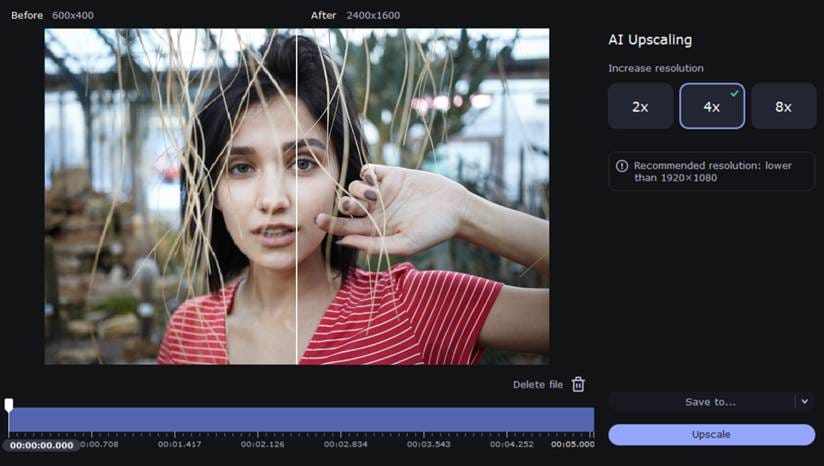
That matters because creators often work with footage that was never meant for a second life. Old phone clips, compressed downloads, archived screen recordings, older camera exports, and reused social media assets all have a habit of showing their age once you bring them into a newer project. AI upscaling will not repair every weak source file, and it will not turn genuinely poor footage into cinema, but it can make some older material far more usable for reposting, archiving, or mixing into a newer edit.
1.2 Speed, Format Support, and Batch Work
Movavi also leans hard on speed, and that is the right call for a converter. It offers high-speed conversion for video, audio, and image files, support for 180+ formats, and batch processing as part of the core feature set. There are also presets for different devices, which matters for users who still move files across phones, laptops, tablets, TVs, and client systems that all seem to want slightly different things.
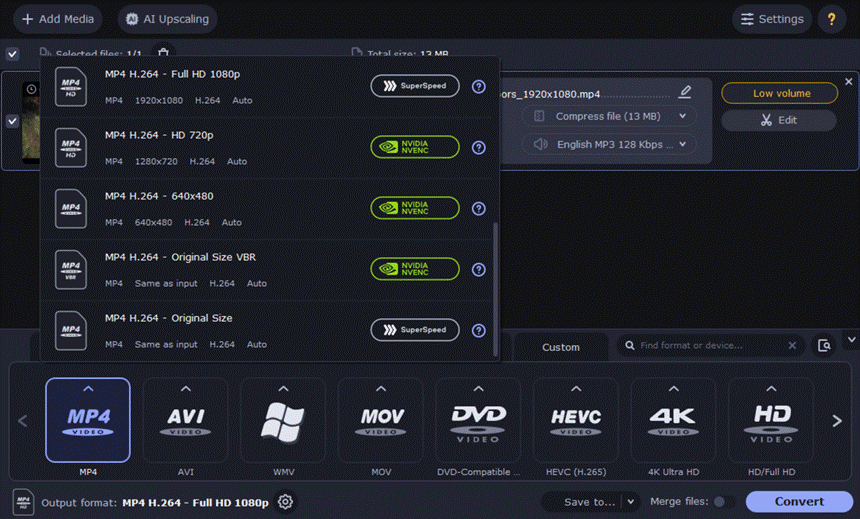
This is where the software starts to look useful in a routine creator workflow. A typical week might include camera files in MOV, screen captures in MP4, audio pulled into MP3, client requests for smaller copies, or exports that need to work on a specific device without complaints. All of this eats time. A converter earns its place by taking care of those repeat jobs quickly, and Movavi Video Converter seems built around exactly that sort of workload.
1.3 Compression and Basic Edits Before Export
Movavi also puts compression near the center of their product. There’s lossless compression as a way to save storage, speed up uploads, and keep playback smooth without sacrificing quality. Alongside that, the app includes a light editing set: trim, crop, rotate, color adjustment, sound adjustment, file merging, and subtitle handling.
That combination makes sense. A lot of users do not actually need a large editing suite when they open a video app. They need to shave weight off a file, remove a rough section, or send a cleaner version to a client without opening a bigger editor. Movavi Video Converter is strongest when it stays in that lane. It does the prep work that often sits between recording and publishing.
1.4 Subtitles, Trimming, and Other Useful Extras
Some of the smaller features help round the package out. In Movavi Video Converter, there is also online subtitle search and precise trimming, while the update history shows that Movavi has spent years improving trimming accuracy, still-frame preview, exact time entry, and easier file selection for batch conversion or compression.
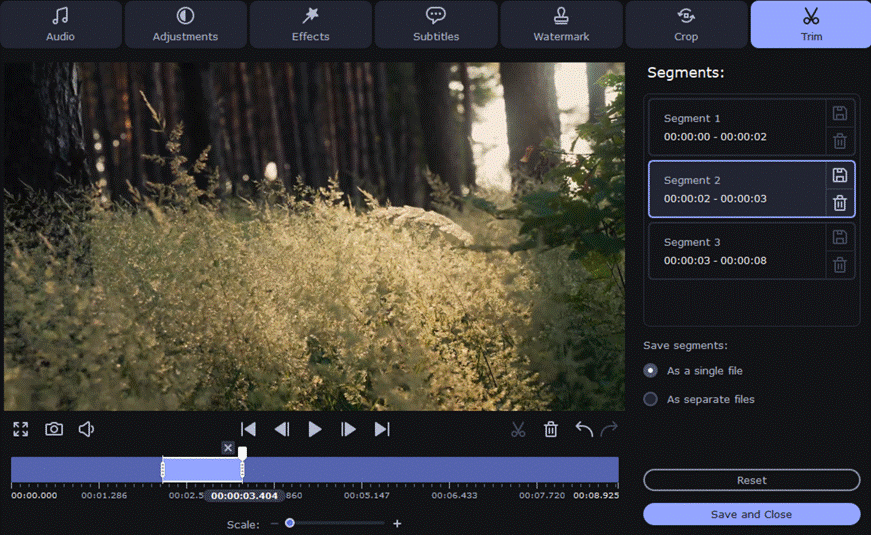
That does not turn the app into a full editor, and it does not need to. These are the kinds of extras that fit naturally in converter software. They help users prepare files without making the interface feel overloaded or turning a quick file fix into a long editing session.
Part 2: Recent Updates and What They Actually Mean
The official changelog gives a fairly honest picture of where Movavi Video Converter is right now. Version 24.4.0, released in December 2025, came with no major new features and focused on workflow improvements. The March 2025 update fixed a DVD conversion issue. The October 2024 release brought minor improvements and bug fixes. The last major update in the recent cycle was in October 2023, which might seem troubling for some users. However…
That tells you something useful about the software. Movavi Video Converter is not in the middle of a dramatic reinvention. It looks more like a mature app that already knows its job and is being maintained around that role. For some users, that may sound less exciting than a feature-heavy relaunch. For a converter, though, it can be a good sign. The core selling points remain the same because they are the reasons people come to this kind of software in the first place: speed, compression, batch work, broad format support, and a few useful file-prep extras.
Part 3: Where Movavi Video Converter Earns Its Place
3.1 Who This Software Makes Sense For
Movavi Video Converter makes the most sense for people who handle a steady flow of media and do not want to open a full editor for every small task. That includes YouTubers preparing footage before editing, marketers shrinking delivery files, freelancers converting client assets into workable formats, educators repacking recorded lessons, and everyday users trying to make older videos usable again. The app also supports video, audio, and image conversion, which helps when a workflow moves between more than one media type.
There is also a place for users working with DVDs and local media, though with an important limit: the software does not convert copy-protected media files and DVDs.
3.2 Where Movavi Video Converter Works Well
Movavi Video Converter is easy to like when the job is practical and specific. It is fast, broad in format support, and built around tasks that come up again and again. The compression tools and batch handling are useful. AI upscaling gives the app more character than many converters have. The light editing features are the right size for trimming, cropping, merging, and cleaning up files before they move elsewhere.
Movavi Video Converter feels easier to place in a real setup because its role is pretty clear. It is a helper app for file prep, conversion, and cleanup, not a replacement for serious post-production software.
3.3 Where It Falls Short
Recent updates have been fairly modest, so anyone hoping for a rush of new creator-facing tools may come away underwhelmed. The editing side is also limited. You can do useful prep work here, but you are still working with a converter first, not a full timeline-based editing environment.
The free trial also comes with restrictions: a 7-day period, watermarked output videos, half-length limits for audio conversion, and half-length limits for SuperSpeed video conversion. Those limits are normal enough for trial software, but they do affect how much you can judge the program before paying.
Movavi Video Converter in 2026: Worth It or Not?
Movavi Video Converter makes the strongest case for itself when you stop expecting a converter to be an editor and start judging it by the jobs it actually needs to handle. Wrong format, oversized file, too many clips to process one by one, or old footage that looks rough on a newer screen. Those are the problems this app is built to deal with, and it covers them well.
AI upscaling helps give the software a stronger identity, even if that feature is no longer new. Speed, compression, and batch conversion remain the real backbone of the experience. Recent updates suggest a product that has settled into a stable role rather than one trying to reinvent itself every few months. For creators, marketers, and everyday users who spend a lot of time preparing files before editing or publishing, that may be enough to make Movavi Video Converter worth keeping around.


