You’ve got a pile of PNGs - receipts, screenshots, memes (no judgment).All you want is to turn them into a clean PDF. But every “free converter” online hits you with: “Your file is ready! Just log in to download.”
Bruh. No. We’re not doing that.
This guide’s for the real ones - casual users, professionals, and anyone tired of subscription walls. We’ll break down the best free PNG to PDF converters that actually work online, no signups, no sneaky compression.
1# iLovePDF2 - The OG Free Converter That Still Slaps
If the internet had a “trusted cousin,” it’d be iLovePDF2.Been around for ages, clean UI, and still solid for quick PNG to PDF jobs.
Why users love it:
Converts multiple images at once. Lets you choose page orientation and margins. The interface feels friendly - not “techie.”
But here’s the catch:
- Upload limit: 20 PNGs max at once.
- Large files may compress automatically (a quiet DPI killer).
- Free version throws in small banners on the download screen - not inside your PDF, thankfully.
Pro tip: For high-res PNGs, always use original size setting, not “fit to page.”That preserves the full sharpness of text and graphics.
2# PDFgear Online - The No-Nonsense Favorite
If converters had a leaderboard, PDFgear would be sitting on top - quietly confident.
Why it wins hearts:
100% free, no account needed. Converts multiple PNGs at once. Preserves original resolution - no DPI massacre. Works directly in the browser (Edge, Chrome, Safari).
What’s slick: You can reorder images right before you merge them. Drag, drop, boom - instant PDF. And everything processes locally, so your files don’t bounce around random servers.
Pain points?
- No fancy editing tools post-conversion.
- No batch naming automation (you still gotta rename files manually if order matters).
Still, for quick PNG → PDF work, this is peak simplicity.
3# SmallPDF - Fast, Pretty, and Free-ish
If tools had personalities, SmallPDF would be the extrovert - colorful, clean, always loading fast.
What works:
Ultra-smooth drag-and-drop. You can reorder and rotate images before merging. Downloads are instant - no signup for single conversions.
But beware: After 2–3 conversions in one hour, you’ll see the “Login or Wait” wall. The free tier is technically limited, though it resets with time or browser cache.
Still, for occasional users, it’s one of the most painless converters out there.
4# Adobe PNG to PDF Online - The Corporate Beast (Now Tamed)
Yeah, Adobe. The name that invented PDFs. And yes - they now offer a free online PNG-to-PDF converter.
The good:
Preserves colors exactly (Adobe handles ICC profiles like a pro). Smooth, ad-free experience. Super crisp quality even for detailed PNGs.
The “meh”:
- You’ll need an Adobe account to download the final file.
- Slightly slower than the others.
It’s like the classy restaurant that serves water for free but still asks for your ID.
If you already have an Adobe account (Gmail login works), this one’s excellent for office-grade results.
5# FreeConvert - For the File Format Nerds
If you want more control - DPI, paper size, color profile - FreeConvert gives you the nerd knobs.
What makes it stand out:
Advanced settings: DPI up to 600, layout control, and metadata editing. Batch upload support. Works well even on slower connections.
The downside:
- Max upload size (free): 1 GB total.
- Interface can look cluttered with ads.
- Too many buttons for casual users - might feel overkill.
But for professionals who want “high-quality PNG to PDF without compression”, this is the sweet spot.
6# SodaPDF - Chill, Reliable, Surprisingly Polished
Don’t sleep on SodaPDF - it’s low-key one of the most stable free PNG to PDF tools out there.
Why it’s great:
Converts fast with strong resolution retention. Lets you merge, reorder, and rotate on-screen. Works directly in the browser.
Limitations:
- 3 conversions/day for free users.
- File upload limit around 50MB.
For lightweight tasks - resumes, receipts, or work docs - SodaPDF is clean, efficient, and drama-free.
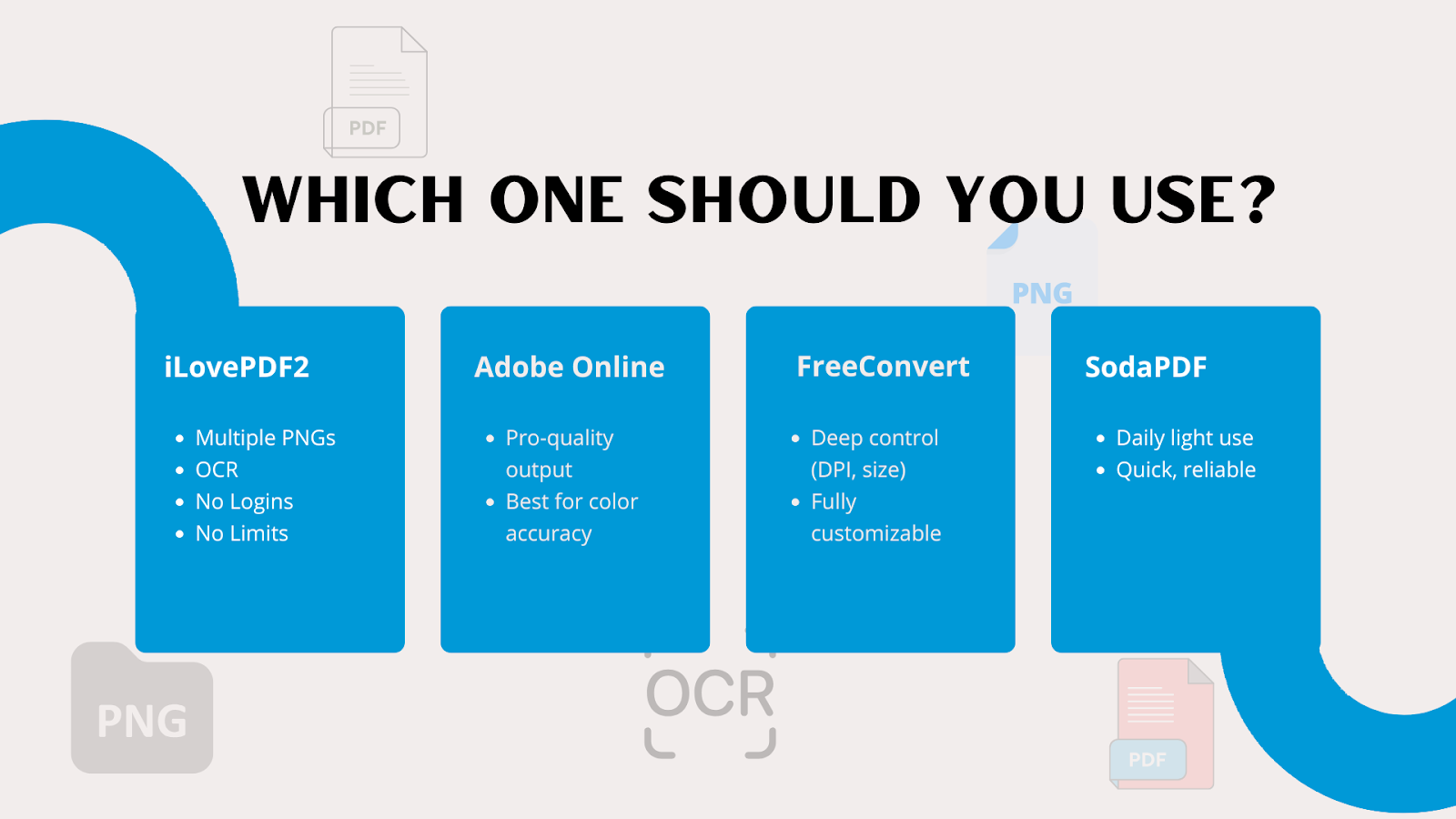
The Quick Verdict: Which One Should You Use?
Here’s the TL;DR if you’re speed-scrolling:
Preserve Transparency (and Why You Can’t Always)
Here’s where a lot of people get tripped up: You’ve got a transparent PNG logo, you convert it, and suddenly - bam, white background.
Bad news: That’s not a glitch. It’s how the PDF format itself works.
PDF doesn’t support full image transparency natively in the same way PNG does - it rasterizes layers. But there’s a workaround:
- Use Adobe Acrobat Online or PDFgear - they flatten transparency gracefully.
- Or use iLovePDF2 Background Remover for transparent images - it tends to fill with white by default.
If you really need transparency preserved like overlays or watermarks, save your image as a PDF directly from Photoshop, GIMP, or Paint.NET - these apps export layered PDFs correctly.
Watch Out for Hidden Limits & Signup Traps
Let’s get one thing straight: “Free” doesn’t always mean “free.” Sometimes it means “free until you breathe twice.”
Here’s the real deal across popular converters:
So if you’re doing bulk work - go for i Love PDF 2.
TLDR for the Skimmers (It’s Okay, We All Do It)
- Use PDFgear - it’s the cleanest, free, high-quality option.
- Avoid compression during conversion.
- Rename files before upload to control page order.
- Expect transparency to flatten (that’s normal).
- For sensitive work, use Microsoft Print to PDF offline.
It’s 2025 - you don’t need to pay or sign up for something as basic as PNG to PDF. You just need to know the free tools - and now, you do.