



Is your Mac acting sluggish online, webpages taking too long to load, or video calls randomly cutting out? Before blaming your Wi-Fi or restarting your router for the third time, you might want to run a ping test.
A ping test is a simple but powerful network diagnostic tool that measures how quickly your Mac can communicate with another device on the internet—like a website or server. It checks two key things: latency (the time it takes for a signal to go out and return) and packet loss (whether any data gets lost along the way). High latency or frequent packet loss usually points to network problems.
In this guide, we’ll walk you through how to do a ping test on your Mac using the built-in Terminal app, what the results mean, and how to tell if your network is the real culprit.
 Ogbonda Chivumnovu
How to Do a Ping Test on a Mac
- Step 1: Open Launchpad from Docks
- Step 2: Open Terminal in Launchpad
- Step 3: Then, type
pingfollowed by a space and either an IP address (like192.183.2.1) or a domain name (techloy.com). Press Enter to see the results - Step 4: When you're ready to stop the stream of ping results, hit Control + C
Video Script & Editing: Kelechi Edeh / Techloy.com | Content Research: Ogbonda Chivumnovu / Techloy.com
How to Interpret Ping Test Results on a Mac
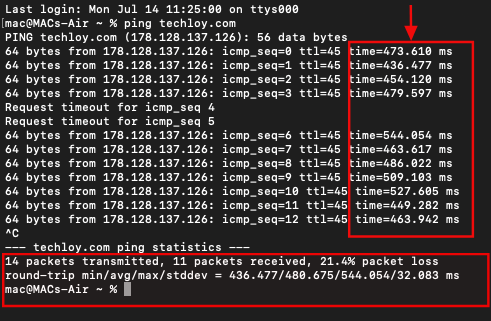
When you run a ping test on your Mac, you’ll get a bunch of numbers, but don’t worry, they’re easier to understand than they look.
You’ll see how long it took for data to travel to a server and back, measured in milliseconds (ms). This is your ping time, the lower, the better. You’ll also see how many packets (small chunks of data) were sent and how many made it back. If some are missing, that means packet loss, which usually signals a problem with your network.
At the end, your Mac will show four key stats:
- Minimum ping time (the fastest response)
- Average ping time
- Maximum ping time (the slowest response)
- Standard deviation (stddev), which shows how consistent the results were.
If the times are low and consistent, and there’s no packet loss, your connection is likely in good shape.
Some Ping Error Messages
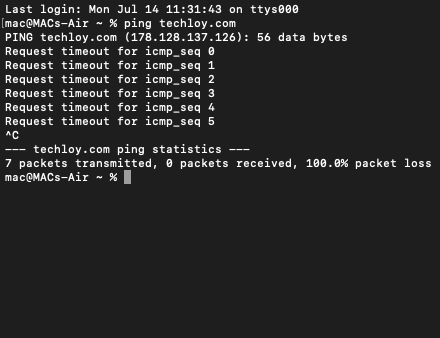
When a ping test fails, your Mac might show one of these common error messages. Here’s what they mean in simpler terms:
- Request timeout: Your Mac waited too long, more than 4 seconds for a response and gave up. This could be caused by heavy network traffic, a firewall blocking the signal, faulty cables, or issues with your router or modem.
- Host is down: The destination you’re trying to reach isn’t responding. It could be offline, mistyped, or your router might be the issue. Double-check the address and make sure your router is working properly.
- TTL expired in transit: TTL (Time To Live) is a limit on how many stops, or “hops,” a data packet can make across networks before it’s discarded. This message means the packet ran out of allowed hops before reaching its destination, usually a sign of a misrouted connection or network loop.
 Ogbonda Chivumnovu
Conclusion
Running a ping test on your Mac is a quick and effective way to check your internet connection, whether you're troubleshooting lag, checking if a website is reachable, or just curious about your network's performance.
By learning how to interpret ping times and error messages, you can spot problems early, like high latency or packet loss and take steps to fix them, from restarting your router to calling your ISP. It’s a handy tool that gives you insight into what’s really going on behind the scenes when things feel slow.


