On Wednesday, Google rolled out Cinematic Video Overview, a new feature in its NotebookLM that will now allow it to produce fully immersive, animated videos. The update replaces the existing Video Overviews format, which produced static slideshows from uploaded documents. Now users can get fully animated videos built directly from their source materials.
According to Google's official announcement, the feature uses three AI models working together: Gemini 3, Nano Banana Pro (an image generation model), and Veo 3 (Google's video generation model).
"Gemini now acts as a creative director, making hundreds of structural and stylistic decisions to best tell the story with your sources. It determines the best narrative, visual style and format, and even refines its own work to ensure consistency," it said in the announcement statement.
The videos are built from whatever sources a user uploads, with citations embedded throughout the output linking each point back to its original source.
How to Generate a Cinematic Video Overview in NotebookLM
Step 1: Confirm your Google AI Ultra subscription
Cinematic Video Overviews are only available to Google AI Ultra subscribers. The plan costs $250 per month. You must be 18 or older to access the feature.
Step 2: Open NotebookLM on web or mobile
Go to notebooklm.google.com on desktop, or open the NotebookLM app on Android or iOS.
Step 3: Open or create a notebook
Create a new notebook or open an existing one. The video will be generated from the source materials stored inside that notebook.
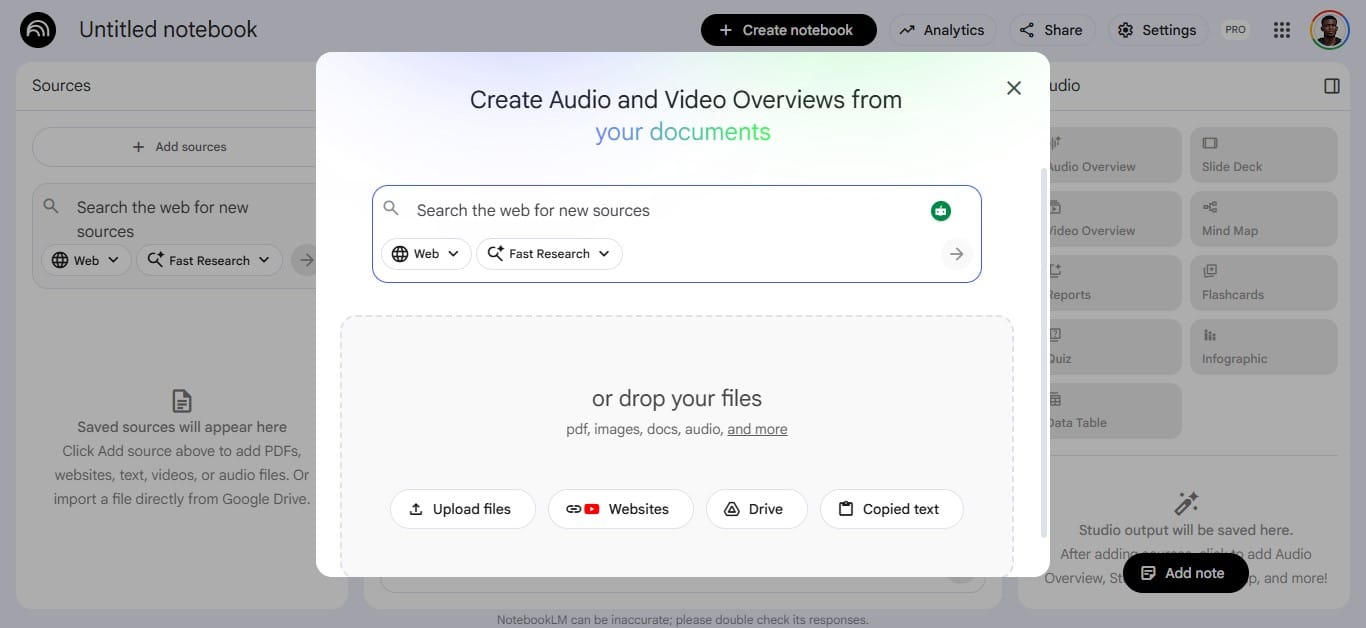
Step 4: Upload your sources
Add the materials you want the video built from. NotebookLM accepts PDFs, Google Docs, web article links, YouTube links, copied text, and audio files.
Step 5: Open the Studio panel
The Studio panel is on the right side of the NotebookLM interface. It contains Audio Overviews, Video Overviews, and the new Cinematic Video Overviews option.
Step 6: Select Cinematic Video Overview
Choose Cinematic Video Overview inside Studio. You can add an optional text prompt before generating to direct the output, such as a specific focus area, an intended audience, or a particular angle within your sources.
Step 7: Generate
Click generate. Gemini 3, Nano Banana Pro, and Veo 3 process the sources, structure a narrative, apply visual treatments, and render the final video. Generation takes longer than a standard overview.
Step 8: Review and refine
The video plays directly inside NotebookLM once ready. Source citations are embedded throughout. If the output does not match what you need, update your prompt and generate again. The daily limit is 20 cinematic videos.
 Louis Eriakha