



Ever tried walking your parents through a phone issue over the phone? You know how it goes: "No, tap the blue icon… the other blue one… wait, what do you see?" Frustration for both sides.
DeskIn Remote desktop software aims to make those conversations obsolete. It lets you see and control your family's phone screen remotely—across both Android and iPhone—with built-in voice chat and annotation tools. Think of it as FaceTime screen sharing, but it actually works across platforms.
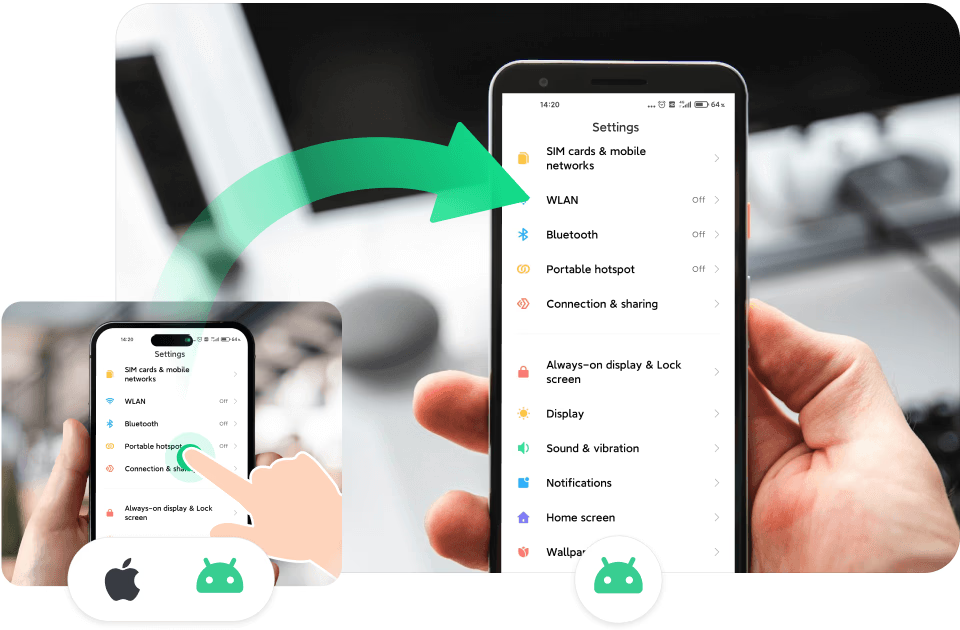
Remote iPhone Control: What You Can (and Can't) Do
First, a quick heads-up: If you're both on Apple devices, iOS 18's FaceTime screen sharing is actually pretty solid. You can request control, draw on their screen, and guide them through stuff. Works on iPhone and iPad.
But here's the catch: FaceTime is Apple-only. If you're on Android, or your parents are, you need a cross-platform solution.
That's where DeskIn comes in.
How to Remote Control Android Phones from iPhone (or Andriod)
The setup is straightforward whether you're on iPhone or Android. Here's the quick version for you to remotely control Android devices:
Step 1: Install DeskIn on both devices and log into the same account. (This is crucial for security—keeps random strangers from connecting to your parents' phone.)
Step 2: On the device you want to control (the Android phone), follow the prompts to grant remote control permissions.
Step 3: From your iPhone, select the Android device from your list, wait for approval or enter the connection password, and you're in.
What you can do once connected:
- Full control of the Android screen (tap, swipe, type—like you're holding the phone)
- Voice call lets you talk your parents through any issue—instantly (free, built-in)
- Annotate on their screen—circle the button they need to tap
- Access their camera remotely if needed
Important limitation: On iPhones, iOS restrictions mean DeskIn can only do screen sharing + voice + annotation, not full touch control. For Android, it's full remote control.
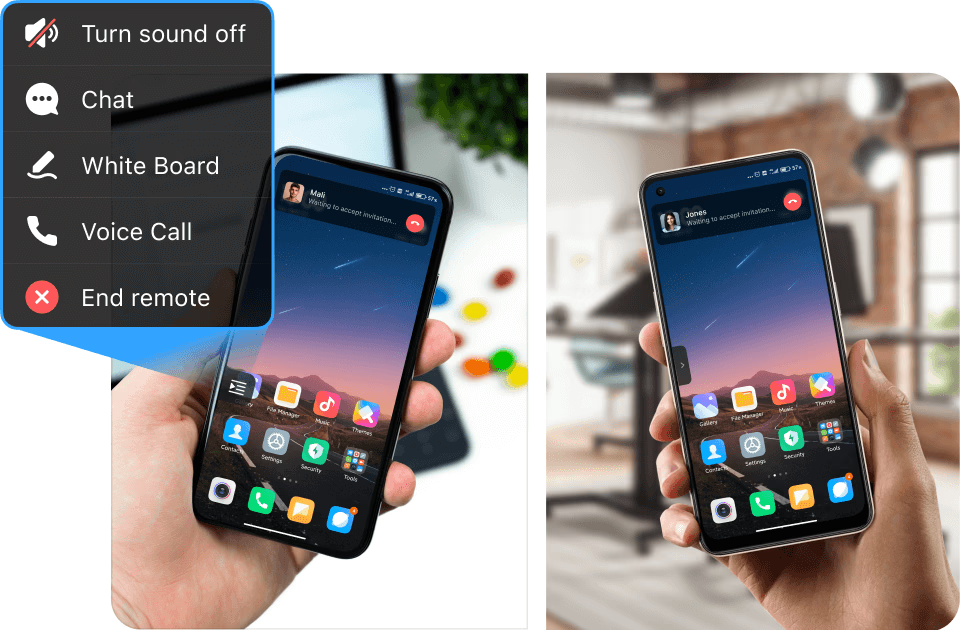
Security: What Happens During Sensitive Moments
Remote access to someone's phone naturally raises security concerns. DeskIn incorporates intelligent safeguards that anticipate and neutralize potential threats:
1) Bank-grade AES-256 encryption and certifications including ISO 27001 and ISO 9001.
2) Multiple protective measures, like whitelist and black list.
3) Requiring the same account and connection approval.
4) DeskIn employs a privacy screen.
5) When the controlled phone enters a password field or a sensitive screen (e.g., involving payments), the screen on the controller's device temporarily turns black to prevent information leakage.
Beyond Tech Support: Other Ways to Use This
Remote phone control isn't just for helping parents:
- File transfer without cables – Send files between Android and iPhone without email or cloud uploads
- Check photo composition – Ask a friend to let you access their camera before they snap that group shot
- Long-distance movie nights – Share your screen and watch together, with built-in voice chat
Bottom Line
DeskIn fills a real gap: cross-platform remote support that actually works. For Android users, it's full remote control. For iPhone users, it's screen sharing with voice and annotation. Either way, it beats "No, the other icon" over the phone.
Free to try – Download DeskIn before your next tech-support call with the family.
Note: reader can check DeskIn pricing page and use discount code [Android] to enjoy 50% off on DeskIn one-month plan and 20% off on annual plan.


