



Tired of tight photo frames or awkward crops? Want that photo to breathe a little more? In this blog, we'll share how to use Picsman AI Image Extender, comparing it to the steps in Photoshop, use Picsman AI Image Extender to outpaint extra background in a few clicks—great for changing aspect ratios without stretching or weird crops.
What Is Picsman AI Image Extender?
Picsman’s AI Image Extender is an online outpainting tool that expands an image beyond its original edges while keeping textures, lighting, and perspective natural. You can extend in any direction — up, down, left, or right — and even choose a custom aspect ratio for Instagram, YouTube, TikTok, etc.
Supported formats: JPG, PNG, BMP, TIFF, HEIC.
Result formats: JPG or PNG.
Why Extend Backgrounds?
If you’ve ever taken a photo you really loved, but later noticed it’s cropped a little too tight, or your head nearly touches the frame, you know that tiny frustration.
Sometimes you just want the image to breathe a bit.
Maybe you’re trying to fit it into a new layout, a square post for Instagram, a vertical story for TikTok, or a wide banner for YouTube, and the edges just don’t cooperate.
Or maybe you just want some calm negative space around your subject so it feels more balanced.
That’s where Picsman AI Image Extender comes in.
Instead of fighting with Photoshop’s layers or healing brushes, you simply choose which direction to expand, and the AI gently paints the extra space for you — sky, wall, ocean, whatever it needs — so the photo looks like it was always meant to be that way.
How to Use Picsman AI Image Extender
Step 1. Upload your image
Click the upload button and choose any image file (JPG, PNG, etc.).
Step 2. Select directions to expand
Adjust the extension size or aspect ratio, there are 7 extension size to choose from.
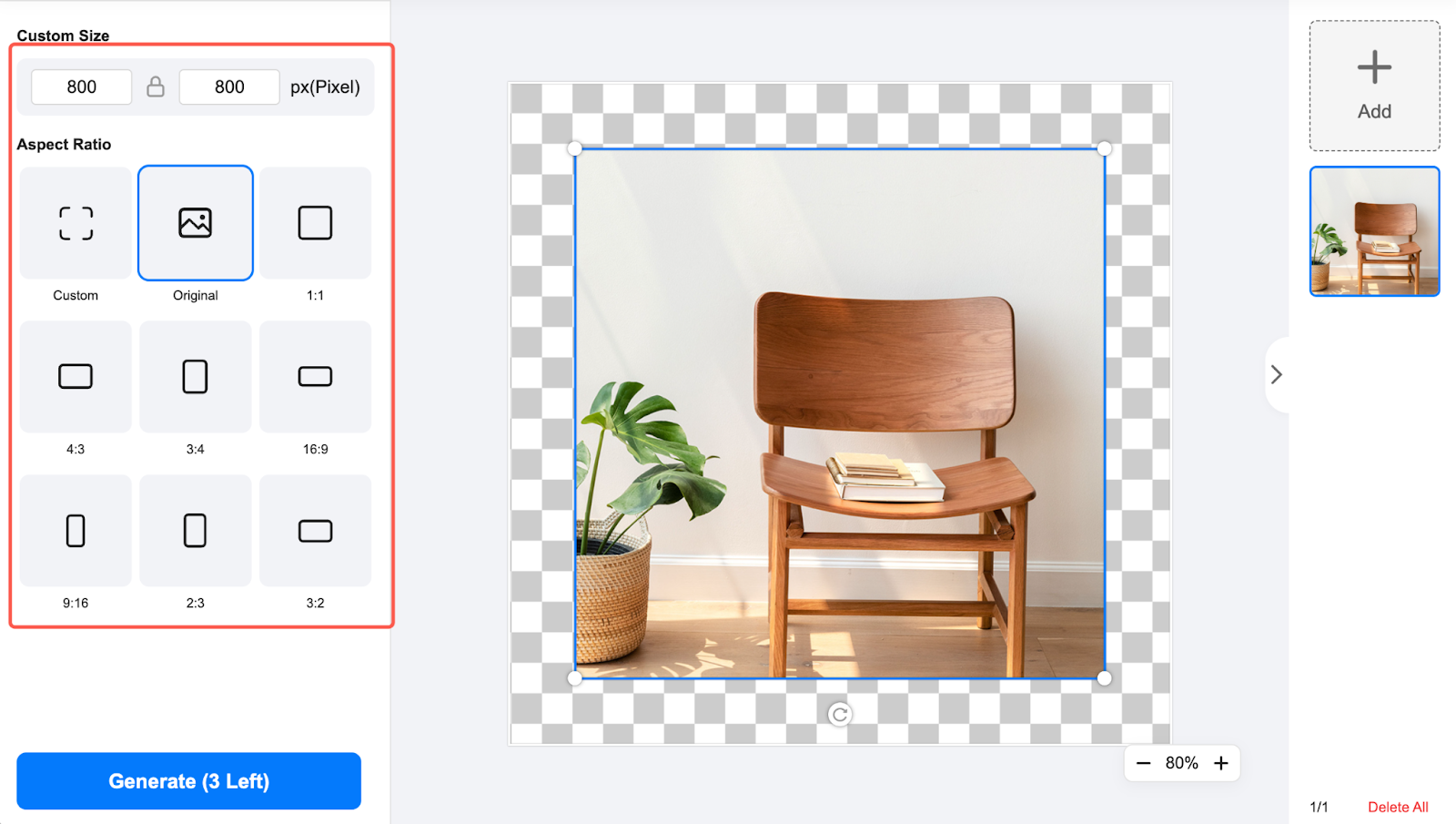
Step 3. Click Expand Image
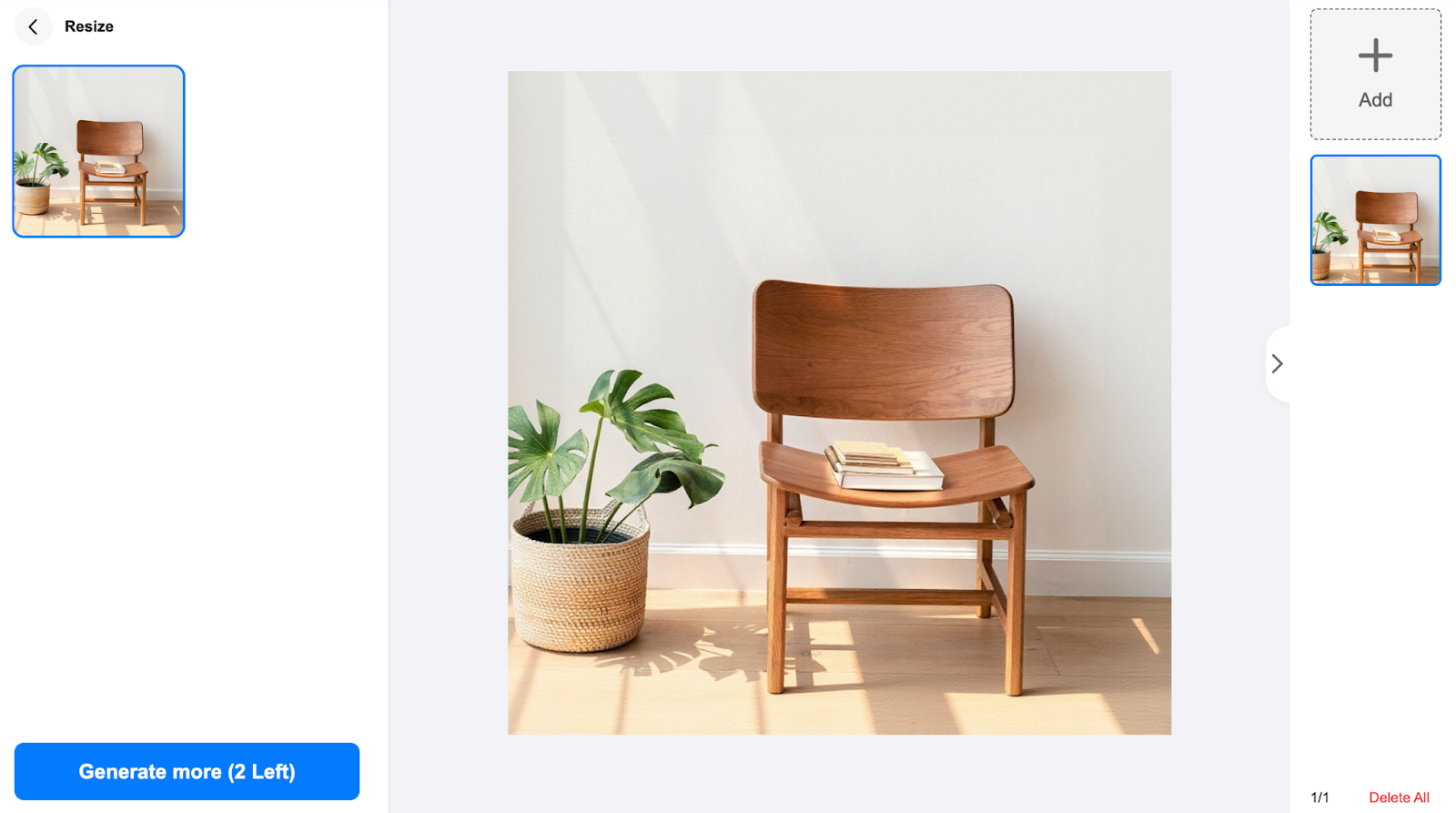
AI automatically fills the extended space with matching textures and lighting.
Step 4. Download your new image
When you’re happy with the preview, click download — choose JPG or PNG.
Why You’ll Love It
- See beyond the lens: Discover what could exist outside the frame — a new sky, longer horizon, or more scenery.
- Fix imperfections: Repair cut-off elements or empty edges.
- Enhance visual impact: Add depth, balance, and story to your images.
- Keep it real: AI blending ensures every pixel feels like part of the same moment.
Picsman’s AI Image Extender opens up infinite possibilities — it’s not just editing, it’s reimagining.
Perfect for Any Platform
Want to share your photo everywhere? Use the same image for Instagram, TikTok, and YouTube — each with its own perfect ratio:
- Instagram (1:1)
- TikTok (9:16)
- YouTube (16:9)
No cropping or cutting — just expand and adapt.
Picsman’s expansion tools rely on Advanced AI Outpainting technology — a process where AI predicts and paints the “missing” parts of an image based on visual cues.
That means every extended section — the clouds, textures, colors — feels like a true continuation of the original. The AI reads context, lighting, and composition to create consistent, high-quality results.
Final Thoughts
If you’ve ever wished your photo could show just a bit more — more space, more balance, more story — Picsman AI Photo Editor makes that possible.
Get a peek outside of what your lens captured.
Expand naturally, fix imperfections, and explore the infinite possibilities of your images — all with one magical click.


