



Many Windows users eventually face the frustrating problem of a full C drive. Even with a large hard disk, system files, apps, and temporary data can quickly eat up available space.
A full system drive can slow down your PC and even block important system updates. Fortunately, if there's unallocated space on your disk, you can use it to expand your C drive. This full guide will show you how to move empty partition to C drive on windows 10 or 11. Let's get going!
What is Unallocated Space on Windows?
Before you can extend C drive with unallocated space, let's take a minute to understand what unallocated space is. Imagine your hard disk as a bookshelf. Each partition is a shelf where you can put books (your files). Unallocated space is simply the empty part of the shelf that hasn't been used yet. You need to assign it to a partition before you can use it.
Why You Can't Add Unallocated Space to C Drive?
When you try to extend C drive with unallocated space, it doesn't always work as expected. The most common reason is the location of the unallocated space. Windows can only extend a partition into unallocated space that is immediately next to it on the right side. If the unallocated space is separated from the C drive by another partition, the "Extend Volume" option will be greyed out and unclickable. Now, let's take a closer look at how to move empty partition to C drive on Windows 10/11!
4 Easy Ways to Add Unallocated Space to C Drive
Method 1: Use a Dedicated Disk Management Tool
You might be wondering how to move unallocated space next to C drive. Many Windows users have asked similar questions on tech forums, and the most common advice is to delete the partitions in between. However, this approach can put your data at risk.
That's where 4DDiG Partition Manager comes in. This powerful utility overcomes Windows' built-in restrictions, enabling you to extend the C drive without removing existing partitions.
Here's a step-by-step guide on how to add unallocated space to C drive with aid of this tool:
- Step 1: Begin with installing and opening the 4DDiG Partition Manager tool. In the left navigation bar, click Partition Management.
- Step 2: Then, locate the partition that is between C drive and the unallocated space. Right-click the partition and choose Resize or Move.
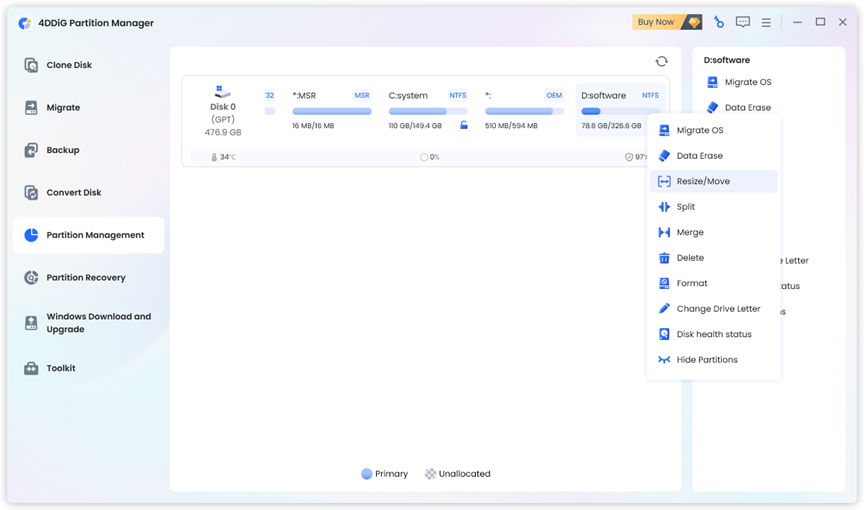
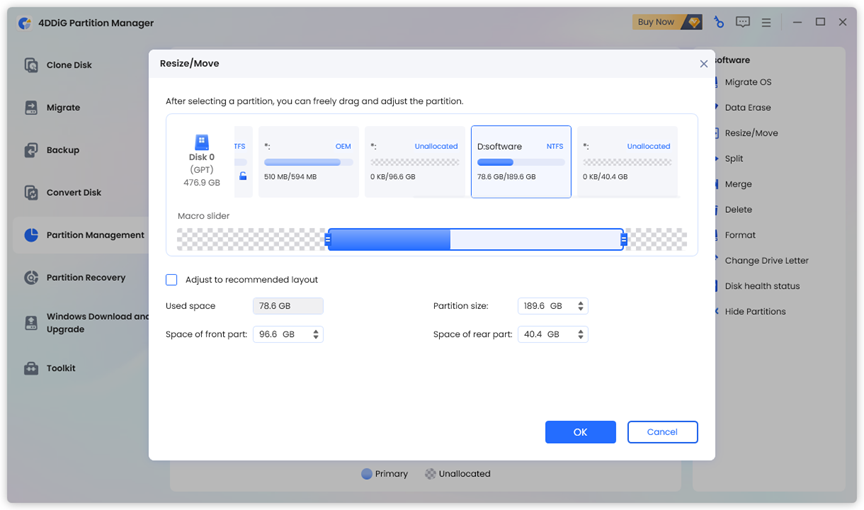
Step 3: Drag the right border of the partition rightwards or the left border leftwards to create unallocated space next to C drive. After that, hit OK to proceed.
- Step 4: Check the task list in the lower right corner for pending operations. Click Execute 1 Task(s), and then tap OK.
- Step 5: Once completed, the unallocated space should be moved next to the C drive. You can now extend the system drive using Disk Management or DiskPart.
Method 2: Add Unallocated Space to C Drive by Disk Management
How to move empty partition to C drive on windows 10 or 11? If the unallocated space is right next to your C drive, you can easily extend the C drive in just a few clicks using Disk Management. This method is quick, safe, and anyone can do it without any technical know-how. To do so:
- Step 1: Right-click the Windows icon followed by selecting Disk Management.
- Step 2: Then, right-click the C drive and pick Extend Volume.
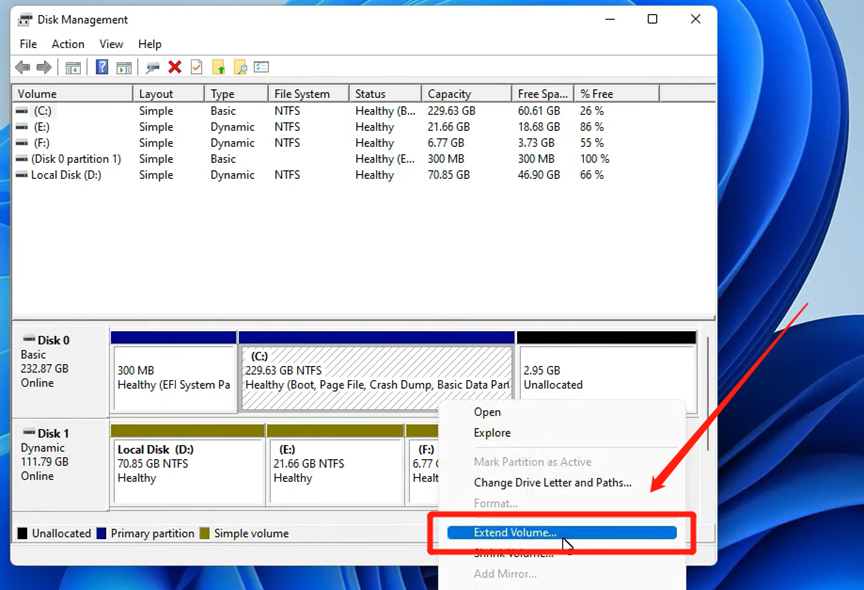
- Step 3: Follow the on-screen wizard to add the unallocated space, and once finished, your system drive will have more free space.
Method 3: Add Unallocated Space to C Drive via Diskpart
Advanced users often prefer using command-line tools over Disk Management for managing partitions. If that sounds like you, follow the given steps below:
- Step 1: Press Windows + R, write diskpart, and click OK.
- Step 2: Once inside DiskPart, type the following commands one by one and press Enter after each:
- list volume
- select volume 0 (Replace 0 with the actual number of your system drive.)
- extend
- Step 3: Once the process is complete, type and run exit to close DiskPart.
Method 4: Delete the Recovery Partition
Sometimes your disk has only a C drive, some unallocated space, and a Recovery Partition in between. If you are unsure how to delete the Recovery Partition to extend your C drive, simply follow these steps:
- Step 1: Run the DiskPart utility as described in Method 3.
- Step 2: Type the following commands in DiskPart, hitting Enter after every line:
- list disk
- select disk 0 (Replace 0 with the number of your disk if different.)
- list partition
- select partition 4 (The number 4 is just an example; use the number shown for the Recovery Partition in your list partition output.)
- delete partition override
- exit
- Step 3: Open Disk Management, right-click the C drive, and choose Extend Volume.
FAQ about How to Move Empty Partition to C Drive Windows 10/11
Q1: Can We Increase C Drive Space from D Drive?
Yes, you can increase the C drive space by shrinking the D drive to create unallocated space. But here's the thing: sometimes the unallocated space you get this way isn't located right next to C drive. To merge it using Disk Management, you'll need to move that space beside C drive first.
Q2: How to Put Unallocated Space Next to C Drive?
As already noted, one method is to delete the partition that lies between the C drive and the unallocated space. However, a safer approach is to utilize a reliable third-party disk management tool.
Bottom Line
Now, you should no longer be puzzled by the question "How to add unallocated space to C drive?" When there's unallocated space available adjacent to your C drive, Windows' built-in tools can handle the expansion quickly. If you're wondering how to move unallocated space next to C drive, give 4DDiG Partition Manager a try.


