



The iPhone lock screen is usually the first thing you see and interact with, but most people leave it on the default settings: camera on the right and flashlight on the left.
While that setup works fine, it might not be the most useful layout for your everyday needs. Personally, I got tired of accidentally opening the camera when all I really wanted was quick access to my Notes app. Thankfully, with iOS 18, Apple let us change lock screen shortcuts.
Now, I’ve replaced the flashlight and camera with features I actually use, like launching a journaling app or quickly opening ChatGPT. It makes the lock screen feel more personal and more efficient.
 Ogbonda Chivumnovu
Steps to Change Lock Screen Shortcuts
Step 1: Long-press the lock screen of your iPhone, then tap "Customise" at the bottom

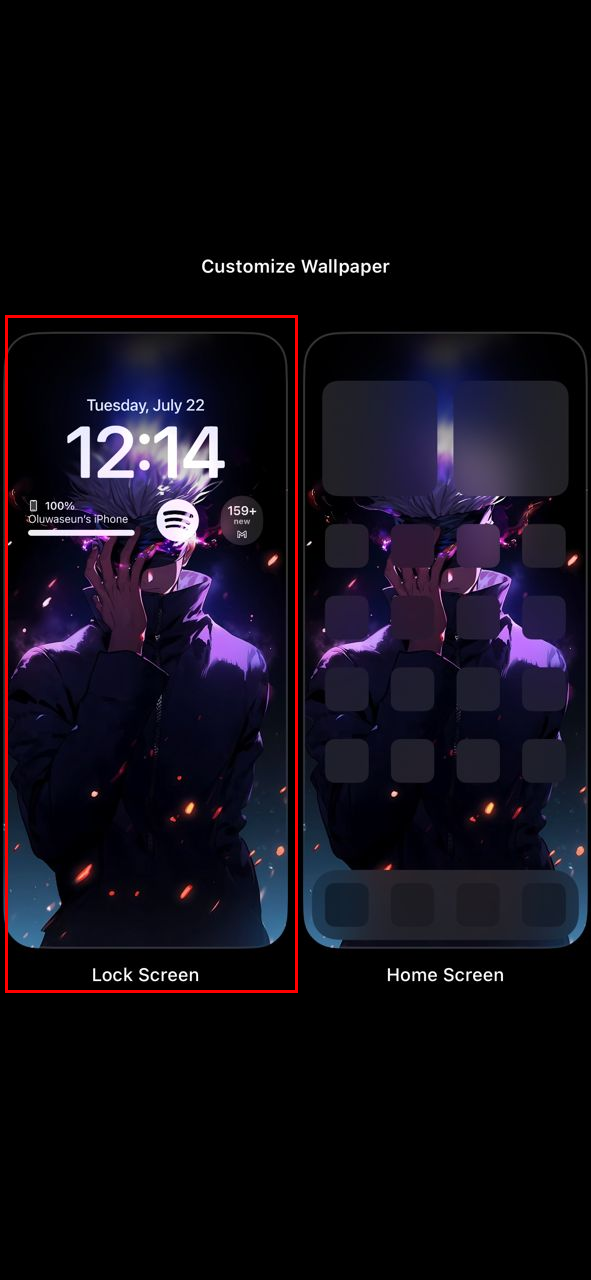
Step 2: Following that, select the Lock Screen
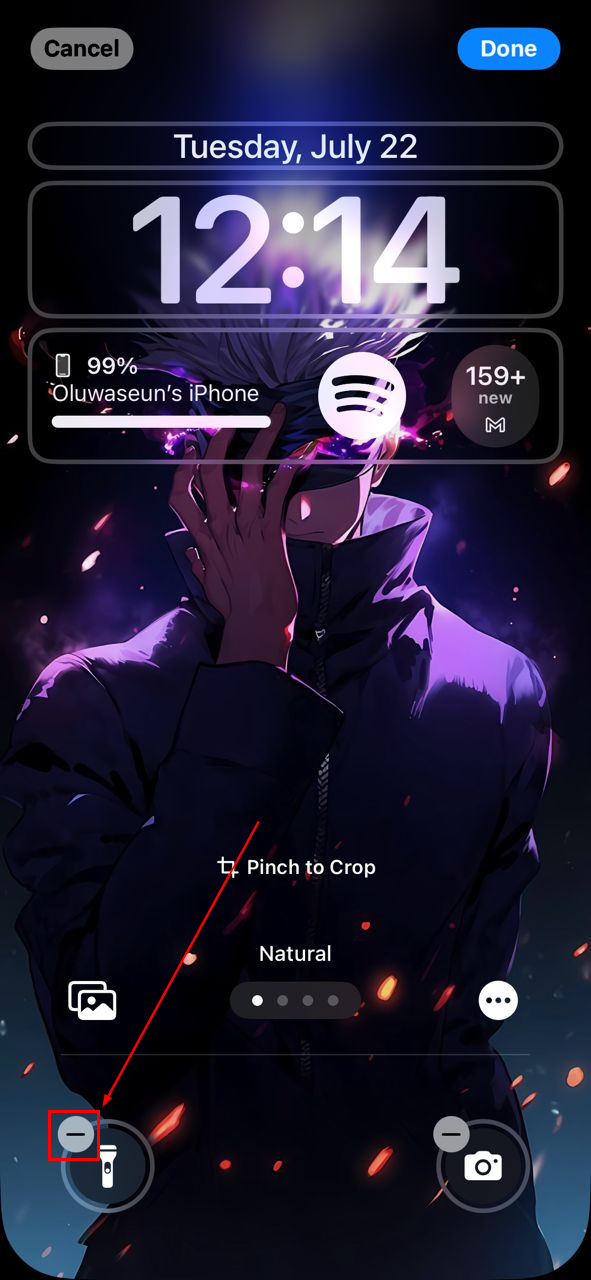
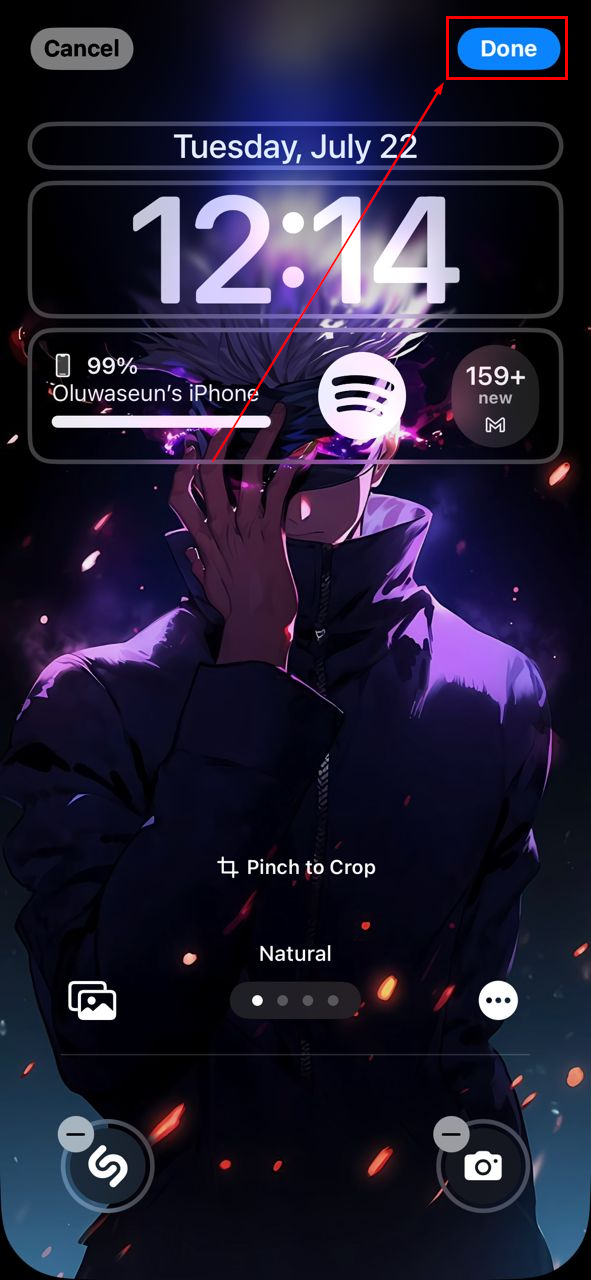
Step 3: You’ll see the default flashlight and camera icons marked with a “‑”. Tap the minus icon on the shortcut you wish to remove
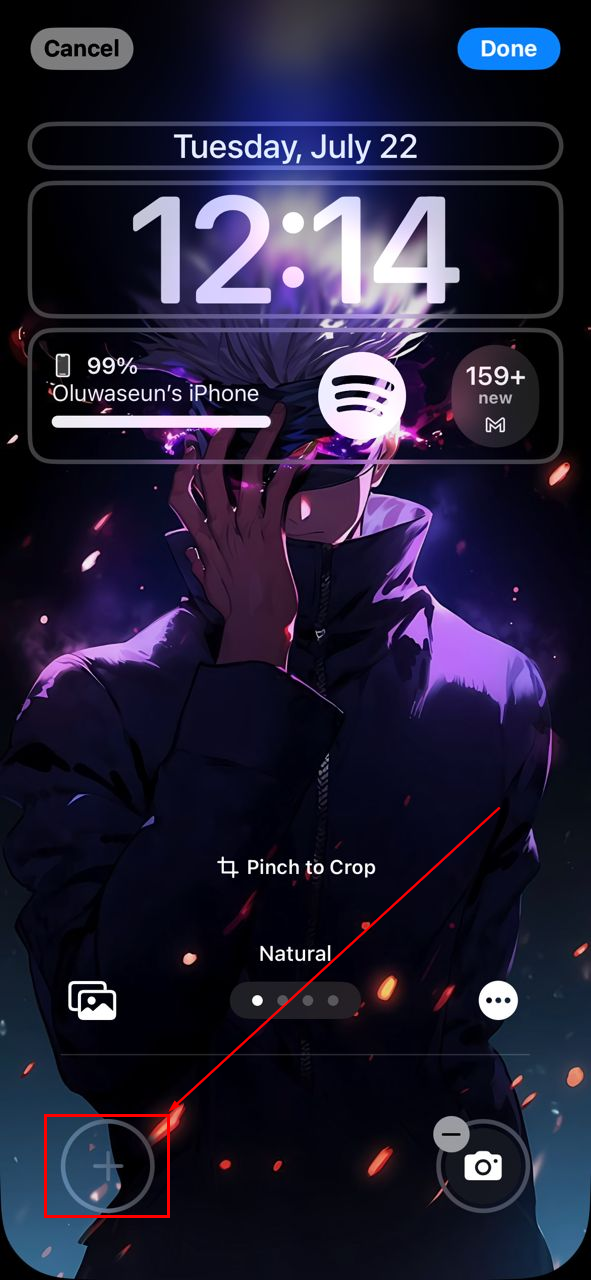
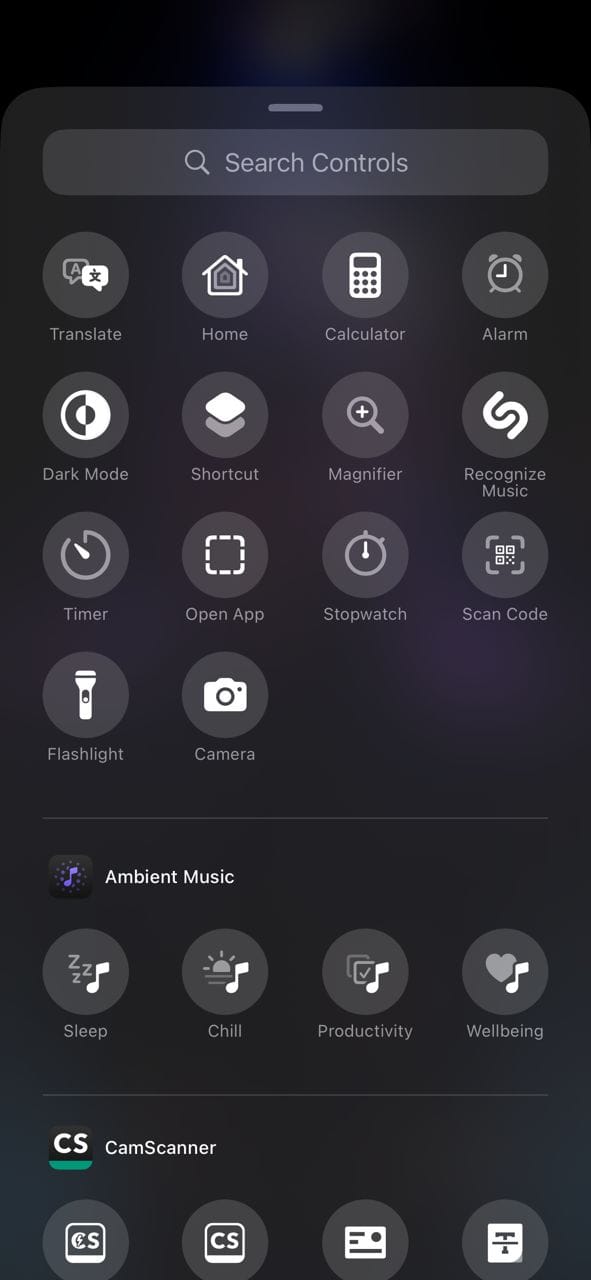
Step 4: Now, tap the plus sign (+) where a shortcut was removed
Step 5: Here, you can select any shortcut you would like to add to your lock screen
Step 6: After doing that, click the blue "Done" button on the top right corner
 Oluwaseun Bamisile
Conclusion
Changing your lock screen shortcuts is a quick way to make your iPhone more efficient and better suited to your daily habits. Instead of settling for default tools like the flashlight or camera, you can set up instant access to apps and actions that actually help you throughout the day.
Whether it is launching a shortcut, opening Translate, starting a note, or triggering a Focus mode, these small adjustments add up. They save you time, reduce distractions, and give your lock screen a sense of purpose beyond just unlocking your phone.
Image credit: Oluwaseun Bamisile/Techloy.com


