



Safari on iPhone defaults to saving downloads in your iCloud Drive under the Downloads folder. That’s fine if you want files synced across devices, but when you’re low on iCloud storage or prefer working locally, it can be frustrating.
I once tried to download a PDF to annotate later and realized it had vanished from the Files app because it was hiding in iCloud. That pushed me to discover Safari's download location settings so I could save directly to On My iPhone or a specific folder instead.
Whether you want quick offline access or to free up cloud space, changing this location gives you full control. Here's how to go about it.
 Oluwaseun Bamisile
Steps to Change Safari’s Download Location on an iPhone
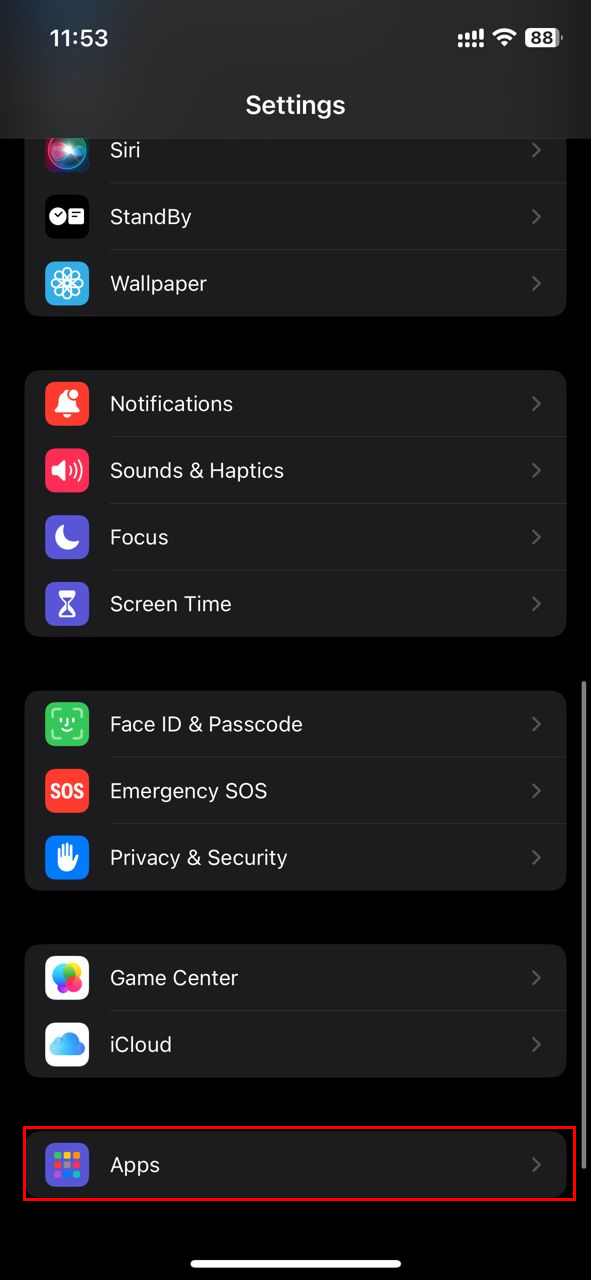
Step 1: Open the Settings app, scroll down, then select "Apps"
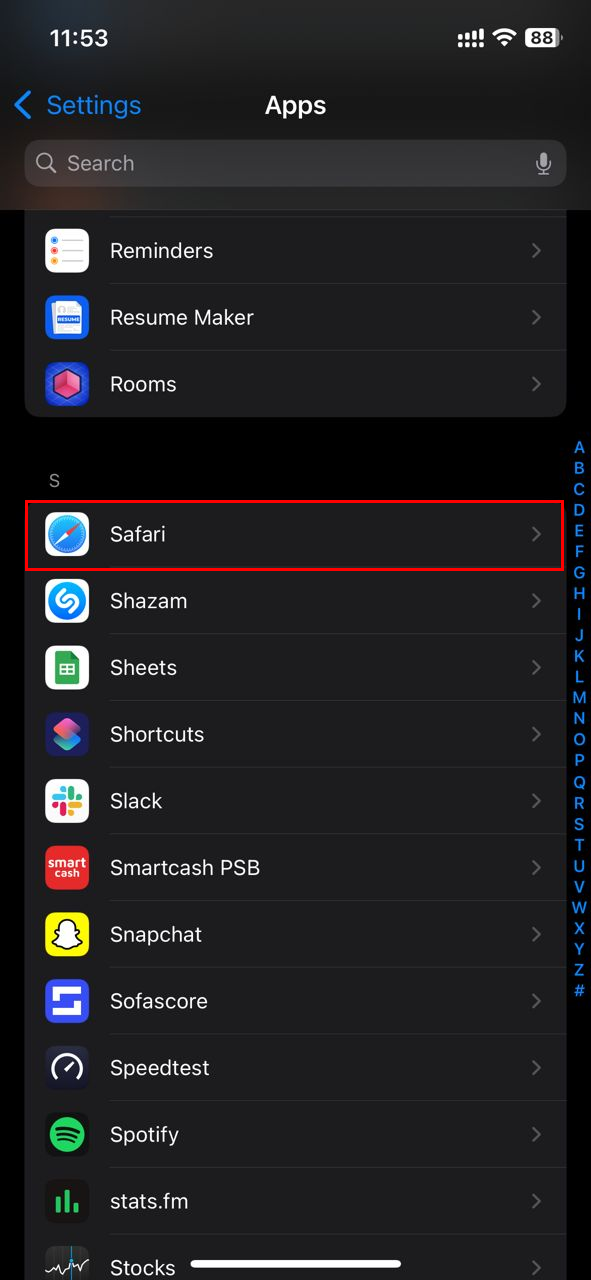
Step 2: Scroll and select Safari from the list of apps
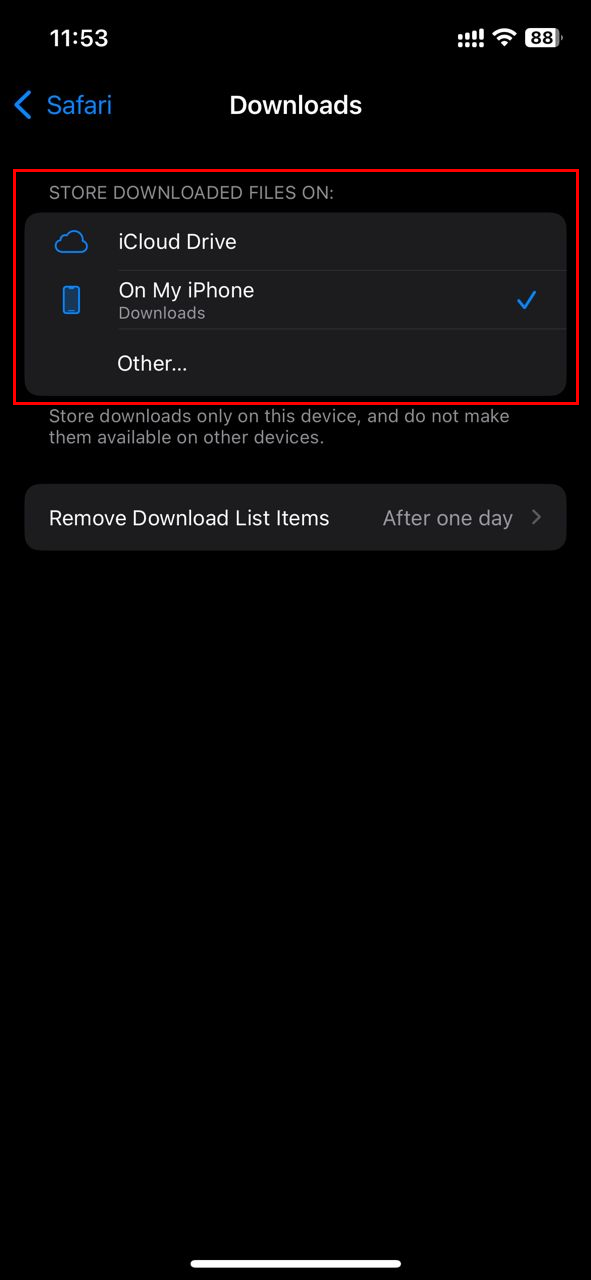
Step 3: Click "Downloads" under the General section
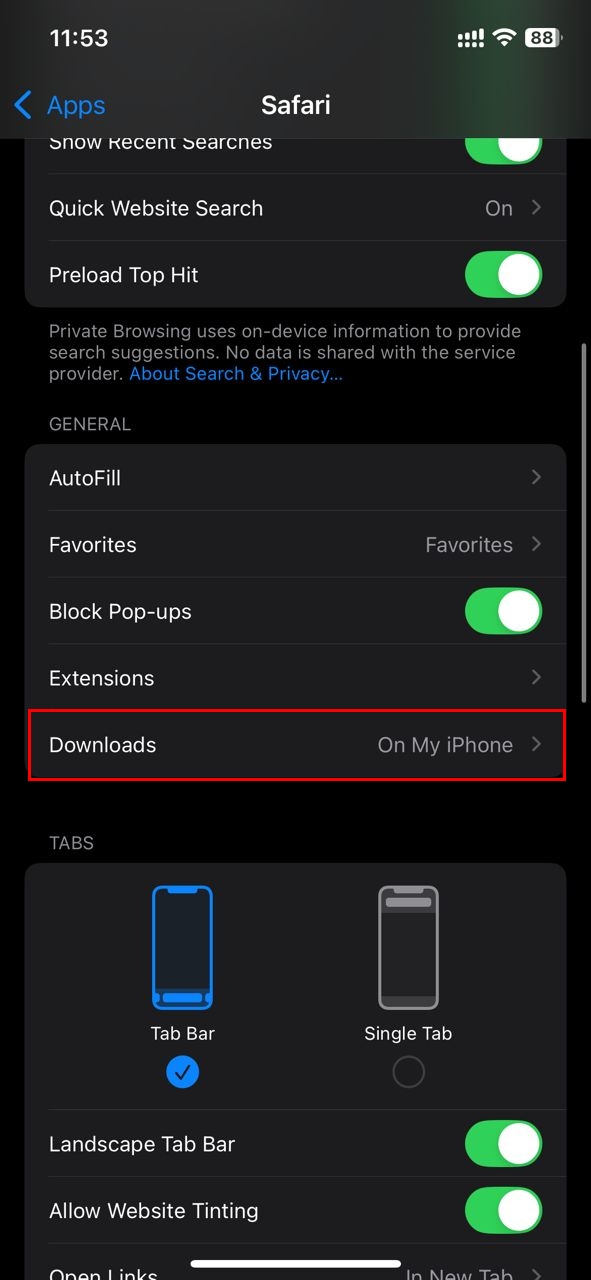
Step 4: Now you can choose a location where you want downloads on Safari to be stored
- iCloud Drive for syncing across Apple devices
- On My iPhone to keep downloads local on your phone
- Or tap Other to select a specific folder
 Gabriel Ojeh
Conclusion
Changing Safari’s download location might seem like a small tweak, but it can make a big difference in how you manage your files. Whether you’re looking to save space on iCloud, keep important documents stored locally, or send downloads directly to a specific cloud service, having control over where your files land gives you more flexibility and less clutter.
Once you set it up, you won’t have to dig around wondering where a file went. Everything will be exactly where you expect it. If you often download PDFs, images, or work documents on the go, adjusting this setting helps keep your digital workflow clean and efficient.
Image credit: Oluwaseun Bamisile/Techloy.com


