



LinkedIn is a platform that enables professionals to network, showcase their skills, and connect with potential employers. However, one feature many users overlook is the LinkedIn URL.
By default, the URL includes a string of random numbers and letters, which can appear unprofessional and be difficult to remember. Nevertheless, customizing your LinkedIn URL to what you can recall is a subtle and efficient way to enhance your brand and make your profile more accessible.
Whether you're looking to make a strong impression in a job search, share your profile on a business card, or stand out in your industry, taking a few moments to customize your LinkedIn URL can make a lasting impact.
In this article, you will learn how to change your LinkedIn URL, making it shareable and professional for your online presence.
7 Steps to Change Your LinkedIn URL
Step 1: Log in to LinkedIn
Start by logging into your LinkedIn account on your web browser rather than the mobile app for easier access to all settings.
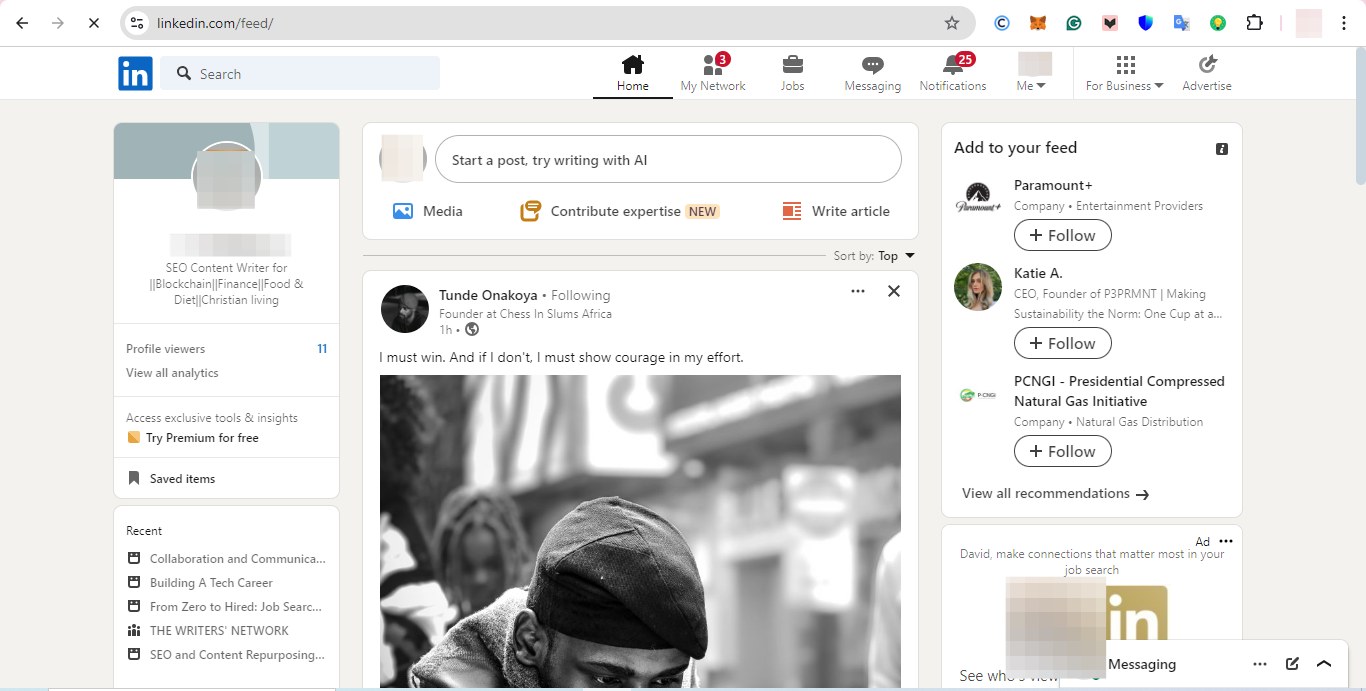
Step 2: Navigate to Your Profile
Once logged in, click on your profile picture or name at the top of the LinkedIn homepage to go to your profile page.
Subscribe for free to continue reading this article
Subscribe SubscribeAlready have an account? Log in


