



Sometimes the tricky part isn’t that your PC looks different, it’s that it looks exactly the same. Your computer may not snitch out loud, but it definitely keeps receipts. At first glance, everything seems untouched, just the way you left it. But you know, living with people means sooner or later you wonder: did someone hop on my computer while I wasn’t around? Well, the thing about Windows is they leave behind quite a few traces of activity, files that log the time of the last login, lists of recently opened apps, even timestamps of when the system was last awake. You just need to know where to look. In this guide, I’ll show you how to check those hidden trails so you can confirm if your PC was used while you were away, even when everything seems normal on the surface.
 David Adubiina
5 Steps To Check If Someone Used Your PC Recently
Step 1: Open your Windows PC and press Win + R to open the Run dialog box.
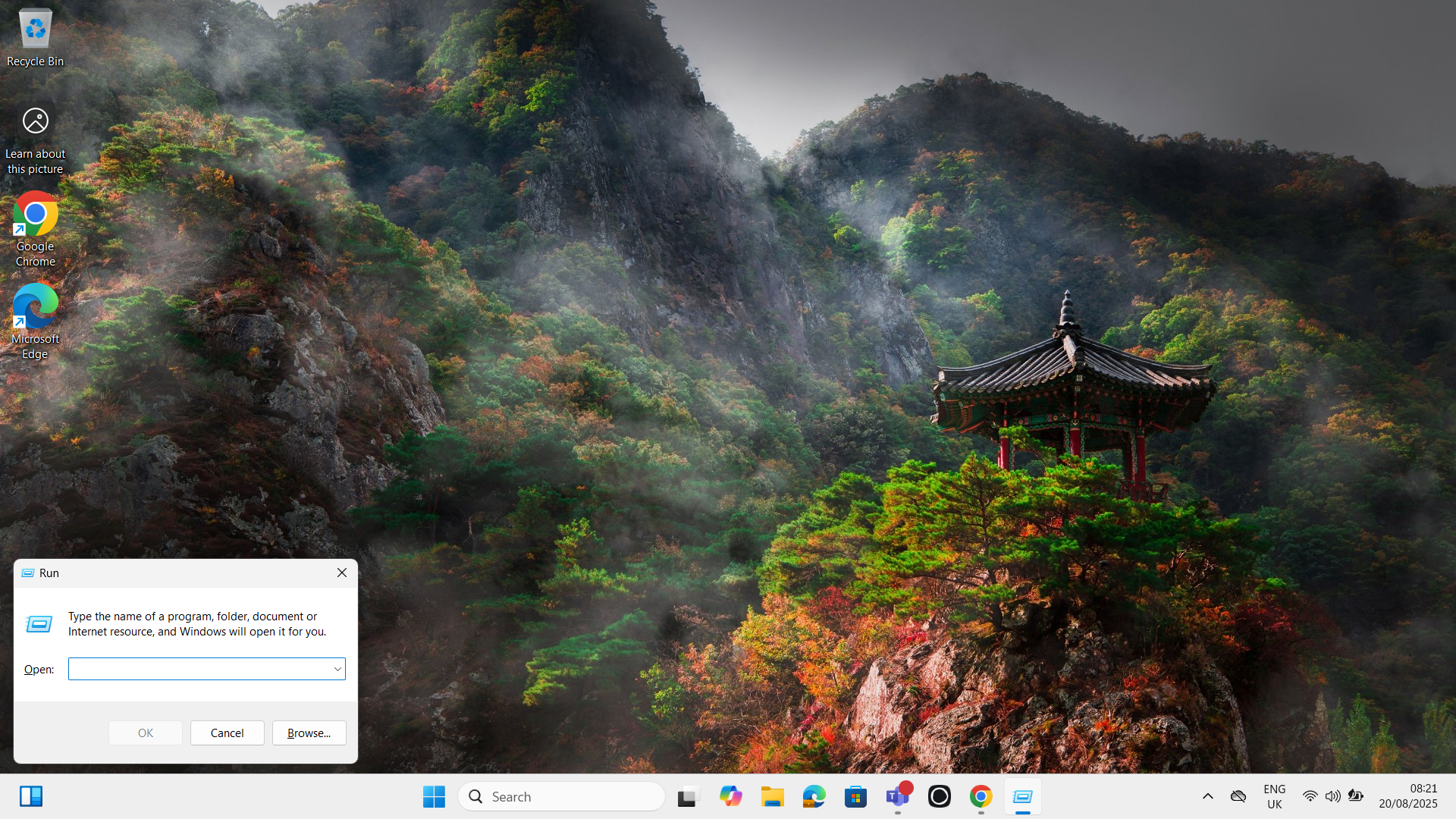
Step 2: In the Run dialog box, type "recent" and hit OK.
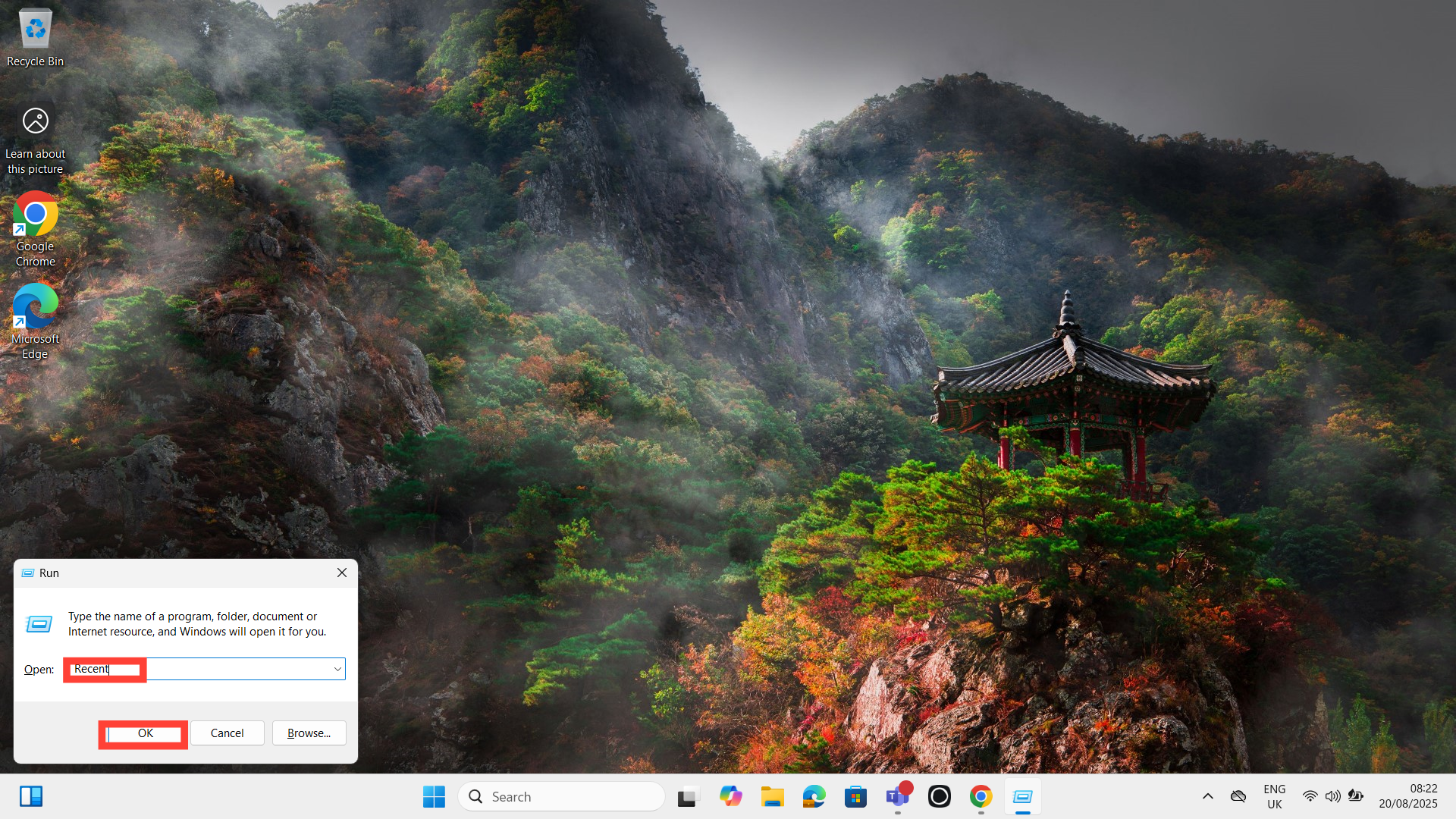
Step 3: This opens the Recent Items folder. Here you’ll see a list of files and documents that were opened recently. If you spot something you didn’t touch, that’s a clue someone else was on your computer.
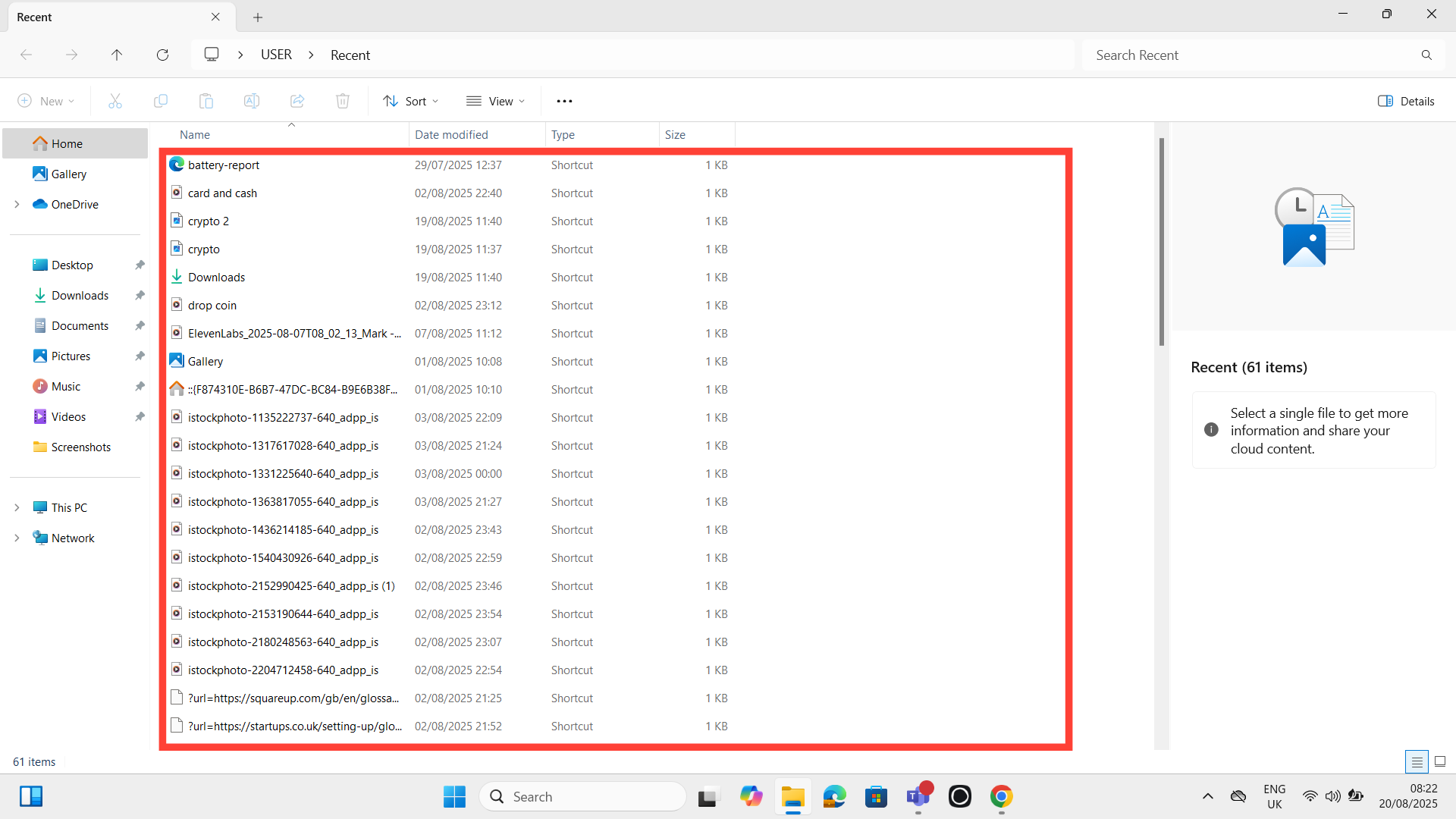
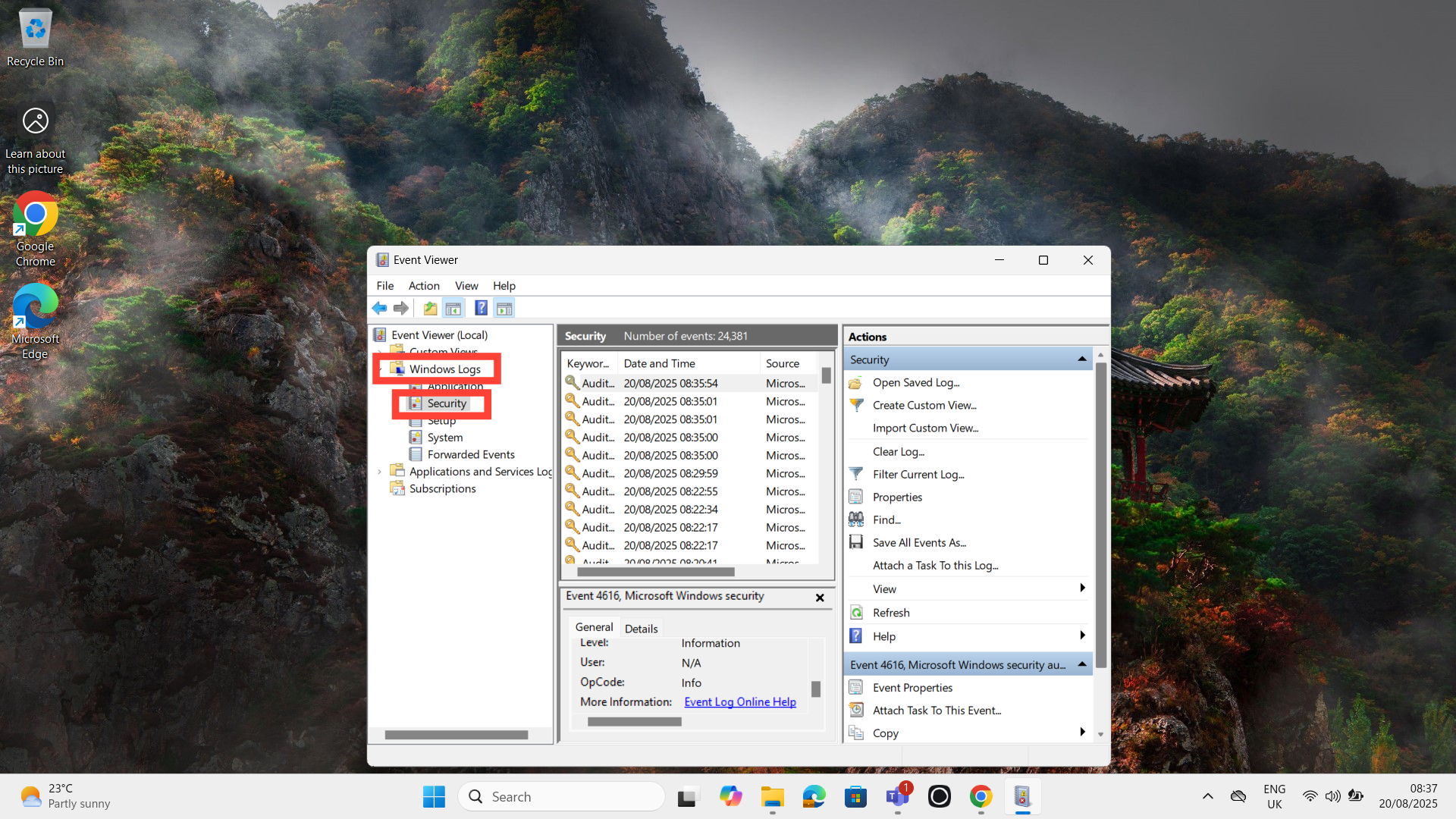
Step 4: For a deeper check, open the Run dialog again, type eventvwr.msc, and press OK.
Step 5: In the Event Viewer, expand Windows Logs > Security. You’ll see detailed login and logout activity, including timestamps of when your PC was accessed.
 David Adubiina
Conclusion
Most of the time, your computer won’t openly show that someone else has been on it if they know how to cover their tracks. But with a quick look at recent files, login records, and system activity, you can spot the signs pretty easily. I'm not sure about you, but this will enable you to know when someone is snooping around your PC.
Image Credit: David Adubiina/Techloy.com


