



I've found myself in a lot of situations where I got the Wi-Fi password for my laptop, but didn't connect my phone to the network, and when I need to connect my phone, suddenly, no one’s around to share the password again. This can be very frustrating, especially when you have a lot of things to do with your phone. Luckily, Ubuntu has a brilliant solution: password-free Wi-Fi sharing via QR code.
This method is not only super convenient but also secure, since the QR code contains an encrypted version of your Wi-Fi credentials. All you have to do is scan the Wi-Fi QR code on your phone, and you'll be connected to the network.
In this guide, learn the simple procedure to generate a Wi-Fi QR code on your Ubuntu laptop and scan it with your phone for instant, password-free access.
 Oluwaseun Bamisile
How to connect to Wi-Fi from your PC without a password
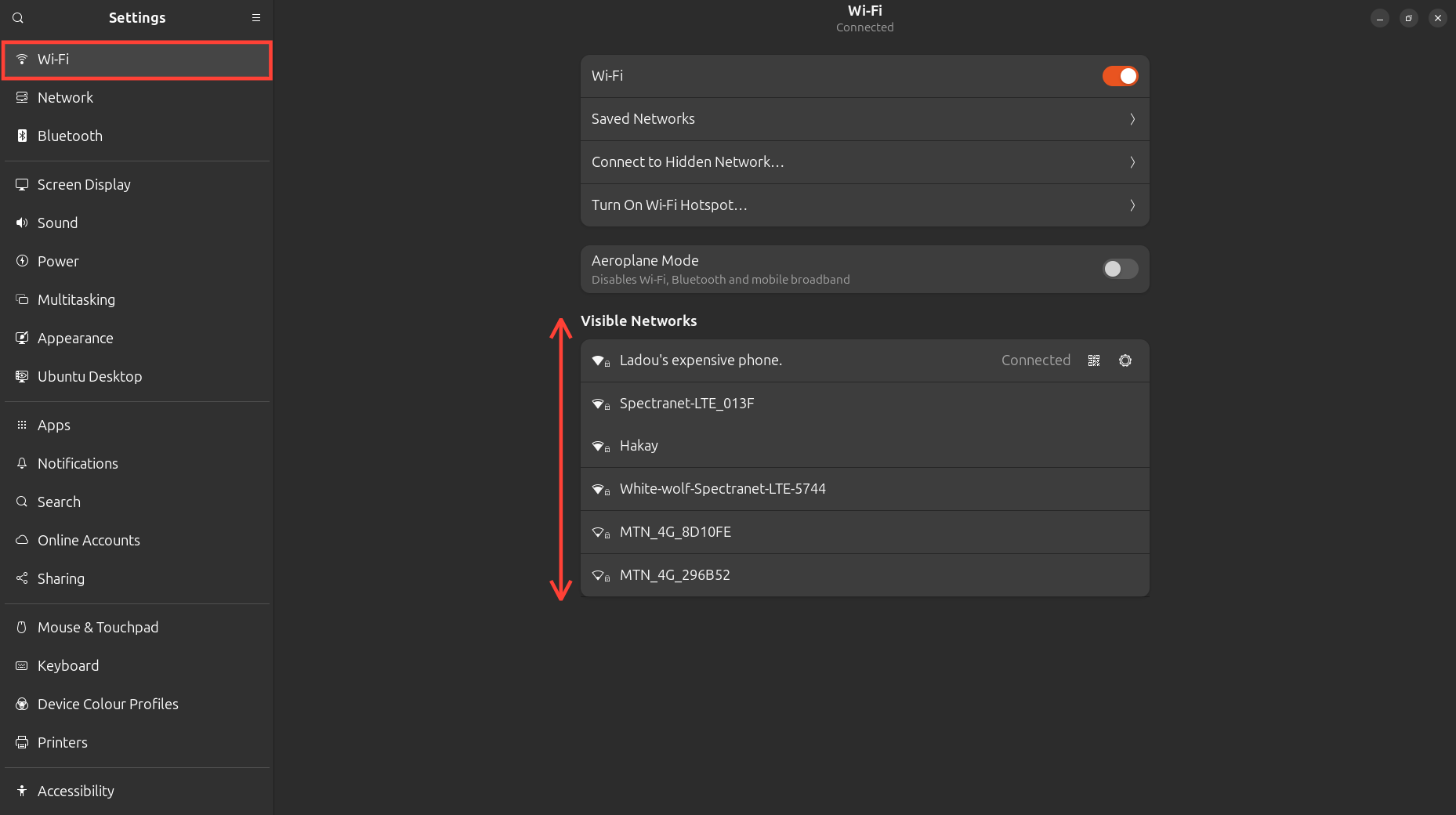
Step 1: Go to settings on your laptop, click on WiFi on the left.
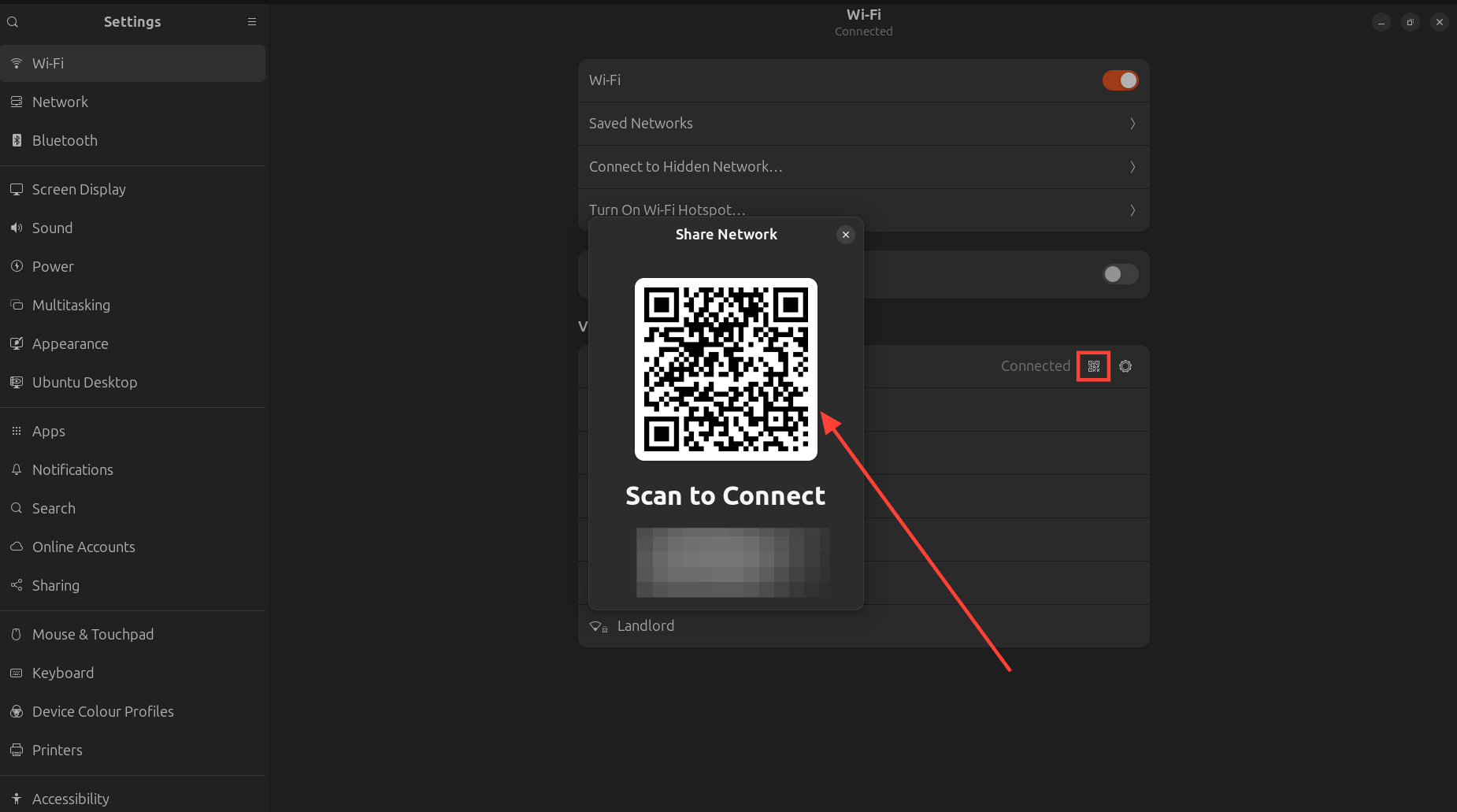
Step 2: Next to your currently connected Network, tap the QR Code icon.
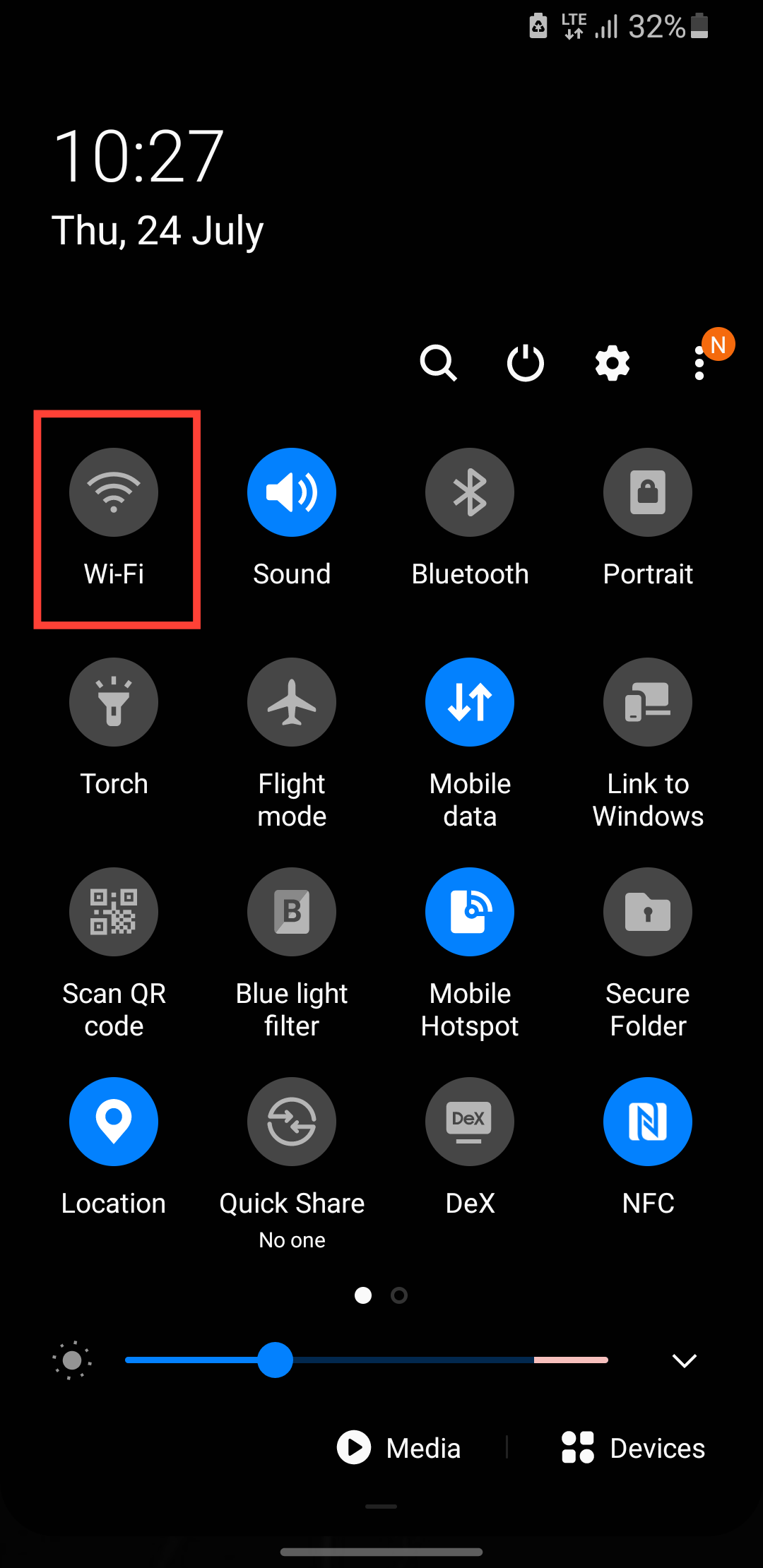
Step 3: On your phone, long-press the Wi-Fi icon in the drawer to take you to the Wi-Fi settings.
Step 4: Turn on your Wi-Fi and click on the QR code at the top.
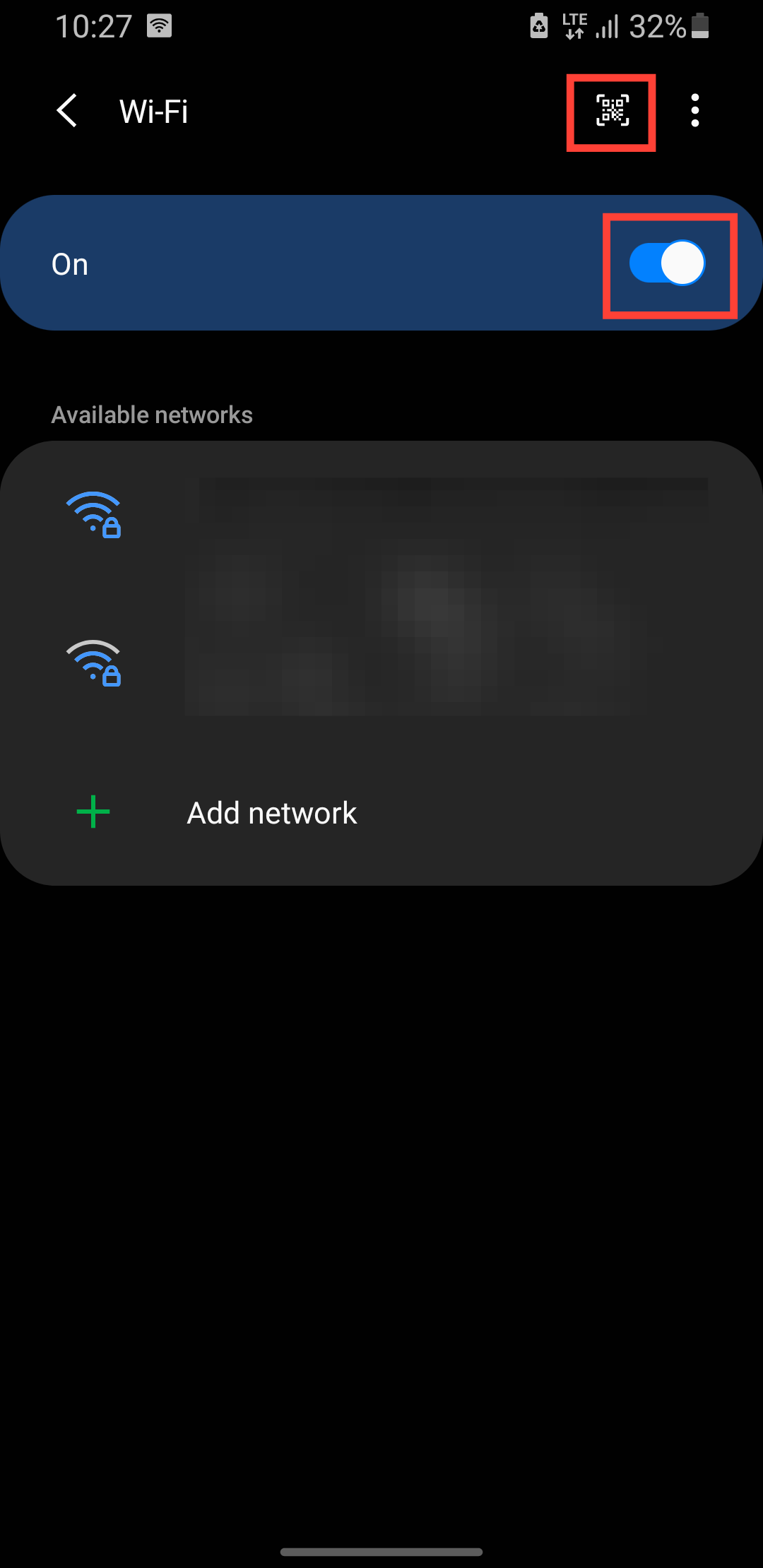
Step 5: This will bring up your camera. Scan the QR code on your laptop. This will automatically connect to the network without requesting a password.
 Oyinebiladou Omemu
Conclusion
And that’s it, you’ve officially outsmarted the Wi-Fi password struggle. With Ubuntu’s built-in QR code feature, connecting devices to your Wi-Fi is as easy as point, scan, and go.
Whether you’re helping a guest get online or setting up a new gadget, this method saves time and keeps your network secure without the hassle of manual entry. So next time you’re stuck without the password, remember you can just scan your way out of it.
Image Credit: Oyinebiladou Omemu/Techloy.com


