



If you are using an iPhone 12 or later, including the iPhone SE 3rd generation, your phone is already equipped to connect to 5G. This newer network technology offers faster downloads, smoother video streaming, and quicker app updates compared to traditional 4G or LTE. But just because your device supports it does not mean it is automatically turned on.
Several individuals I've encountered believed their phone was malfunctioning or out-of-date because it remained on LTE even after an upgrade. The truth is, enabling 5G takes just a few taps in your settings, and once it is on, you can take full advantage of your carrier’s 5G speeds.
 Oluwaseun Bamisile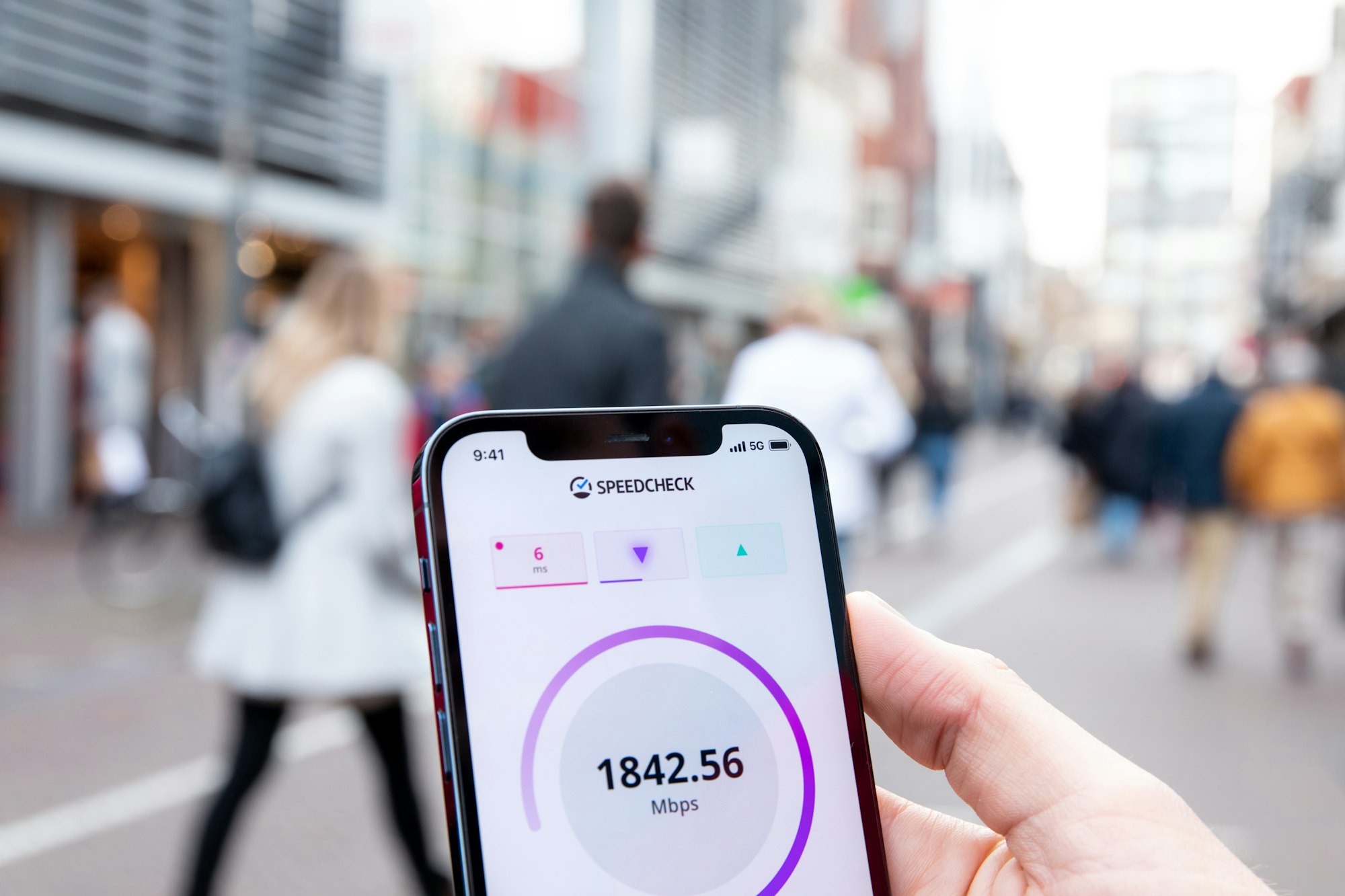
Steps to Switch to 5G on an iPhone
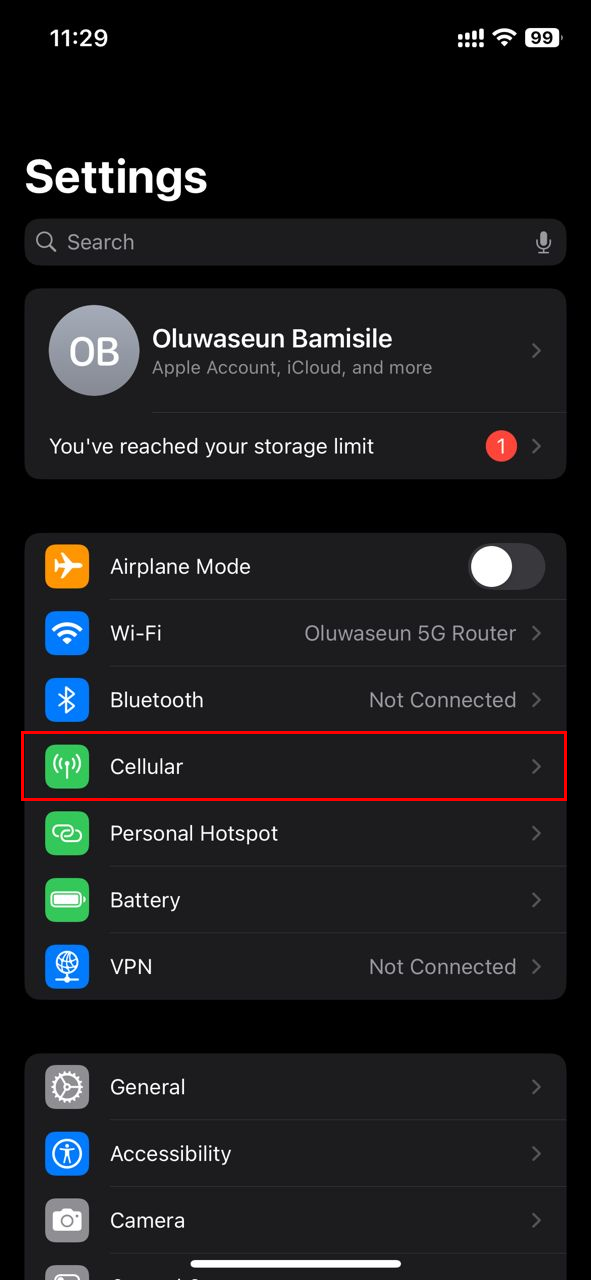
Step 1: Open the Settings app and select "Cellular."
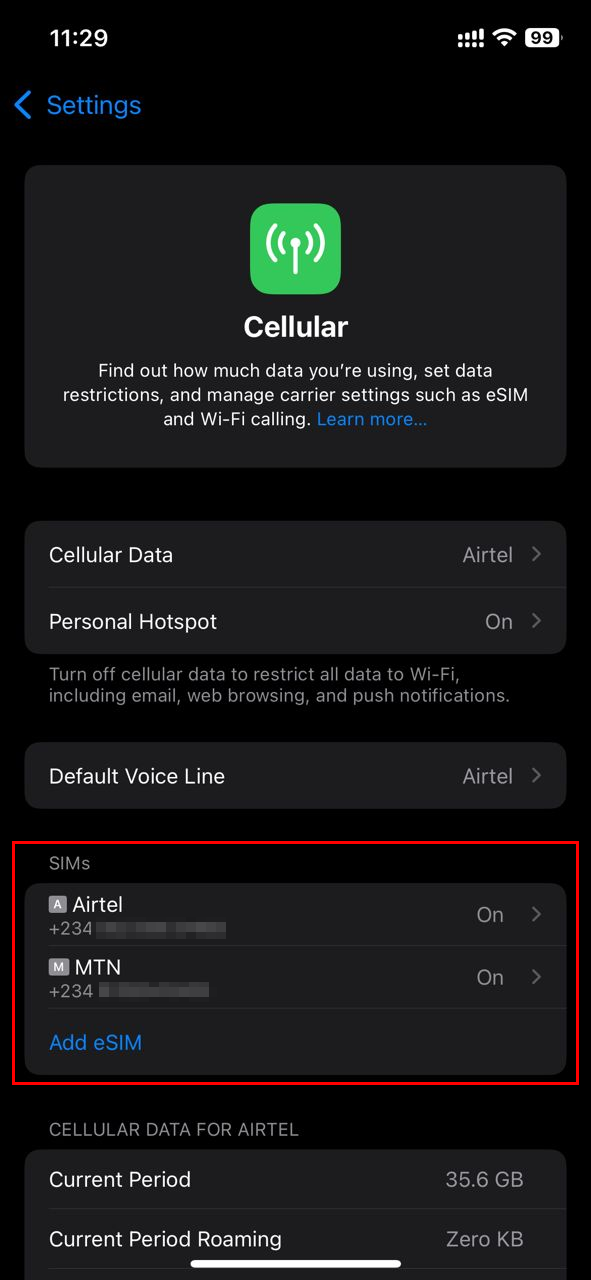
Step 2: Under SIMs, select the carrier you would like to enable 5G on
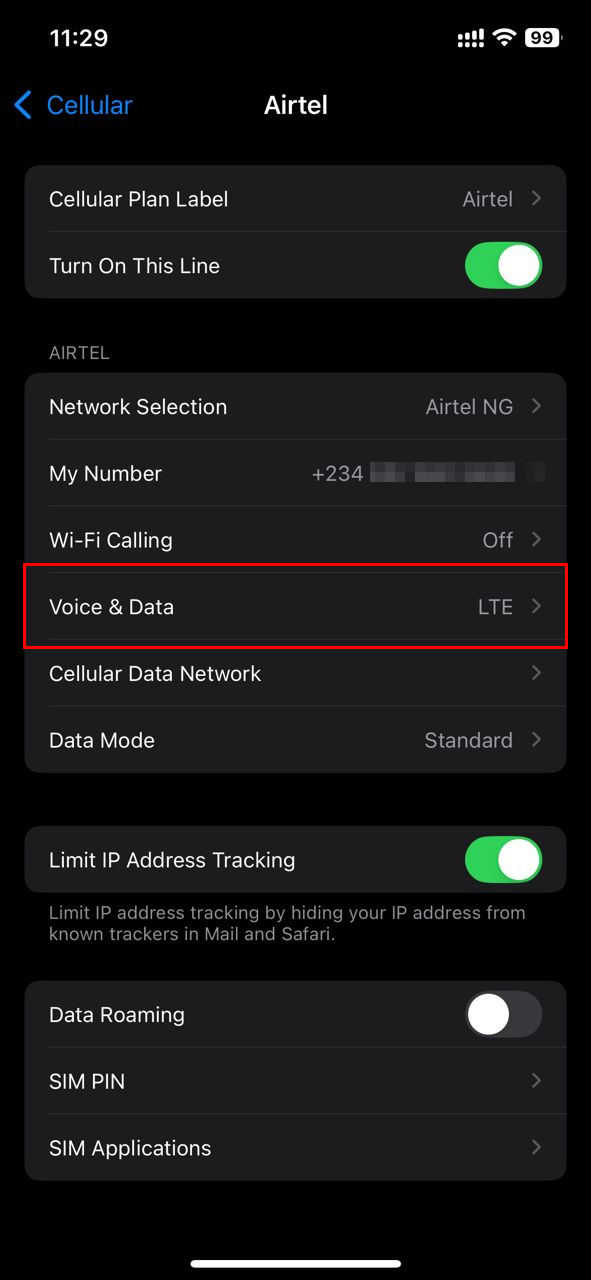
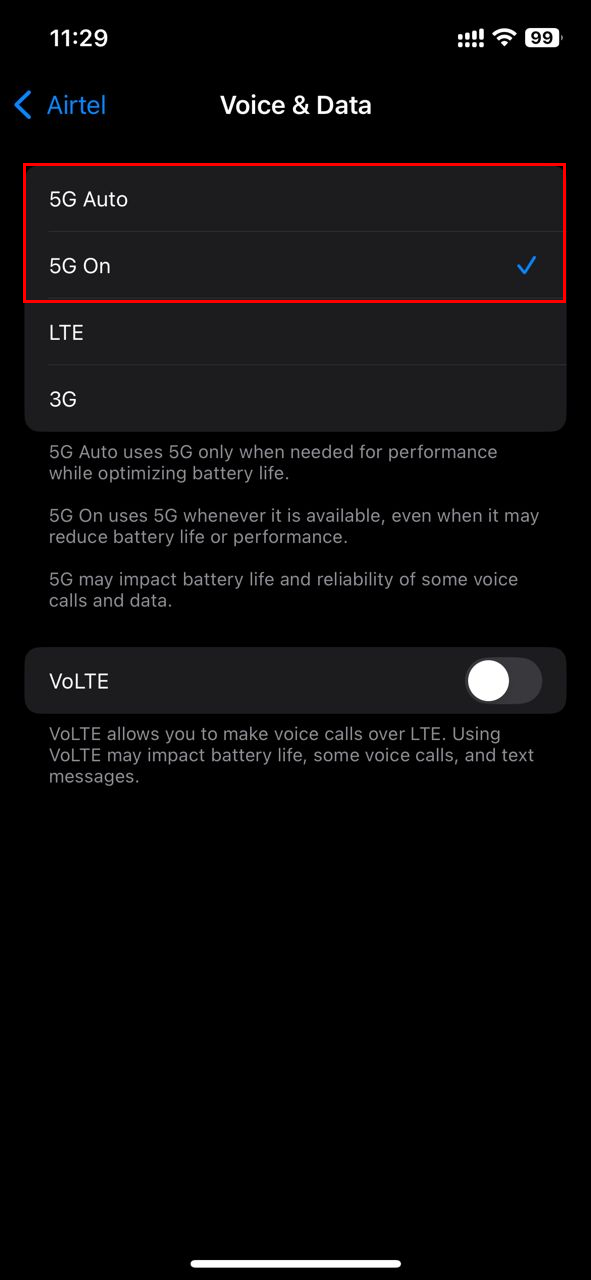
Step 3: Now, click "Voice & Data"
Step 4: You can select either "5G Auto" or 5G On".
- 5G Auto allows your iPhone to switch between 5G and LTE depending on battery life and network conditions
- 5G On forces the phone to always use 5G when it is available, which can use more battery
 Oluwaseun Bamisile
Conclusion
Enabling 5G on your iPhone takes only a minute, but it can make a big difference in your daily experience. From faster app downloads to improved video calls and real-time updates, it adds a level of responsiveness that 4G just cannot match.
If you are trying to make the most of your device and your data plan, switching to 5G Auto is often the best choice. It gives you the speed when you need it and helps conserve battery when you do not. And if you ever want to turn it off or reduce data usage, all it takes is a quick visit to the settings.
Image credit: Oluwaseun Bamisile/Techloy.com


