



Adaptive brightness is supposed to make life easier by automatically adjusting your screen’s brightness based on your surroundings. Increase brightness if you're in a lit room and reduce it when you're in a dark environment. But sometimes it gets a little too helpful. Like when you're trying to conserve battery, only for your screen to suddenly blast at full brightness because it detected a tiny light.
If you’d rather take control of your phone's brightness, whether to save battery, avoid awkward screen flashes in public, or just because you prefer manual adjustments, disabling adaptive brightness is the way to go.
In this guide, learn how to disable adaptive brightness on your Samsung Galaxy Phone.
 Louis Eriakha
How to disable adaptive brightness from the Notification Panel
Step 1: Swipe down your screen to bring up the notification panel.
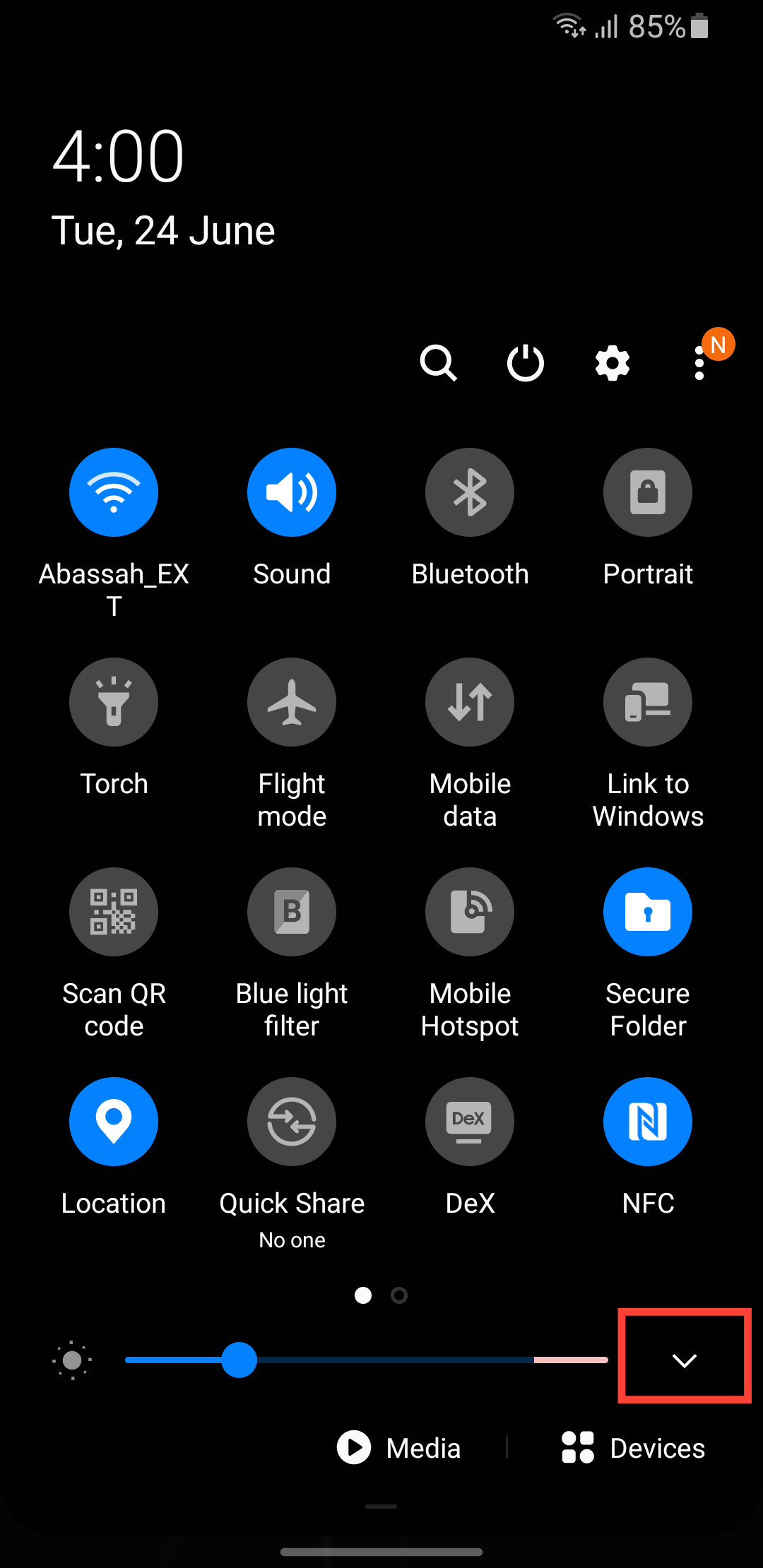
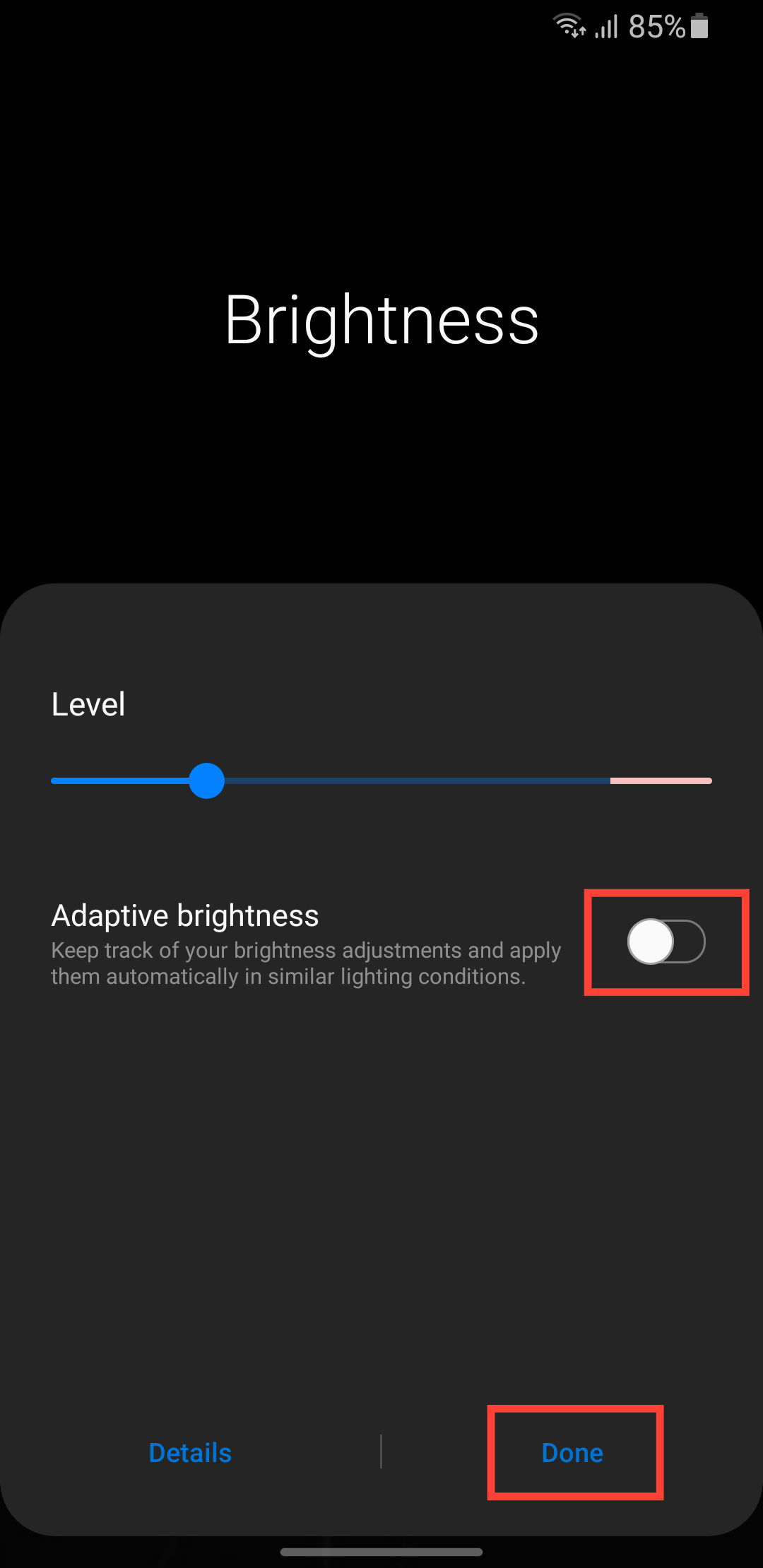
Step 2: Toggle off Adaptive Brightness and click Done.
How to enable adaptive brightness from Settings
Step 1: Go to settings on your Samsung Device.
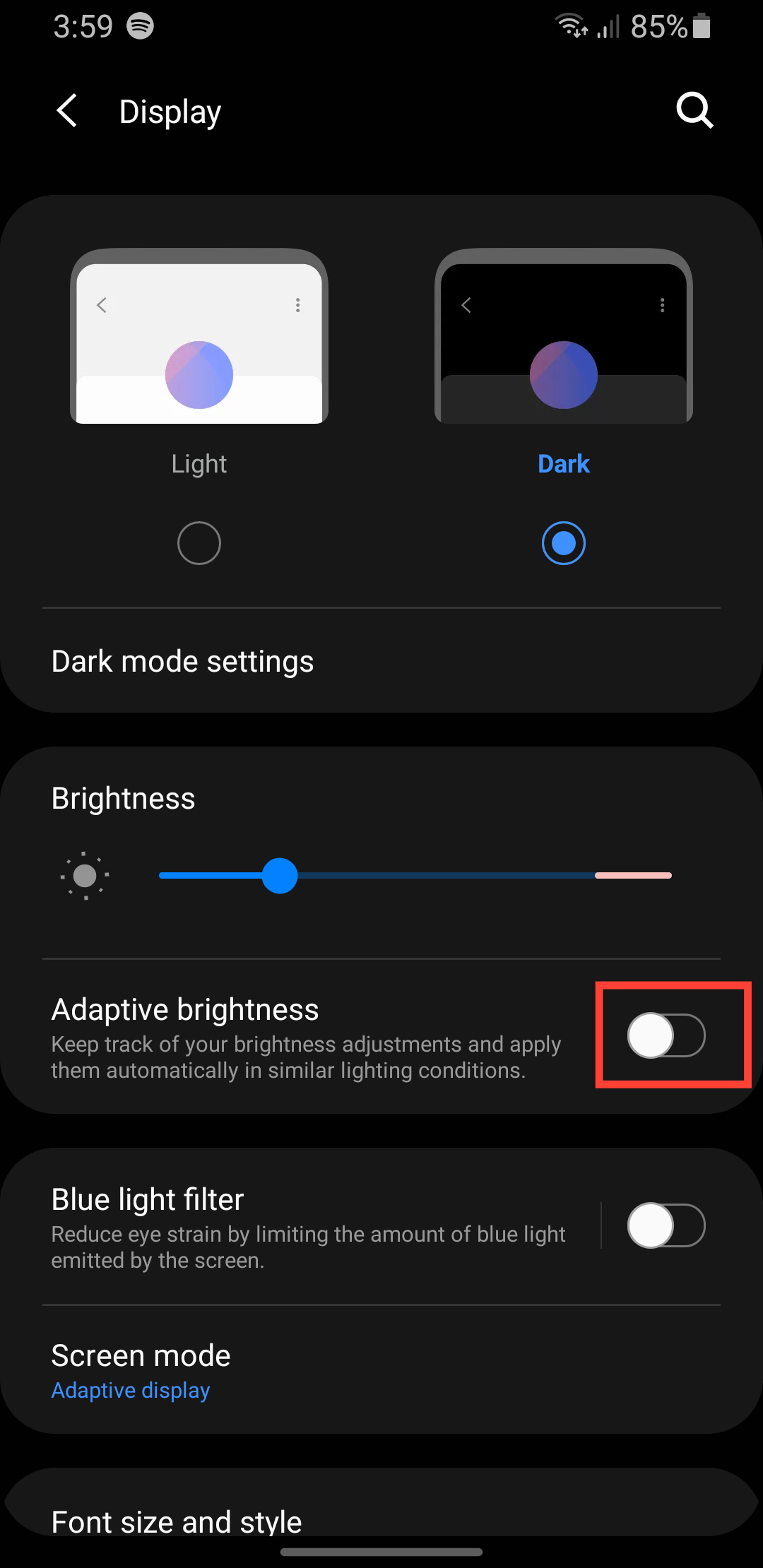
Step 2: Select Display.
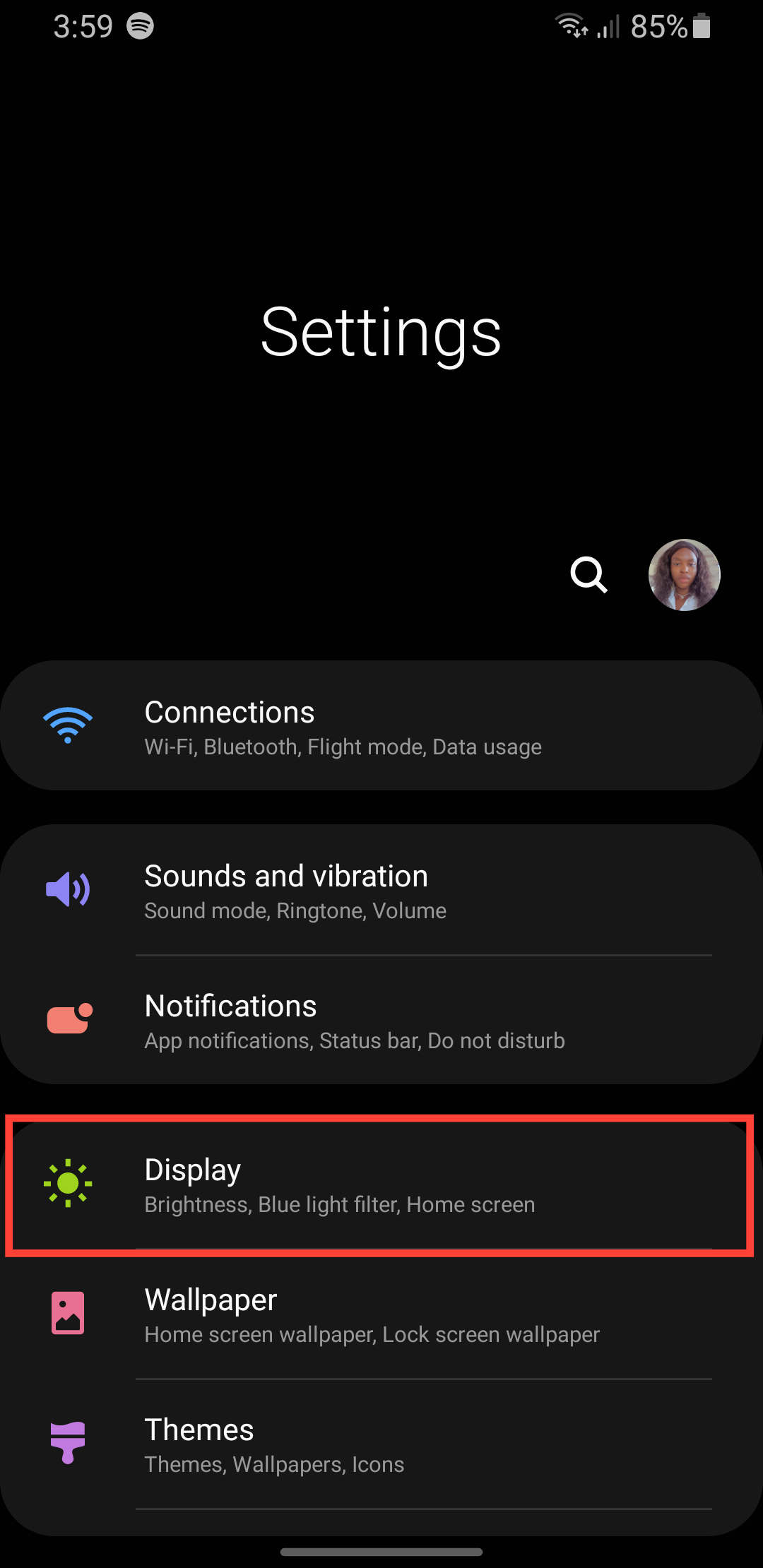
Step 3: Toggle off Adaptive Brightness.
 David Adubiina
Conclusion
Now that you’ve disabled adaptive brightness, your screen won’t surprise you with sudden changes anymore. If you want to keep it dim to save battery during a long day out, no problem. If you need to crank it up for better visibility in sunlight, still not a problem; you’re in charge.
Of course, adaptive brightness can be handy, but sometimes manual control just works better, especially when your phone’s guesses don’t match your needs.
Image Credit: Oyinebiladou Omemu/techloy.com


