



TikTok is one of those apps that doesn’t feel heavy until you check your data balance. A few minutes, scrolling turns into half an hour, videos keep loading back-to-back, and suddenly, your data is gone faster than expected. It’s even worse on mobile networks, where high-quality video streams chew through data without warning.
What many users don’t realise is that TikTok already has a built-in setting designed to slow this down. It’s called Data Saver, and once it’s turned on, the app automatically reduces video quality and limits background data usage. If you’re trying to make your data last longer without giving up TikTok entirely, this setting is one of the easiest fixes.
 Oluwaseun Bamisile
4 steps to enable data saver on TikTok
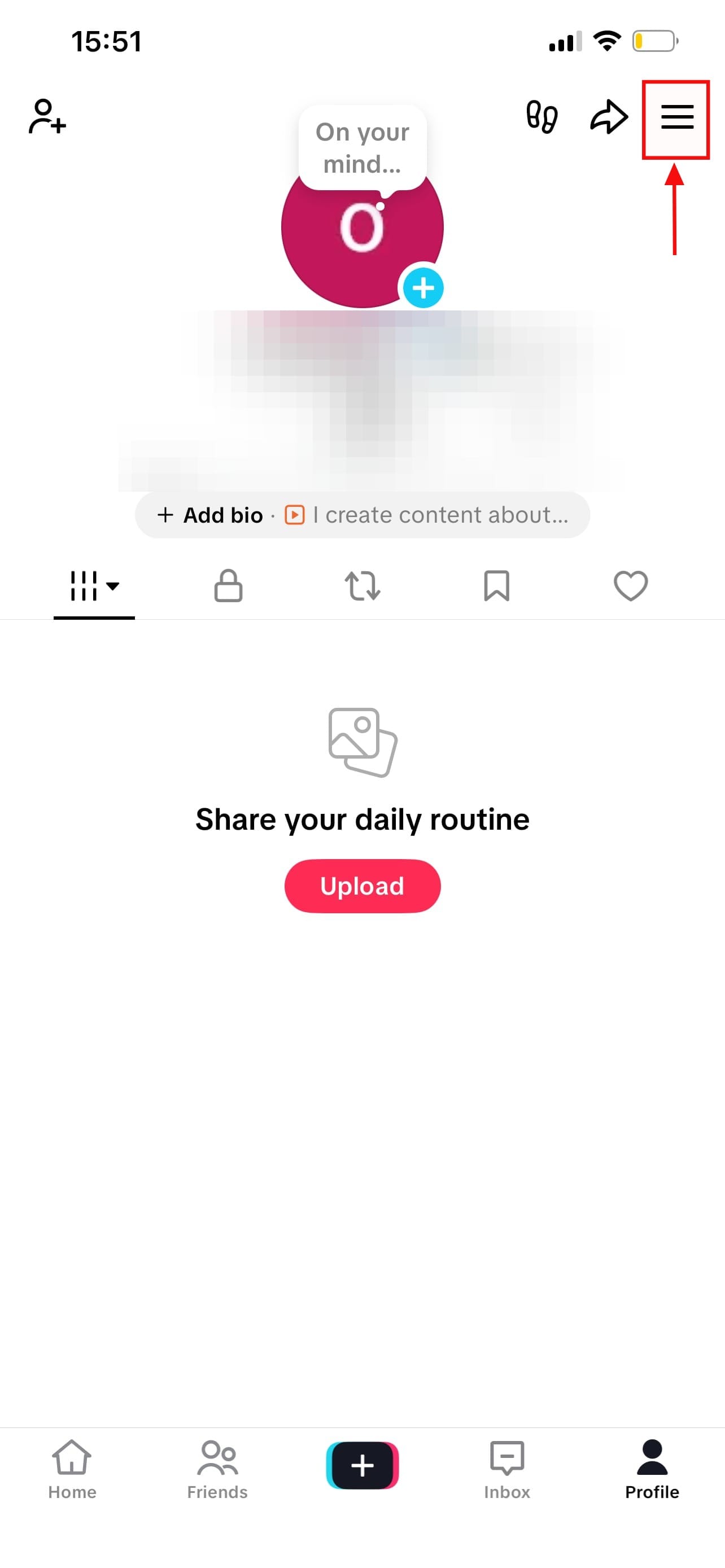
Step 1: Launch the TikTok app on your phone and tap your profile icon in the bottom-right corner of the screen

Step 2: Tap the three lines (☰) or three dots in the top-right corner, then select "Settings and privacy."
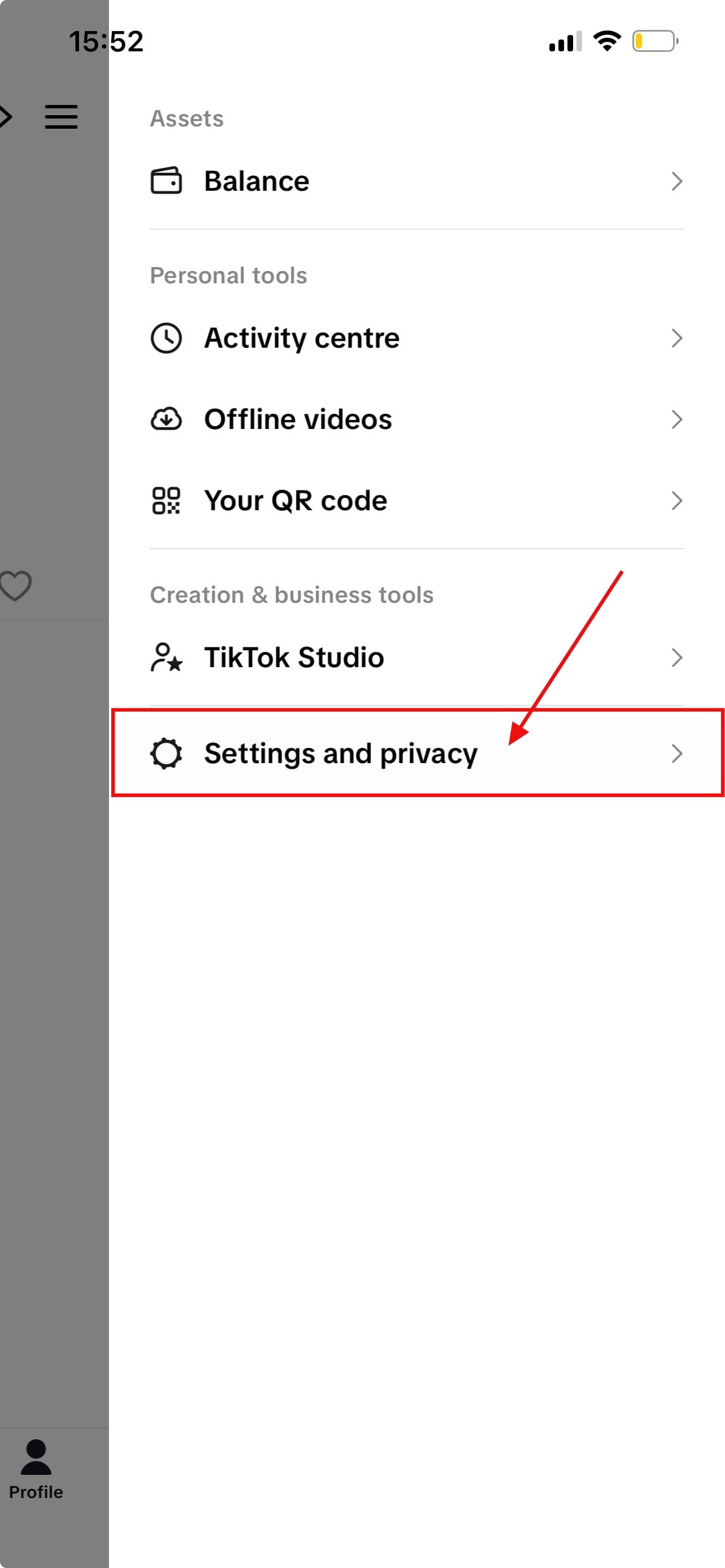
Step 3: Scroll until you see Data Saver under the “Cache & mobile” or “Content & Display” section (the wording may vary slightly depending on your app version)
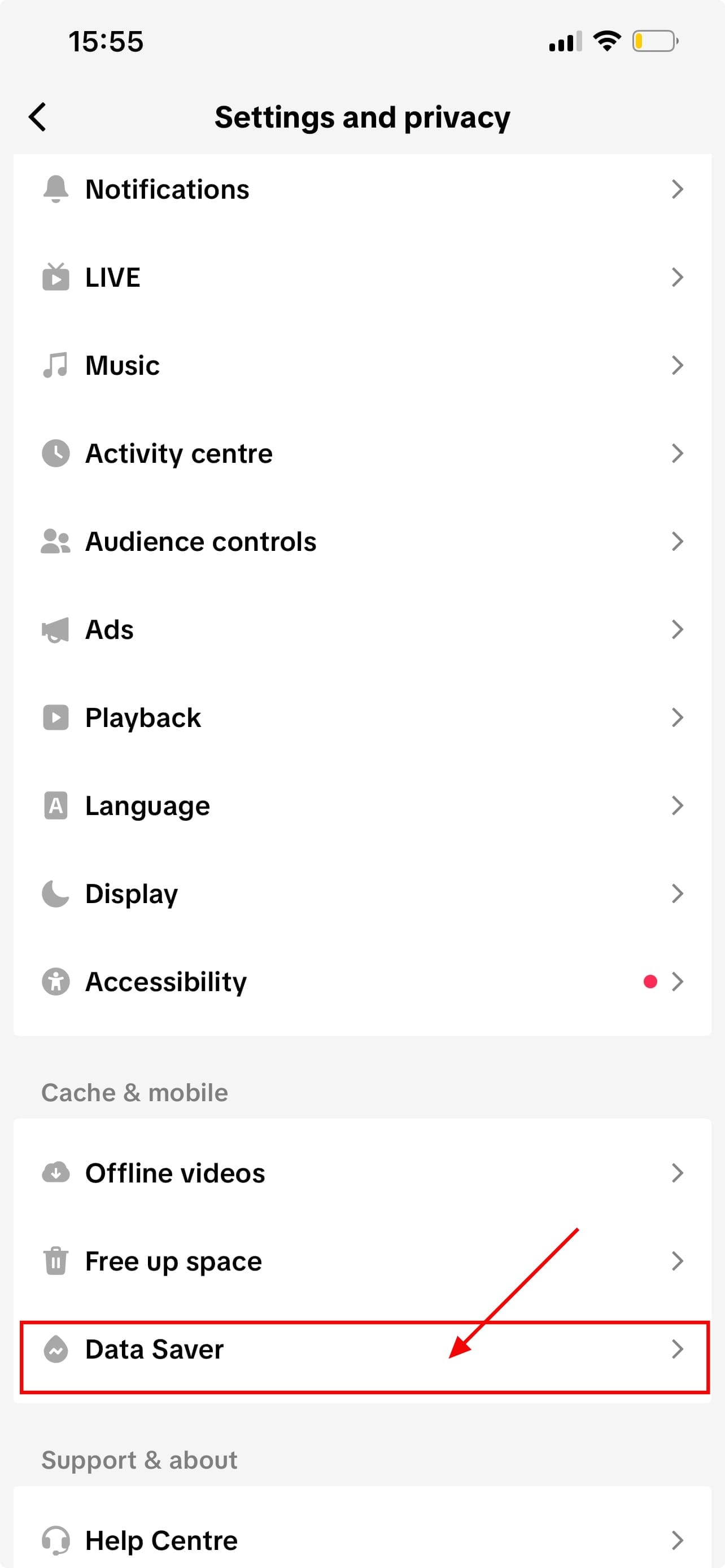
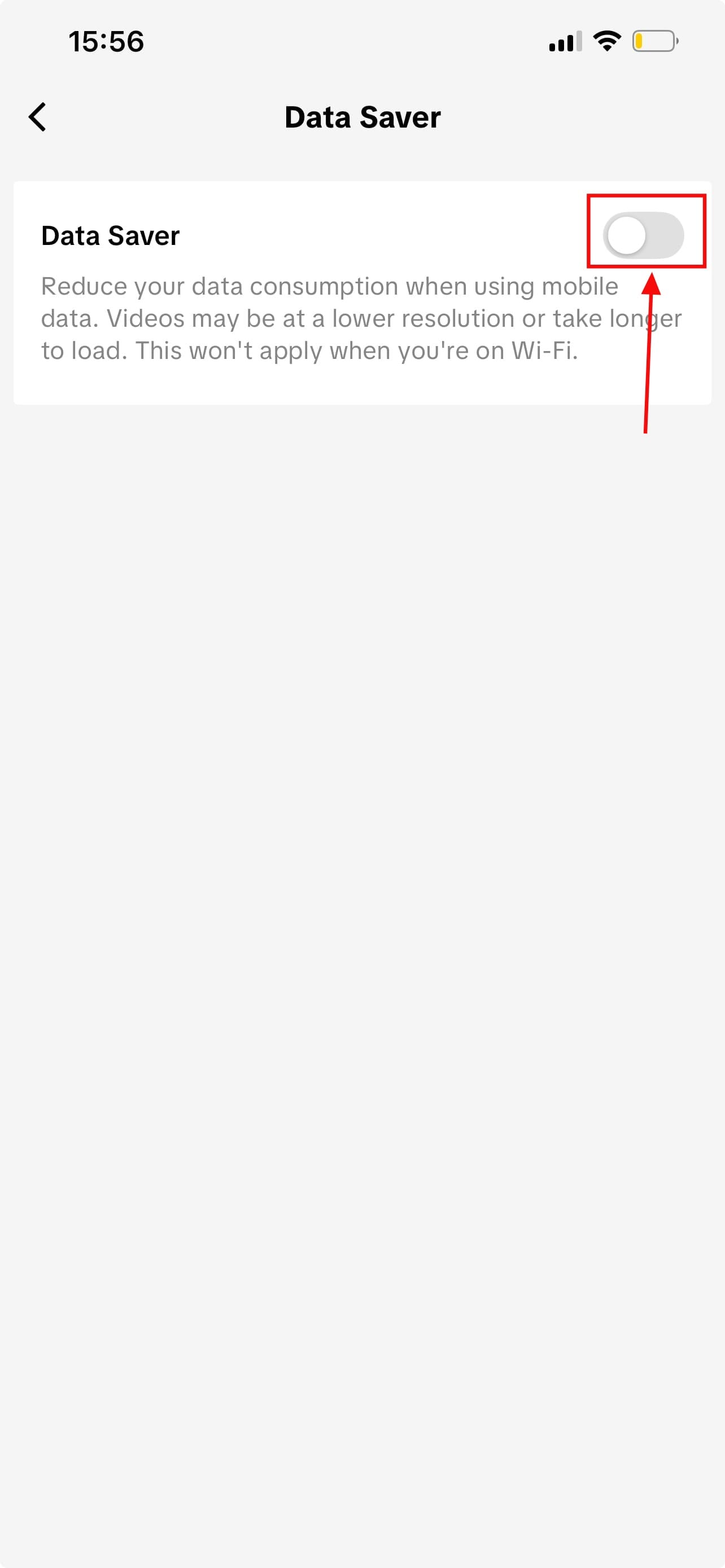
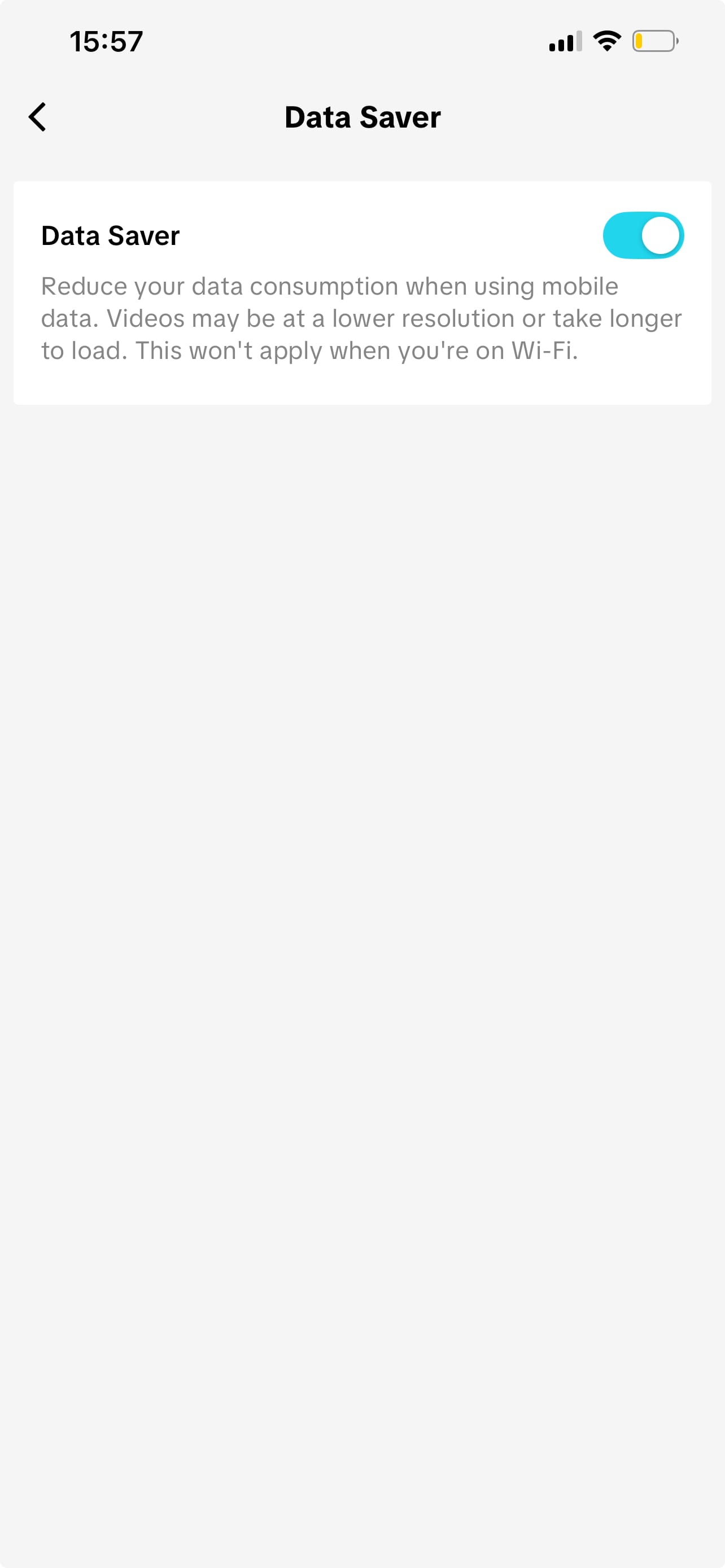
Step 4: Tap Data Saver, then toggle it on. TikTok will immediately reduce video quality when you’re using mobile data
 David Adubiina
Conclusion
Data Saver doesn’t change how TikTok works; it just makes it smarter about your data. If you’re on a limited plan, dealing with slow mobile internet, or trying to stretch your data till the end of the month, turning this on can make a real difference. You still get the same content, just without the silent data drain.
Image Credit: Ogbonda Chivumnovu / Techloy.com


