



If you’ve ever lost your phone, even just between couch cushions, you know that brief moment of panic all too well. I once left my iPhone 12 in the back of a rideshare and didn’t realise until hours later. What saved me? Find My iPhone.
With just a few taps from another device, I could see exactly where my phone was and even ping it with sound. Whether you're setting up a new device or passing one along to someone else, knowing how to turn Find My iPhone on or off is essential.
When it’s on, you get powerful tools to locate, lock, or erase your iPhone remotely. When it’s off, your iPhone becomes harder to track, but disabling it is required if you plan to sell, trade, or reset your device.
 Louis Eriakha
Steps to Turn On or Off Find My iPhone
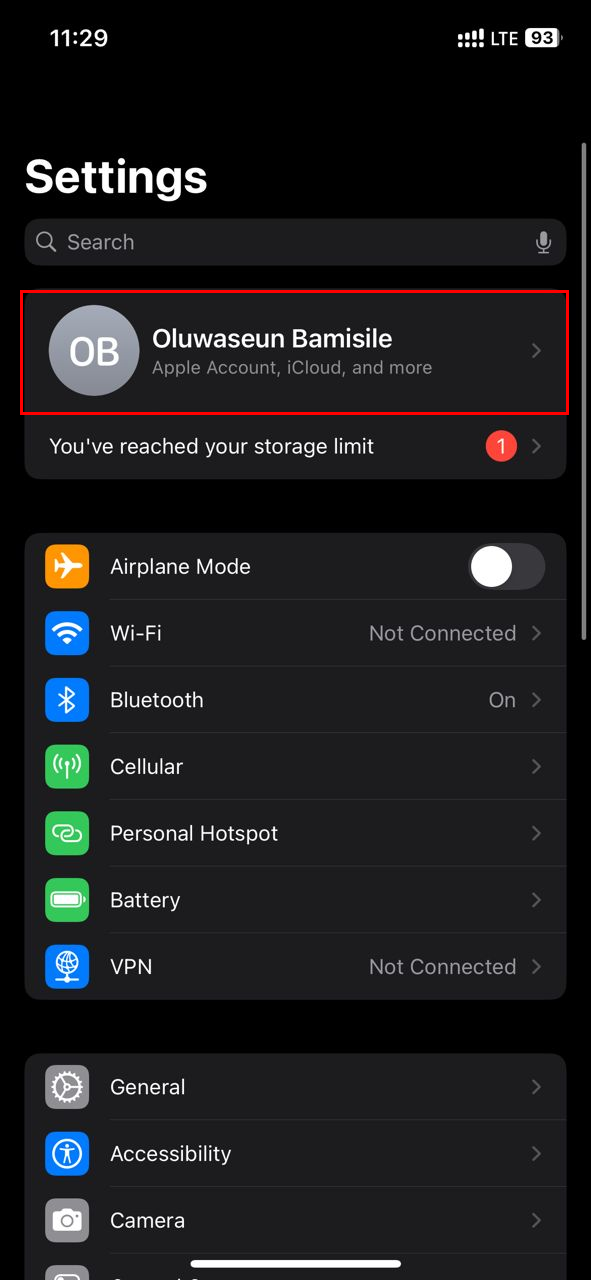
Step 1: Open the Settings app on your iPhone, then click your Apple ID name at the top
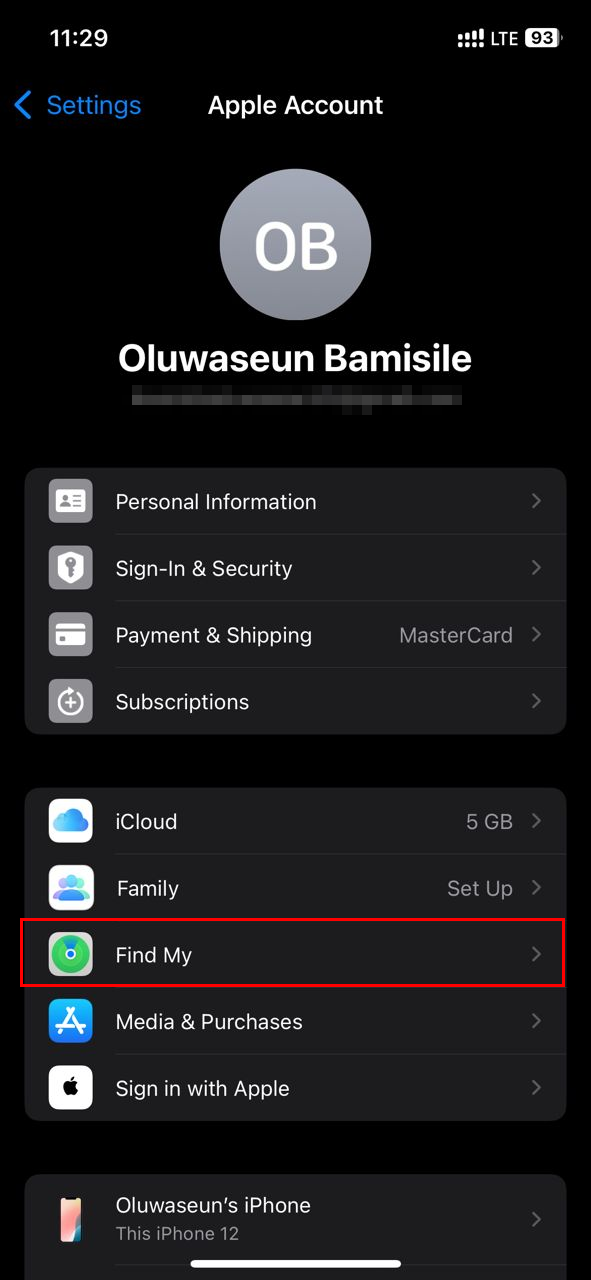
Step 2: Click on "Find My"
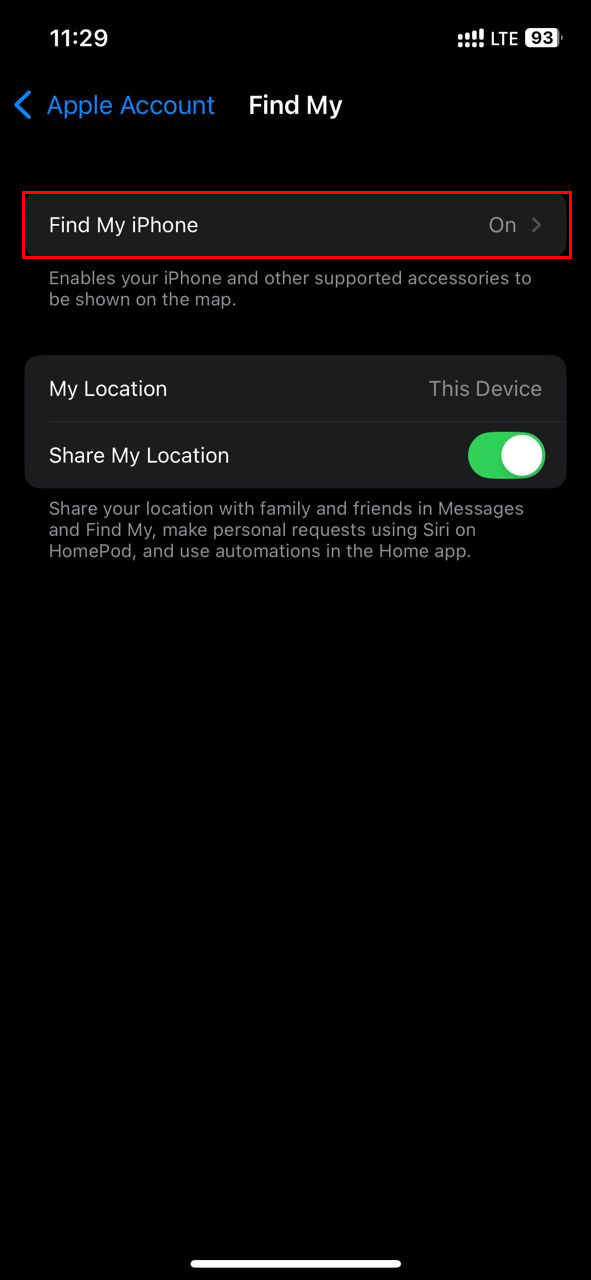
Step 3: Select "Find My iPhone"
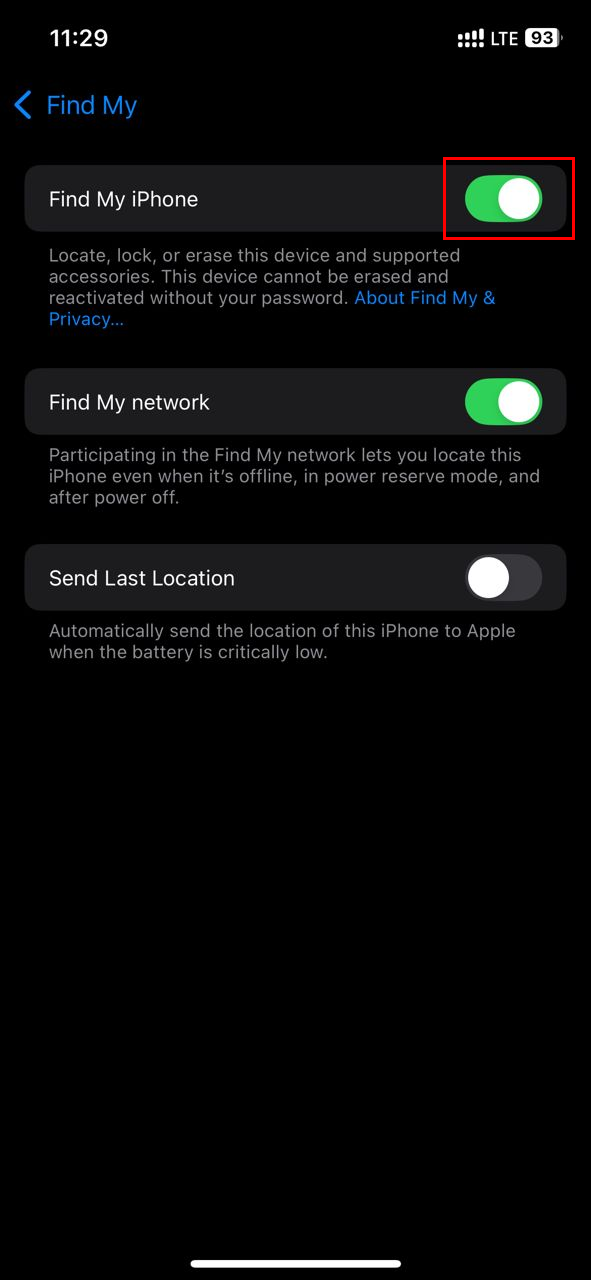
Step 4: You can toggle on or off the Find My iPhone switch to activate or disable the feature
 Louis Eriakha
Conclusion
Find My iPhone might seem like a background feature, but it’s one of the most powerful tools Apple offers for protecting your device and your data. Whether your phone is misplaced at home, left in a cab, or actually stolen, being able to track it, lock it, or erase it remotely can make all the difference.
Keeping it enabled is a smart move for day-to-day security, especially if you travel often or rely on your iPhone for work. On the other hand, knowing how to disable it is equally important when you're selling, gifting, or trading in your phone.


