



Your IP address is a crucial element of your internet connection. It acts as a unique identifier for your device on the internet, allowing it to send and receive data.
There are various reasons you might want to change your IP address, whether it's for troubleshooting network issues, enhancing security, or accessing region-restricted content.
Whatever reason you want to do this is entirely up to you, and contrary to the popular misconception, changing your IP address is not illegal. If you’re looking for a user-friendly way to manage or switch your IP address via proxy services—while aligning with your needs like security or region access—you can explore options from Croxy. In this guide, learn how to get this done.
How to find your IP address
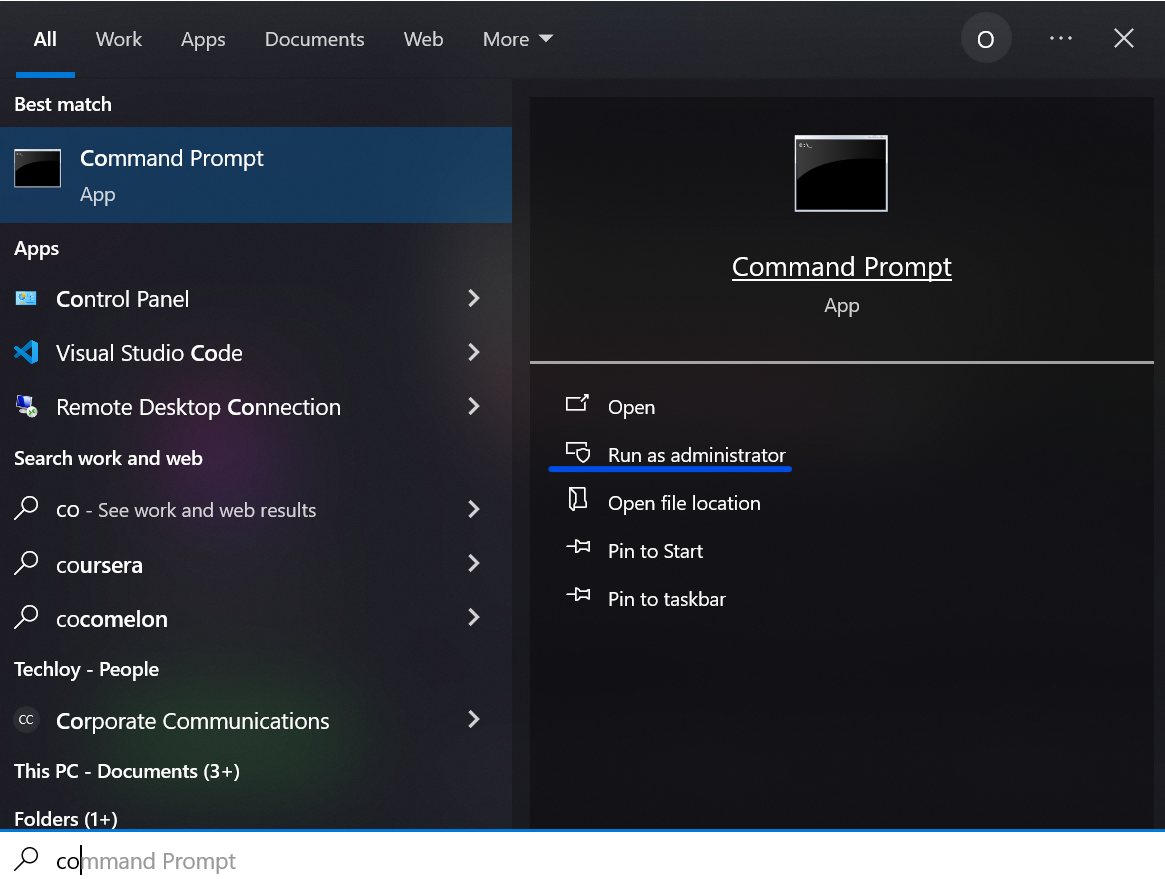
- Open the Command Prompt as administrator.
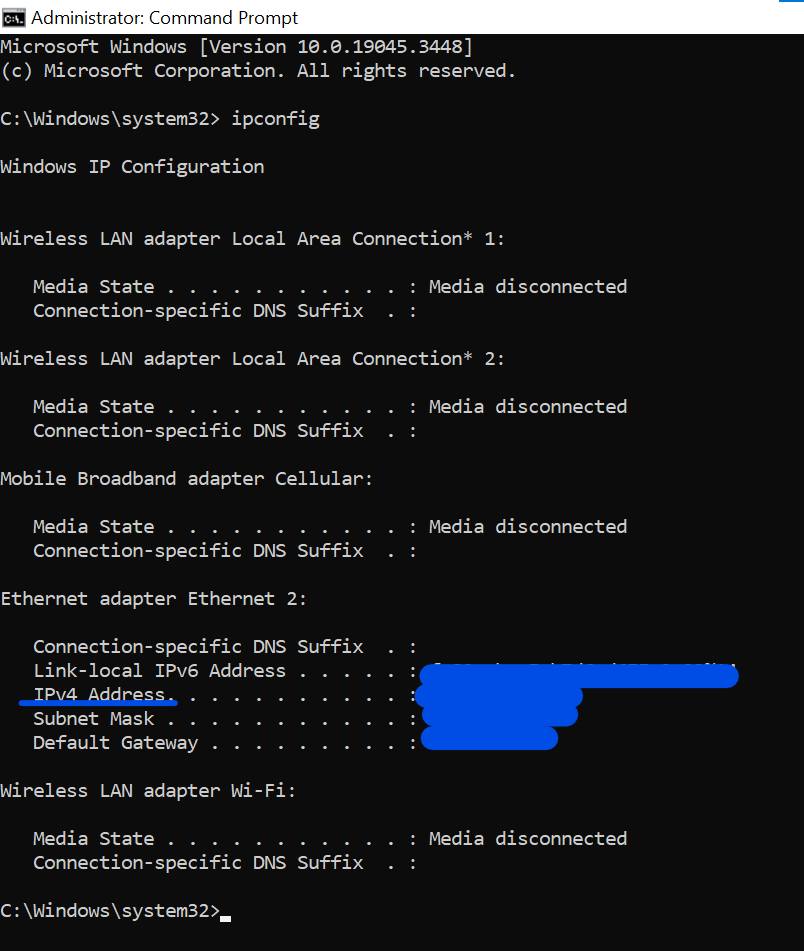
- Run the command ipconfig on the terminal. A bunch of results will pop up, but look for IPv4Address the number by the side is the IP address.
How to change your IP address (Windows 10)
There are various ways to achieve this, but we will focus on two, namely: using network settings and using VPN. Let us walk through them.
Using network settings
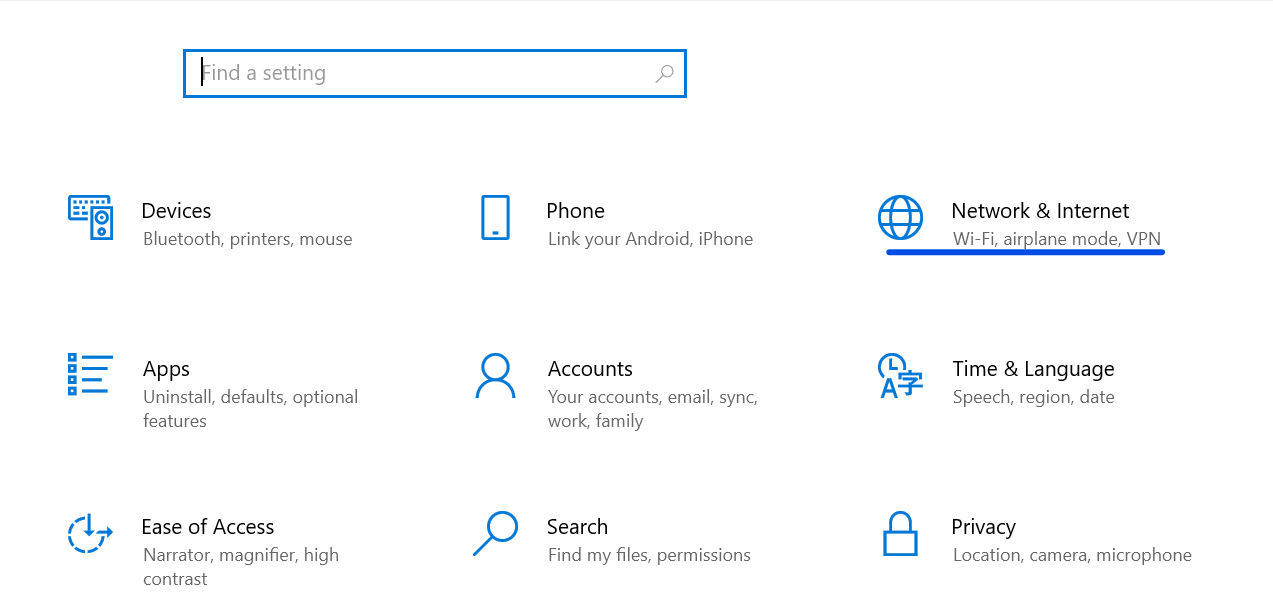
- Locate the settings on your Windows laptop.
- Select Network & Internet
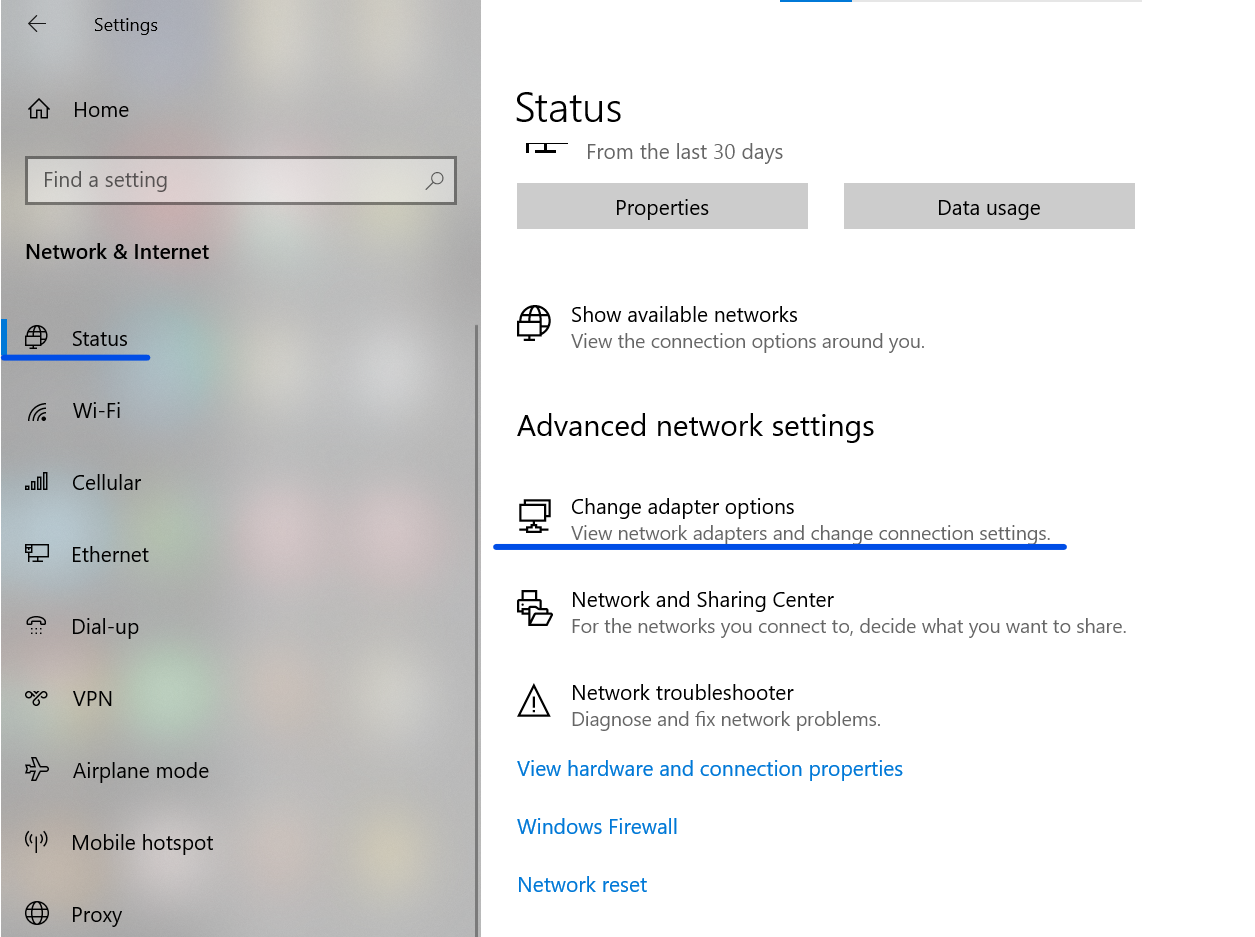
- Select status, and by your right of the tab, scroll down and click on change adapter options.
- When you select this, your connections (disconnected and active) will be made available to you. Right-click on your available connection and select properties.
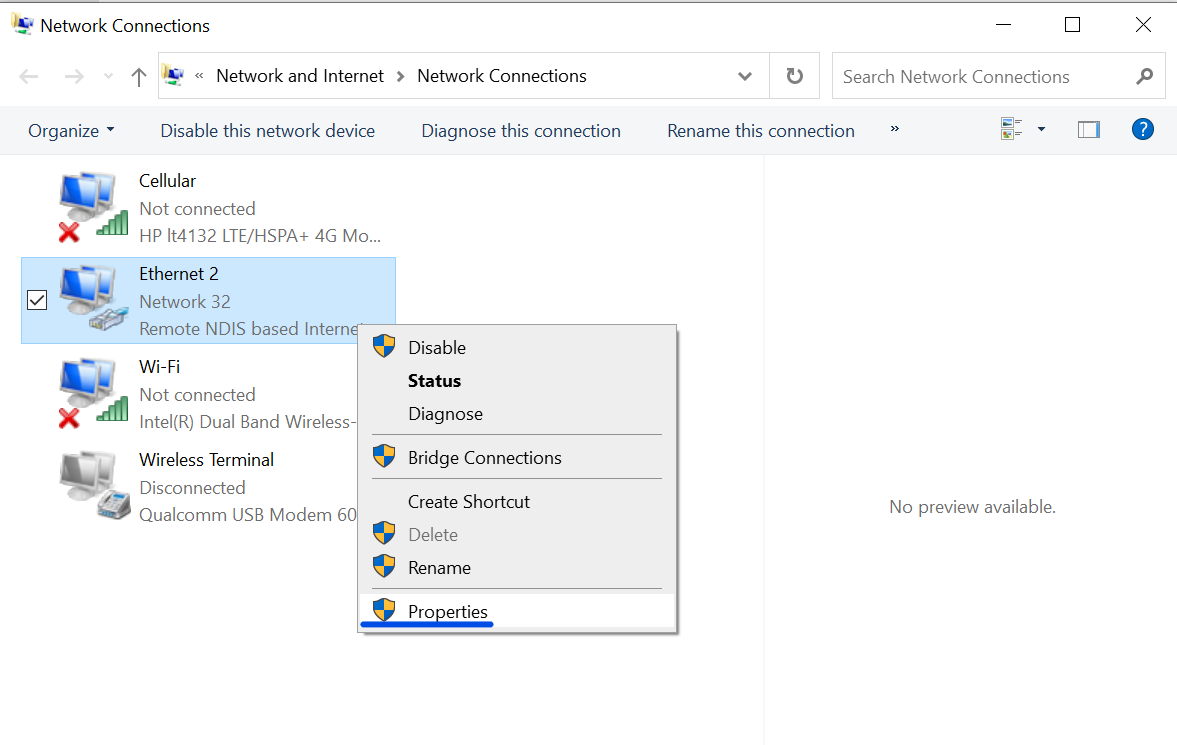
- Scroll down and then select Internet Protocol Version 4 (TCP/IPv4) and click on Properties. If other boxes are checked, uncheck all.
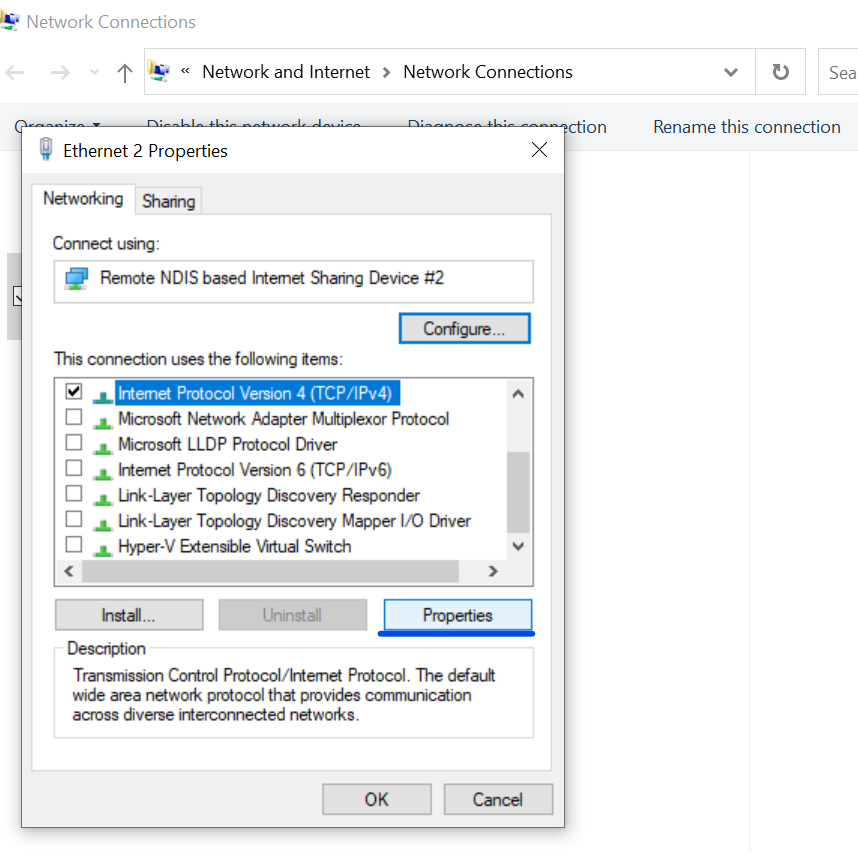
- Click on the checkbox use the following IP address, and then enter your desired IP address, Subnet mask, and Default gateway.
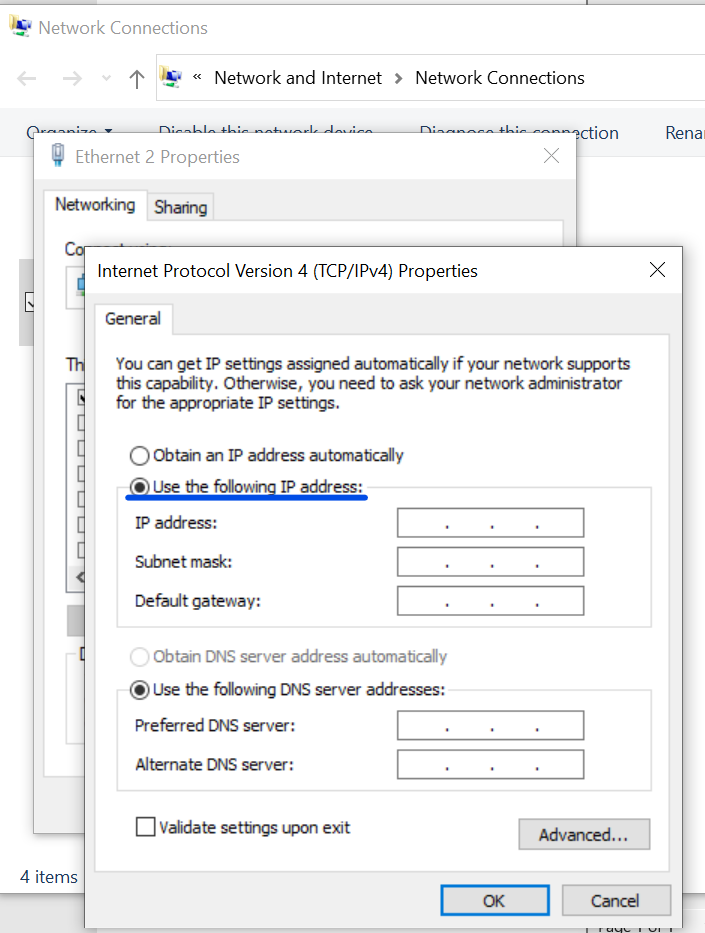
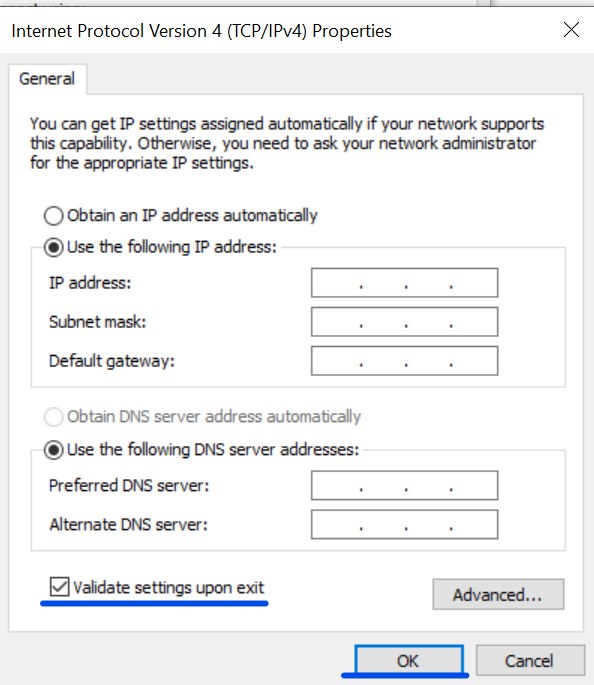
- Click on the Validate settings upon exit to ensure your values are valid. If valid, select the OK button, and that is all.
Using VPN
This method is very straightforward because all you have to do is download and install a VPN service of your choice. Create an account and get started.
It should be noted that VPNs do not change your IP address, rather, your IP address remains hidden while you use the VPN. If security is your reason for changing your IP address, using a VPN is a viable and better alternative.
Each VPN comes with different methods to use, so go through the VPN guide on how to use the VPN in your browser.
Conclusion
Changing your IP address on a Windows device is actually very easy and enhances security. Before you do this, you should be certain of the reasons and explore alternatives that suit them.
Image Credit: Oyinebiladou Omemu / Techloy.com


