



How to Fix Discord Stuck on RTC Connecting
You join a voice channel, see your friends’ names and wait for the audio to kick in. Instead, Discord sits on “RTC Connecting.” Leaving and rejoining gets you the same message, even though you can still send texts.
This happens when Discord can’t finish setting up your voice connection. Calls use a separate connection from text chat, so being able to send a message doesn’t mean the audio will work too. Your router, a firewall or even the VPN you have running could be getting in the way.
If Discord is stuck on RTC Connecting, here’s what to try.
1 Check if Discord is having problems
Start with Discord’s official status page. Look for a voice-related incident, especially if your friends are having trouble joining calls too. If Discord has reported a problem, wait for its update before changing anything on your computer.
No incident showing? Try a different voice channel or call a friend directly. If that works, you can focus on the original channel rather than your whole setup. There’s a region setting worth checking later in this guide.
2 Close Discord properly and restart your router
On Windows, clicking the X can leave Discord running in the background. Find its icon in the notification area, right-click it and select Quit Discord. Then open it again and rejoin the call.
Still waiting? Restart your computer and your home router, giving the internet time to reconnect before opening Discord. Use the router’s normal restart option or power it off and on. Don’t press the factory-reset button, which can wipe its settings.
3 Try the call on a phone hotspot
If you have mobile data available, turn on your phone’s hotspot and connect your computer to it. Join the same voice channel using the same Discord app.
If the call works, that’s a useful clue: something about your usual connection needs checking. This could be your router, your internet provider or restrictions on the Wi-Fi network. On school or office Wi-Fi, ask the network administrator whether Discord voice is allowed.
If changing networks makes no difference, open Discord in your browser and try the call there. A working browser call gives you somewhere to talk while you check the desktop app’s settings and updates.
4 Check the VPN you’re using
A VPN is easy to overlook when it starts automatically with your computer. Disconnect it briefly, then leave and rejoin the voice channel. If the audio works this time, check your VPN’s settings before reconnecting.
Discord voice needs UDP support. UDP is the protocol used to carry its voice traffic, and Discord’s own troubleshooting advice says its calls only work with VPNs that support it.
When choosing a VPN for Discord, check that detail first. Atomic VPN uses WireGuard, which runs over UDP. If you already have a compatible VPN, try another nearby server and reconnect to the call.
A different server won’t fix every connection problem. If calls work with the VPN off but fail whenever you reconnect it, contact your VPN provider with that result.
5 Check whether your firewall is blocking Discord
On Windows, open Windows Security, select Firewall & network protection, then choose Allow an app through firewall. Look for Discord and check that it’s allowed on the network you’re using. If you use a separate security app, review its rules too.
Allow the official Discord app rather than switching off the firewall altogether. If these settings are controlled by your school or employer, ask its IT team to check them.
6 Change the voice channel’s region
This is worth trying if other calls work but one channel keeps getting stuck.
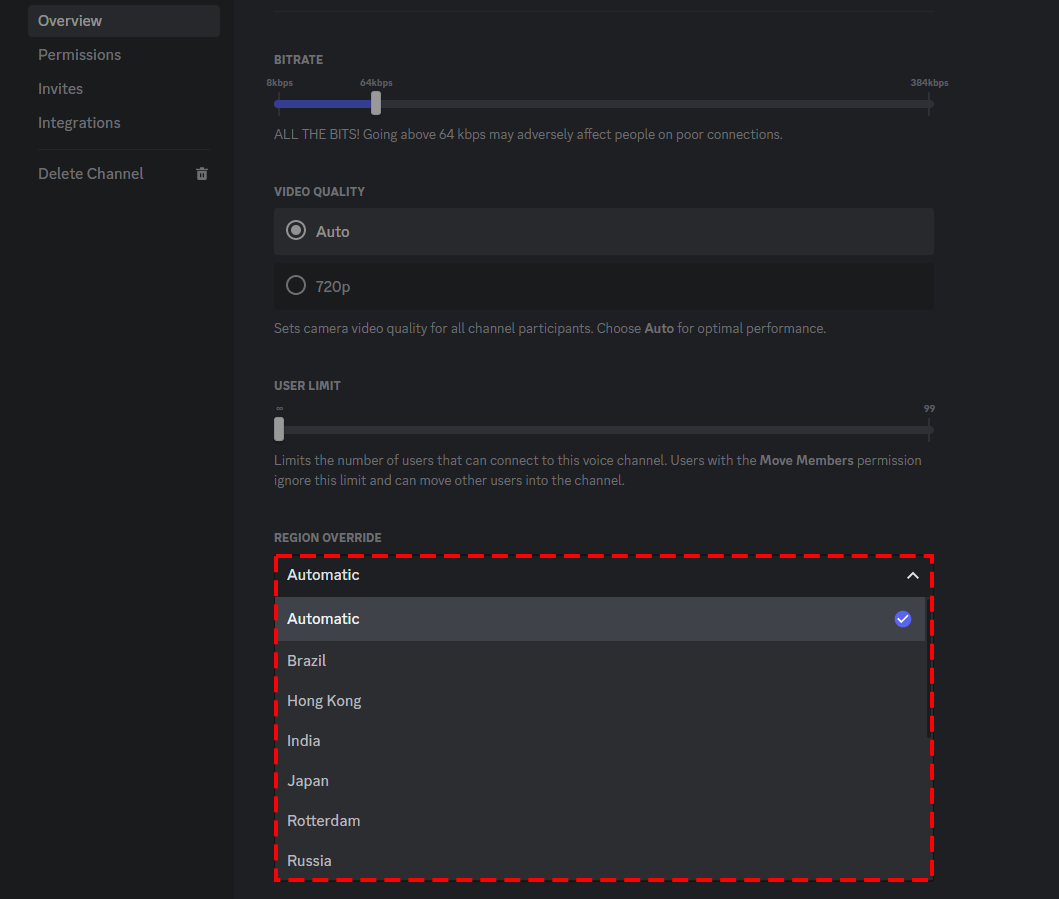
On desktop, right-click the affected voice channel and choose Edit Channel. Find Region Override and try another region. You’ll need Manage Channels permission to do this; otherwise, ask a server admin.
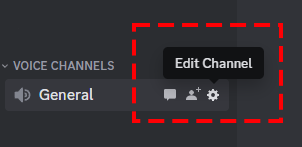
Discord normally chooses a region automatically. If a manual choice doesn’t help, set it back to Automatic. The override stays in place for future calls until someone changes it.
If the call still won’t connect
Update Discord and contact its support team if the problem continues. Include the exact error, whether a hotspot worked and whether switching off your VPN made a difference. Mention if browser calls work while the desktop app fails.