



Your Mac suddenly starts acting weird, the screen resolution looks off, the sound won’t work, or it forgets which disk to start from every time you reboot. Before you panic or book a Genius Bar appointment, there’s a quick fix that often works like magic: resetting your NVRAM.
NVRAM (non-volatile random-access memory) is a small section of your Mac’s memory that stores certain settings your computer needs to access quickly, even when it’s powered off. Think of it as your Mac’s short-term memory for startup preferences, volume settings, time zone, and display configurations.
Over time, or after a software update, this memory can get corrupted or confused. That’s when you might start noticing problems like:
- The wrong startup disk being selected.
- Audio or volume settings not saving.
- The display resolution constantly resetting.
- Unexpected shutdowns or freezes during boot.
- Peripherals like keyboards or mice not responding correctly at startup.
When these glitches start piling up, resetting your NVRAM can often clear them instantly, giving your Mac a clean slate to remember the right settings again. Resetting your NVRAM is perfectly safe, but it will restore many system settings to their factory defaults. It’s also a good idea to back up any important data before performing the reset. Here is how to do it.
How to Reset the NVRAM on Mac
Step 1: Shut down your Mac (Apple menu → Shut Down)
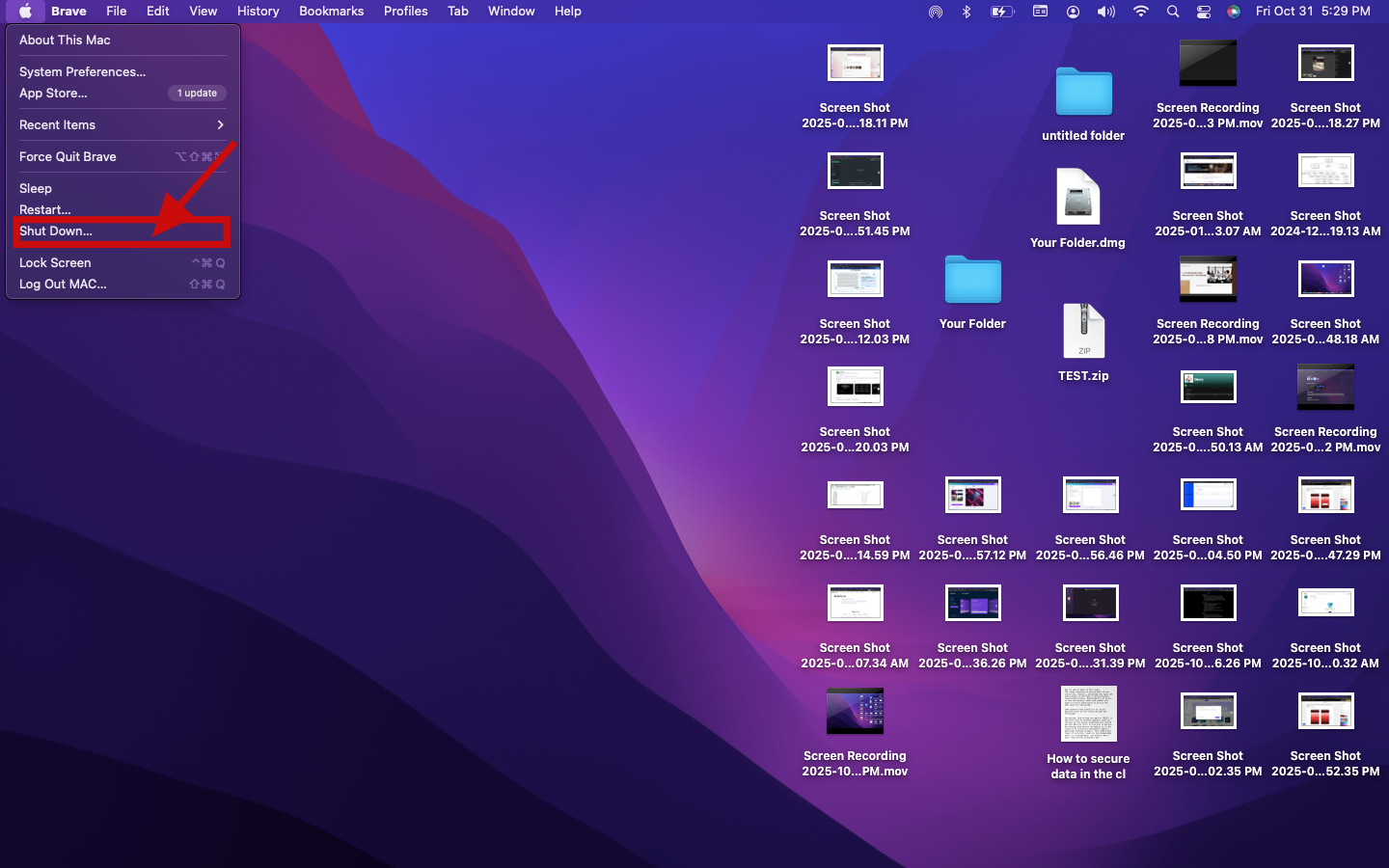
Step 2: Press the power button to start the Mac, then immediately press and hold Option (⌥) + Command (⌘) + P + R together

Step 3: Keep holding those keys for about 20 seconds
- On older Intel Macs, you can release after you hear the startup chime for the second time.
- On newer Intel Macs (with a T2 chip), hold ~20 seconds, and you may see the Apple logo appear and disappear twice, then release.
Step 4: Let the Mac continue booting normally
Step 5: After macOS loads, check and re-set any preferences that reset (startup disk, volume, display resolution, time zone, etc.)
 Louis Eriakha
Conclusion
Resetting NVRAM is one of the simplest yet most effective troubleshooting steps for Mac users. It’s quick, safe, and often fixes problems that seem much bigger than they are. Think of it as giving your Mac a deep breath, clearing the cobwebs so it can start fresh.
Image Credit: Chivumnovu Ogbonda/Techloy.com


