



The "No Space Left on Device" error in Linux (Ubuntu) can be misleading because it doesn’t always mean your disk is full.
Linux manages storage in two ways: through actual disk space (bytes) and inodes (metadata structures that track file details). You might encounter this error if either your disk space is exhausted or your system has run out of inodes, even if there’s still free space available.
This guide will show you the practical steps to diagnose and fix the issue, whether it’s caused by large files filling up storage or too many small files consuming inodes.
 Oyinebiladou Omemu
How to Resolve "No Space Left on Device" Error on Ubuntu
Method 1: Clearing Disk Space
Step 1: Check Disk Usage
Open a terminal and run:
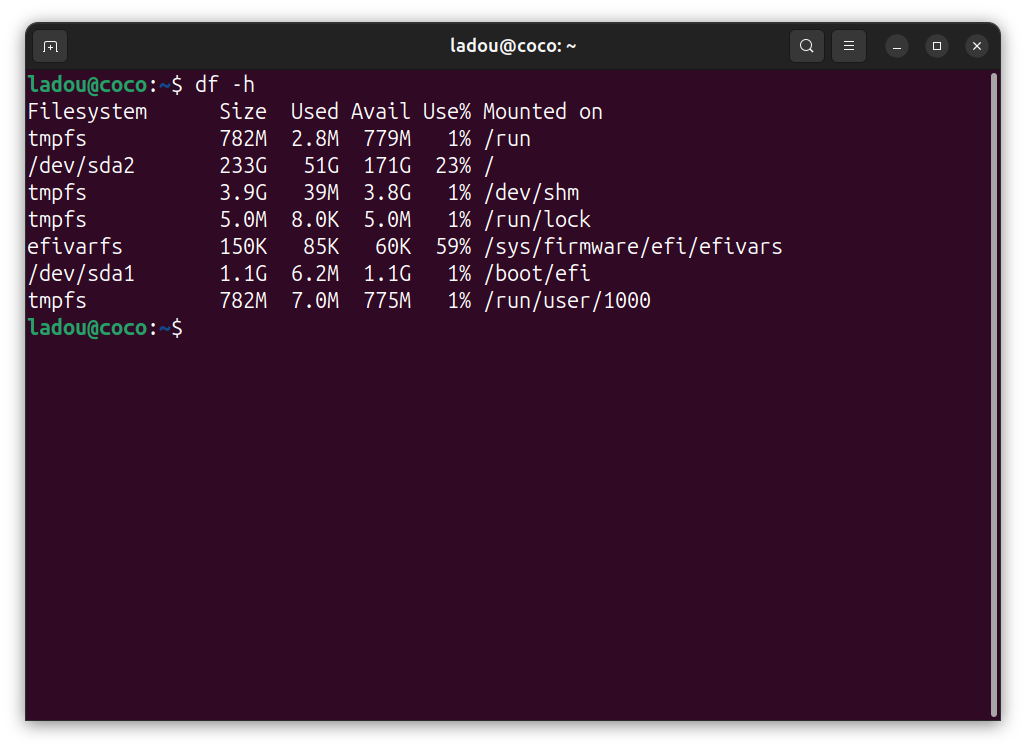
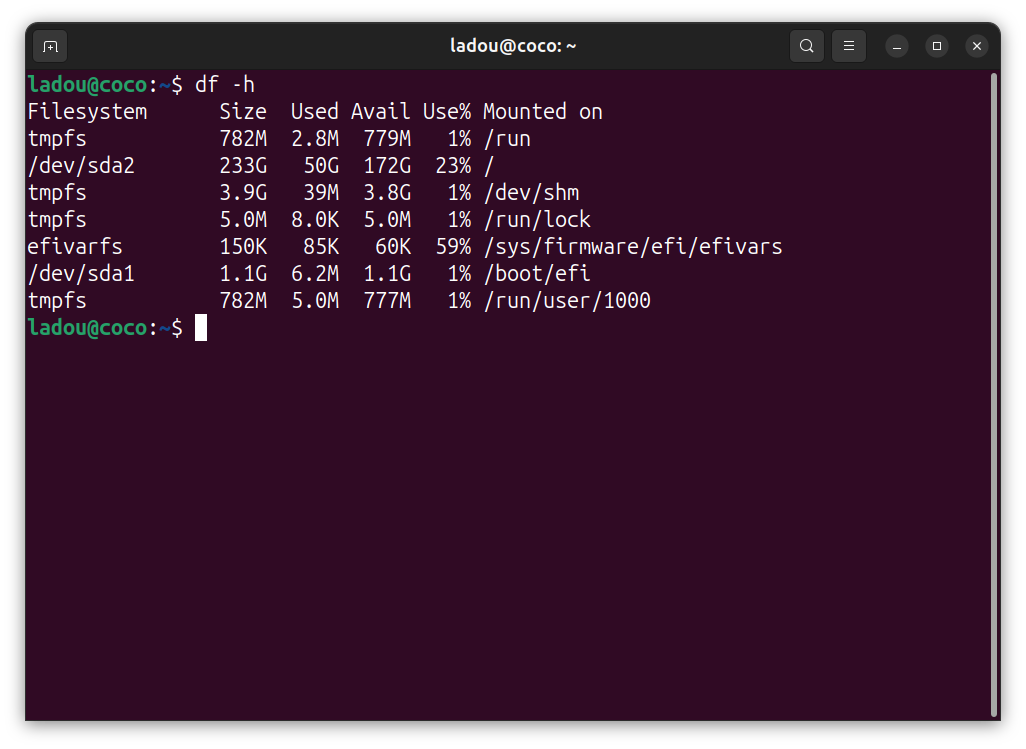
df -h
This command displays disk usage in a readable format (MB/GB). Look for partitions at or near 100% usage; these are the areas where you need to free up space.
Step 2: Find Large Files & Directories
To identify which files or folders are taking up the most space, use:
sudo du -sh /*
sudo du -ah / | sort -rh | head -n 10
The first command summarizes the size of top-level directories, while the second lists the 10 largest files on your system. Common culprits include log files, cached data, and old downloads.
Step 3: Clean Up Unnecessary Files
A. Remove Old Logs
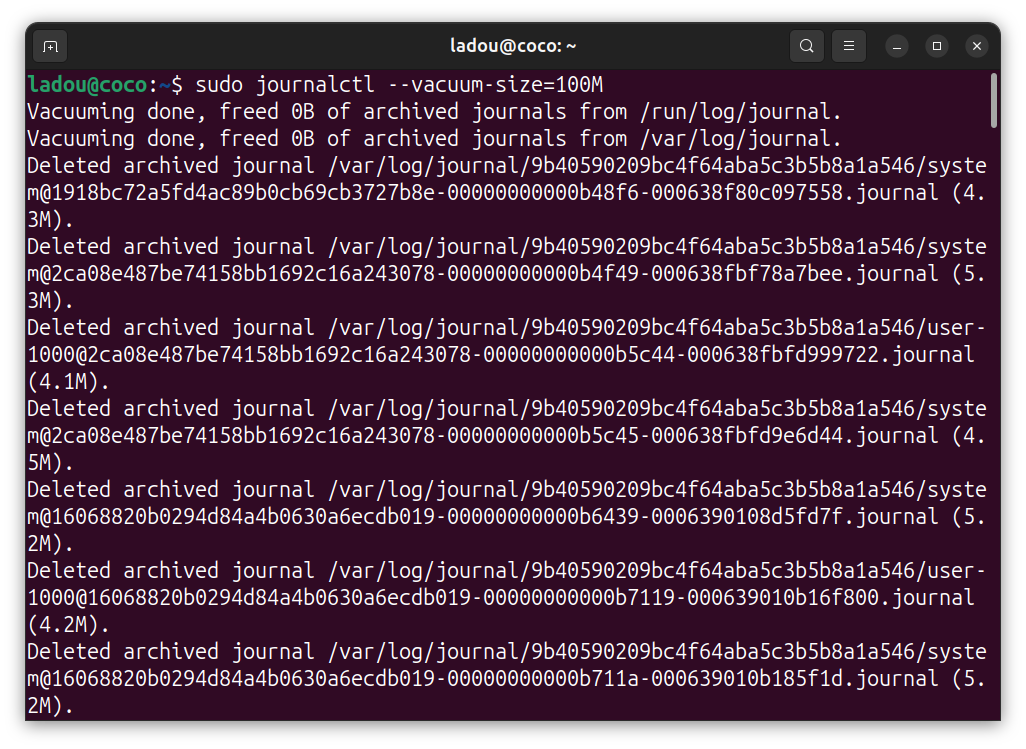
sudo journalctl --vacuum-size=100M
sudo rm -rf /var/log/*.gz /var/log/*.old
Logs can accumulate quickly, especially on busy systems. The first command reduces system logs to 100MB, while the second deletes archived log files. If you're worried, logs are generally safe to remove.
B. Clear APT Cache
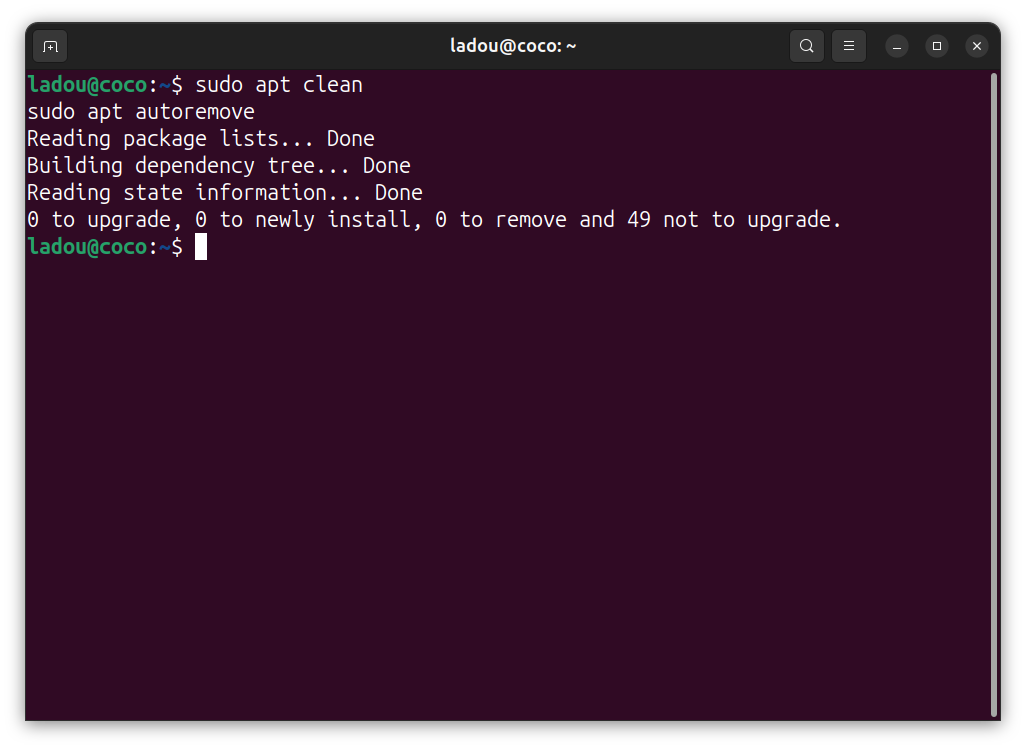
sudo apt clean
sudo apt autoremove
Ubuntu stores downloaded package files in its cache. These commands remove cached .deb files and unneeded dependencies, freeing up space.
C. Delete Temporary Files
sudo rm -rf /tmp/*
The /tmp directory often contains temporary files that are no longer needed. But be careful with this command; some applications may still be using files here.
If you're unsure, remove only temporary files that have not been accessed in the past 14 days (we can safely assume they're not in use).
sudo find /tmp -type f -atime +14 -delete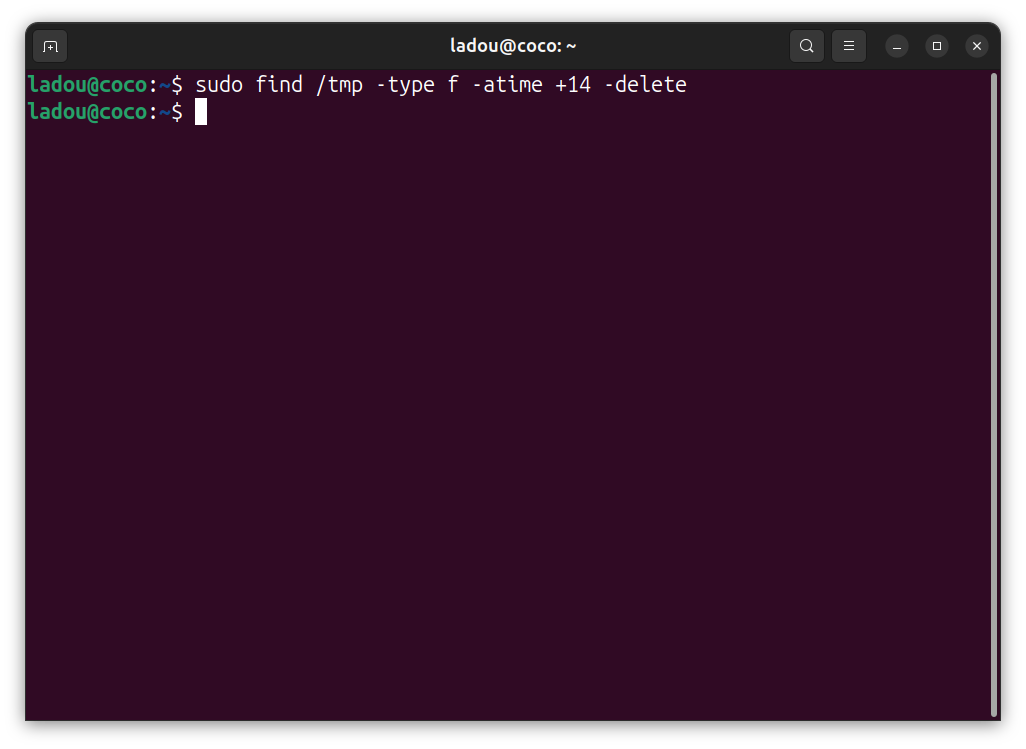
Step 4: Verify Free Space
After cleaning, check your disk usage again:
df -h
If space has been freed but the error persists, the issue might be inode exhaustion, and that brings us to Method 2.
Method 2: Managing Inodes
Inodes are essentially data structures in a Linux filesystem that store all the metadata about a file except its name and actual data. Each file and directory requires one inode, and the total number of inodes is fixed when the filesystem is created. Think of inodes like index cards in a library catalog:
- Each card (inode) contains information about a book (file), its size, permissions, owner, and location.
- Now, the library might have empty shelves (free disk space), but if you run out of index cards (inodes), you can't add new books (files) even though there's physical space available
This is why you might see "No space left on device" even when df -h shows available space. Your system could be out of inodes instead of, or in addition to, being out of storage space.
Step 1: Check Inode Usage
Run the following command:
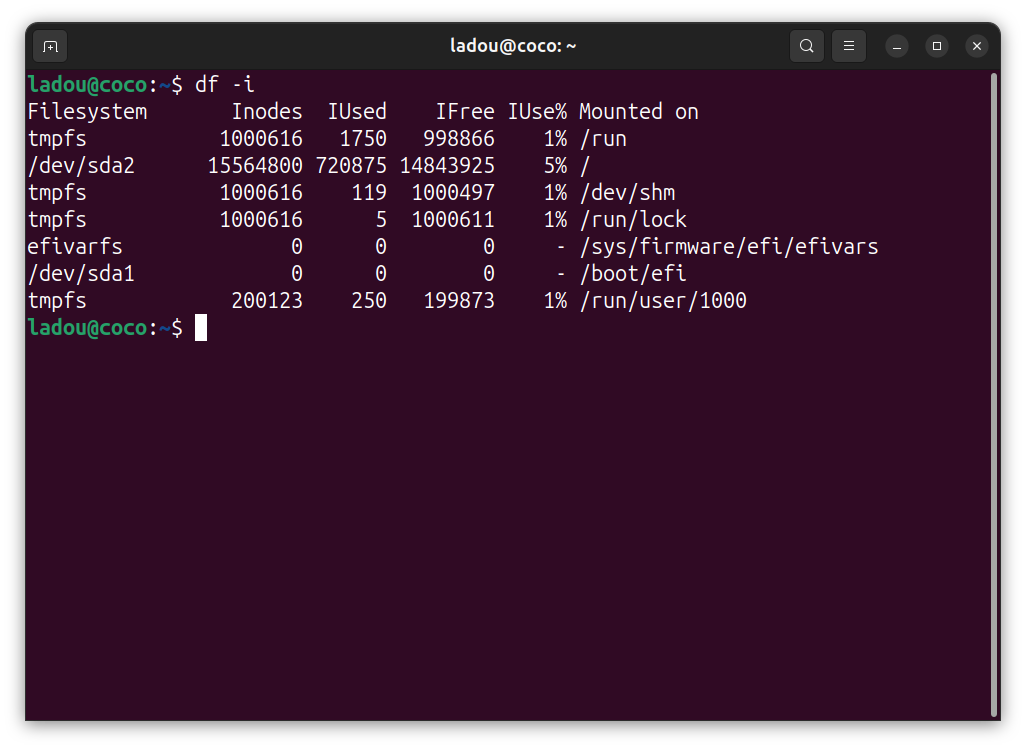
df -i
This shows inode usage across all mounted filesystems. If any partition has 100% inode usage, you’ve run out of available inodes, even if there’s still free disk space.
Step 2: Find Directories Consuming Inodes
To locate folders with too many small files, use:
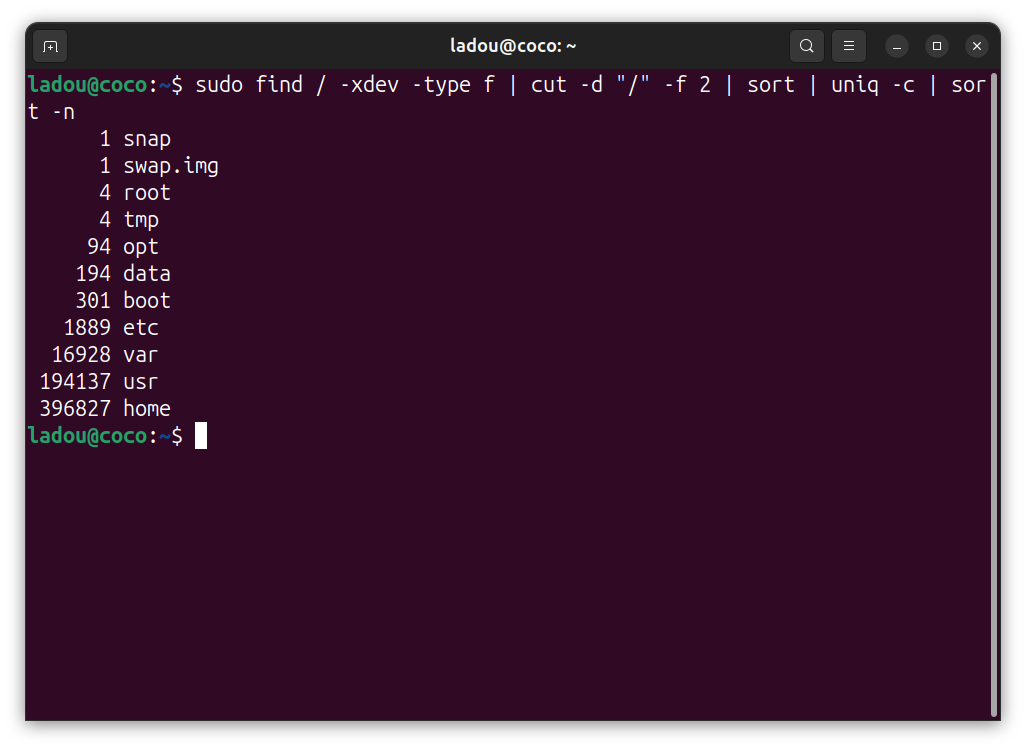
sudo find / -xdev -type f | cut -d "/" -f 2 | sort | uniq -c | sort -n
This scans your filesystem and counts files per directory, helping you identify areas like /var/spool or /tmp that might be overloaded with small files.
Step 3: Free up Inodes
A. Delete Small Unnecessary Files
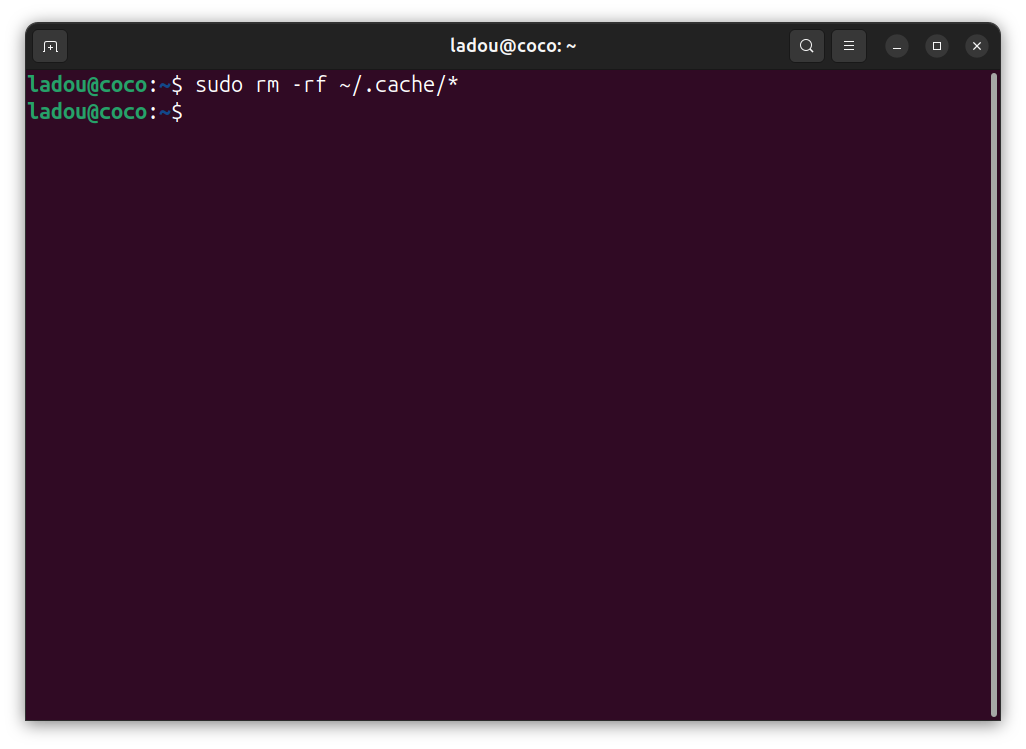
From the screenshot above, you can see I have more inodes in my home, use, and var directories. I can selectively clear the small files in those directories. For instance, old emails, cached files, and temporary data can consume thousands of inodes, so I can just remove them.
sudo rm -rf /var/spool/mail/*
sudo rm -rf ~/.cache/*
B. Clear Session & Temporary Files
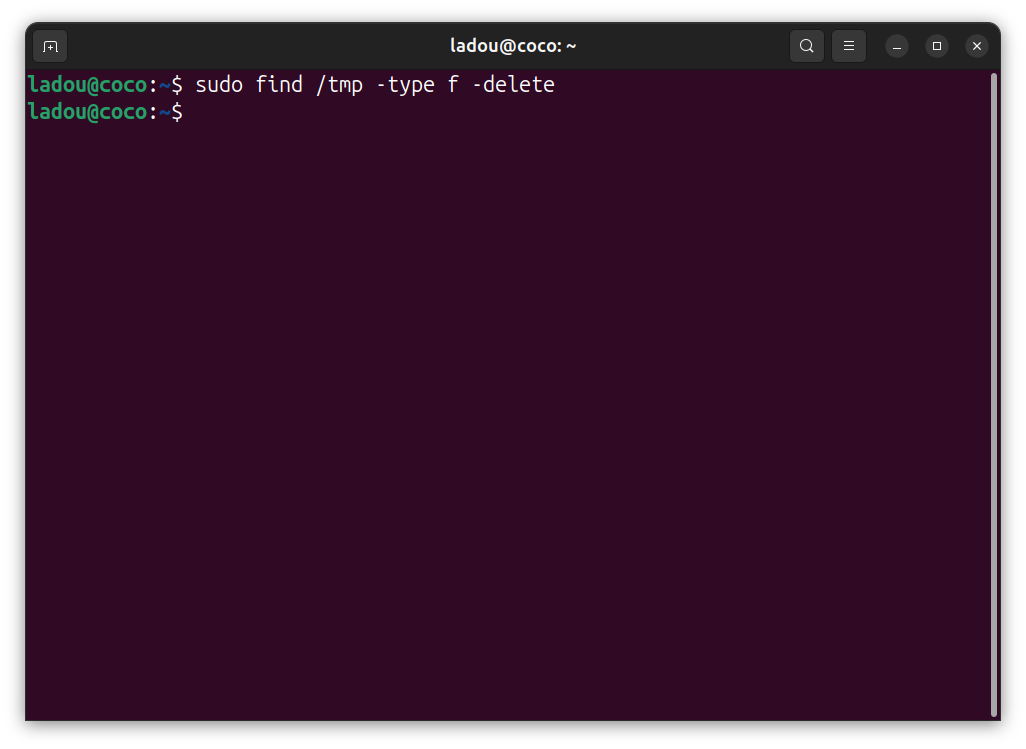
sudo find /tmp -type f -delete
This safely deletes temporary files that may no longer be in use.
Step 4: Verify Inode Availability
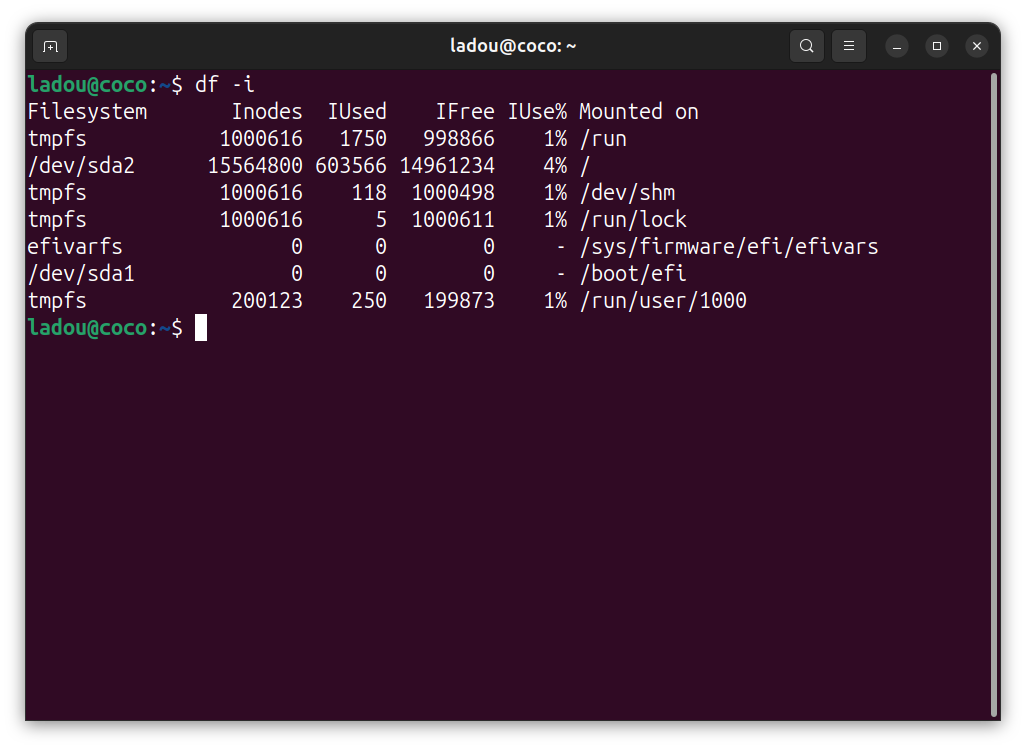
Check inode usage again:
df -i
If inodes have been freed, the error should be resolved.
Method 3: Extending Disk Space (Advanced)
If you’re still running out of space, consider more advanced solutions:
- Resizing partitions with "gparted"
- Adding a new disk and mounting it.
- Using LVM (Logical Volume Manager) for flexible storage management.
 Oyinebiladou Omemu
Conclusion
The "No Space Left on Device" error can stem from two main causes: a lack of actual disk space or inode exhaustion. By systematically checking disk usage, cleaning unnecessary files, and managing inodes, you can resolve the issue efficiently.
To prevent future occurrences, consider setting up log rotation (logrotate) and scheduling regular cleanups with cron. If the problem persists, expanding storage or optimizing system configurations may be necessary.
Image Credit: Oyinebiladou Omemu/Techloy.com


