



If you're caught in a late-night scroll trap, Android’s Bedtime Mode is your key to better sleep, taming your phone’s distractions in one tap.
Bedtime Mode, part of Android’s Digital Wellbeing, helps you unplug and sleep better. Available on Android 9+, it mutes notifications, dims the screen, and applies a gray scale filter to curb phone use at night. Set it to activate automatically, adjust brightness, or enable Do Not Disturb to match your bedtime routine, making it easier to resist distractions and rest well.
Here is how to set it up.
 Gabriel Ojeh
How to Set up Bedtime Mode on an Android device
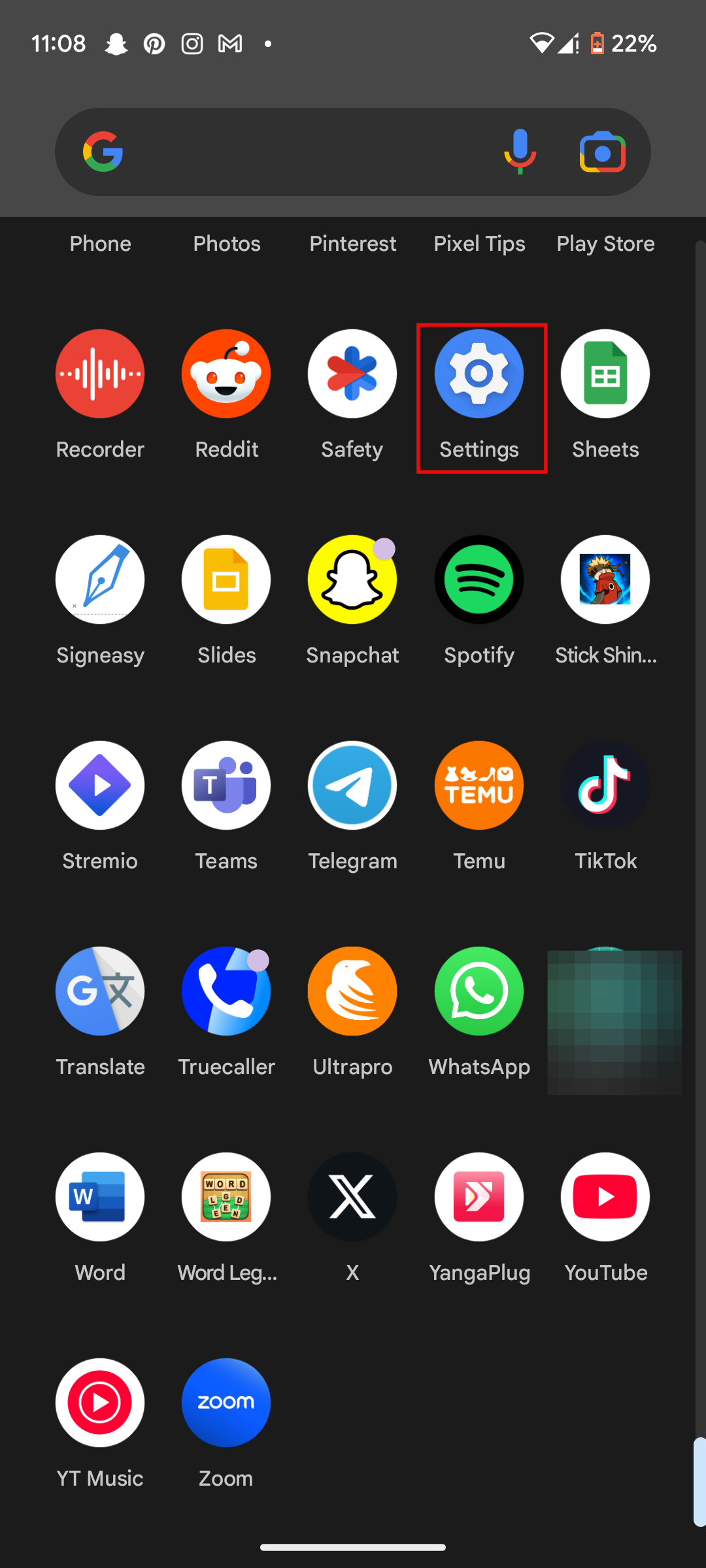
Step 1: Open the Settings on your device
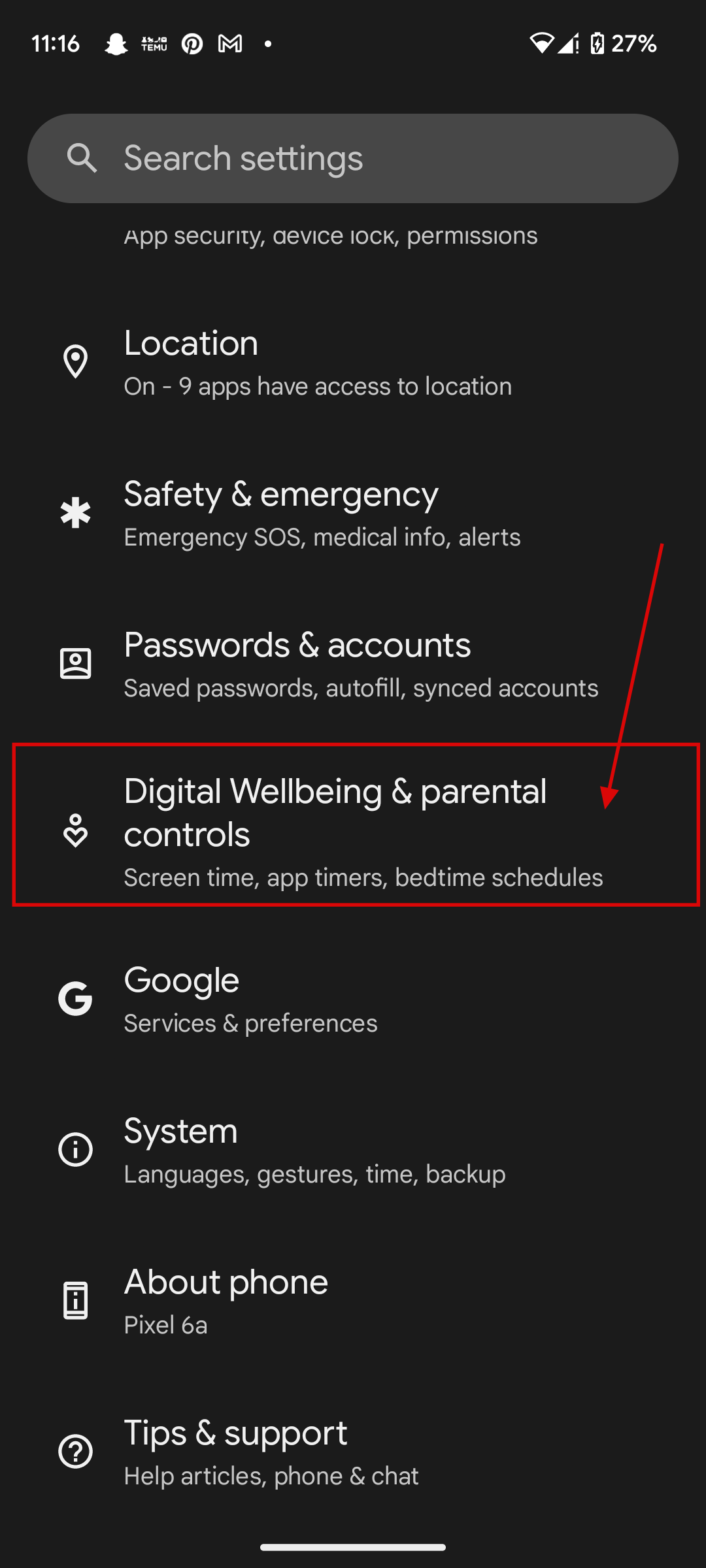
Step 2: Scroll down the Settings menu and tap on Digital Wellbeing & parental controls
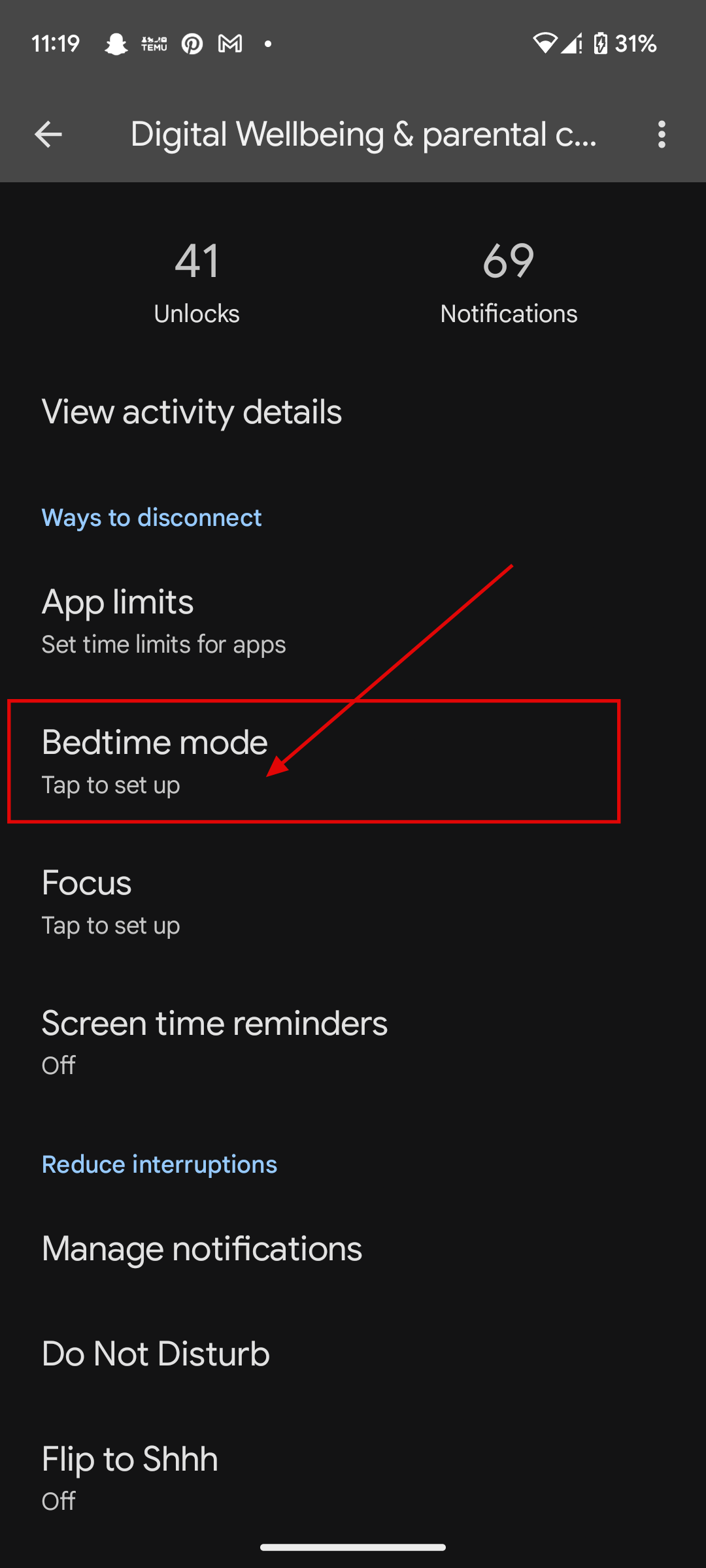
Step 3: Tap on Bedtime mode
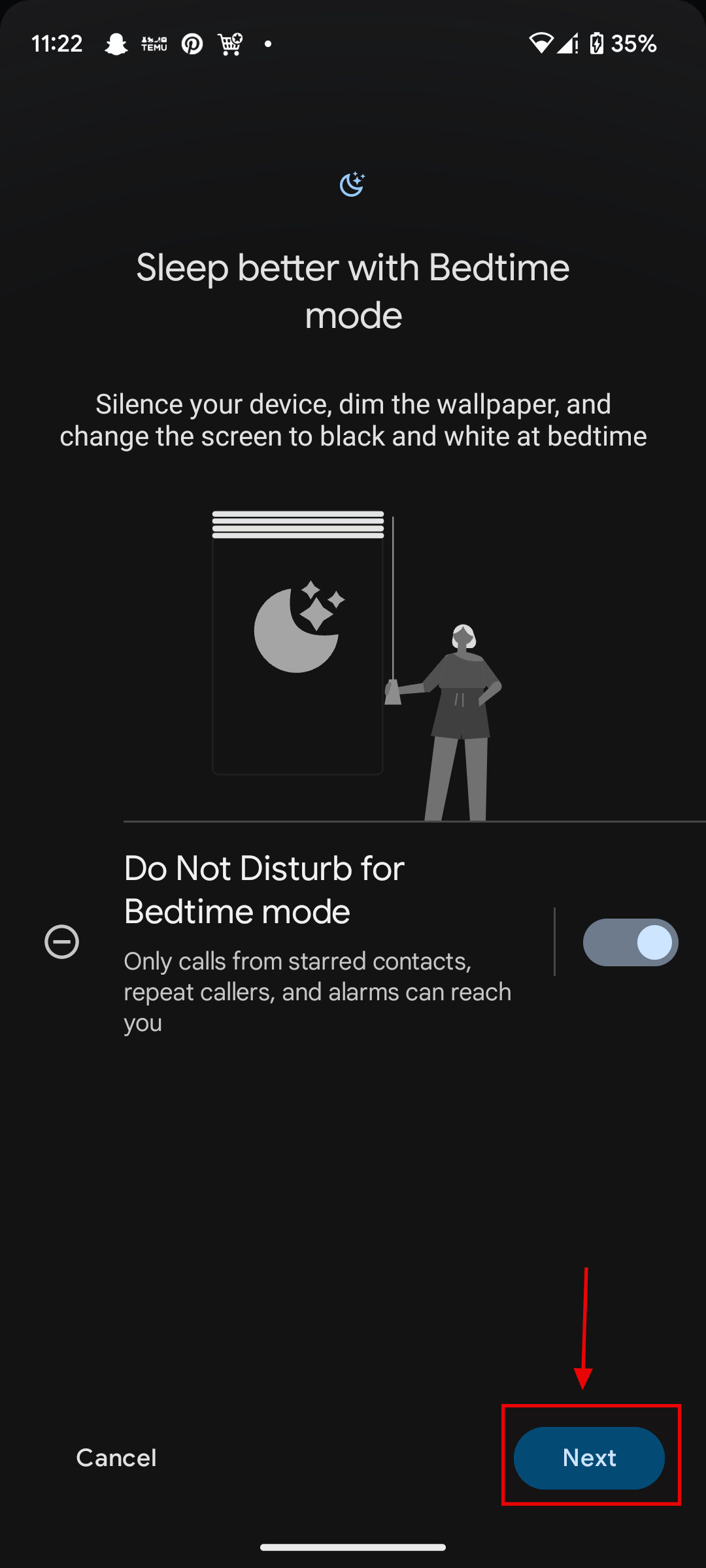
Step 4: On the Bedtime mode screen, you'll likely see a Next button if it's your first time. Click on it
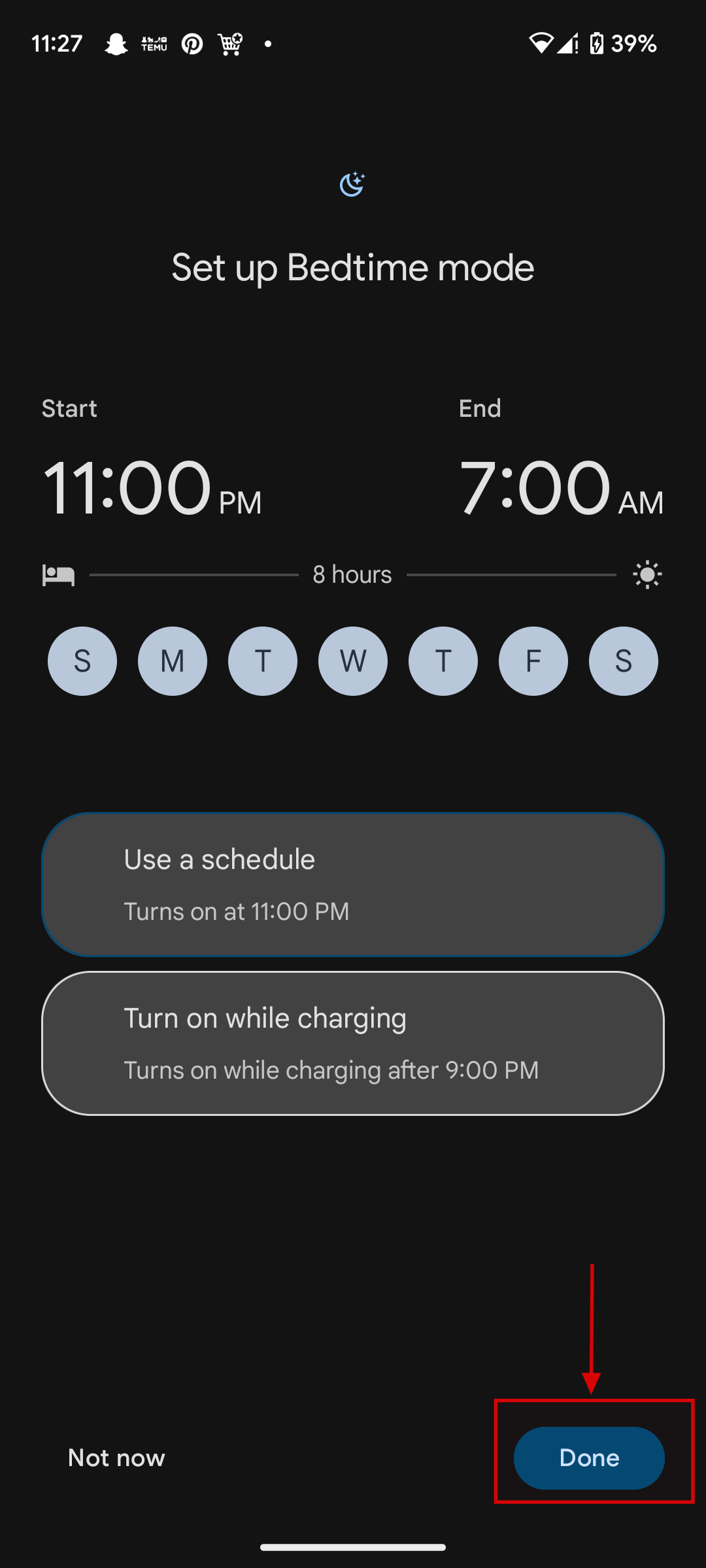
Step 5: You can set Bedtime Mode to activate on a fixed schedule (start time, end time, and days) or automatically when charging during your scheduled bedtime hours. Then Click on Done
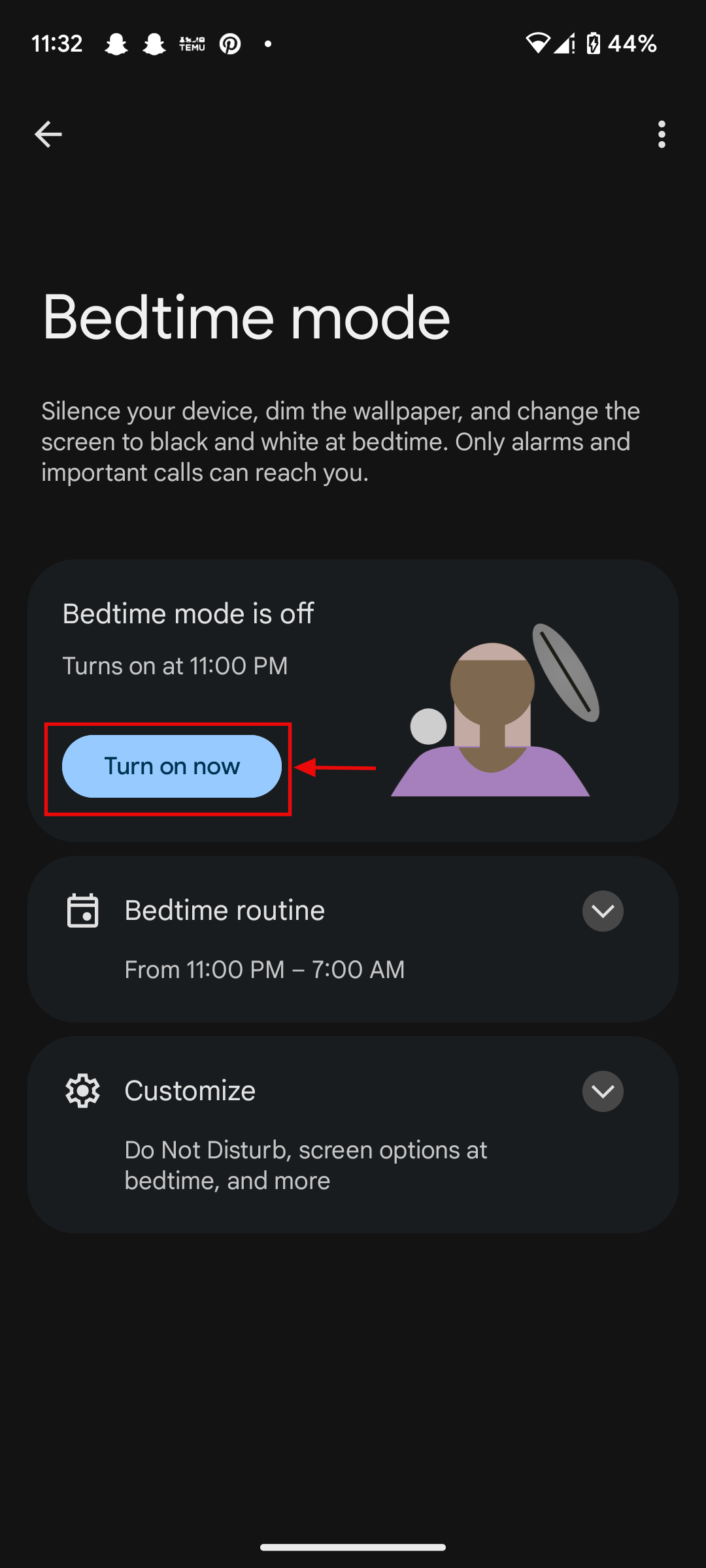
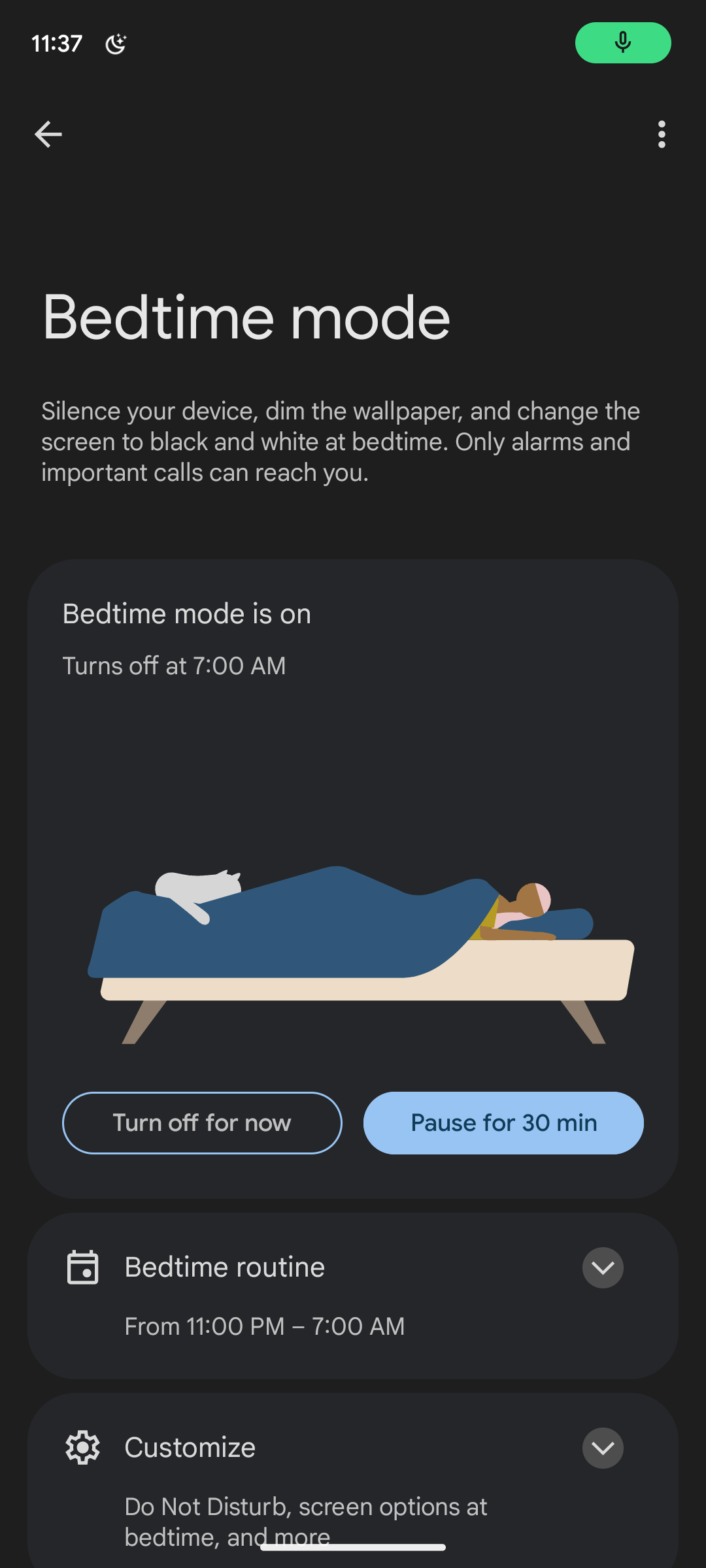
Step 6: Once you've configured your preferences, click on Turn on now to activate Bedtime mode
Conclusion
By setting up and customising Bedtime Mode on your Android, you're taking a significant step towards improving your digital well-being and achieving more restful sleep.
This simple feature transforms your phone from a potential source of late-night distraction into a helpful tool that supports your health, ensuring your nights are for rest, not endless scrolling or missed notifications.
 Oyinebiladou Omemu
Image Credit: Ogbonda Chivumnovu/Techloy.com


