



Google has repeatedly clarified that it isn’t using your Gmail messages to train Gemini, but not everyone is convinced. With AI becoming more deeply woven into Google Workspace, it’s understandable that some users prefer to keep certain features at arm’s length.
The good news is you can turn off Gemini in Gmail and stop it from accessing your data across other Workspace services. Just keep in mind that doing so also disables familiar tools like Smart Compose, Smart Reply, grammar suggestions, and other AI-driven conveniences.
If you’re okay with that trade-off, here’s a simple walkthrough on how to switch Gemini off completely.
 Kelechi Edeh
5 Steps To Turn Off Gemini in Gmail
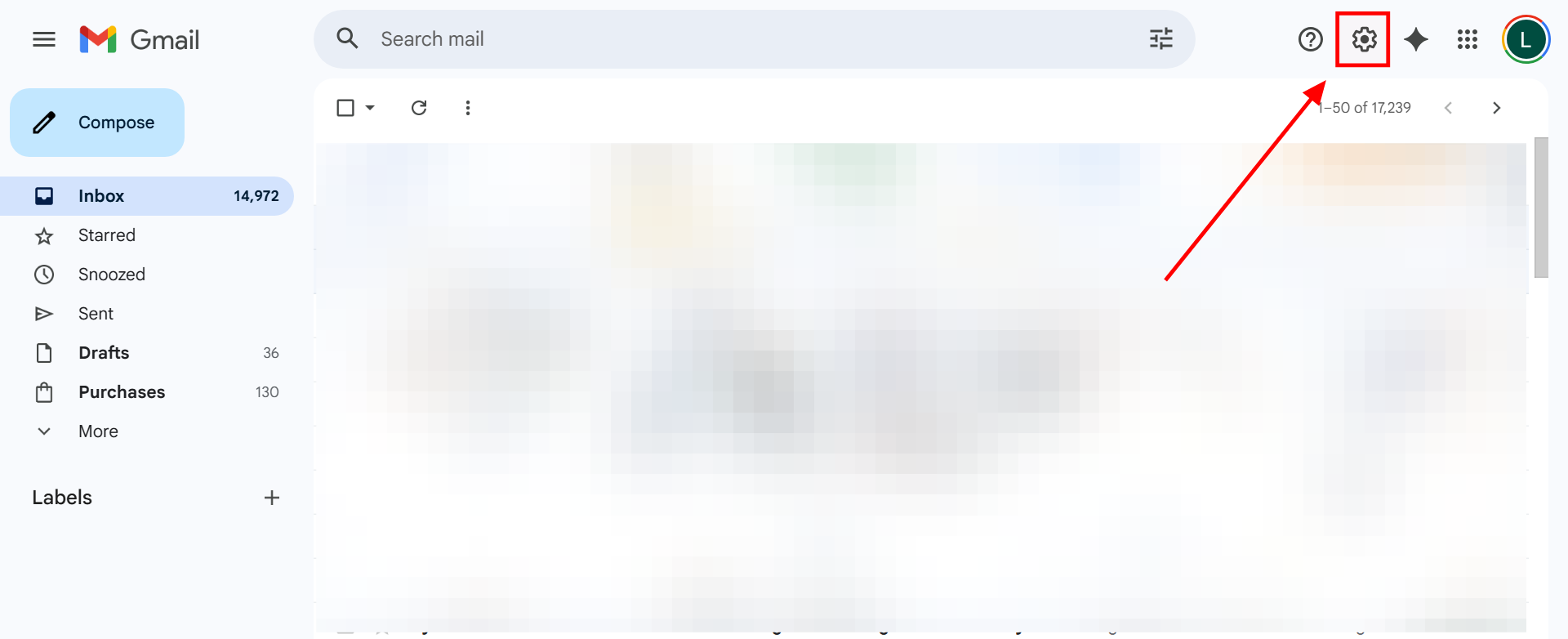
Step 1: Open up Gmail.com on your PC and tap on the settings button at the top right
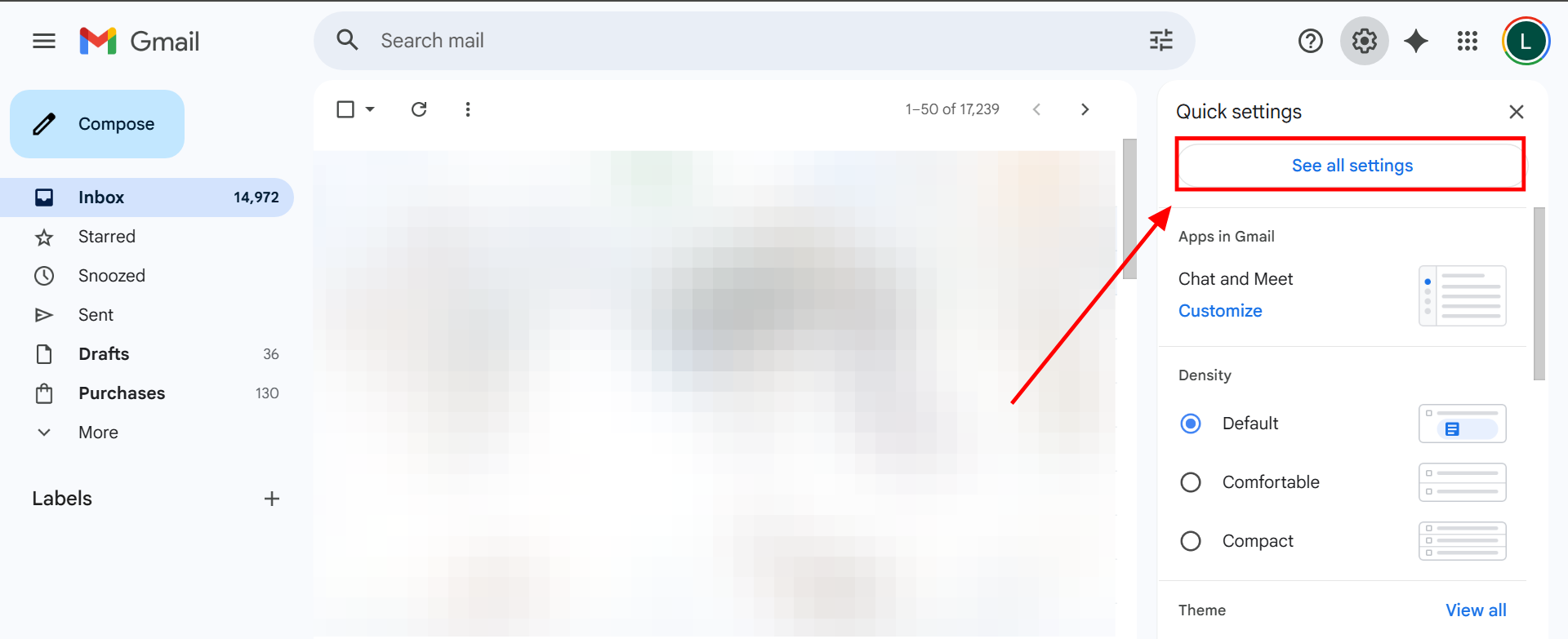
Step 2: Then, click on 'See all settings'
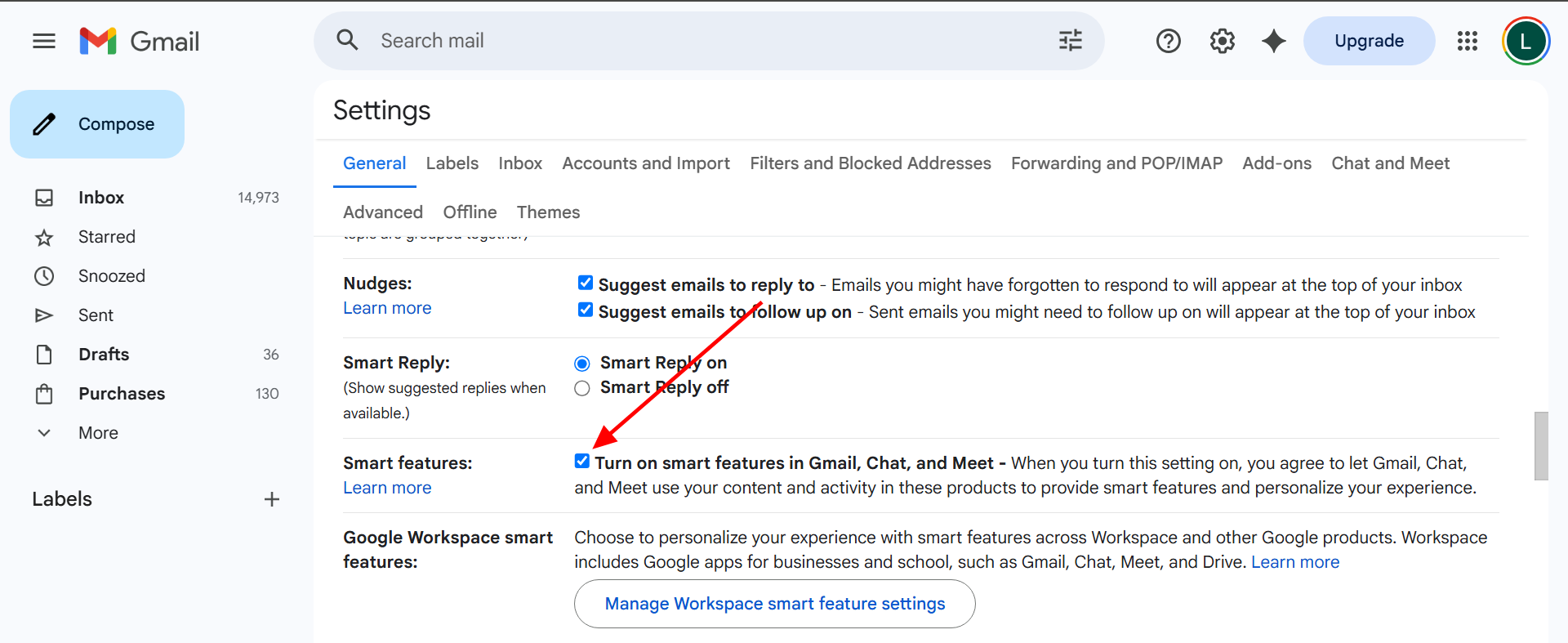
Step 3: Untick the 'Turn on smart features...' button
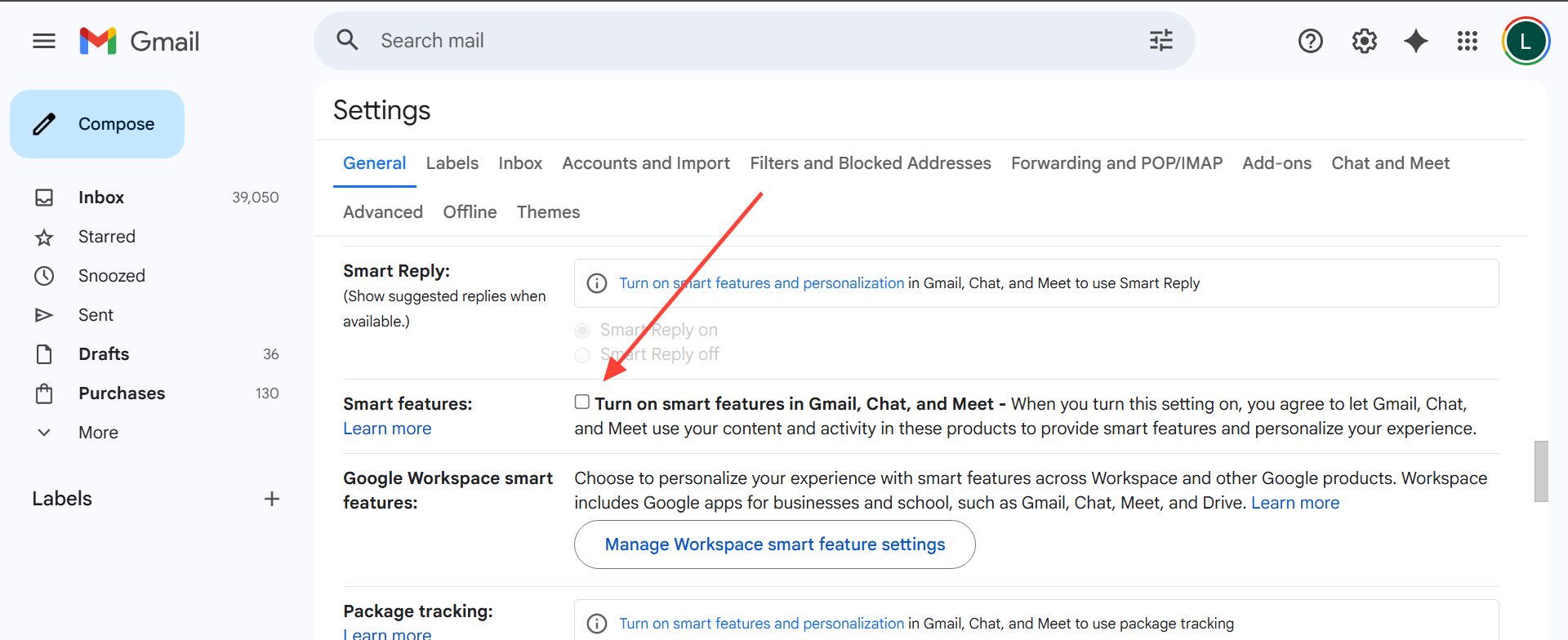
Step 4: To cut off Gemini access to all your other Workspace services, click on 'Manage Workspace smart feature settings'
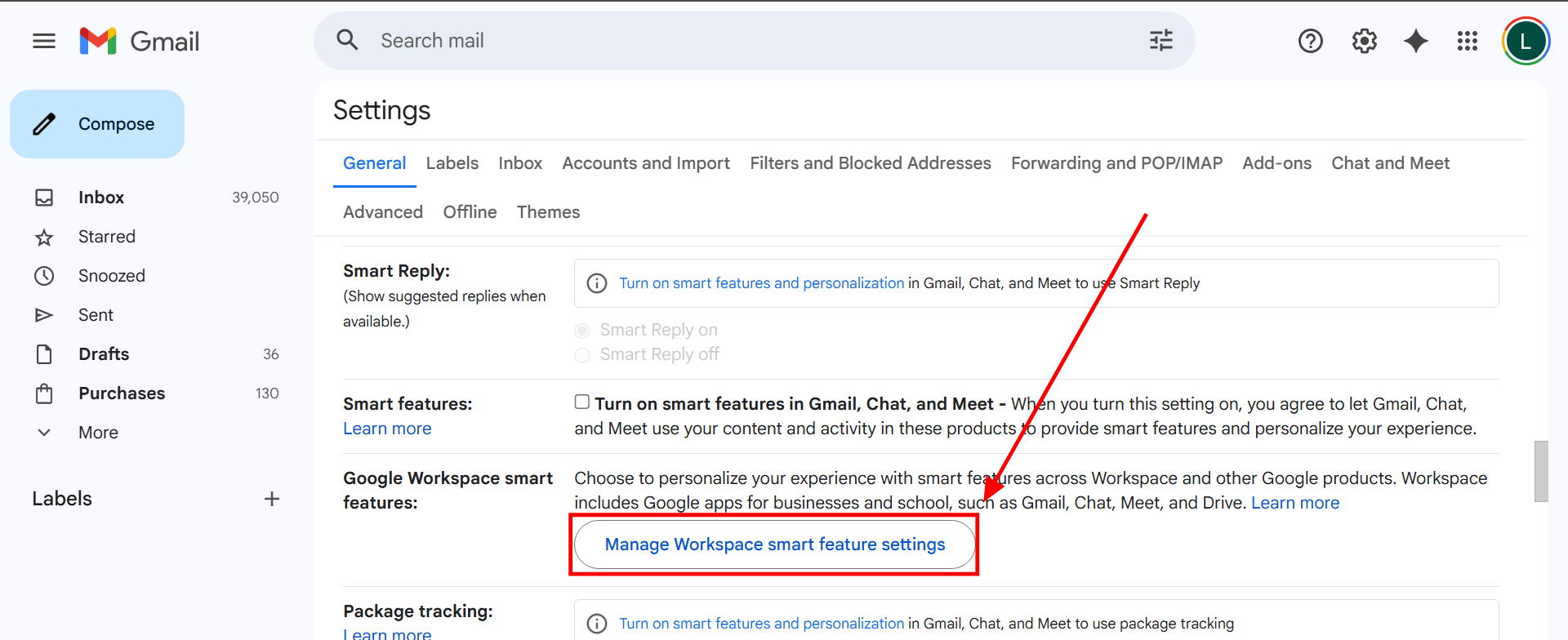
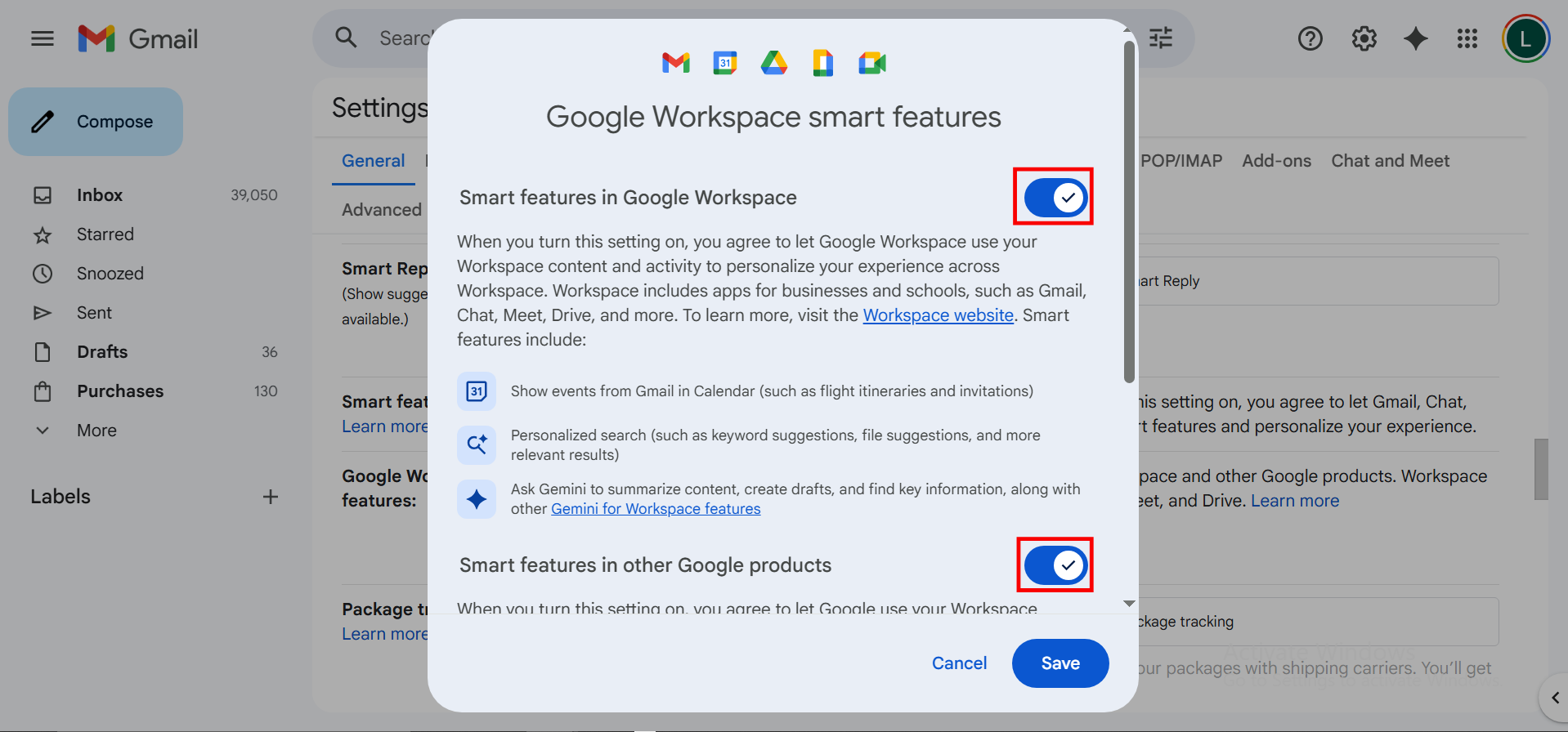
Step 5: Toggle both Smart Feature options off and hit 'Save'

 Kelechi Edeh
Conclusion
And that’s it. Once you’ve adjusted these settings, Gemini will no longer have access to your Gmail or any of your Google Workspace apps. You’ll lose a few helpful features along the way, but you’ll gain more control and peace of mind over how your data is handled.
Whether you’re taking a break from AI tools or stepping away from them entirely, the steps above give you a straightforward way to keep your Workspace experience exactly how you want it.
Image Credit: Louis Eriakha / Techloy.com


