Switching from ChatGPT to Claude is easier than most people think — the part that trips everyone up is the memory. ChatGPT has been quietly learning about you: your name, your job, how you like responses structured, what you're working on. That context took months to build, and walking away from it feels like a setback before you've even started.
It doesn't have to be. ChatGPT lets you export everything it knows about you, and Claude has a built-in tool specifically for importing it. Once that's done, you switch on Claude's own memory, and it picks up from there — learning more about you with every conversation.
This guide walks through the full process: how to export your ChatGPT memory, how to transfer it to Claude, how to import your data, and how to add memory in Claude so nothing gets lost in the move.
What You Need Before You Start
- A ChatGPT account (free, Plus, or Pro — all work for this)
- A Claude account — if you don't have one yet, go to claude.ai and sign up with Google or an email address. It takes two minutes.
- About 20 to 30 minutes to do this properly
Part 1: How to Export Your ChatGPT Memory
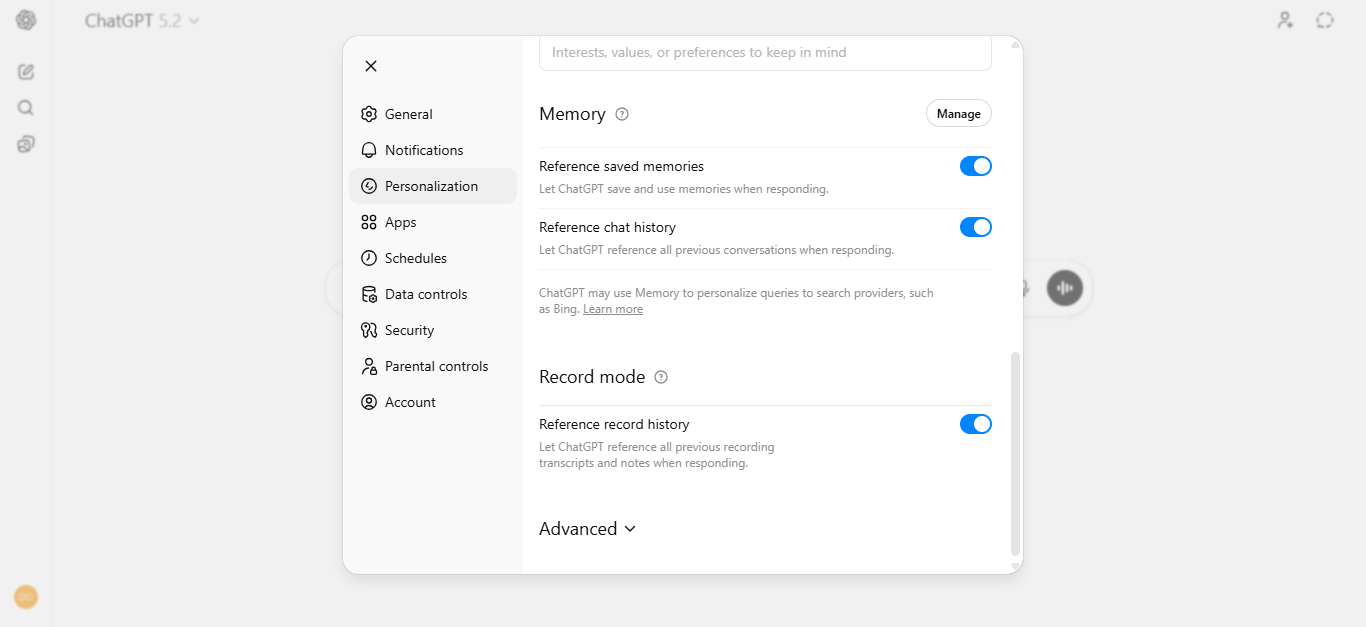
Step 1 — View Your Saved Memories in ChatGPT
Before you export anything, go and see exactly what ChatGPT has stored about you.
In ChatGPT, click your profile icon in the bottom-left corner, then go to:
Settings → Personalization → Memory → Manage
This shows you every memory ChatGPT has saved — your name, your job, preferences, projects, how you like responses formatted, and anything else it picked up from your conversations over time.
Read through every entry carefully. Some of it will be accurate and useful. Some will be outdated. Take a mental note of what's worth keeping, because in the next step you're going to extract all of it and then clean it up before you move it anywhere.
Free users have access to Saved Memories and a lightweight version of memory, so this section will have something for everyone. The more advanced long-term memory features are on Plus and Pro plans, meaning paid users will typically have a richer, more detailed memory export.
Step 2 — Extract Everything ChatGPT Knows About You
Instead of copying entries from the memory manager one by one, there's a faster and more complete way to do this. Open a new ChatGPT conversation and paste the following prompt exactly as written:
"I'm switching to a different AI assistant and need a complete export of everything you know about me. Please give me the following in a single response:
1. Every memory stored about me — written verbatim, not summarised or paraphrased 2. My full custom instructions — both fields, copied exactly as written 3. Any recurring preferences, context, or patterns from our conversations that may not have been formally saved as memories — my profession, the tools and software I use, how I like responses structured, topics I come back to regularly, my communication style
Do not skip entries. Do not group or summarise. Write everything out in full."
ChatGPT will return a single structured output with everything it has on you. Copy the whole thing and paste it into a Google Doc, Notion page, or plain text file. This is your migration document. You'll use it in Part 2.
Step 3 — Clean Up Your Migration Document
Before you import anything into Claude, spend five minutes going through that document and editing it down to what's still accurate and relevant today.
Remove anything outdated — projects you've finished, old context, things that are no longer true, anything you'd rather Claude not factor into your conversations. What you're left with is a clean, current profile: a precise picture of who you are, how you work, and what you want from an AI assistant.
That's what you're taking into Claude.
Step 4 — Download Your Full ChatGPT Data Archive (Optional)
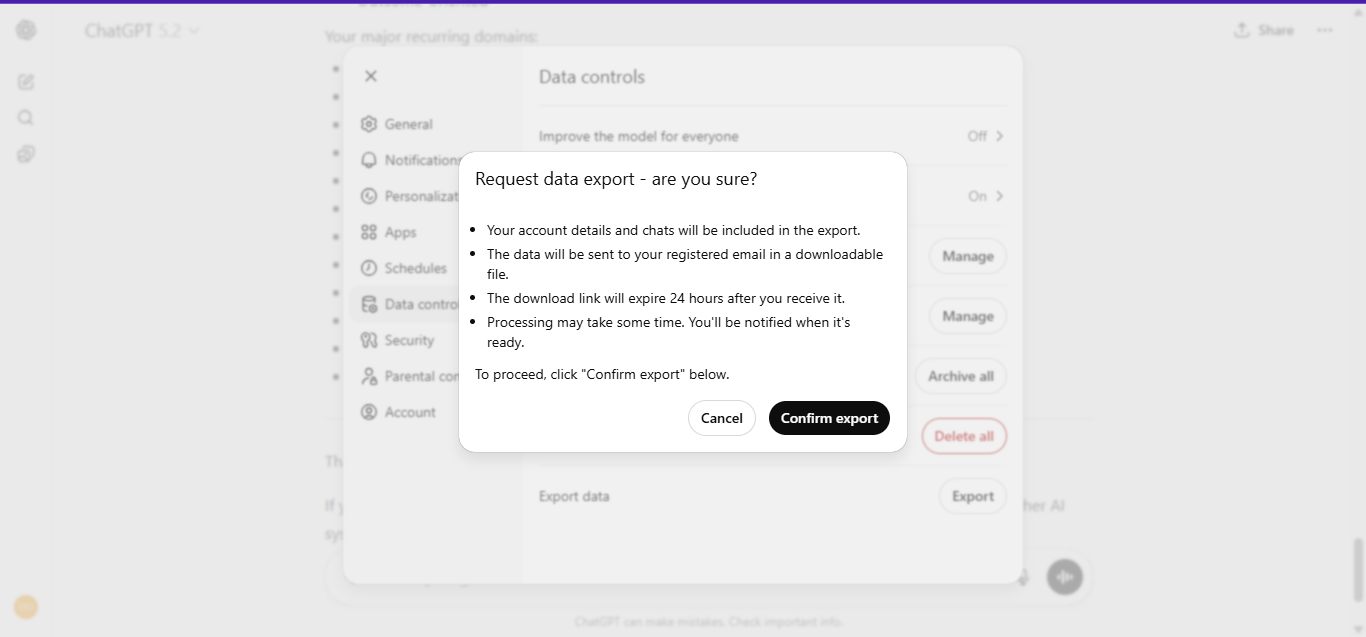
Your memory export covers the context and preferences. If you also want a complete backup of every conversation you've ever had with ChatGPT, you can download the entire archive.
In ChatGPT, go to:
Settings → Data Controls → Export Data → Confirm export
OpenAI will send you a download link by email. It usually arrives within 48 hours, sometimes faster. The link expires after 24 hours, so download it as soon as it arrives.
When you unzip the file, you'll find a file called chat.html. Open it in any browser and your full conversation history is there, searchable and readable. You don't need to import this file into Claude anywhere — keep it as a personal reference. If you ever need to retrieve context from a specific old project or conversation, it's all there.
Part 2: How to Transfer Your ChatGPT Memory to Claude
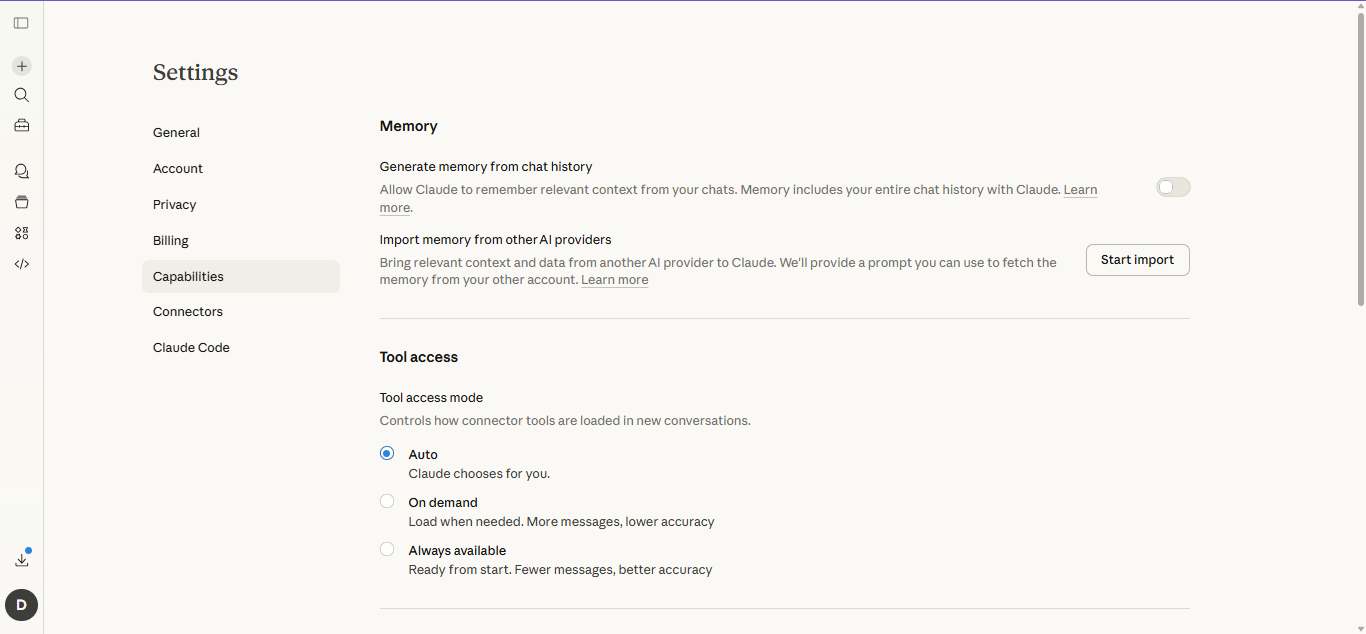
Step 5 — Open the Claude Memory Import Tool
Open Claude and click your profile icon. Go to:
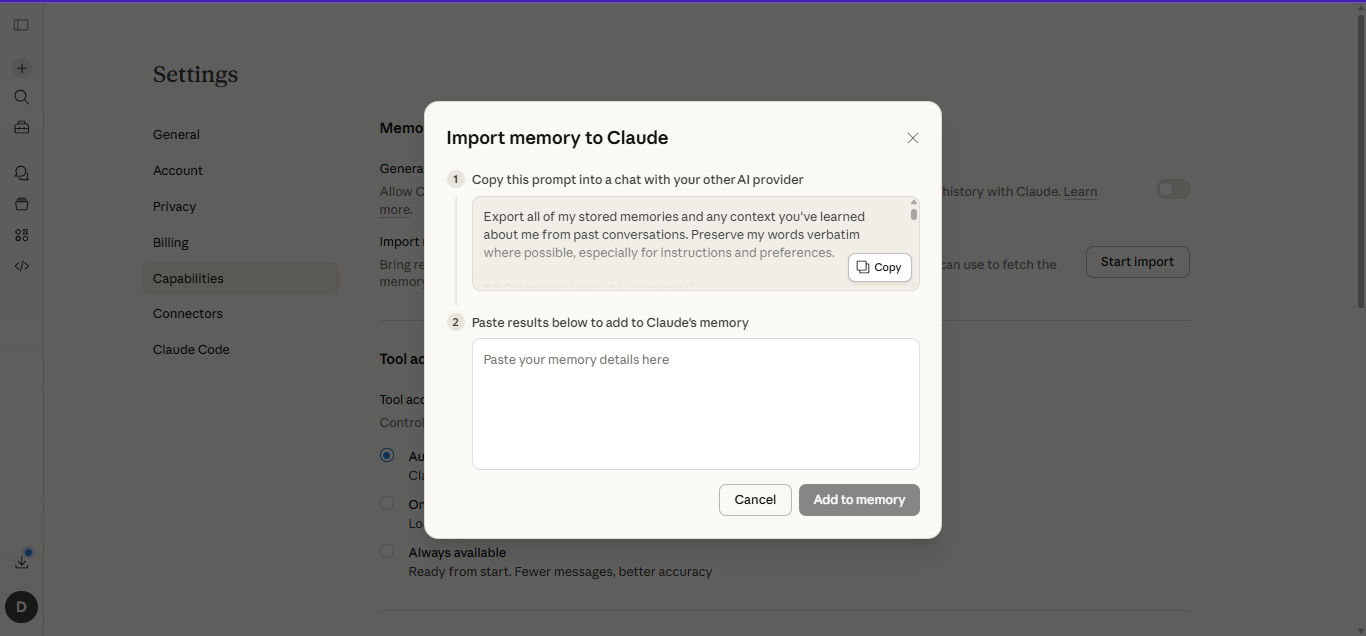
Settings → Capabilities → Memory
You'll see two options listed here:
- Generate memory from chat history
- Import memory from other AI providers
Click Import memory from other AI providers.
Claude will offer a prompt you can use to fetch your memory from ChatGPT — but since you already ran a more thorough version of that in Step 2, you don't need to use theirs. You're going straight to the import.
Step 6 — Paste and Submit Your Migration Document
Take the cleaned migration document you prepared in Step 3 and paste the full contents into the input field. Review it once more before you submit — make sure it reads clearly and accurately. Then submit it.
Claude will process everything and integrate it into its memory system. It can take up to 24 hours for the imported memories to fully reflect across your conversations, because Claude updates its memory in daily cycles rather than in real time. If your preferences don't show up immediately, give it until the next day.
Your ChatGPT memory is now in Claude.
Part 3: How to Add Memory in Claude
Step 7 — Turn On Claude's Ongoing Memory
The import you just did covers everything ChatGPT already knew about you. For Claude to keep building on that going forward — picking up new things from your conversations and remembering them automatically — you need to switch on its ongoing memory.
In the same Settings → Capabilities → Memory section, toggle on Generate memory from chat history.
Once this is on, Claude builds a running synthesis of what it learns about you across conversations and updates it every 24 hours. Every conversation you have feeds into that picture, and every future conversation benefits from it. This is how Claude gets better at working with you the longer you use it — except now you've given it a head start with everything you already built up in ChatGPT.
Step 8 — Review, Edit, and Add to Claude's Memory Manually
At any point, you can go back into Settings → Capabilities → Memory to see exactly what Claude has stored about you. From there you can edit any entry that's slightly off, delete anything you'd rather it not remember, or add things manually that haven't come up in conversation yet.
This is worth doing after the first week or two of using Claude. By then it will have started building its own picture of you on top of what you imported. Review it, tidy it up, and it'll reflect you more accurately than anything you had in ChatGPT.
Part 4: How to Move Your Ongoing Work to Claude
Step 9 — Set Up Claude Projects for Active Work
Memory handles general context about who you are. For specific ongoing work — a business, a writing project, a codebase, a research topic you return to regularly — Claude has a feature called Projects that gives that work a permanent home.
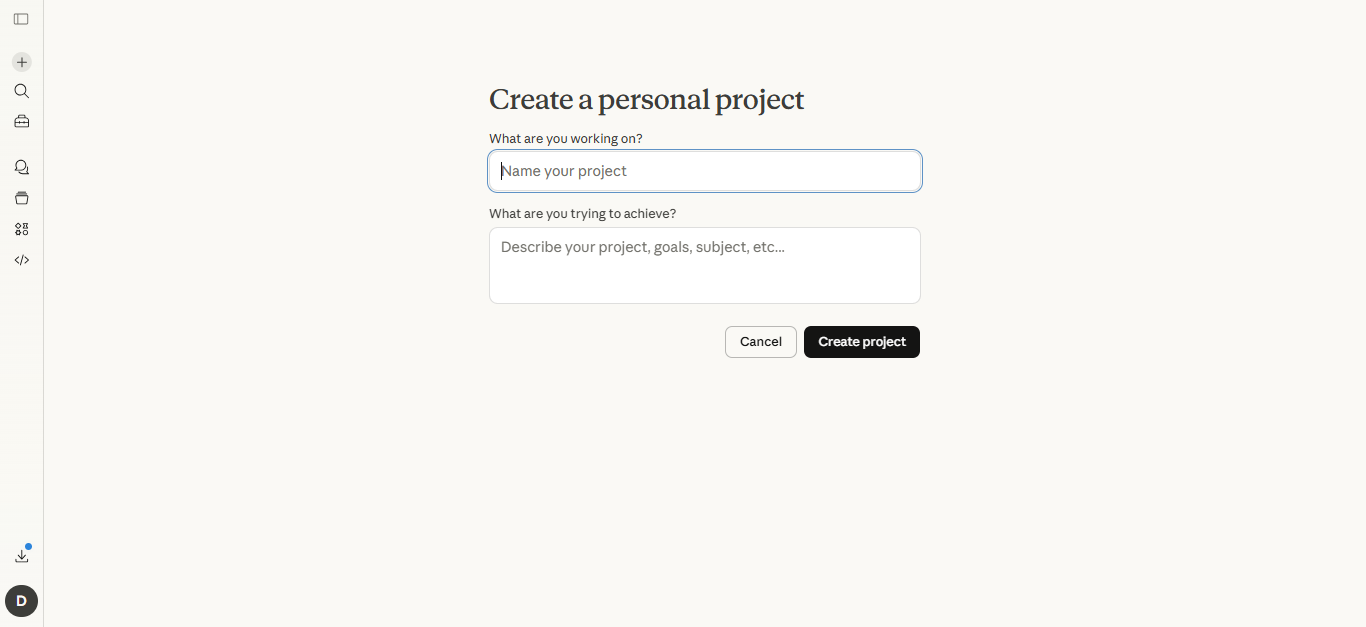
In the Claude sidebar, click New Project and give it a name. Inside the project, write a brief in the project instructions: what the project is, where things currently stand, decisions already made, and any context Claude needs to work on it effectively. Upload relevant documents if you have them.
Every conversation inside that project loads this context from the very first message, every time. You never have to re-explain the background or catch Claude up on where things left off. Open the project and it already knows.
If you had multiple ongoing threads in ChatGPT, create a separate project in Claude for each one. It takes ten minutes to set up and saves you from re-explaining the same context hundreds of times going forward.
 Damilare Odedina