I have and will always be a hardcore believer in Dark Mode superiority. It's easy on the eyes, saves battery and is just a better aesthetic in my opinion. If you're tired of the bright white interface on Facebook, switching to dark mode is an easy way to give your eyes a break, especially at night.
Whether you prefer a more muted look or want to save a little battery life, here's how to enable dark mode on the Facebook mobile app.
 Emmanuel Umahi
How to turn on dark mode on Facebook
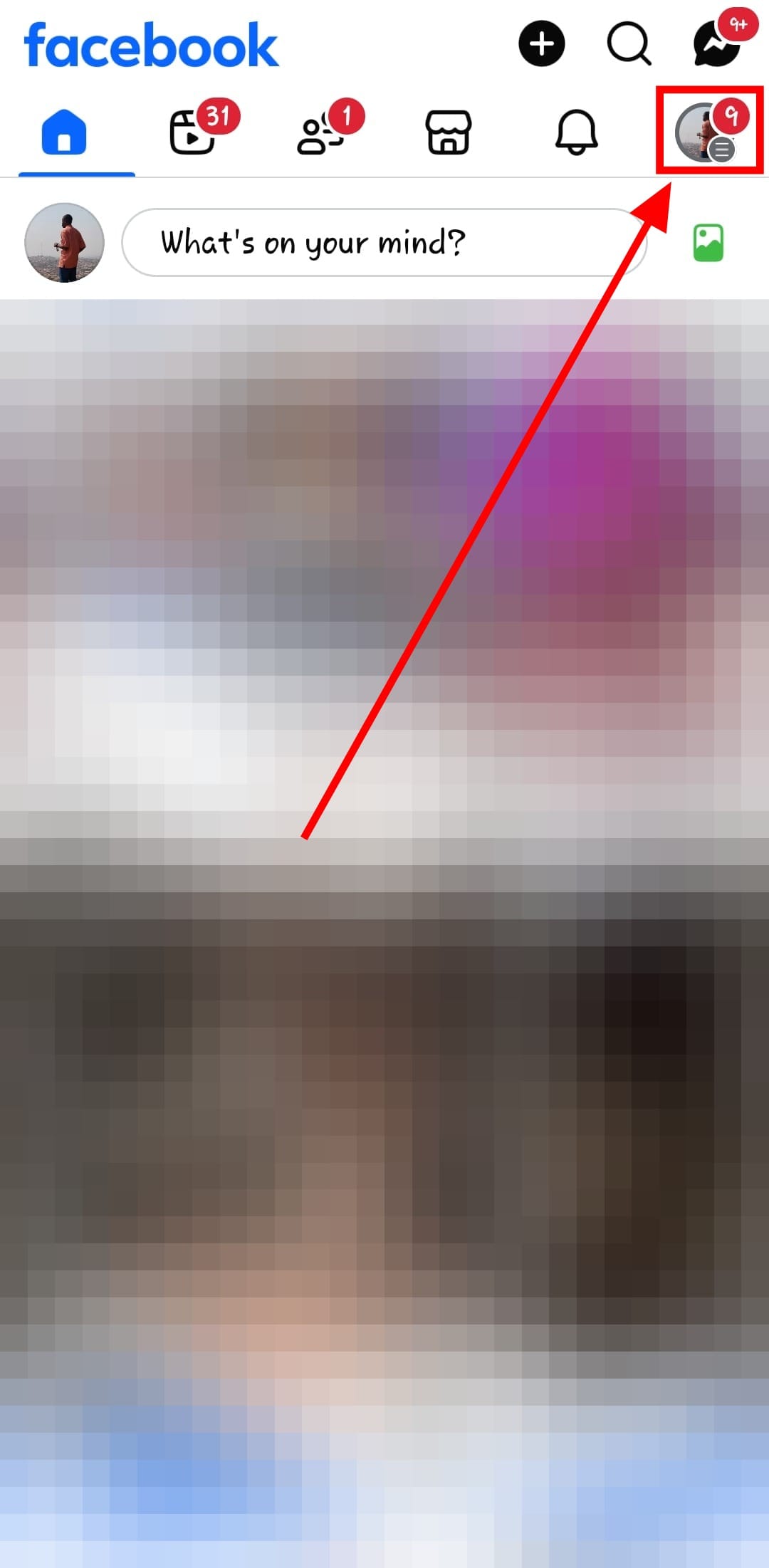
Step 1: Open up the app and tap on your profile at the top right
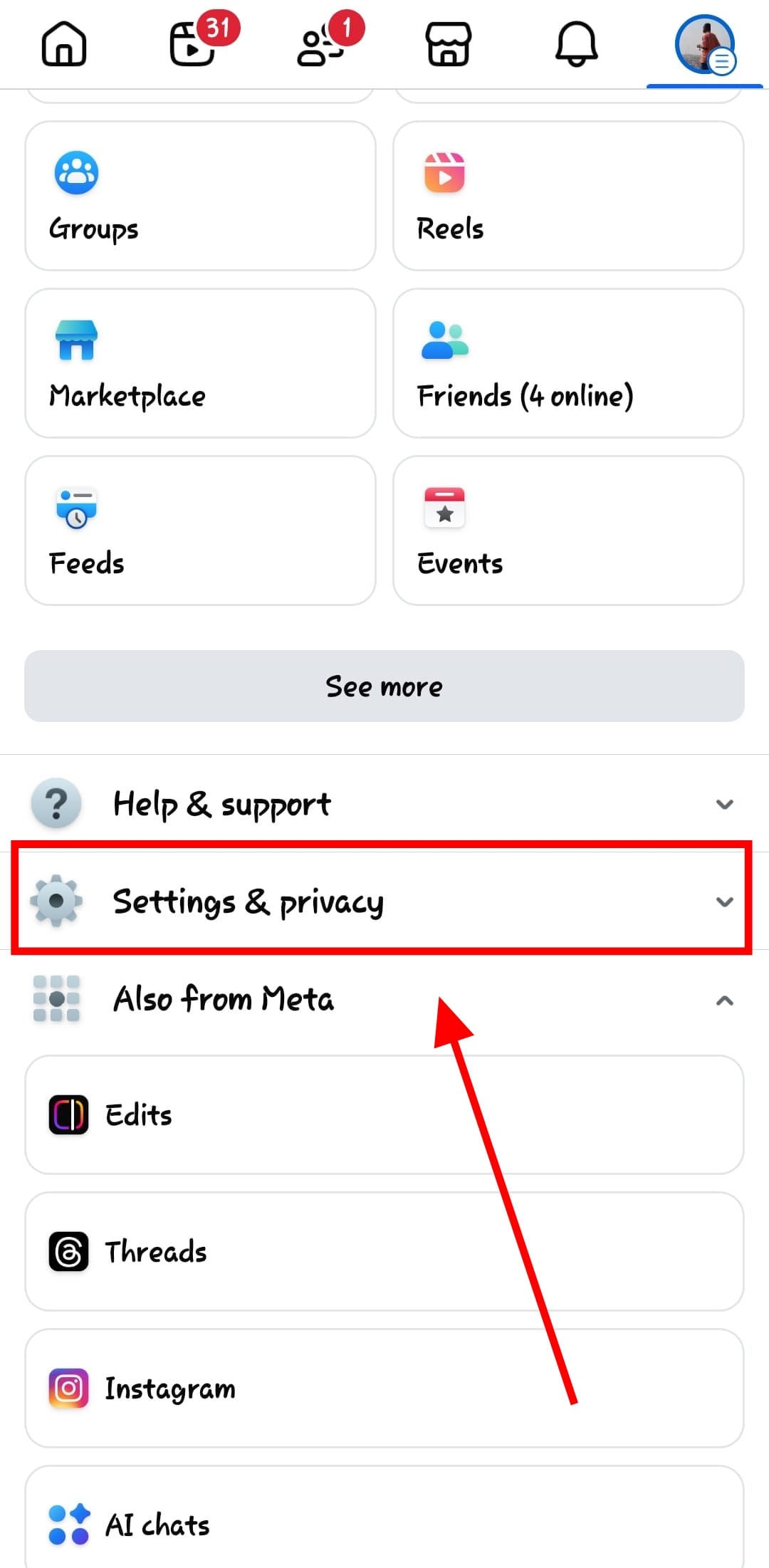
Step 2: Scroll down and tap on 'Settings & privacy'
Step 3: Scroll down to 'Dark mode'
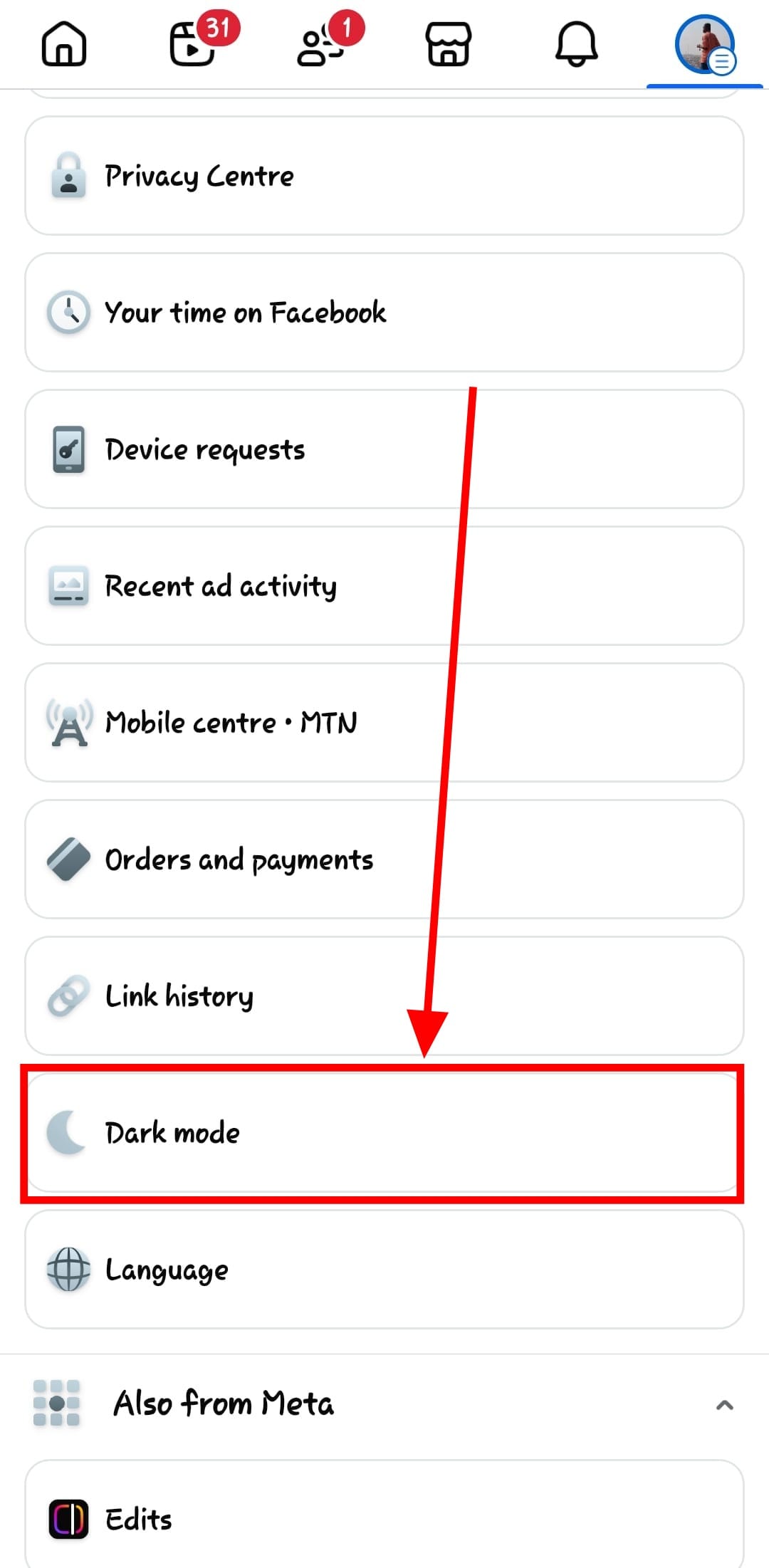
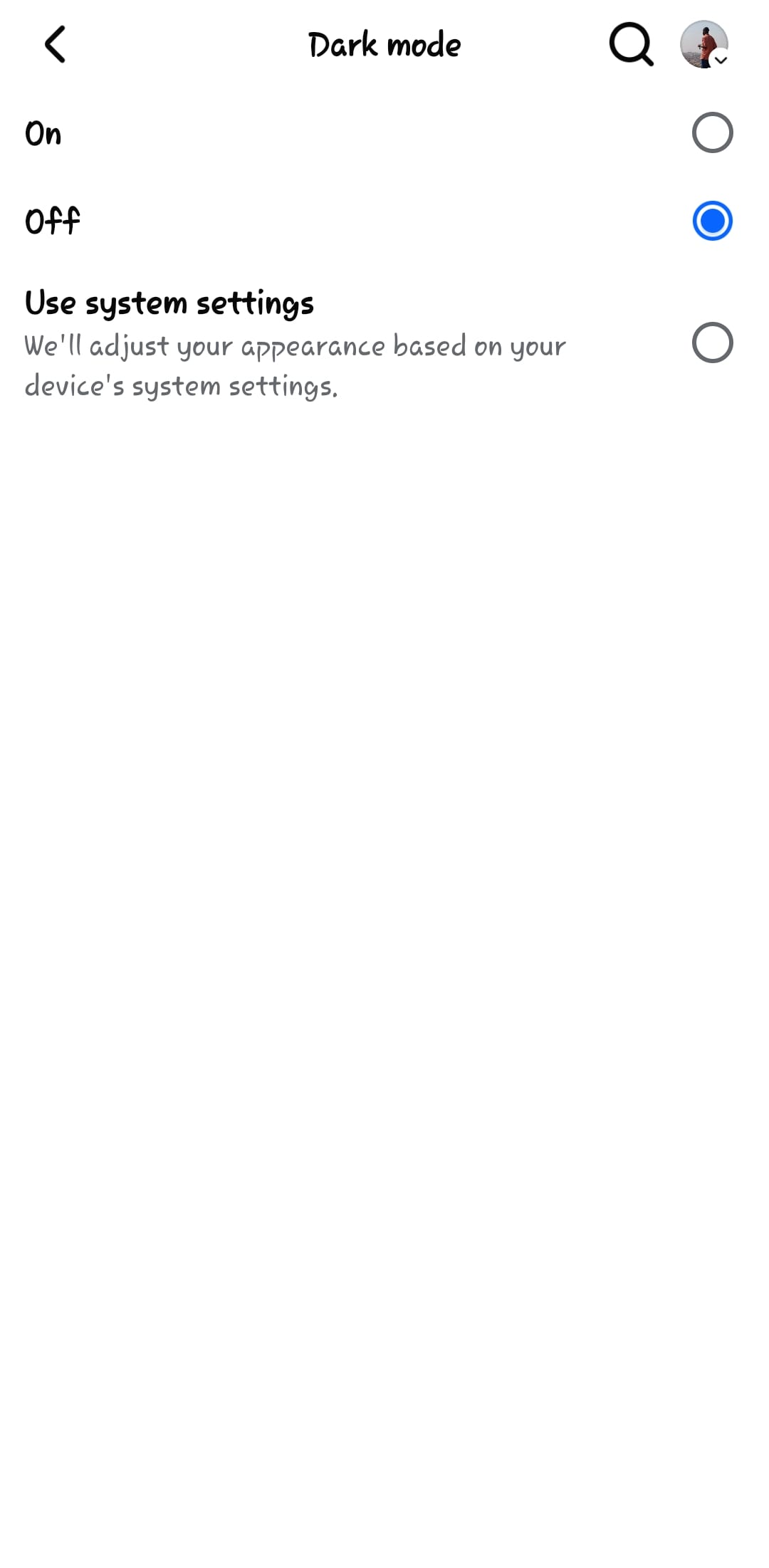
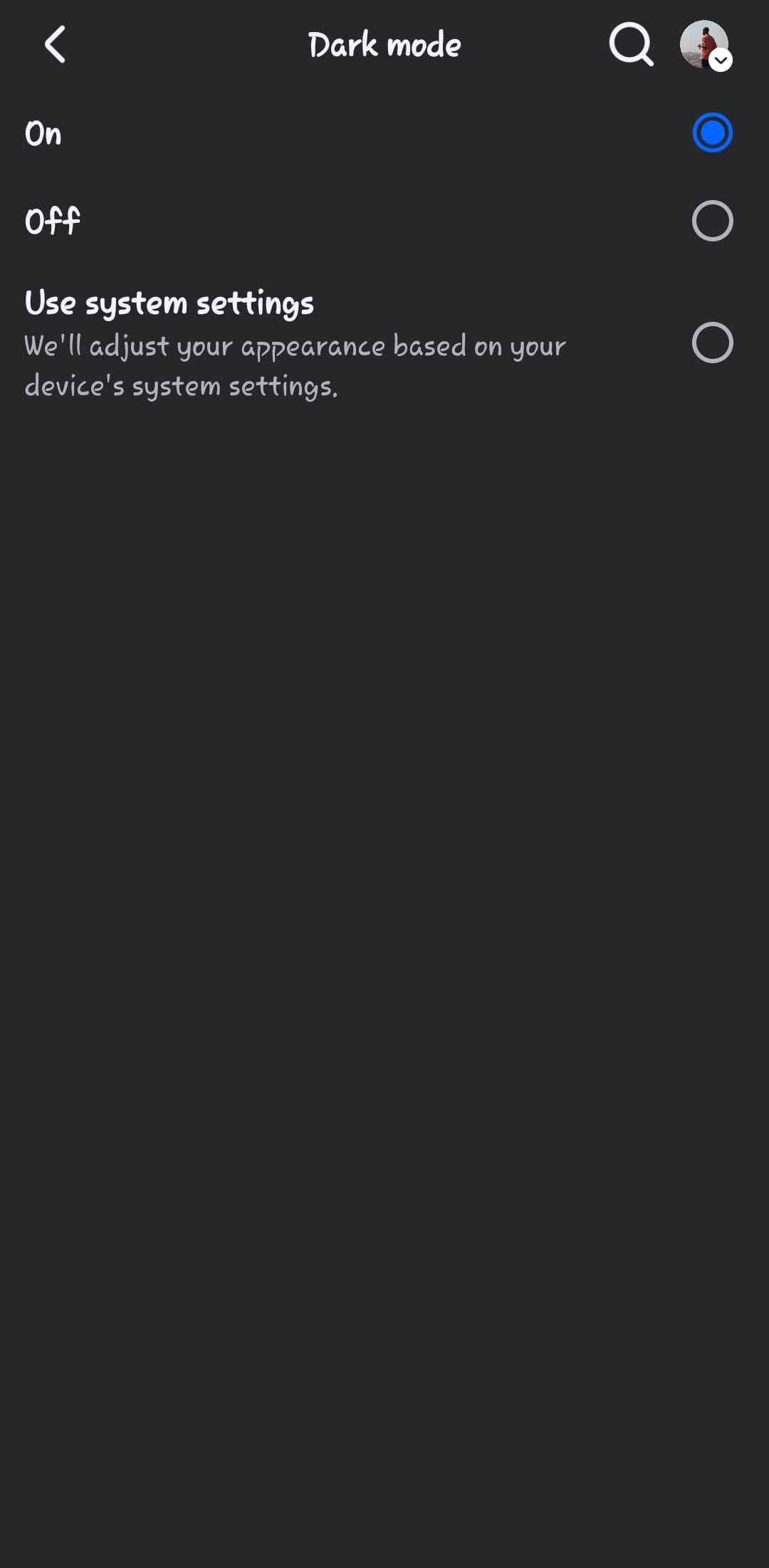
Step 4: Tap 'On' to enable dark mode immediately. You can also choose System if you want Facebook to match your device's appearance settings.
Conclusion
And just like that, you've objectively made your interface look better. As mentioned before, once enabled, Facebook’s dark mode will switch the app’s background to a darker theme, making scrolling more comfortable, especially in low-light settings. If you ever want to switch back, just follow the same steps and turn it off.
Image Credit: Louis Eriakha / Techloy.com
 Louis Eriakha