



Samsung phones are known for handling multitasking pretty well, but even they have limits. The other day, I had a payment app, my email, and an authenticator open. I copied a code from the authenticator, switched back to the payment app, and it had already restarted. That’s when I realized my phone just wasn’t handling multitasking well.
Once you start juggling several apps, your phone may shut some down in the background to free up memory. That means slower performance, reloads, and frustration when you’re trying to get things done.
So how do you fix this?
If you use a Samsung smartphone like I do, one way you can fix this is by using the RAM Plus, a feature that turns part of your storage into extra RAM. With it, your phone can keep more apps running without kicking them out of memory. Here's how you can use it.
 Oyinebiladou Omemu
Steps To Use Samsung RAM Plus to Boost Performance
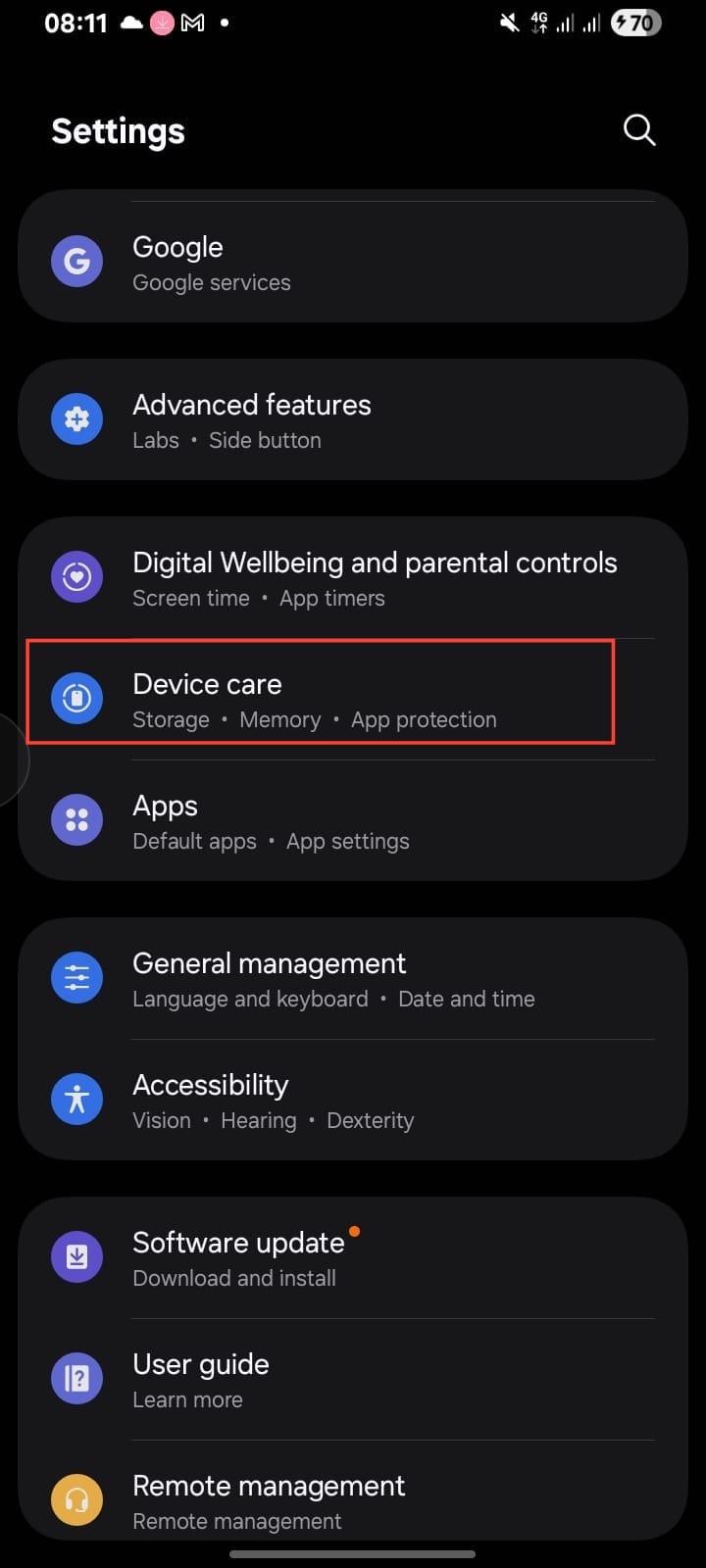
Step 1. Head over to Settings, then tap Device care.
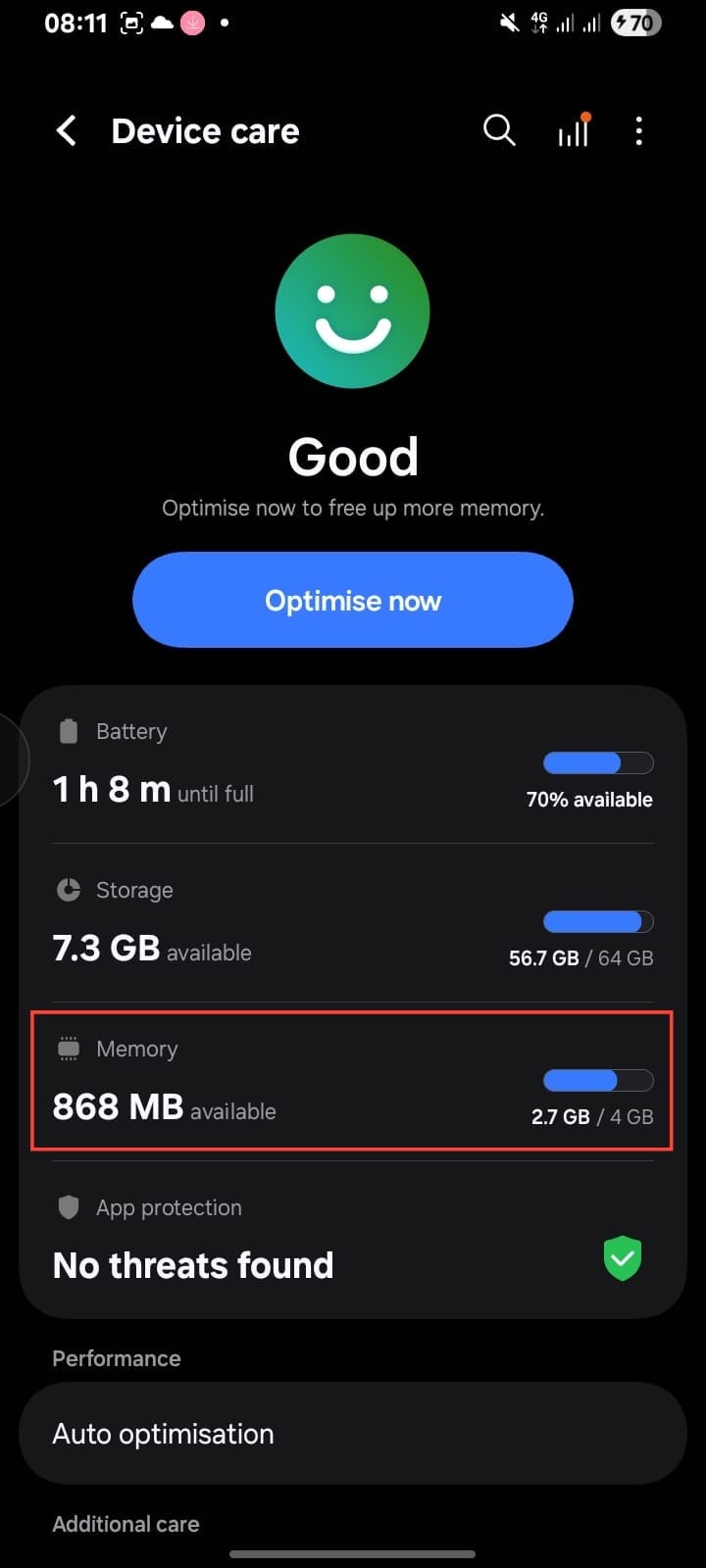
Step 2. From there, select Memory and you’ll see an option called RAM Plus.
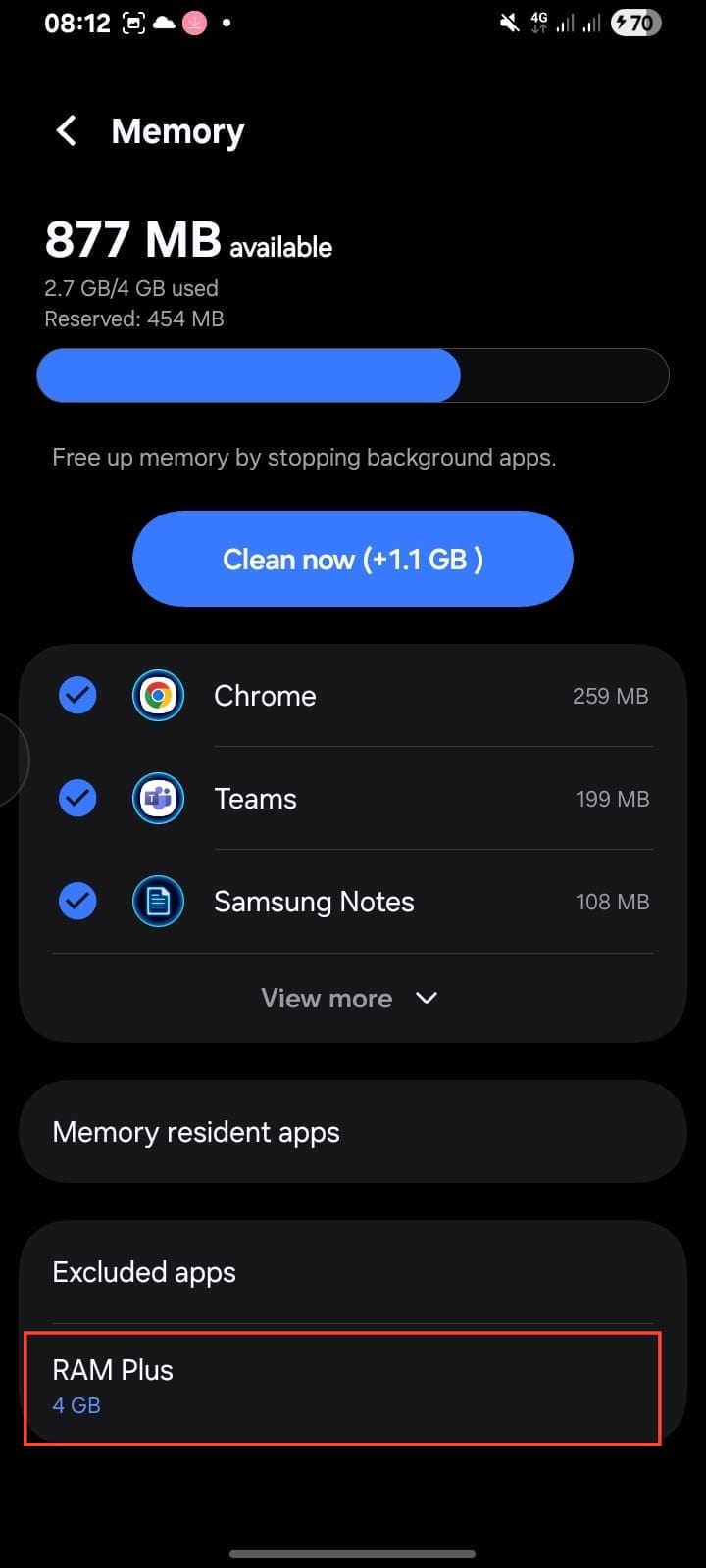
Step 3. Click on "RAM Plus", and you’ll be able to choose how much storage to dedicate as extra RAM.
Step 4. Choose from any of the available options that you think best suits you, then tap Restart.
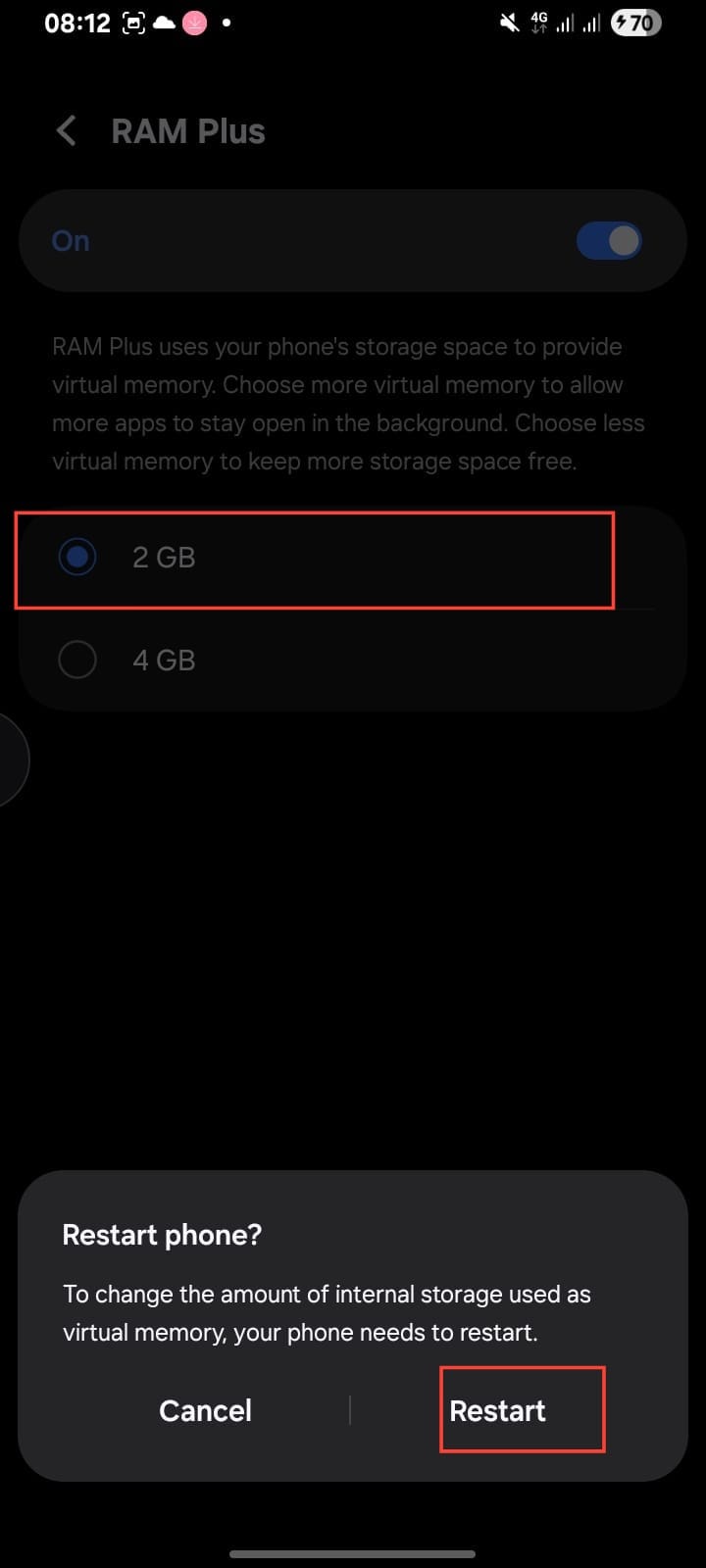
This way, your phone gets enough extra memory to handle multitasking smoothly without taking up too much of your storage.
Conclusion
RAM Plus can be useful if your Samsung slows down when you’re switching between apps, giving your phone more space to keep apps running in the background.
That said, it’s not a guaranteed fix. If your phone already has a large RAM, you might not notice much difference. And if you turn it on and your phone feels slower, head back into Settings and disable it.
You can always turn it on or off, or adjust the amount, and see what works best for you. You can try it and let us know in the comments if it made a difference on your phone.
Image credit: David Adubiina/Techloy.com


