



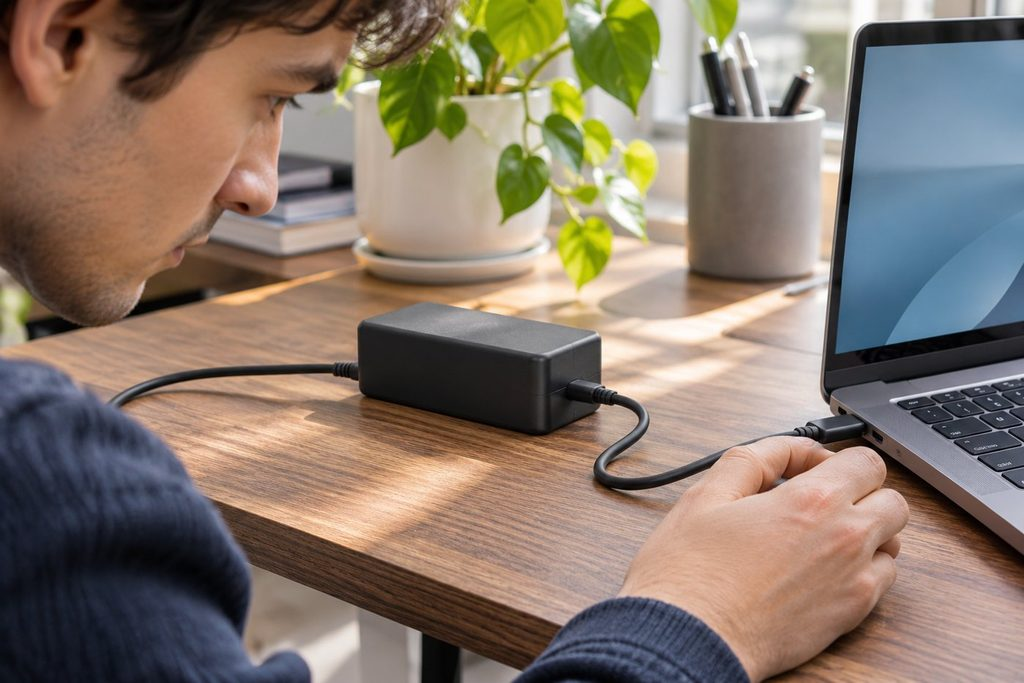
The laptop is charging, the battery icon looks normal, and the power adapter feels surprisingly warm. Is that a reason to buy a new charger?
Not necessarily. Power adapters turn electricity from the wall into the kind your laptop can use, and some of that energy becomes heat. What matters is whether the warmth comes with damage, charging problems, or a setup that traps heat.
Here is how to sort out those possibilities without treating a thermal camera—or the back of your hand—as an electrical safety test.
Start With the Warning Signs, Not the Temperature
A frayed cable, cracked adapter case, bent plug, scorch marks, or unusual popping sounds calls for a different response from an adapter that simply feels warm. Stop using equipment that shows signs of damage. Follow the manufacturer's instructions for disconnecting it safely, and arrange a replacement or qualified assessment.
Never open a mains power adapter. Even unplugged, internal components may retain dangerous electrical energy. If a plug is damaged or stuck in a socket, do not try to pull apart or repair the outlet. Seek help from a qualified electrician.
Does the laptop repeatedly disconnect, report that it is not charging, or stop charging under conditions that used to work? Check the manufacturer's troubleshooting advice. An adapter does not need to be painfully hot to have a problem.
Check the Desk Setup Before You Blame the Hardware
Is the power brick buried under papers, on a thick rug, or squeezed behind furniture with other warm devices? Those conditions can make it harder for heat to escape.
Apple, for example, advises using its adapters in a well-ventilated place and avoiding soft surfaces such as bedding, couches and thick carpet. Follow your own manufacturer's instructions, since adapters differ in their cooling needs.
Move a sound adapter to a stable, dry, well-ventilated location. Keep the cable free of tight bends, especially near its ends. Check that the adapter is rated for your model. A connector that fits is not proof that the wattage or charging standard is correct.
Once the charger is known to be in sound physical condition, a compact RISION thermal imaging camera is one optional way to observe warmth across its accessible exterior. It adds a surface-temperature pattern to your notes, not an electrical safety verdict.
A charger may feel warmer while powering demanding software or charging a low battery than when the computer is idle. That difference alone does not establish a fault.
What a Thermal Camera Adds—and What It Can't Tell You
A thermal image can help compare warmth across visible exterior surfaces under similar conditions. It cannot see inside a sealed power brick, reveal damage to internal insulation, or prove that an outlet and cable are electrically safe.
The colors need care, too. Bright yellow in one image is not necessarily hotter than red in another: many thermal palettes shift with the range displayed. Shiny metal may reflect heat from nearby objects, making a connector appear unusual for reasons other than its own temperature.
If you record images, keep the conditions consistent: the same adapter, similar workload, viewing distance and surroundings. Look for changes on the same accessible surface, rather than judging how dramatic a picture appears.
If the adapter is damaged, discolored, smoking, making unusual sounds or repeatedly failing, skip the experiment. Stop using it when safe; do not leave suspect equipment powered for a better photograph.
Warm, Hot, or Faulty: Three Different Questions
There is no universal temperature that separates a normal charger from a dangerous one. Design, power rating, housing material, workload and the manufacturer's limits all matter.
Instead, separate three questions:
- Does it have physical warning signs? Damage, abnormal sounds, smoke or discoloration take priority over a temperature reading.
- Does it charge reliably? Unexpected disconnections or repeated charging failures call for model-specific troubleshooting.
- Is the heat consistent with its use? Check ventilation and the approved power rating before blaming the hardware.
If you remain unsure, the manufacturer or a qualified service provider is better placed to evaluate it.
Don't Replace a Charger With Just Any USB-C Brick
Before shopping, identify the laptop model and its charging requirements. A USB-C plug alone does not tell you whether a charger supports the required USB Power Delivery profile or enough output for the laptop.
Look for the manufacturer's approved specifications, an appropriate cable and a product that meets applicable safety standards. Check the warranty and buy from a reputable seller. A matching connector in a cheap listing is not enough.
If the brick is fine but a detachable cable is frayed, the cable may be the part that needs replacement. If the charging port is loose or damaged, replacing the brick may solve nothing. Identifying the failing part saves wasted purchases and helps avoid overlooking another problem.
A Better Decision Than Guessing by Touch
An unexpectedly warm charger can be unsettling. Start by checking for damage, reviewing charging behavior, and making sure the adapter can release heat as its maker intended.
Optional surface imaging can then document warmth during otherwise normal operation. It cannot certify safety or replace electrical testing.
The goal is to know whether your setup needs a small change, a charging problem needs a closer look, or the equipment should be taken out of service and replaced.