Your password is the first line of defense for your Ubuntu system, protecting everything from your files to administrative privileges. Whether you're following security best practices, responding to a potential breach, or simply updating credentials you've used for too long, knowing how to change your password is an essential skill for any Ubuntu user.
Modern Ubuntu systems give straightforward methods to update your password for different preferences and situations. You might prefer the speed of the terminal, especially for remote administration, or the simplicity of the GNOME Settings interface for local changes.
This guide will show you two easy methods to change your password: using the terminal (for quick command-line changes) and Ubuntu Settings (for a graphical approach).
 Oyinebiladou Omemu
How to Change the Password in Linux
Method 1: From the terminal
Video Script & Editing: Kelechi Edeh / Techloy.com | Content Research: Oyinebiladou Omemu / Techloy.com
Step 1: Open a Terminal
Press Ctrl+Alt+T to launch the terminal. If you're already working in a command-line environment (like a server), you can skip this step.
Step 2: Change the Password
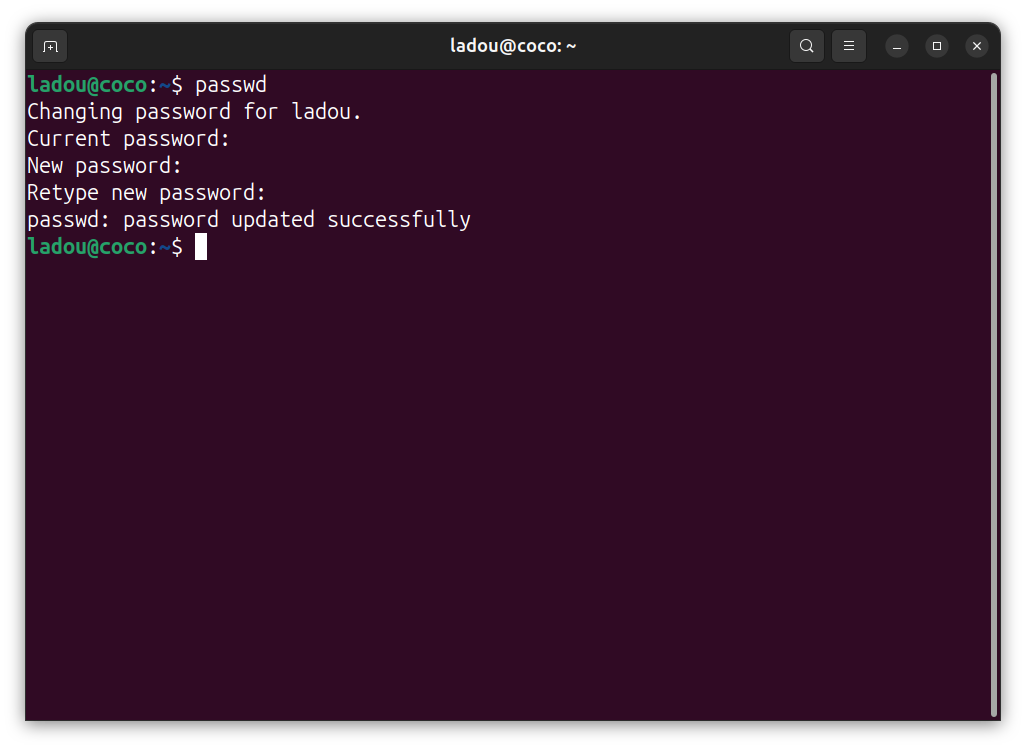
Run the password update command:
passwd
You’ll be asked to:
- Enter your current password (nothing will appear on screen as you type).
- Enter your new password.
- Retype it to confirm.
Method 2: From the Settings
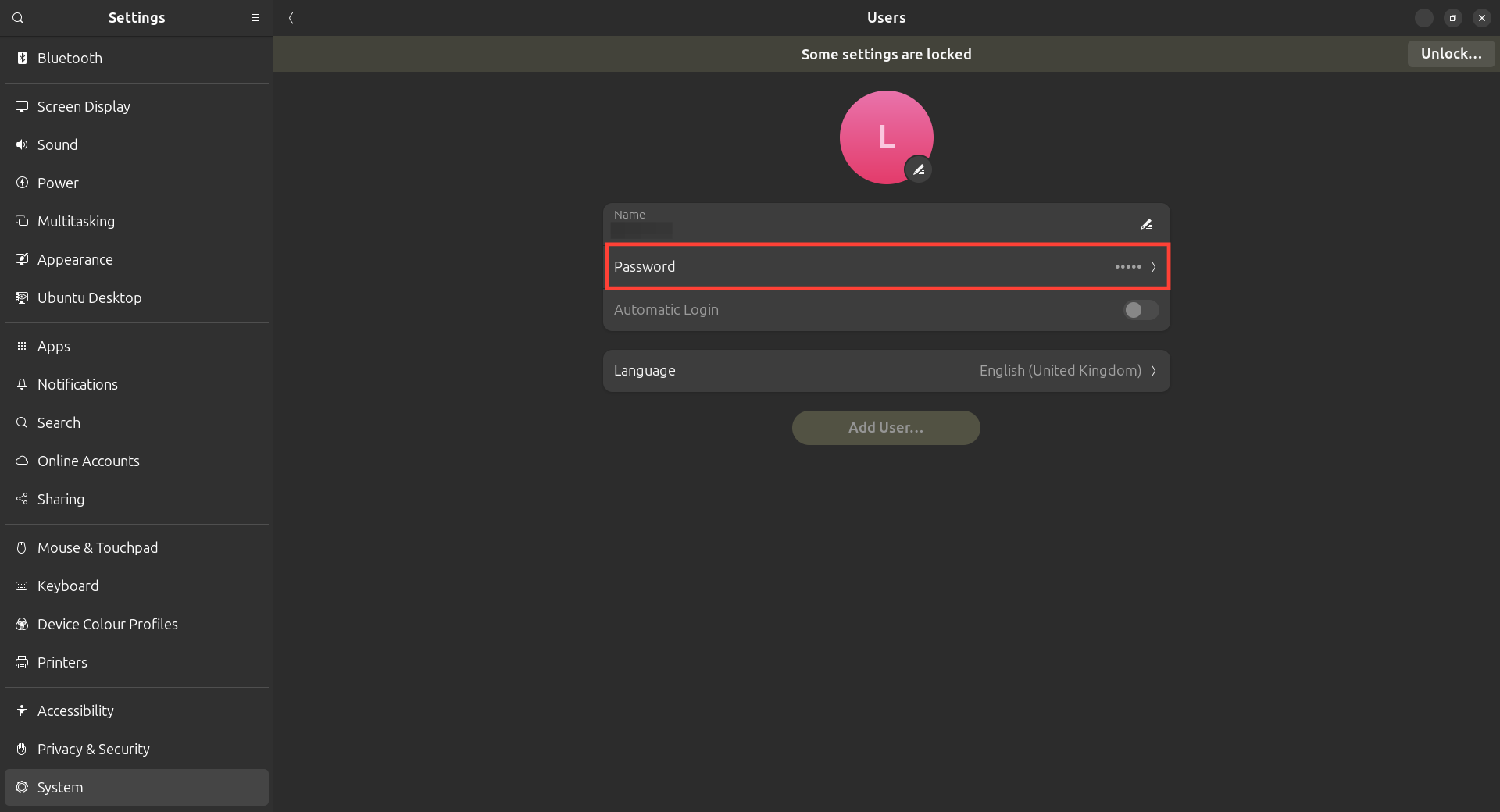
Step 1: Go to settings on your Laptop.
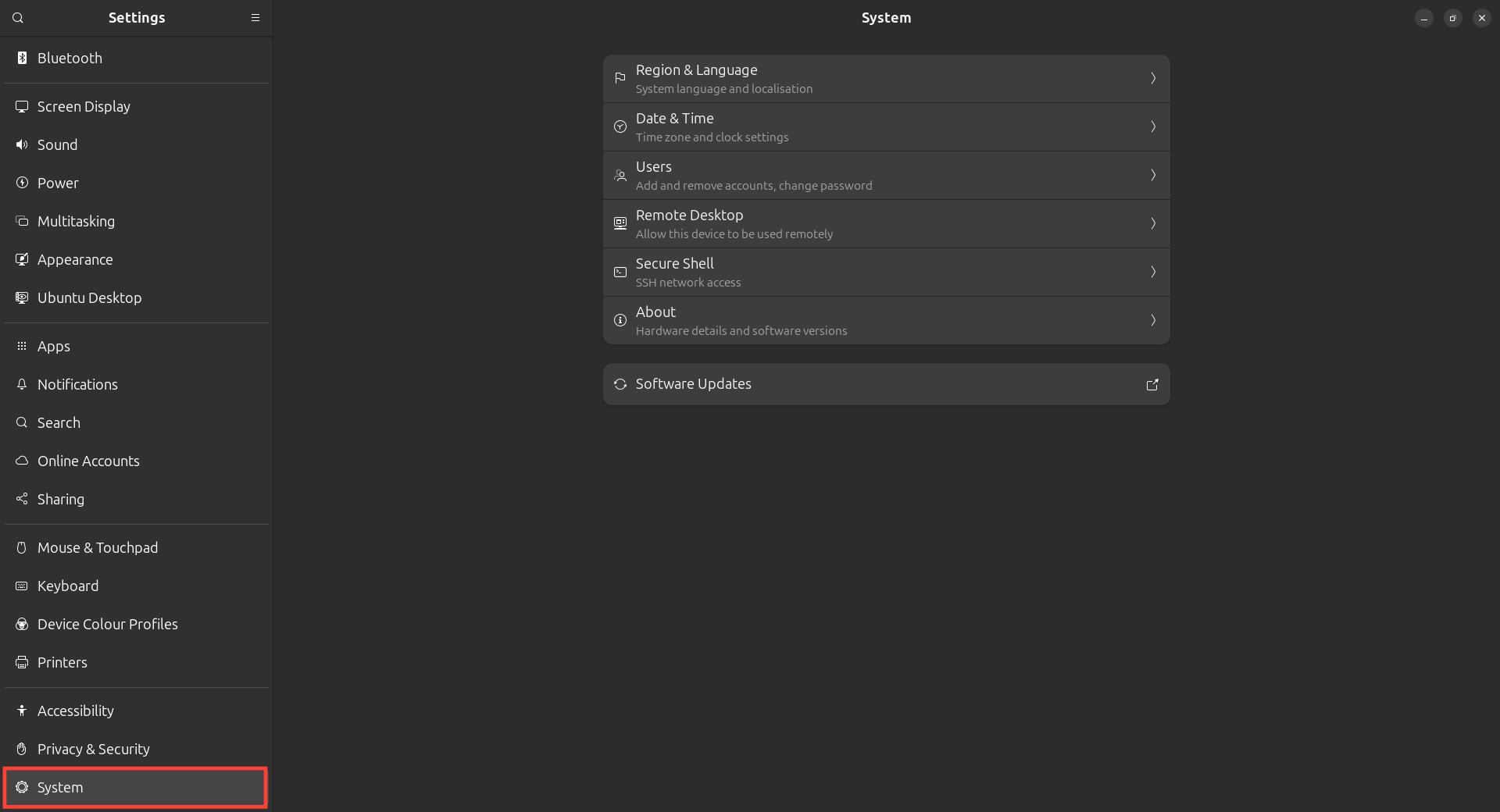
Step 2: Scroll down and select System.
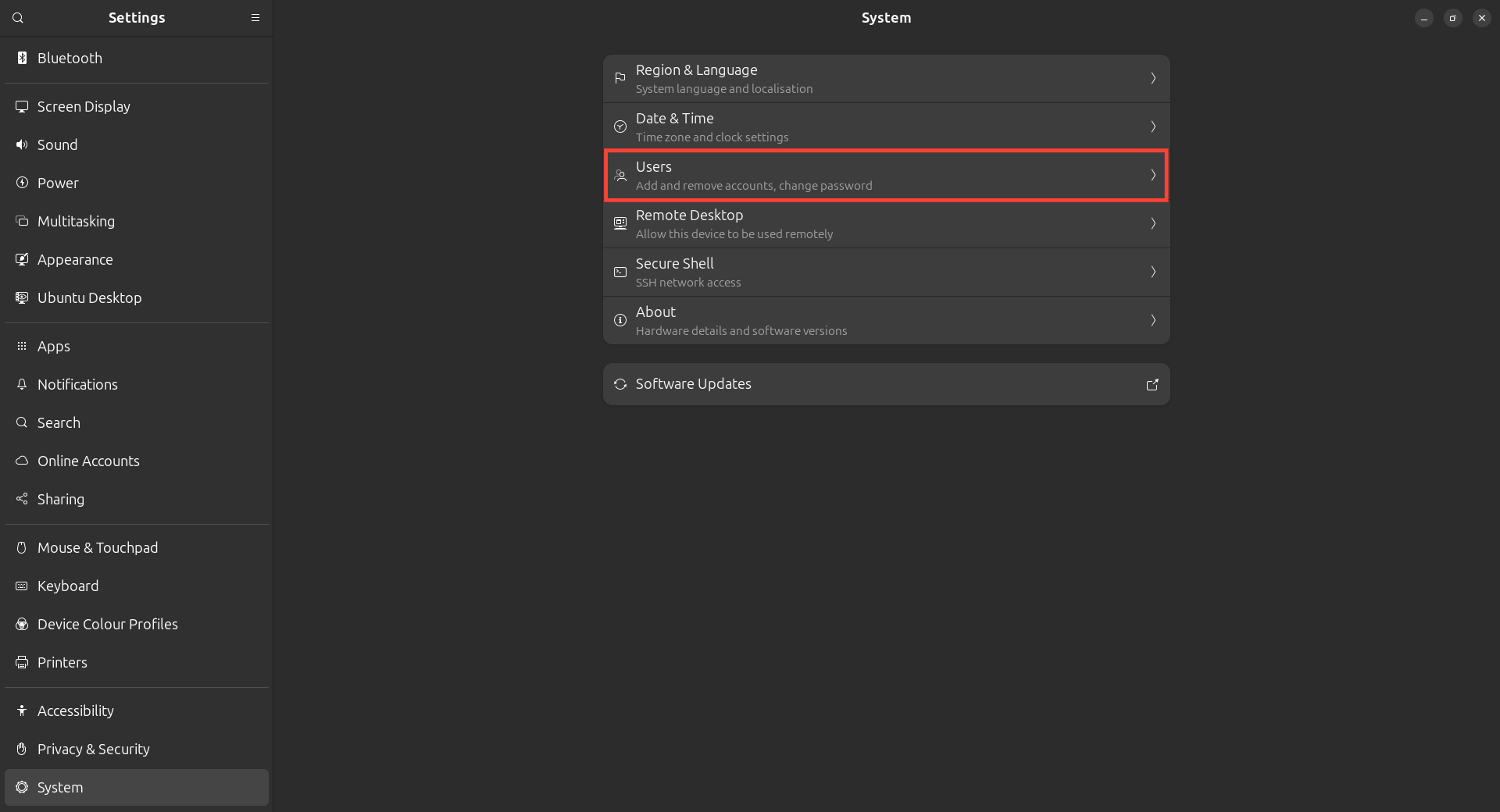
Step 3: On the right panel, select Users.
Step 4: Select Password.
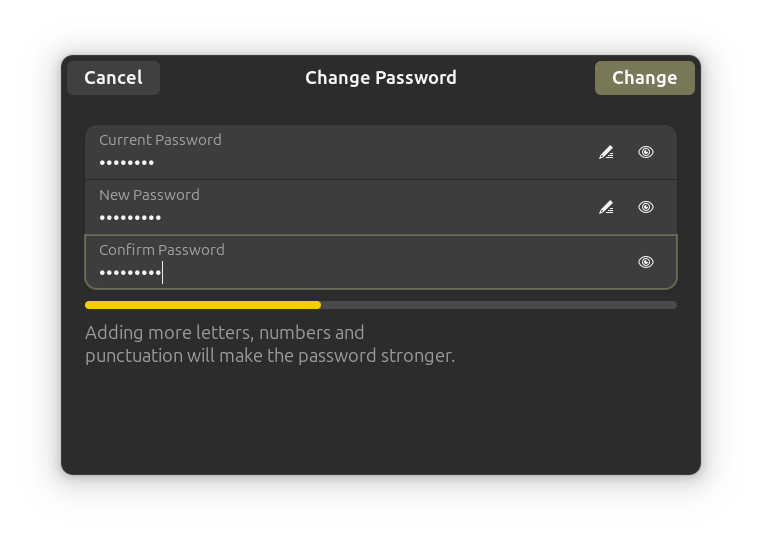
Step 5: Enter your old password, then enter your new password.
Conclusion
Regularly updating your Ubuntu password is one of the simplest yet most effective security measures you can take. As we've seen, the process is quick and accessible through either the terminal or graphical interface, making it easy to maintain good password setup regardless of your technical comfort level.
The password change takes effect immediately, though you should be aware that existing sudo sessions may remain active for a short period. For maximum security, consider combining periodic password changes with other protective measures like two-factor authentication.
Image credit: Oyinebiladou Omemu/Techloy.com
 Oyinebiladou Omemu