



An OCR app is one of those tools you don’t think you’ll ever need… until you do. When that happens, finding the right one can be challenging. Google Play and the App Store offer a wide range of apps with text recognition features. However, they differ in functionality, use cases, and most importantly, quality. Here are six OCR apps worth trying in 2026, each with a slightly different focus and set of strengths.
What Is OCR?
Optical Character Recognition (OCR) is a technology that extracts text from scanned documents. In other words, it allows you to copy letters, numbers, and symbols from content that would otherwise be impossible to copy and makes that content searchable.
Chances are, you won’t need it every day, but when you do, OCR will save you a huge amount of time. Lecture notes, business contracts, manuals, historical documents, receipts, and printed reports can quickly become machine-readable and searchable with a good OCR app. Instead of reading through them yourself or retyping the text, you can scan a document and extract its contents in seconds.
Plus, some modern OCR apps go beyond basic text extraction. They can preserve formatting and layout, edit text and images, add e-signatures, convert OCR’d documents into common formats, and more.
If you deal with invoices, notes, receipts, or other paper or scanned documents, here are six OCR apps that can come in handy, each with its pros and cons.
6 Best OCR Apps
iScanner
Best for: Anyone looking for an all-in-one document management app
Key features:
- Accurate OCR
- Multilingual text extraction
- Layout preservation
- Image enhancement features to improve OCR
- Automatic cropping and high-quality scans (300+ dpi)
Cons:
- Occasional formatting issues in OCR’d files
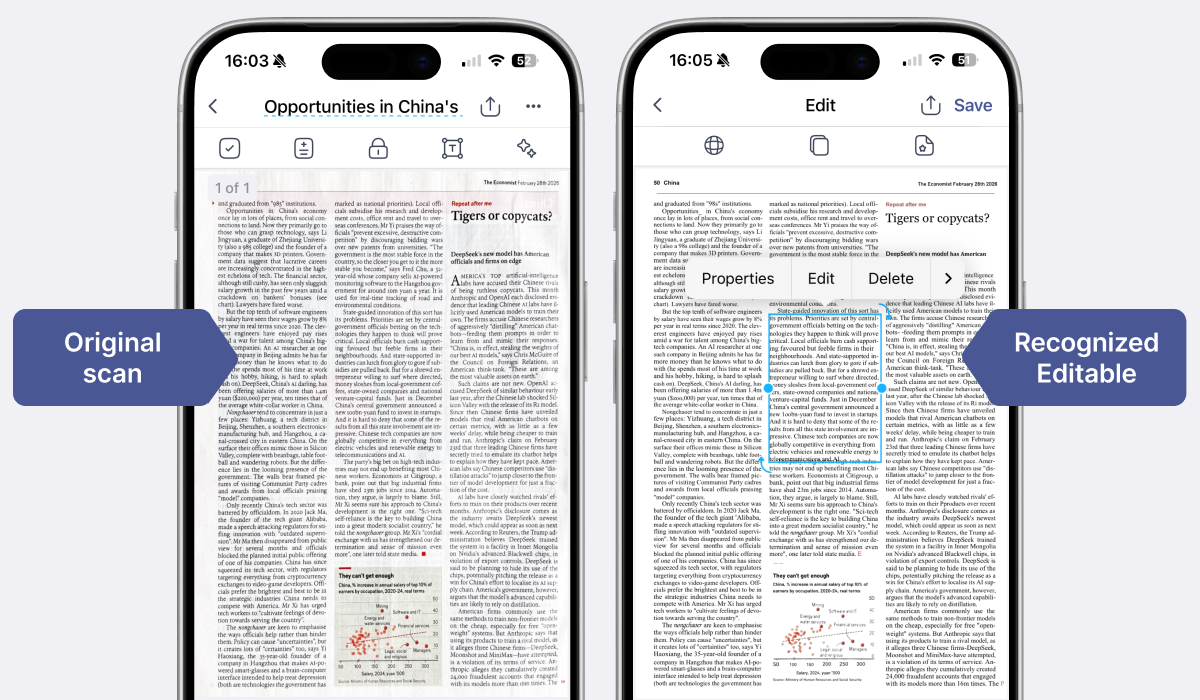
iScanner is more of a full-featured document management app than a single-purpose tool. You can scan documents in high quality, add text and images, blur sensitive information, convert files into various formats, organize documents into folders, securely share files, translate documents, and even solve math problems.
Its OCR works with a wide range of document types and can handle challenges that stump many other OCR tools. These include large and complex tables, handwritten signatures, watermarks, and background images.
The app also includes several image enhancement features that improve scan quality. In addition to scanning, it can straighten, enhance, unblur documents, restore edges, and more, depending on what needs improving.
Quick Tip: A single tap on the AI Magic button applies all of the enhancement features at once.
The app is also good at preserving layout. After OCR, the document keeps its original structure, with headings, paragraphs, tables, and other elements staying exactly where they were. You can continue working with the file without reformatting it.
As for drawbacks, iScanner’s OCR can occasionally lose bold formatting.
iScanner is available on Google Play and the App Store. Also, the app has a web version where users can convert an image to a doc.
Adobe Scan
Best for: PDF enthusiasts and users who are already inside the Adobe ecosystem
Key features:
- Good OCR
- Searchable PDFs
- Integration into the Adobe ecosystem
- Automatic document detection
Cons:
- OCR can struggle with low-quality documents
Adobe Scan focuses more on scanning and OCR than on being an all-in-one PDF management platform, while still integrating well with Adobe Acrobat. Like iScanner, it allows users to create high-quality scans, enhance images, annotate, sign, and share files.
Adobe Scan can extract text from receipts, forms, tables, and other document types, turning them into searchable PDFs while preserving the layout in most cases. However, if the original document contains significant imperfections, such as curved pages, OCR accuracy may decrease.
Adobe Scan is available in Google Play and the App Store.
Google Lens
Best for: Quick text extraction and online search
Key features:
- Web search based on extracted text
- Image recognition and visual search
- Text translation
Cons:
- No text editing features
- Sometimes detects text in background images as part of the main text
Google Lens is neither a document scanner nor a management tool. Instead, it focuses on extracting information. You can point your camera at a document, sign, receipt, or screenshot and quickly copy text, search for it online, or translate it.
That said, the app doesn't have editing, image enhancement, layout preservation, or other document management features. If you work with documents regularly, a dedicated OCR app will likely be a more convenient option. But for quick text extraction and online searches, Google Lens gets the job done.
You can download Google Lens from Google Play. In the App Store, you should download the Google App to use Lens features.
Pen to Print
Best for: Extracting handwritten text
Key features:
- Handwritten text extraction
- Editing of OCR’d text
- Ability to combine multiple scans into one document
Cons:
- Limited functionality of the app version
- Some advanced features require an all-inclusive subscription
Pen to Print can extract text from handwritten notes, notebooks, letters, and other materials taken either with the camera or from the gallery. Once extracted, you can edit the text and combine different pieces into a single document.
Some advanced features are missing. For instance, you can't convert PDFs to text or turn tables and forms into editable Word or Excel files in the app. These features are available through Pen to Print’s web platform.
Pen to Print is available on Google Play and the App Store.
Apple Notes
Best for: iOS users who need quick OCR without installing third-party apps
Key features:
- Built-in document scanning
- Basic editing and annotation tools
Cons:
- iOS only
- Limited control over OCR results
- No advanced document management features
Apple Notes is a built-in iOS app for taking notes, but it also includes basic OCR. It allows users to scan documents or extract text from images within a note, which is quite convenient for urgent tasks.
However, the workflow involves a few extra steps. There are two main ways to extract text from a scan. The first is through the Scan Document option. It lets you scan a paper document or use a photo, then select recognized text and copy it. But once the scan is saved, you can’t really edit or work further with the extracted text.
The second option is to use the Scan Text feature. The extraction quality is really good, but you can only OCR a portion of the text. For full documents, that’s not an option.
Tiny Scanner
Best for: Basic document scanning
Key features:
- Quick scanning with basic OCR support
- Simple interface
Cons:
- Limited functionality
- Doesn’t preserve document layout after OCR
With Tiny Scanner, you can quickly scan documents using your camera and turn them into PDFs, with basic OCR support.
The interface is similar to iScanner, but the feature set is more limited. After OCR, the text is shown on a separate screen that works more like a basic text editor. You’re still able to copy and search the extracted text, and the recognition quality is generally good.
You can download Tiny Scanner from Google Play and the App Store.