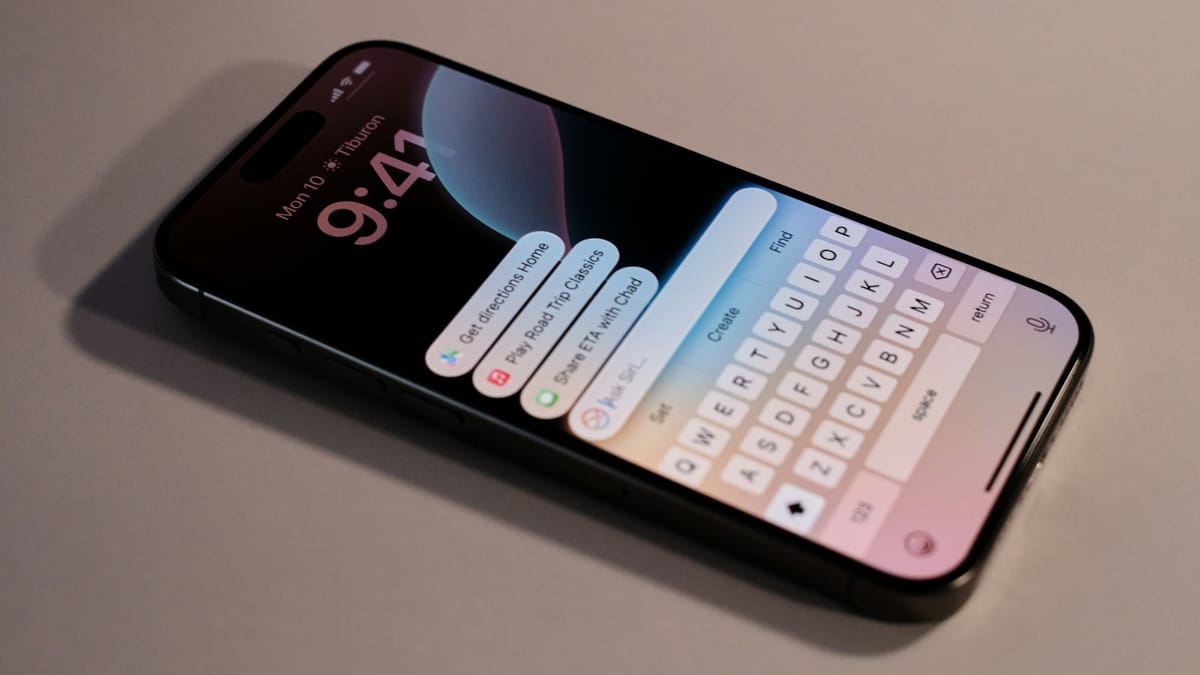



It’s that time again when Apple is ready to push forward with updates to its latest operating systems. This week, the Cupertino giant rolled out beta updates across nearly all of its platforms, including iOS 26.1 Beta 4, iPadOS 26.1 Beta 4, macOS, watchOS, tvOS, HomePod OS, and VisionOS.
The updates bring a handful of expected tweaks and refinements, along with a few standout features that give users more control over how their devices look and feel. While most of the changes focus on polish and performance, one update in particular has become the talk of the week, the long-awaited Liquid Glass customization option.
 Emmanuel Oyedeji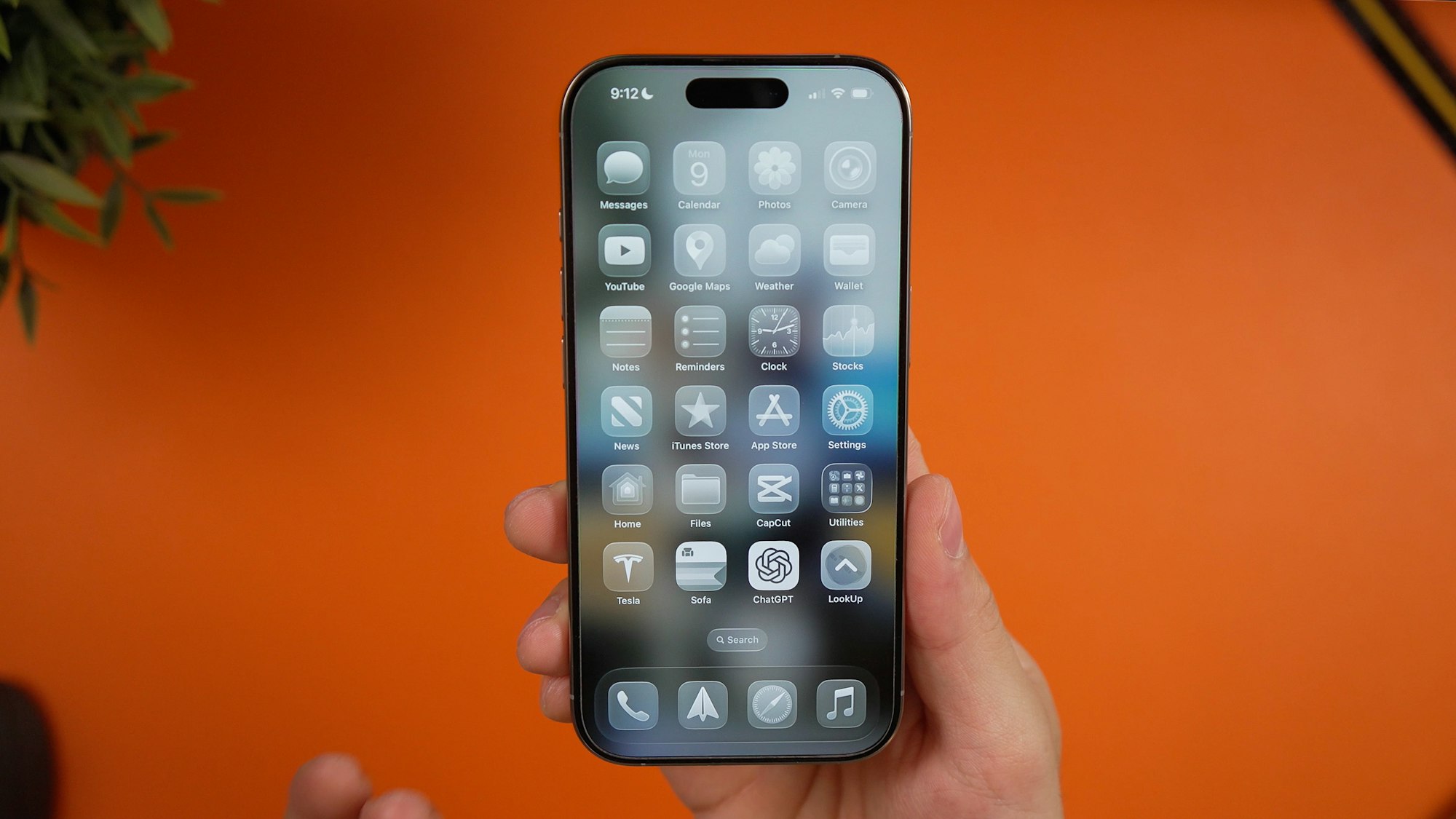
Liquid Glass Update
To first answer the question most people might have, no, you can not turn Liquid Glass off completely. At least not yet.
For those confused, Apple first introduced the Liquid Glass design with iOS 26 earlier this year, it was meant to represent a sleek, futuristic aesthetic, a blend of translucency and depth that made menus, widgets, and notifications shimmer like frosted glass. But as beautiful as it was, not everyone loved it. Many users complained that the effect made text harder to read or simply felt too distracting. The complaints were so much, Apple had to introduce a way to make things a bit more visible.
Now though, with the new Beta 4 update, Apple is giving users the freedom to dial liquid glass back a bit on both iOS 26 and iPadOS 26.
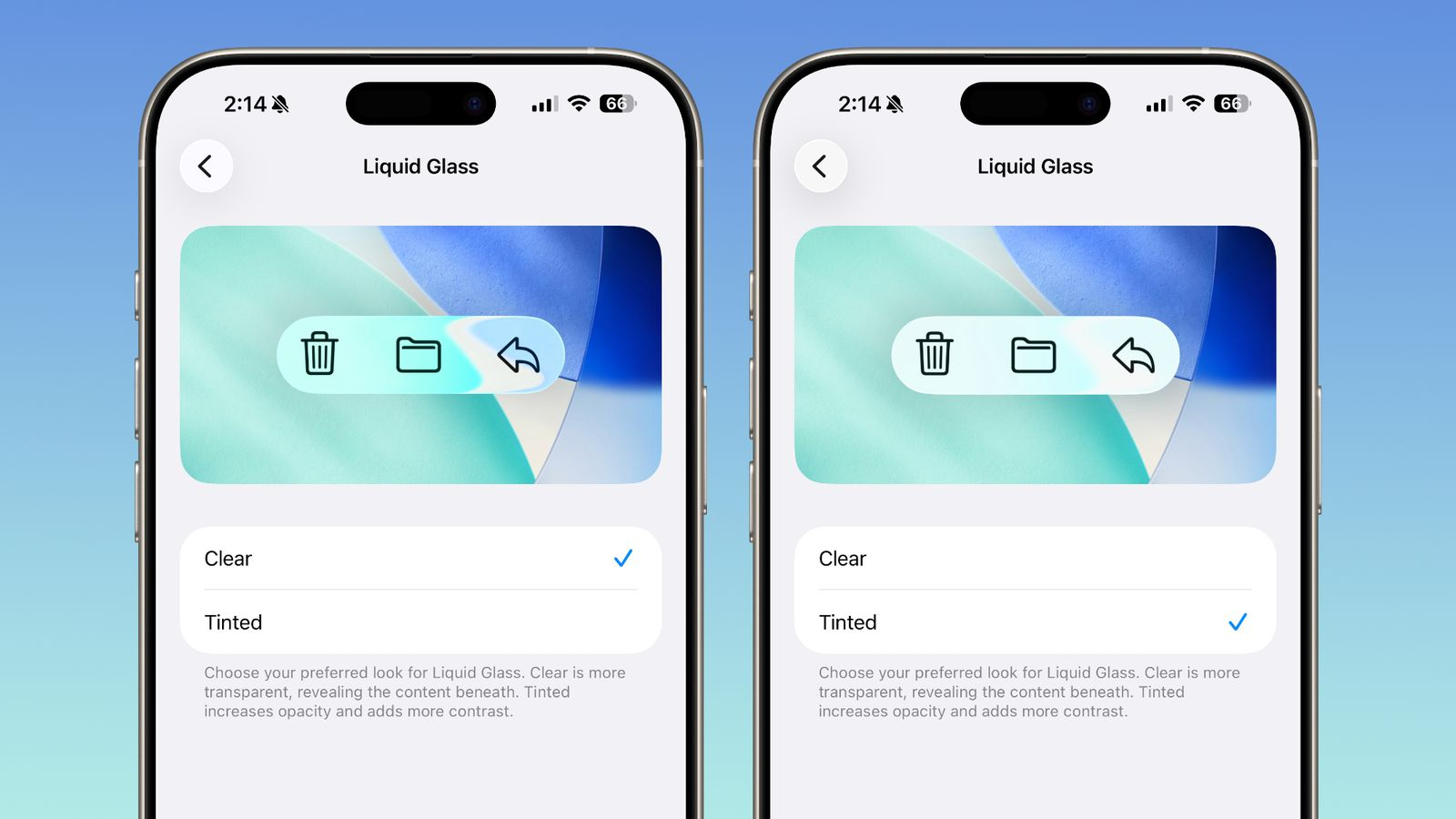
The new Liquid Glass toggle, found under Settings → Display & Brightness → Liquid Glass, lets users choose between two modes, Clear and Tinted. “Clear” keeps the see-through look Apple envisioned, while “Tinted” tones things down, increasing contrast for better readability. It’s not a complete off switch, but it’s Apple’s way of acknowledging that its bold design needs a bit of flexibility. In practice, it makes iOS feel slightly more grounded, almost reminiscent of iOS 18, before Liquid Glass became the new normal.
The rest of the beta focuses on personalization and usability. You can now disable the swipe-left camera shortcut on the lock screen, a welcome tweak for anyone tired of accidental launches. Apple has also changed the look of the Apple Intelligence section in the Settings app, and it is now left aligned. There’s also a new haptic feedback toggle for calls, which lets you feel a small vibration when calls connect or drop.
The Display Zoom feature now integrates wallpapers more smoothly, adding to the overall cohesiveness of the interface. Small touches that build on previous updates you can make to your phone already, but they collectively make iOS 26.1 feel more refined.
Other Ecosystem-Wide Updates
Beyond the iPhone, these updates reflect a broader push across Apple’s ecosystem. iPadOS 26.1 mirrors many of the same visual adjustments, including the Liquid Glass customization, while macOS 26.1 (Tahoe) is expected to adopt similar transparency controls and interface tweaks.
watchOS and tvOS are receiving their own subtle refinements, improving performance, stability, and visual clarity under the new glassy design. Even VisionOS is getting developer-focused improvements, hinting at tighter integration with Macs in the near future.
For those eager to try out the new features, iOS 26.1 Beta 4 is currently available to developers and public beta testers. You can install it by going to Settings → General → Software Update → Beta Updates and selecting the channel you want.
Overall, iOS 26.1 Beta 4, and the updates across Apple’s other platforms, show a company fine-tuning its bold new design language while giving users more control. It’s less about reinventing the wheel this time, and more about making sure every part of Apple’s ecosystem feels both polished and personal.
 Louis Eriakha