



AI tools are getting pretty good at helping with creative work, but can ChatGPT actually create a decent animation in After Effects? I decided to find out, giving it creative freedom to develop an animation, write the script, and bring the whole thing to life in Adobe After Effects 2020.
The results were a mixed bag. While getting an animation up and running was surprisingly easy, getting it to look good was an entirely different story.
I was also interested in testing Adobe’s integration with ChatGPT, which lets users access some of its creative tools directly from a conversation. But After Effects isn’t among the applications covered, so I wanted to see what I could achieve by having ChatGPT generate scripts for the software instead.
 Louis Eriakha

The prompt and testing process
For this experiment, I used ChatGPT Go and Adobe After Effects 2020. I wanted to see how accessible AI-assisted animation could be without expensive tools or high-end hardware. ChatGPT Go is cheaper than the higher-tier plans, at about ₦7,000/month (~$8), and After Effects 2020 runs on older or less powerful PCs that struggle with Adobe’s newer releases.
I wanted to create a short B-roll animation for a documentary I was working on about TikTok’s rise and Vine’s collapse.
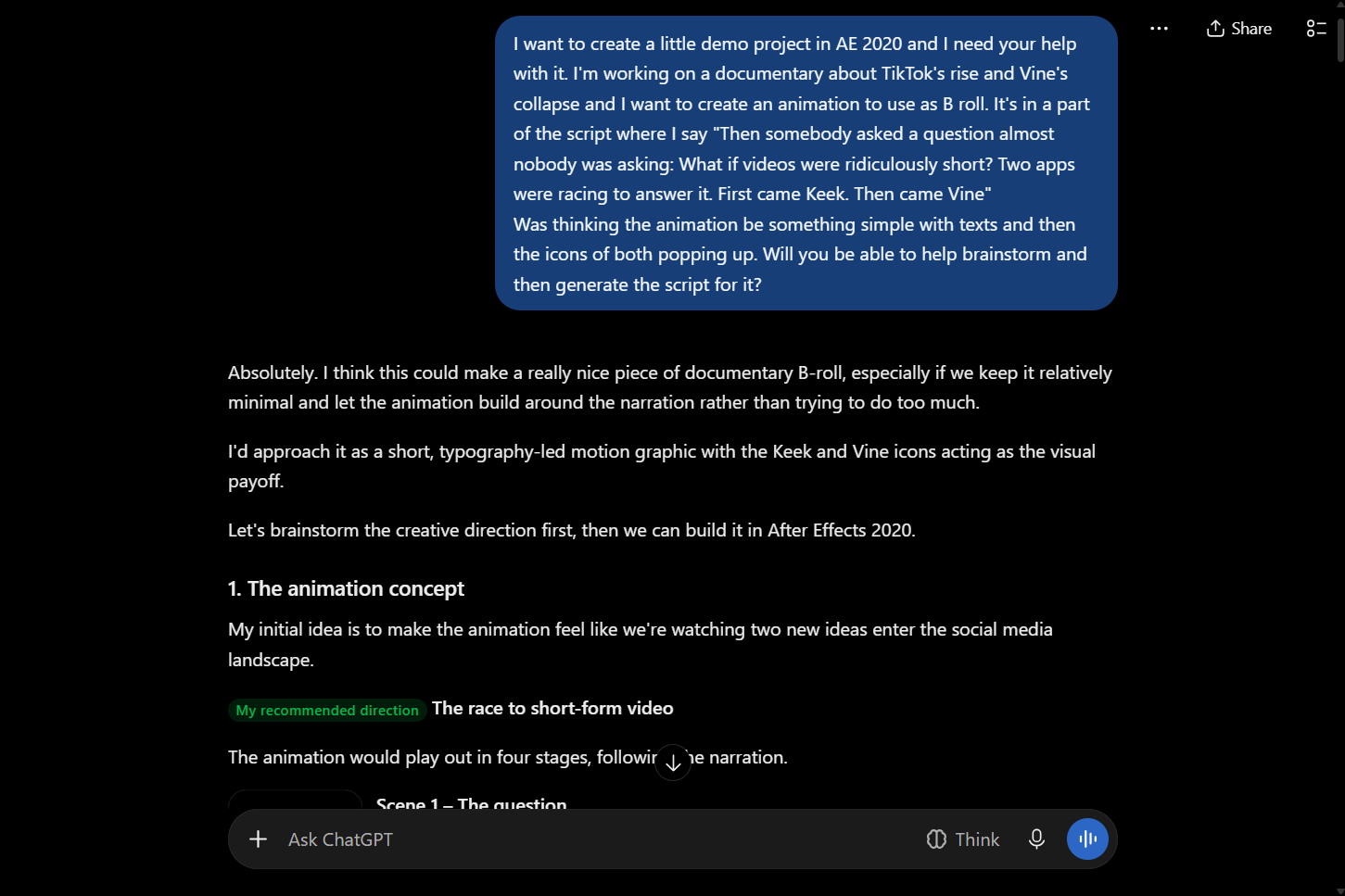
Rather than immediately generating a script, ChatGPT proposed a four-part storyboard built around the narration. It suggested opening with “WHAT IF...?” on a dark background, followed by “RIDICULOUSLY SHORT” appearing with a quick scale animation. A split-screen layout would then introduce the two competing apps, with the icons for Keek, a short-video app that competed with Vine, and Vine popping up alongside their names.
It also suggested using bold typography, subtle overshoots, motion blur, and quick transitions to give the animation some personality without making it unnecessarily complicated.
After a few rounds of brainstorming and questions about my preferences, I gave it another prompt to generate the first After Effects ExtendScript (JSX) file.
Getting the first animation to work
Running the script was probably the easiest part. I simply downloaded the generated file, opened After Effects, and navigated to File > Scripts > Run Script File. From there, I selected the JSX file and let the software do its thing. No copying and pasting code was necessary.
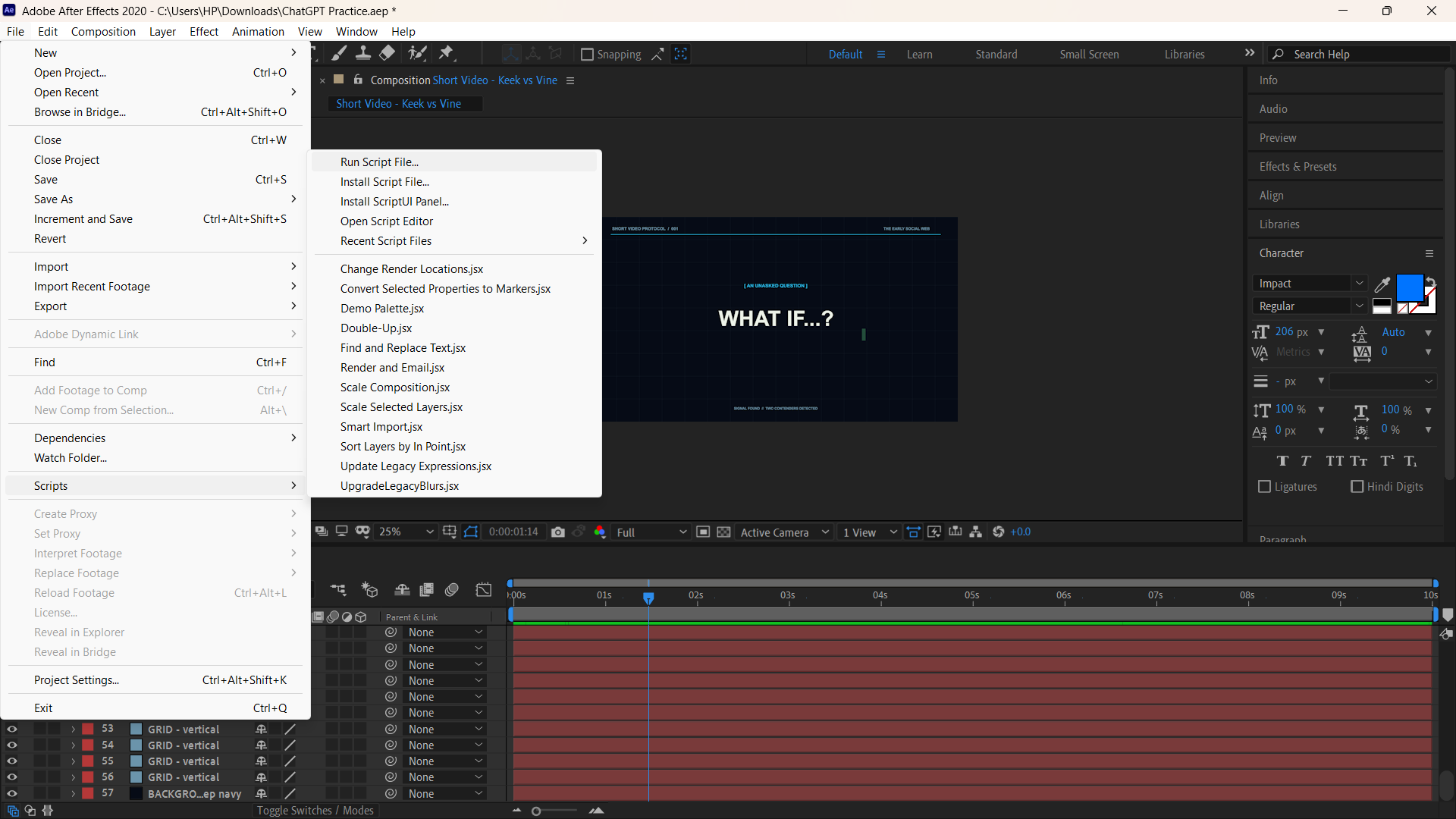
The initial script returned a couple of errors and wouldn’t run. I shared the error messages with ChatGPT, and it was able to identify and correct the problems. From the initial brainstorming to generating the script, troubleshooting and getting it running, the entire process took roughly 20 minutes.
Video: First animation generated from ChatGPT’s script. Video Credit: Louis Eriakha/Techloy.com
Eventually, I had my first animation. Unfortunately, I wasn’t particularly impressed.
The result looked stiff and plain, with very little depth. Some of the visual elements felt basic, and the overall animation lacked the movement and polish I had envisioned. The blinking cursor accompanying the opening text was also poorly positioned, making the composition feel less polished than it should.
Trying to improve the results
Rather than settle for the first attempt, I went back to ChatGPT with feedback, including the cursor placement, and asked it to make the animation feel less rigid. We brainstormed again and went through another round of questions before I gave it a new prompt to generate a revised script.
Subscribe for free to continue reading this article
Subscribe SubscribeAlready have an account? Log in