



A grainy photo can make an otherwise great image look rough, unclear, or lower quality. Common causes include low-light shooting, high ISO settings, old scans, and image compression.
Today, AI-powered photo enhancement provides a simpler way to reduce visible grain, improve clarity, and preserve important details without complex manual editing. This guide explains why photos become grainy, how AI can help fix grainy photo and which restoration methods work best for different situations.
Why Do Photos Become Grainy?
Photo grain is usually caused by digital noise, which appears when a camera struggles to capture enough clean image data.
High ISO and Low-Light Conditions
High ISO settings help cameras capture brighter images in dark environments, but they also increase digital noise. This is why night photos or indoor shots often appear grainier than images taken in good lighting.
Underexposed photos can also become noisy when brightness is increased during editing because the hidden noise in darker areas becomes more visible.
Compression and Image Quality Loss
Repeatedly saving or exporting JPEG files can remove image information and create compression artifacts. These issues can make photos look less detailed, especially around edges and textured areas.
Small camera sensors, especially those found in smartphones and compact cameras, can also produce more visible noise because they capture less light compared with larger sensors.
Why AI Change the Way We Fix Grainy Photos
Traditional noise reduction often requires users to manually adjust multiple settings, which can be difficult for beginners. AI photo enhancement simplifies this process by analyzing image patterns and identifying unwanted noise while preserving important details such as edges, textures, and faces.
Unlike simple blur-based editing, AI models can balance noise reduction and detail preservation, making them useful for low-light photos, high ISO images, and compressed files. While AI cannot recreate details that were never captured, it provides a faster and more accessible way to improve photo quality.
Method 1: Fix Grainy Photos with HitPaw FotorPea — Simple AI Enhancement
One example of an AI-powered photo enhancement workflow is HitPaw FotorPea. It is designed for users who want to improve image quality without spending time adjusting complex noise reduction and sharpening settings manually.
HitPaw FotorPea is an AI-powered photo enhancement tool that helps reduce visible grain, improve clarity, and enhance details through AI models designed for different photo conditions. It is suitable for low-light images, high ISO photos, compressed images, and older photos that need quality improvement.
The workflow is simple:
- Upload the photo you want to improve.
- Let the AI model analyze and enhance the image.
- Preview the result and check details such as faces, edges, and textures.
- Export the improved image for sharing, editing, or further use.
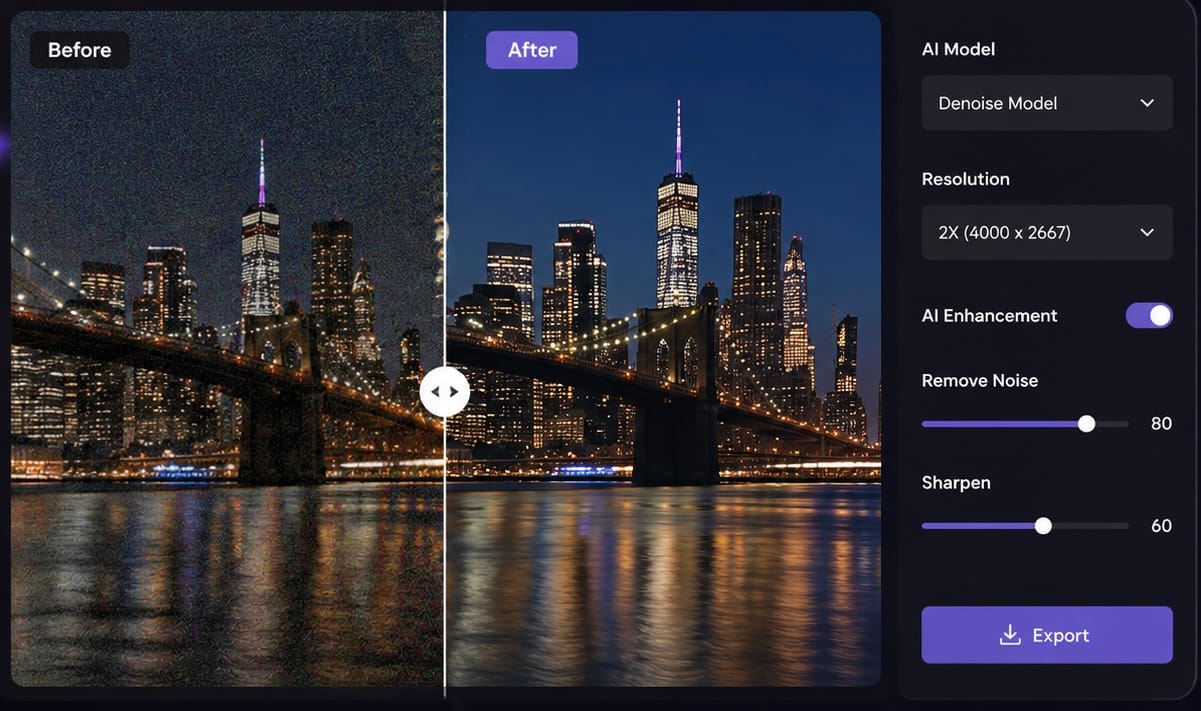
HitPaw FotorPea is especially suitable for beginners, content creators, and users who want a faster way to improve photos without learning advanced editing techniques.
Method 2: Fix Grainy Photos in Lightroom — Manual Adjustments
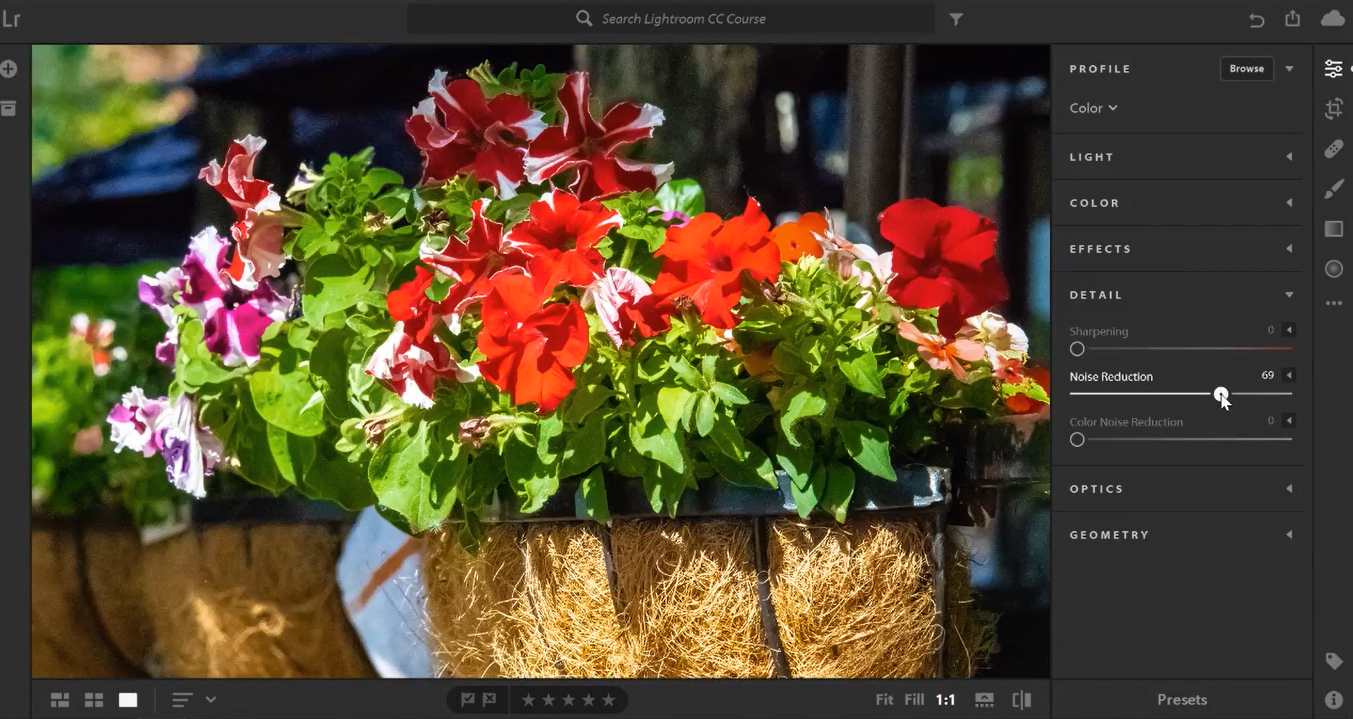
Lightroom is a good choice for photographers who want more control over noise reduction. Instead of automatic enhancement, users can manually balance noise removal and detail preservation through settings such as luminance noise reduction, color noise reduction, and sharpening adjustments.
A basic workflow is:
- Open the image in Lightroom’s Develop module.
- Adjust noise reduction settings in the Detail panel.
- Balance smoothness and texture to keep the photo natural.
Lightroom works especially well for RAW photos and experienced users, but it requires more time and editing knowledge compared with automated enhancement tools.
Method 3: Fix Grainy Photos in Photoshop — Advanced Editing
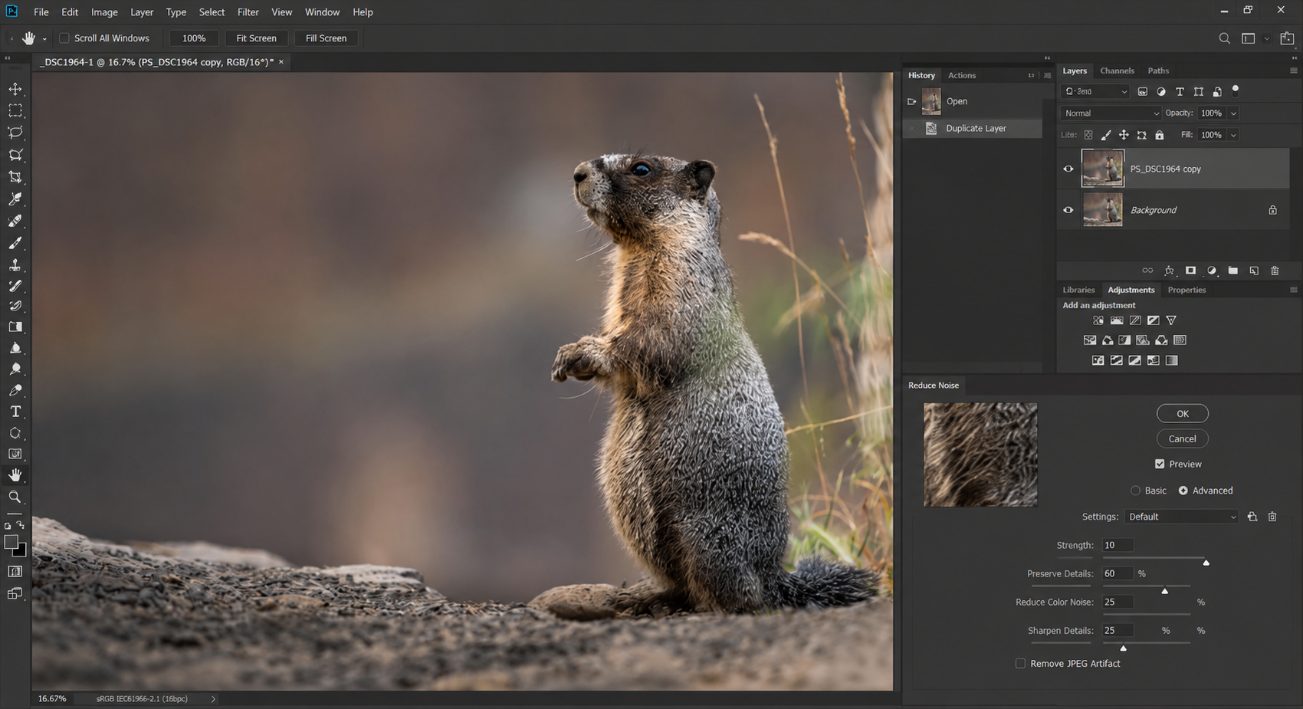
Photoshop is better suited for users who need more precise control over specific areas of an image. Instead of applying noise reduction to the entire photo, users can use tools such as reduce noise, layers, and masks to target certain areas while protecting important details.
A basic workflow is:
- Duplicate the original layer.
- Apply the Reduce Noise filter.
- Adjust noise reduction settings and protect important details with masks.
Photoshop is powerful for advanced retouching, but it requires more editing experience and usually takes more time than AI-based enhancement solutions.
Method 4: Fix Grainy Photos Online — Quick Fixes
Online tools are useful when you need a quick edit without installing software. Popular options include Fotor Online, Media.io AI Image Denoiser, and VanceAI Image Denoiser.
They work well for:
- simple grain reduction;
- occasional photo improvements;
- users who prefer browser-based editing.
However, online tools may have limitations such as export restrictions, file size limits, watermarks, and privacy concerns when uploading personal images. For important photos, desktop photo enhancement software usually provides more consistent results.
Which Method Should You Choose?
There is no single best solution for every grainy photo. The ideal method depends on whether you prefer automatic enhancement, manual adjustments, or a quick online fix.
|
Tool |
Ease of Use |
Grain Reduction |
Detail Preservation |
Processing Speed |
|
HitPaw FotorPea |
★★★★★ |
★★★★☆ |
★★★★☆ |
★★★★★ |
|
Adobe Lightroom |
★★★☆☆ |
★★★★★ |
★★★★☆ |
★★★☆☆ |
|
Adobe Photoshop |
★★☆☆☆ |
★★★★☆ |
★★★★★ |
★★☆☆☆ |
|
Online Tools |
★★★★★ |
★★★☆☆ |
★★★☆☆ |
★★★★☆ |
Frequently Asked Questions
How do I make a grainy photo look clearer?
Start by reducing visible grain and improving image clarity while keeping important details natural. Avoid applying too much sharpening, as it can make noise more noticeable.
Why do my photos look grainy even in good lighting?
Photos can still look grainy due to high ISO, small sensors, digital zoom, or compression. Check the original file and shooting conditions before choosing a restoration method.
Is there a free way to fix grainy photos online?
Yes. Some online tools offer free grain reduction or basic photo enhancement. However, free versions may limit export quality, image size, watermarks, or usage. For important photos, desktop tools like HitPaw FotorPea can provide more consistent results.
Do I need Photoshop to remove grain from a photo?
No. Photoshop is useful for advanced editing and manual adjustments. Lightroom offers more control for photographers, while HitPaw FotorPea provides a simpler AI-powered workflow for improving grainy photos.


