



Many people use ZIP files to compress and organize multiple files into a single archive, making it easier to store and share them. However, when trying to extract a ZIP file on Windows, you might encounter the dreaded "Error 0x8096002A: No error description available."
This common error usually occurs when the ZIP file is corrupted, too large, or located in a folder with a very long path. Don't worry! In this guide, we'll walk you through several proven methods to fix the 0x8096002A error and extract your files safely.
What Triggers Error 0x8096002A When Unzipping Files?
There are many different reasons behind the Windows extract error 0x8096002A. Some common ones include:
- The archive may have been corrupted during download, creation, or transfer.
- Your ZIP file is too large.
- The ZIP file's path or file name is too long.
- You don't have sufficient permissions to extract the ZIP file.
- Antivirus or malware is interfering with the extraction.
- There are bad sectors on the hard drive where the ZIP file is stored.
6 Proven Ways to Fix 0x8096002A Error in Windows
Method 1: Move the ZIP File to Another Location
Windows has a default maximum path length of 260 characters. If the combined length of your folders and file names exceeds this limit, you might see the error message: "The extraction operation was not completed." In this case, the easiest fix is to move the problematic file to a shorter, simpler path. Here's what to do:
Step 1: Begin with cutting or copying the affected ZIP file.
Step 2: Paste it somewhere simple, like C:\Temp or your Desktop.
Step 3: Try extracting it again from this new location.
Method 2: Repair Corrupted ZIP File
Compressed files can become corrupted for many reasons. To fix this, we recommend using a professional file repair tool. One reliable option is 4DDiG Document Repair, which can analyze the RAR file affected by extract error 0x8096002A and attempt to reconstruct its structure. Thanks to its clean and simple interface, you will find 4DDiG Document Repair easier to navigate than other alternatives. Here's a step-by-step guide on how to use this tool to repair damaged RAR/ZIP files:
Step 1: Download, install and open the 4DDiG Document Repair tool on your computer. Proceed by clicking the "File Repair" button on the main interface.
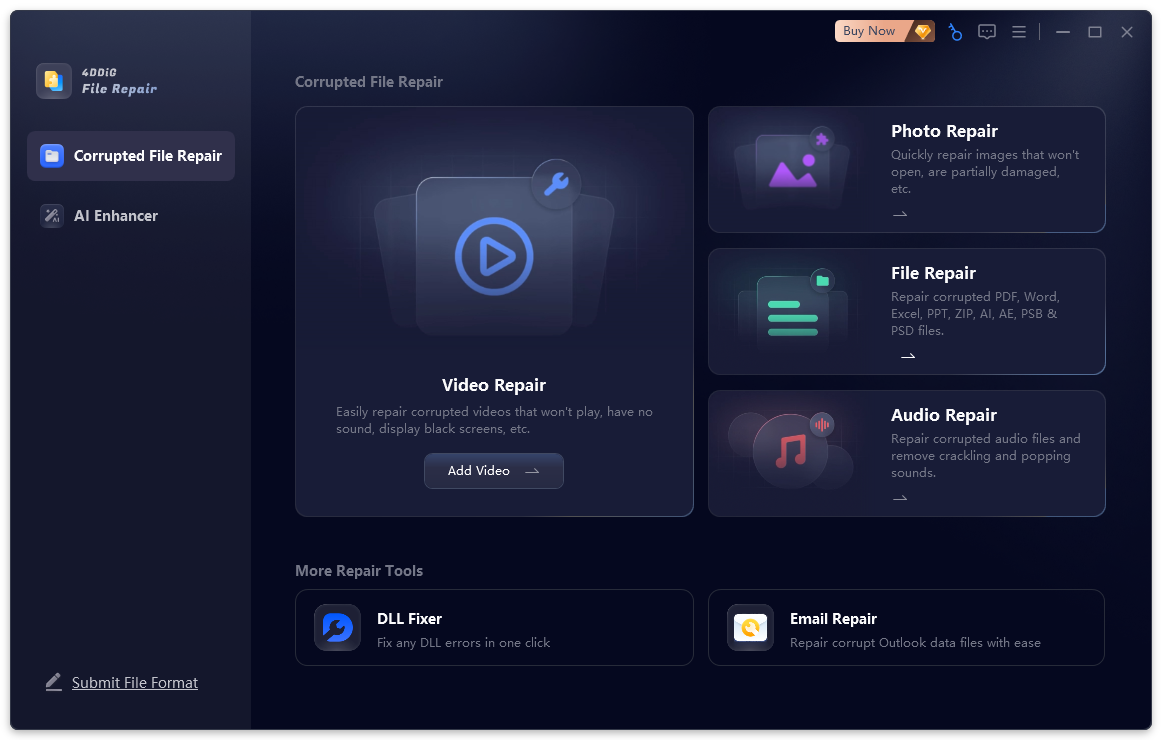
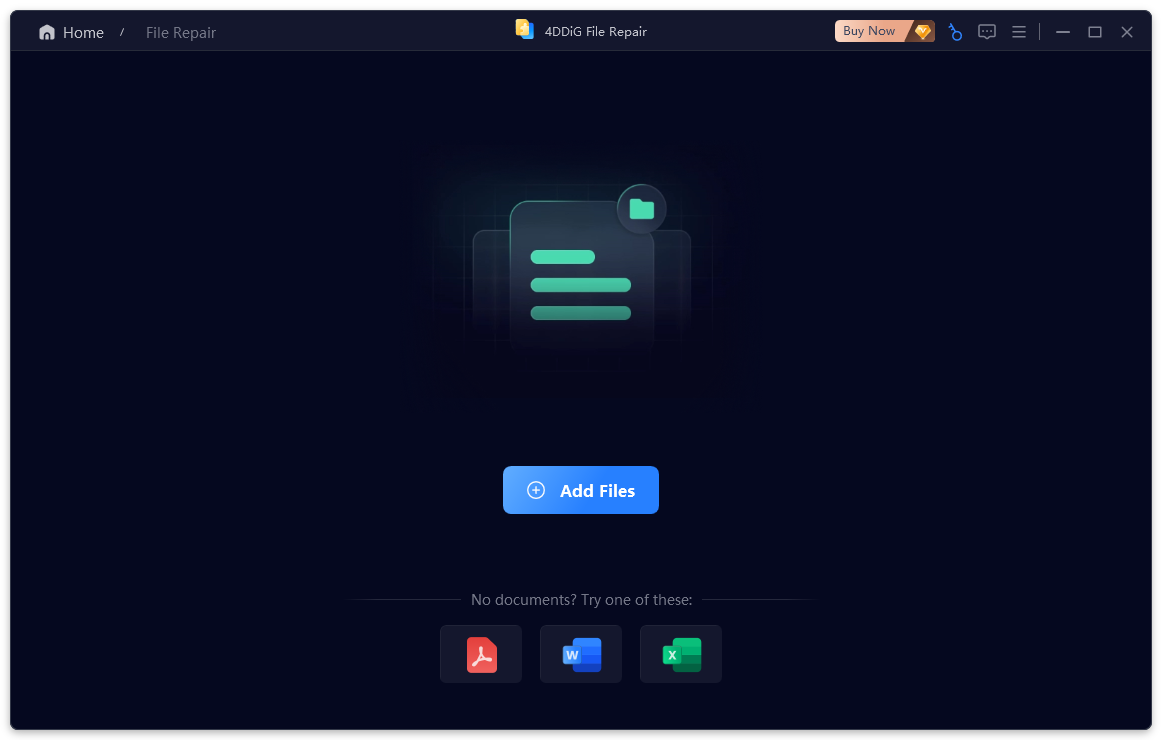
Step 2: Hit the "Add Files" button, or simply drag and drop your damaged ZIP/RAR file into the program. Once added, the file will appear in the repair queue, ready for processing.
Step 3: Hit the "Repair All" button to initiate the recovery process.
Step 4: After the repair process is complete, you can preview the recovered files to ensure everything looks correct. If satisfied, click "Save" to export the repaired files to a secure place on your computer.
Method 3: Check and Repair System Files
If the 0x8096002A error persists, it's likely due to missing or outdated Windows system files. Fortunately, Windows comes with powerful built-in repair tools — SFC (System File Checker) and DISM (Deployment Image Servicing and Management) — that can scan your system for corrupted files and restore them automatically.
Step 1: Right-click on the Windows icon, and then pick Command Prompt (Admin).
Step 2: In the Command Prompt window, execute the sfc /scannow command.
Step 3: After that, type DISM /Online /Cleanup-Image /RestoreHealth and press the Enter key.
Step 4: Reboot your computer. Check if the error message "an unexpected error is preventing the archive from being extracted" still pops up.
Method 4: Use a Different Extraction Tool
Another simple and effective way to fix 0x8096002A error is to try using a third-party extraction tool. Tools like 7-Zip, WinRAR, or PeaZip are popular choices because they support a wide range of formats and are more robust than the default Windows extractor. Many Windows users find this method solves extraction errors immediately.
Method 5: Update OS
On some occasions, an outdated version of Windows may prevent certain ZIP files from being extracted correctly, especially if they use newer compression standards. Keeping your Windows up to date can help resolve the error message "The extraction operation was not completed." Here's how to update Windows step by step:
Step 1: Press Windows + I to open the Setting app. Click "Update & Security," then select "Windows Update" from the left-hand menu.
Step 2: Tap the Check for updates button.
Step 3: Once the updates are ready, click "Restart now" if prompted.
Method 6: Repair Disk Errors
Running CHKDSK can resolve hidden disk issues that block Windows from accessing files, making it a useful step if you've tried all above-mentioned fixes but still encounter the 0x8096002A error. To do so:
Step 1: Run the Command Prompt as an administrator by searching for "cmd" in the Start menu, right-clicking it, and picking Run as administrator.
Step 2: Type chkdsk #: /f /r and press Enter. Here, #: is the drive letter where your compressed file is located.
FAQs About Error 0x8096002A
Q1: What is Error 0x8096002A While Extracting Files?
Error 0x8096002A occurs when Windows fails to extract files from a compressed archive, such as a ZIP or RAR. The full format of the error is typically displayed as:
An unexpected error is preventing the archive from being extracted. Error 0x8096002A: No error description available.
Plus, there are also similar extraction-related error codes in Windows that you might encounter, such as 0x80004005, 0x80070003 and 0x80004002.
Q2: How Can I Prevent the RAR Extract Error in the Future?
To avoid encountering this error again, make sure your files are fully downloaded and intact, avoid interrupting the download or copy process, use reliable extraction tools, and keep your Windows system up to date.
Conclusion
This page answers the questions of "What is an error 0x8096002A?" and "How to fix extract error 0x8096002A?" Identifying the reason behind the 0x8096002A error is crucial because it helps you choose the most effective solution. If corruption is the culprit, give 4DDiG Document Repair a shot. This tool offers a powerful and very accessible solution for repairing damaged ZIP and RAR files.


