



YouTube Music is a popular choice for many music fans since it has a huge library of songs, lets you make your own playlists, and works well with the rest of YouTube.
One of the downsides is that YouTube Music doesn't offer a separate desktop app as most other music streaming apps do. Still, you can install it as a Progressive Web App (PWA) in browsers like Google Chrome or Microsoft Edge, which opens YouTube Music in its own window, making it feel like a normal app.
In this article, you will learn how to easily install the YouTube Music 'app' on your Windows PC or laptop and how to remove it if you don't need it anymore.
Steps to Install YouTube Music on a Windows laptop – Using Google Chrome
Step 1: Open Google Chrome and go to the official YouTube Music website music.youtube.com and sign into your account (Optional, but recommended)
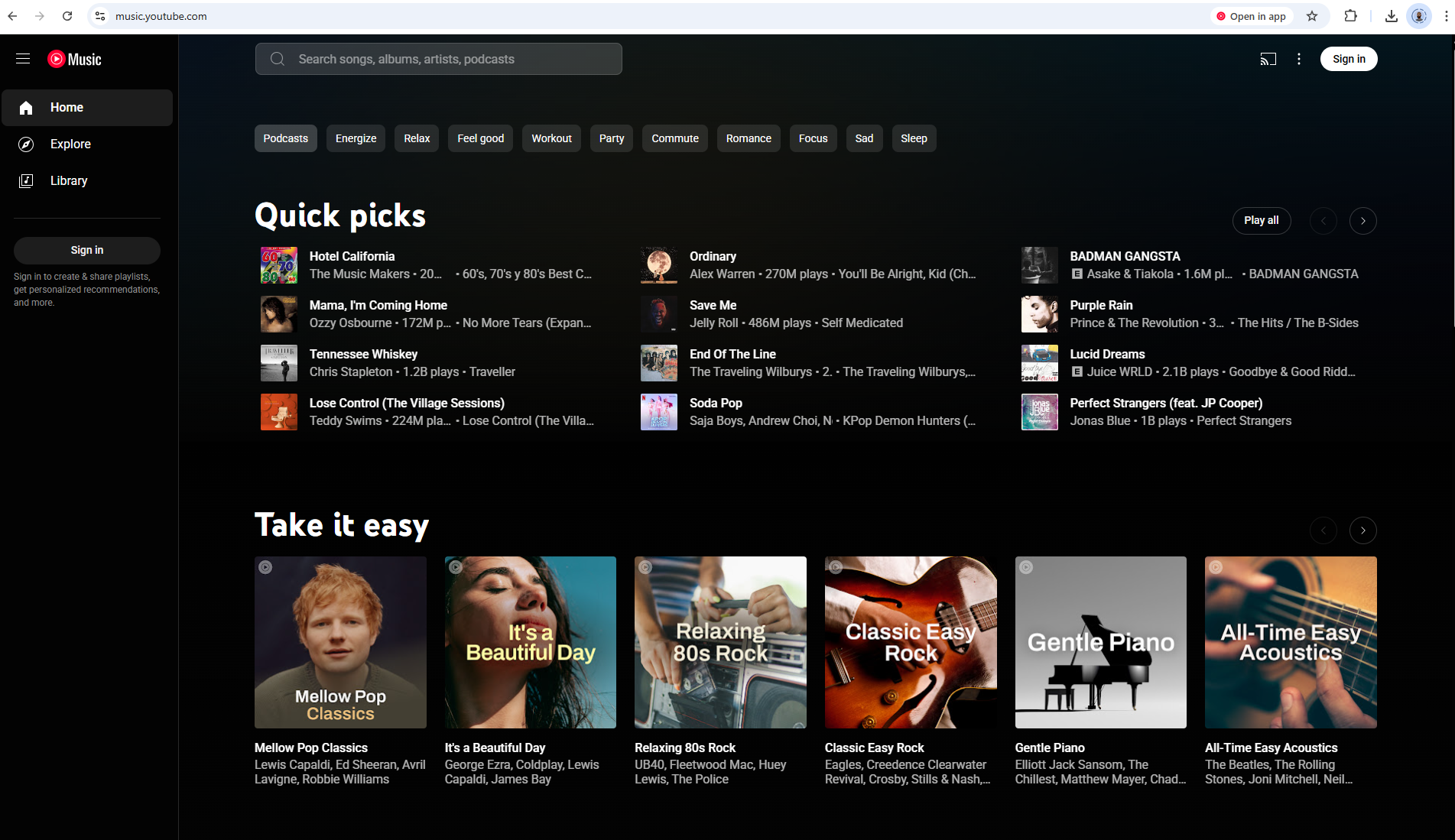
Step 2: Look for an "Install" icon in the address bar. It usually looks like a screen with an arrow pointing inwards or a square with a plus sign.
Subscribe for free to continue reading this article
Subscribe SubscribeAlready have an account? Log in


