



Incognito mode in Google Chrome is a handy feature that lets you browse privately without saving your history, cookies, or site data. It’s perfect for when you want to keep your sessions discreet, whether you're shopping for a surprise gift or logging into a shared device.
However, due to privacy concerns, Chrome disables screenshots in Incognito mode by default. This restriction prevents accidental (or intentional) captures of sensitive information, ensuring your private browsing stays private. But if you ever need to take a screenshot in Incognito mode, fortunately, there’s a way around this limitation using Chrome’s experimental flags.
In this guide, learn the steps to enable Incognito screenshots on Android, so you can capture what you need without compromising security.
 Oluwaseun Bamisile
How to take Screenshots on Chrome in Incognito mode
Step 1: Open Chrome on your Android device and type "chrome://flags" in the address bar and hit Enter.
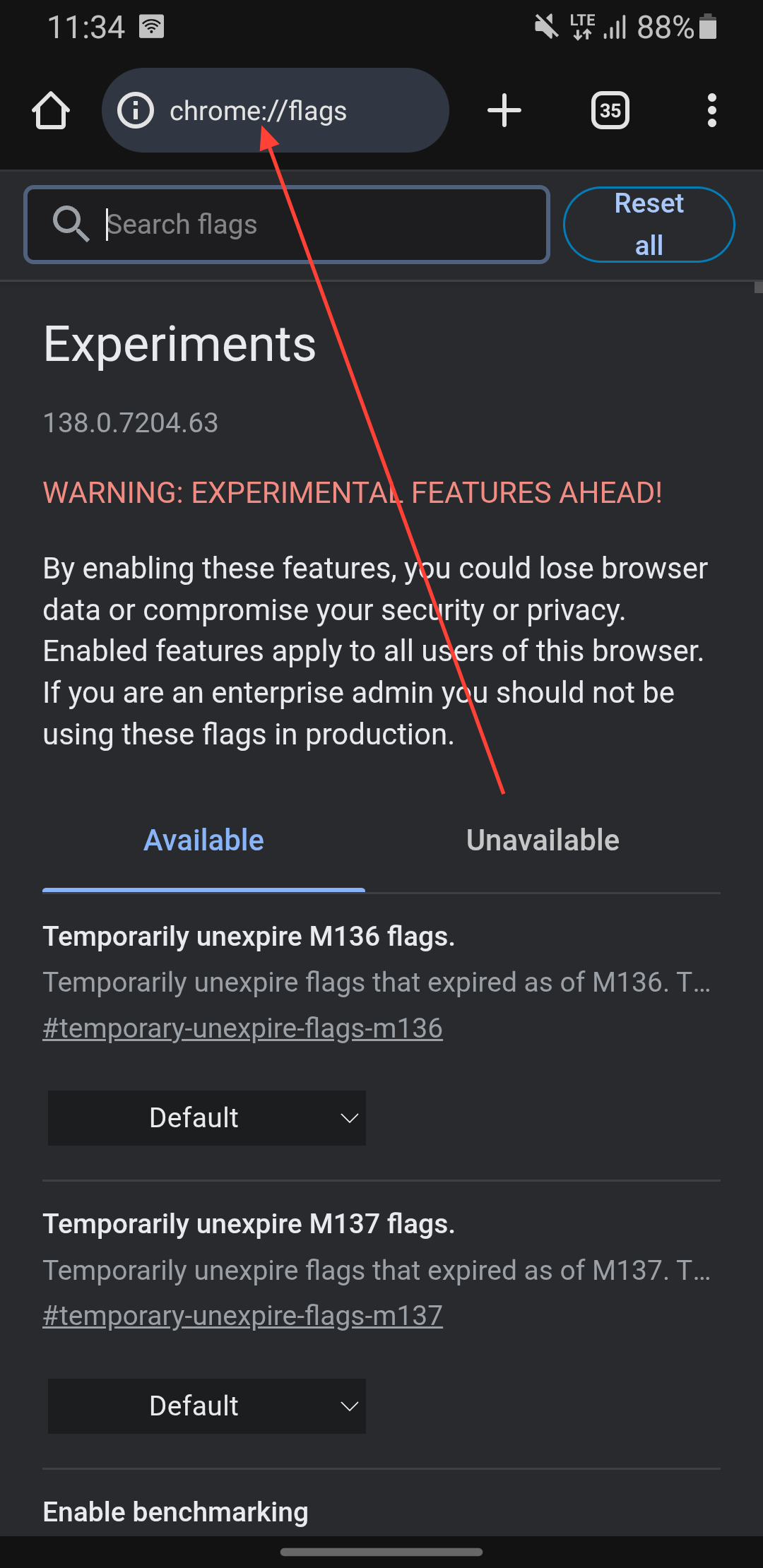
Step 2: Search for “Incognito Screenshot” in the search bar at the top of the page.
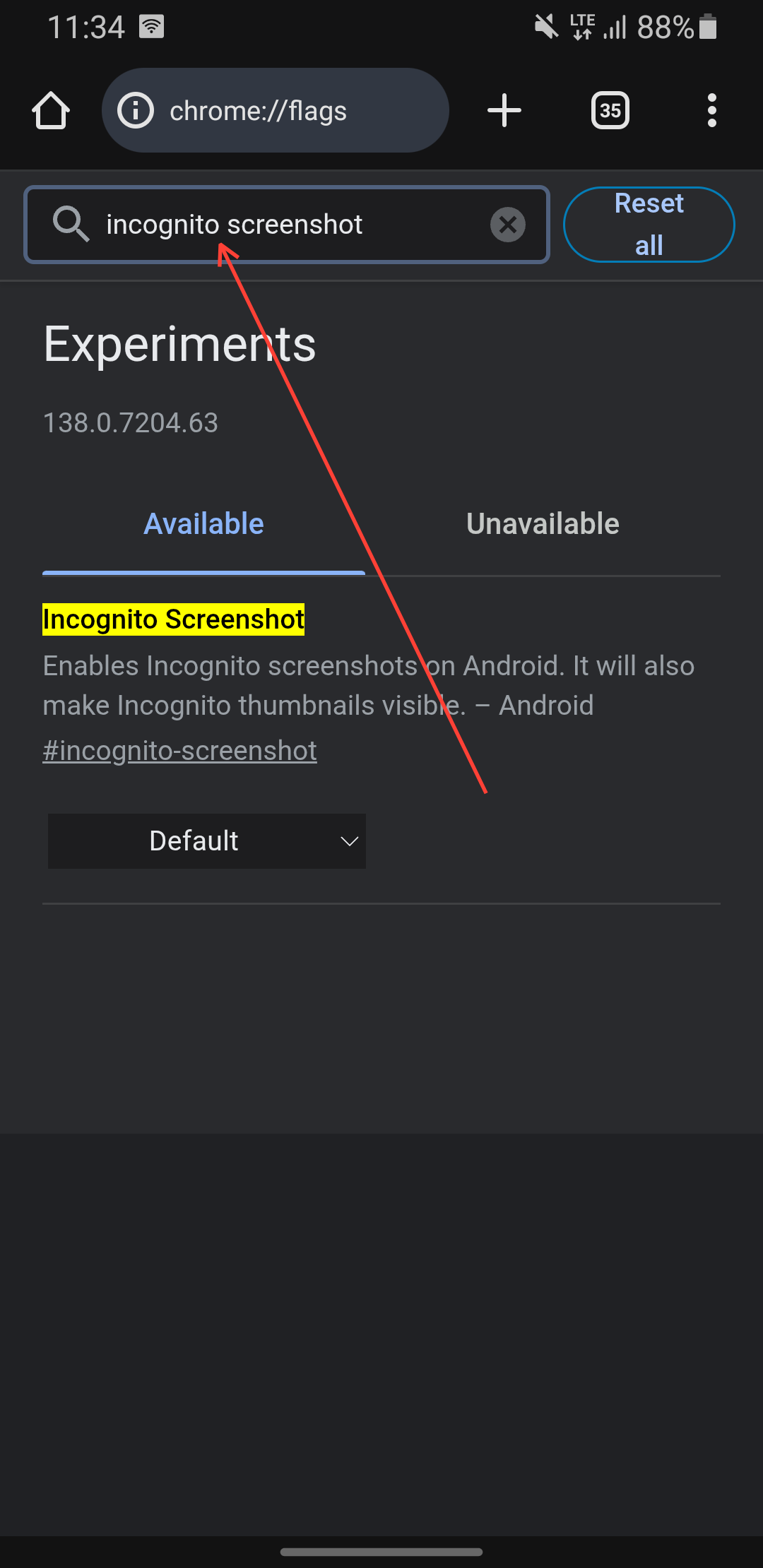
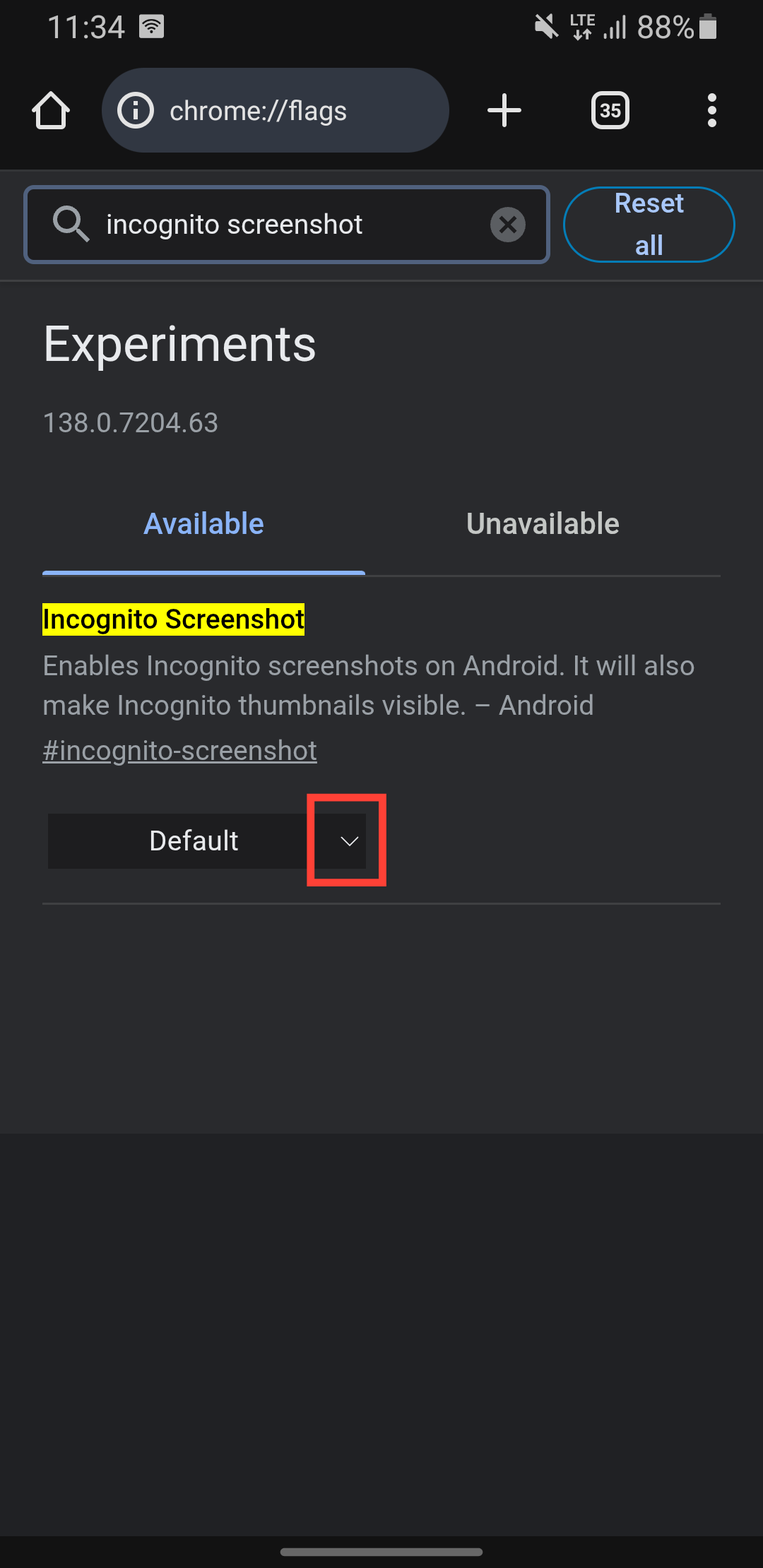
Step 3: Tap the dropdown menu under "Incognito Screenshot".
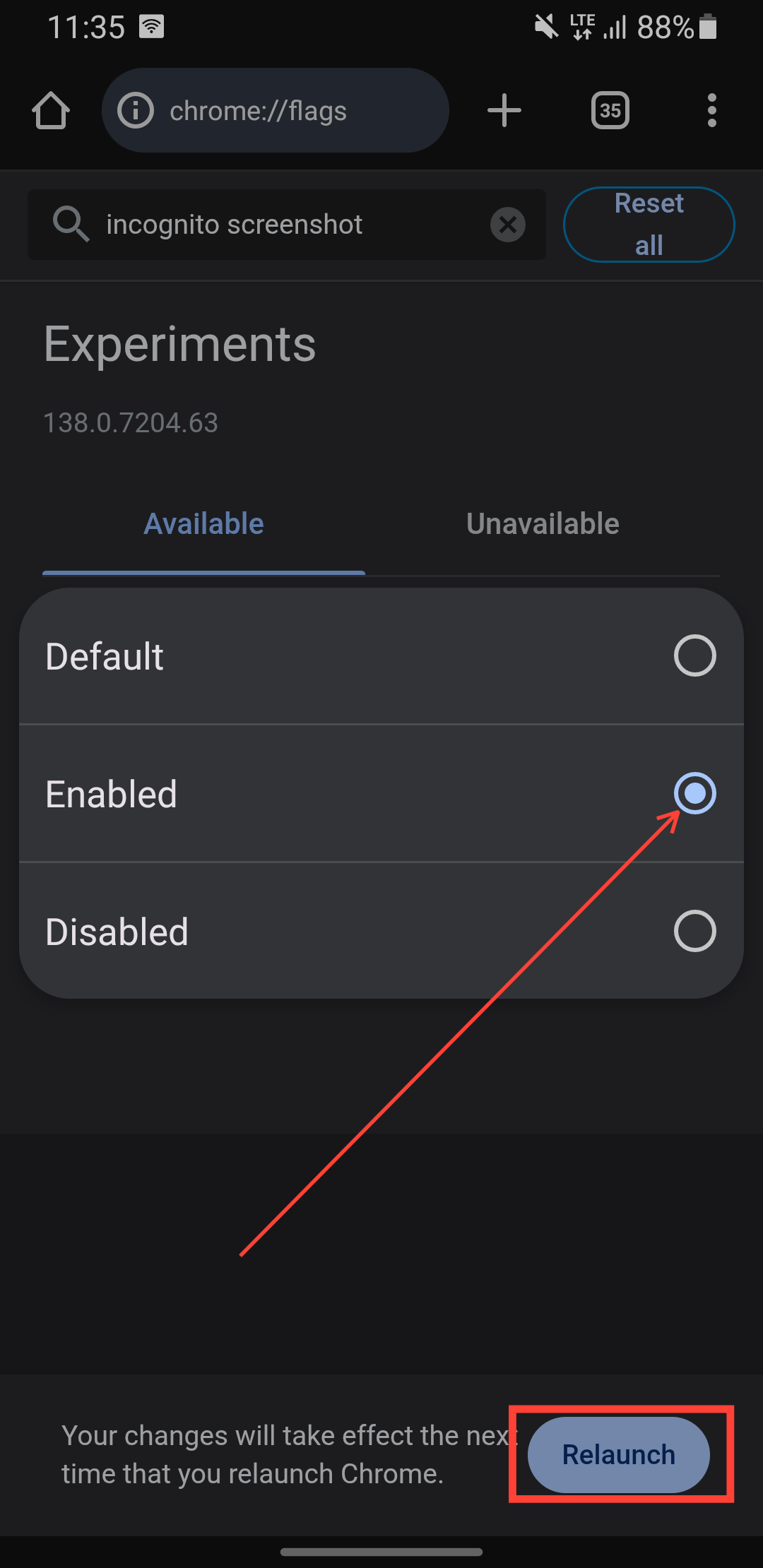
Step 4: Change the setting from "Default" to "Enabled" and tap the relaunch button at the bottom of the screen to relaunch your Chrome browser.
 Oluwaseun Bamisile
Conclusion
Taking screenshots in Chrome’s Incognito mode isn’t as straightforward as usual, but with the right tweaks, it’s entirely possible. By enabling the hidden Incognito Screenshot flag, you can bypass Chrome’s default restrictions while still keeping your browsing private.
Whether you're saving important details, troubleshooting an error, or just need a quick reference, this workaround gives you the flexibility to capture what you need, even in private browsing.
Image Credit: Oyinebiladou Omemu/Techloy.com


