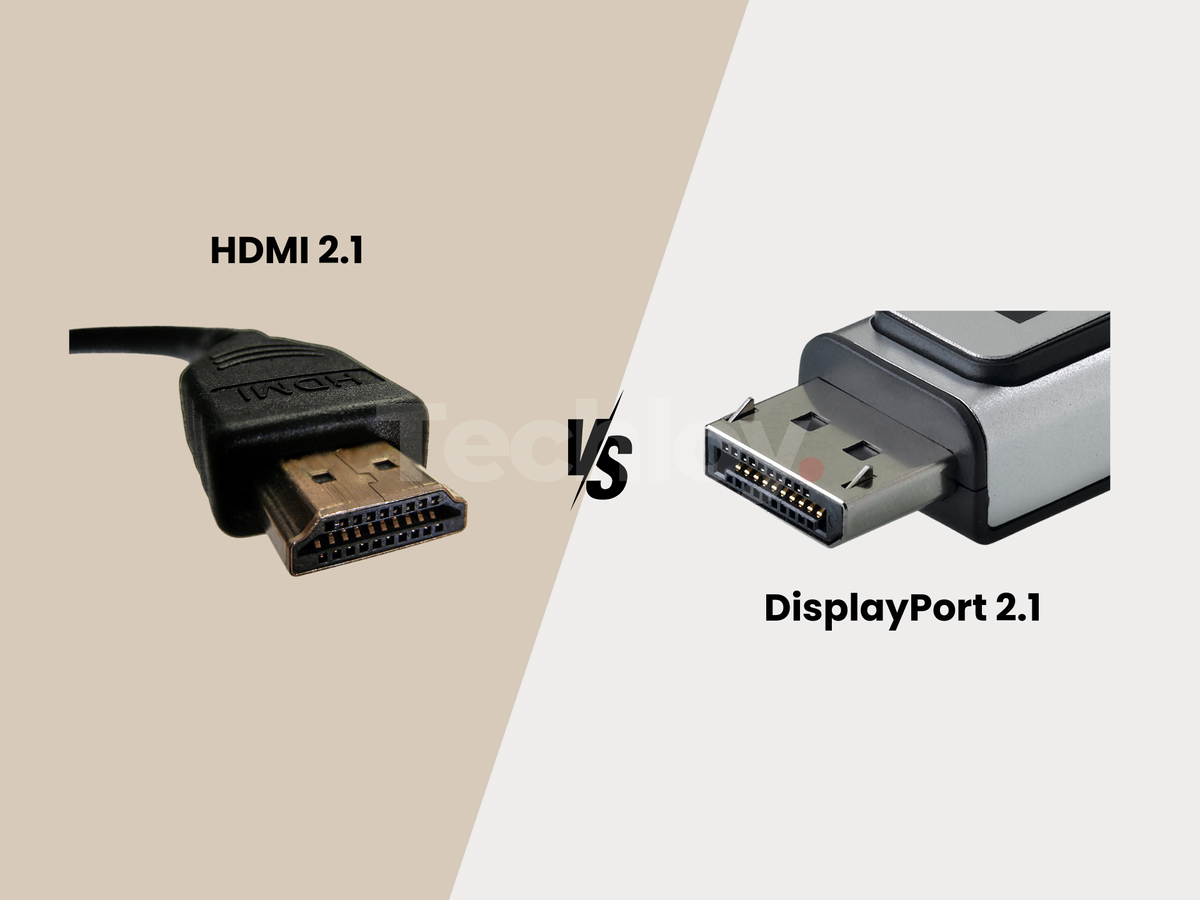
Sometimes your laptop screen just isn’t big enough, whether you're watching a movie, giving a presentation, gaming, or working on a detailed project. That’s where connecting your laptop to a TV with an HDMI cable comes in handy. It’s one of the simplest ways to extend or mirror your screen onto a much larger display, no complicated setup required.
In this step-by-step guide, learn how to hook up your laptop to your TV using HDMI, what to do if your laptop doesn’t have an HDMI port, and how to make sure everything displays correctly once you're connected. Whether you're tech-savvy or a complete beginner, this guide has you covered.
 Henry Chikwem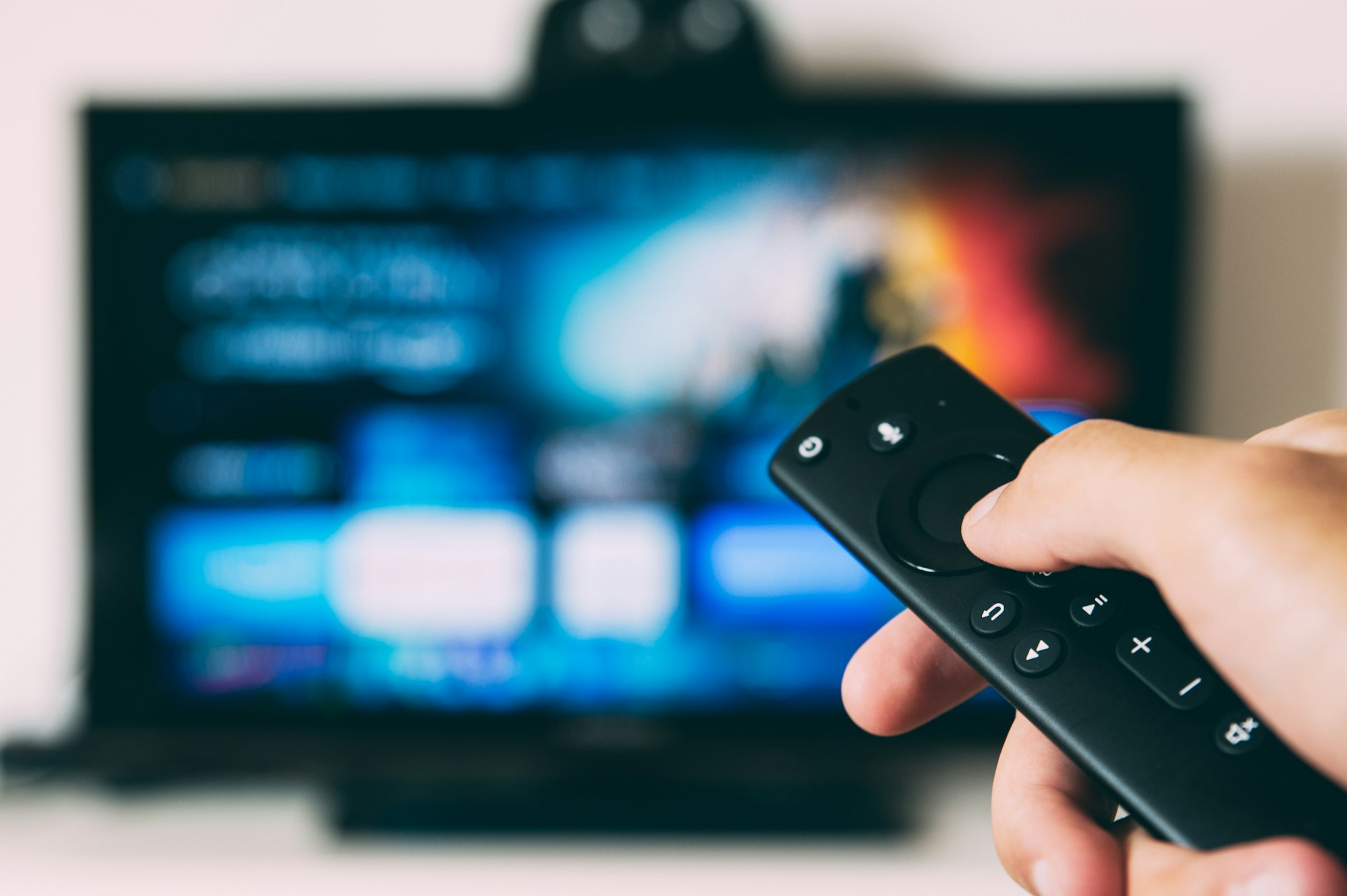
How to use your TV as your laptop screen
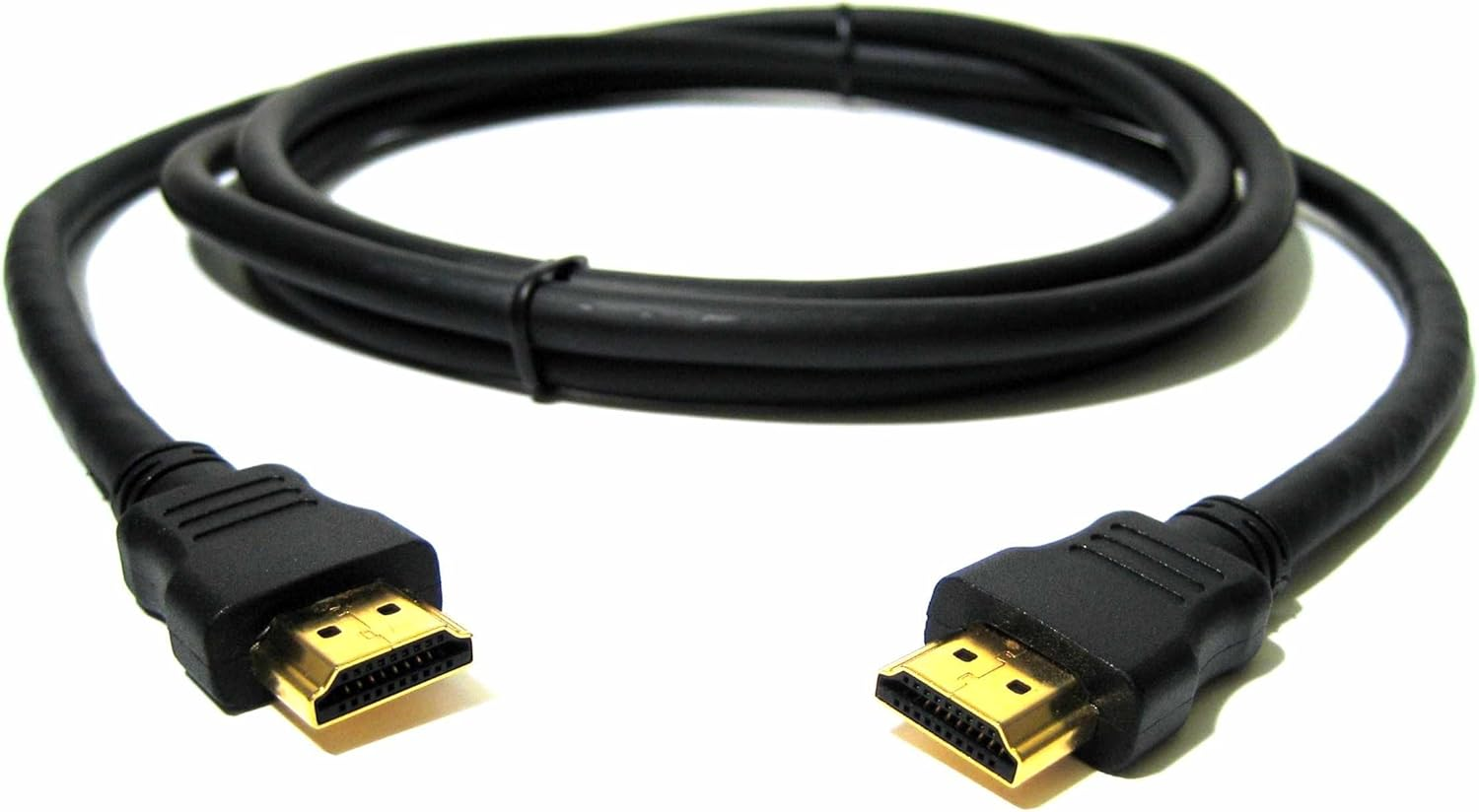
Step 1: Locate the HDMI ports on both your laptop and your TV. It should look like this.

Step 2: Connect one end of the HDMI cable to the HDMI output on your laptop and the other end to an available HDMI input on your TV.
Step 3: Turn on your TV and laptop.
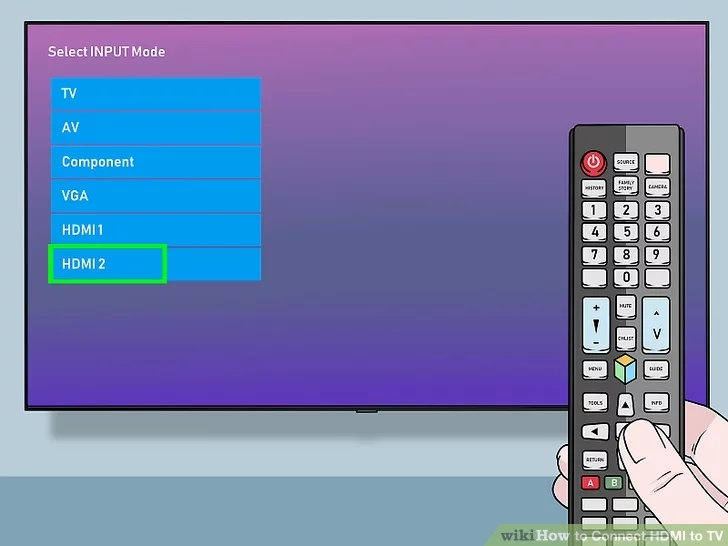
Step 4: Using your TV remote, switch to the correct HDMI input (e.g., HDMI 1, HDMI 2) corresponding to the port you plugged the cable into.
Step 5: Your laptop screen should now be visible on the TV. By default, this is usually a mirrored (duplicate) display.
Step 6: To adjust the display settings, press 'Windows + P' on your laptop.
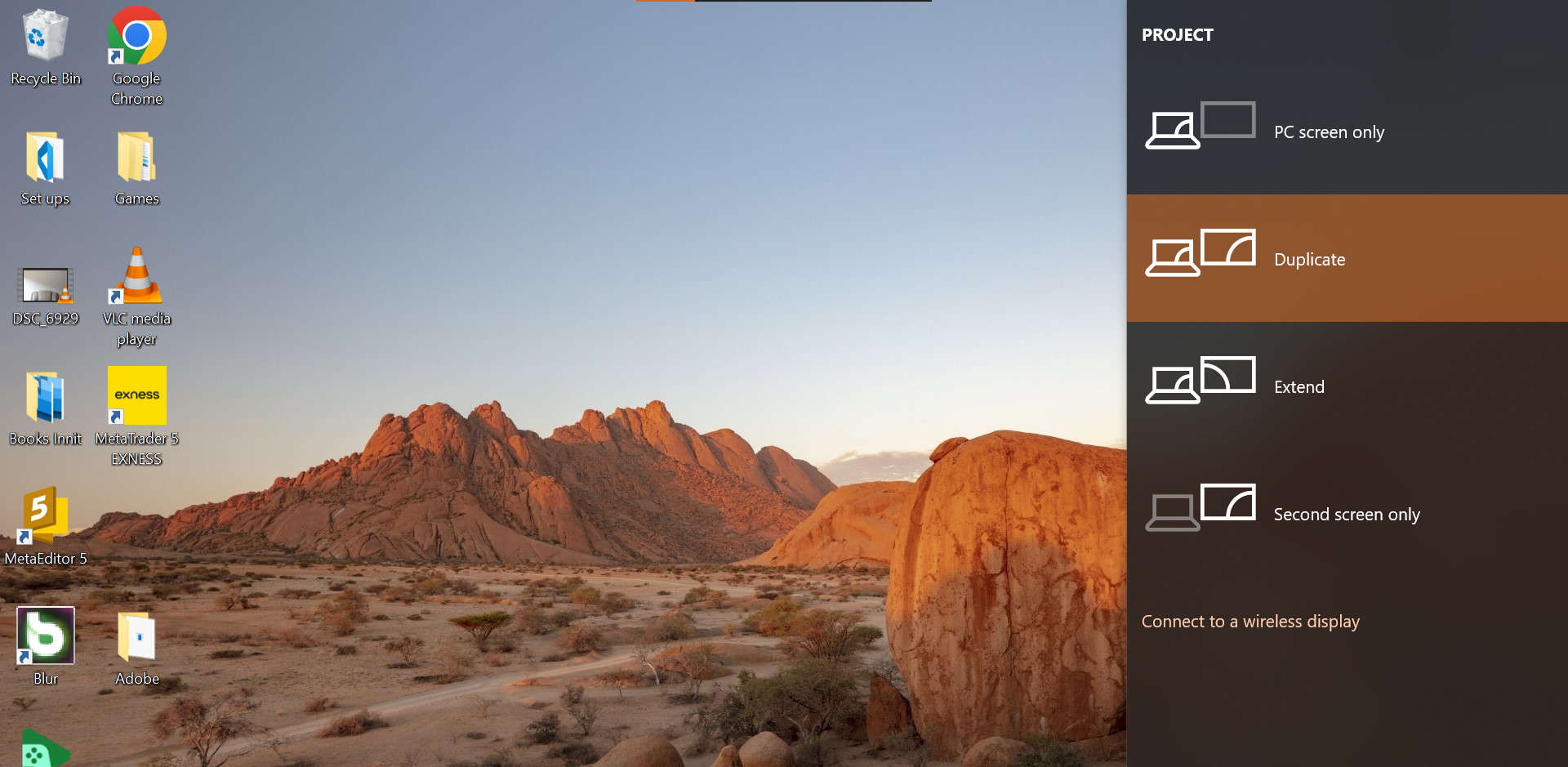
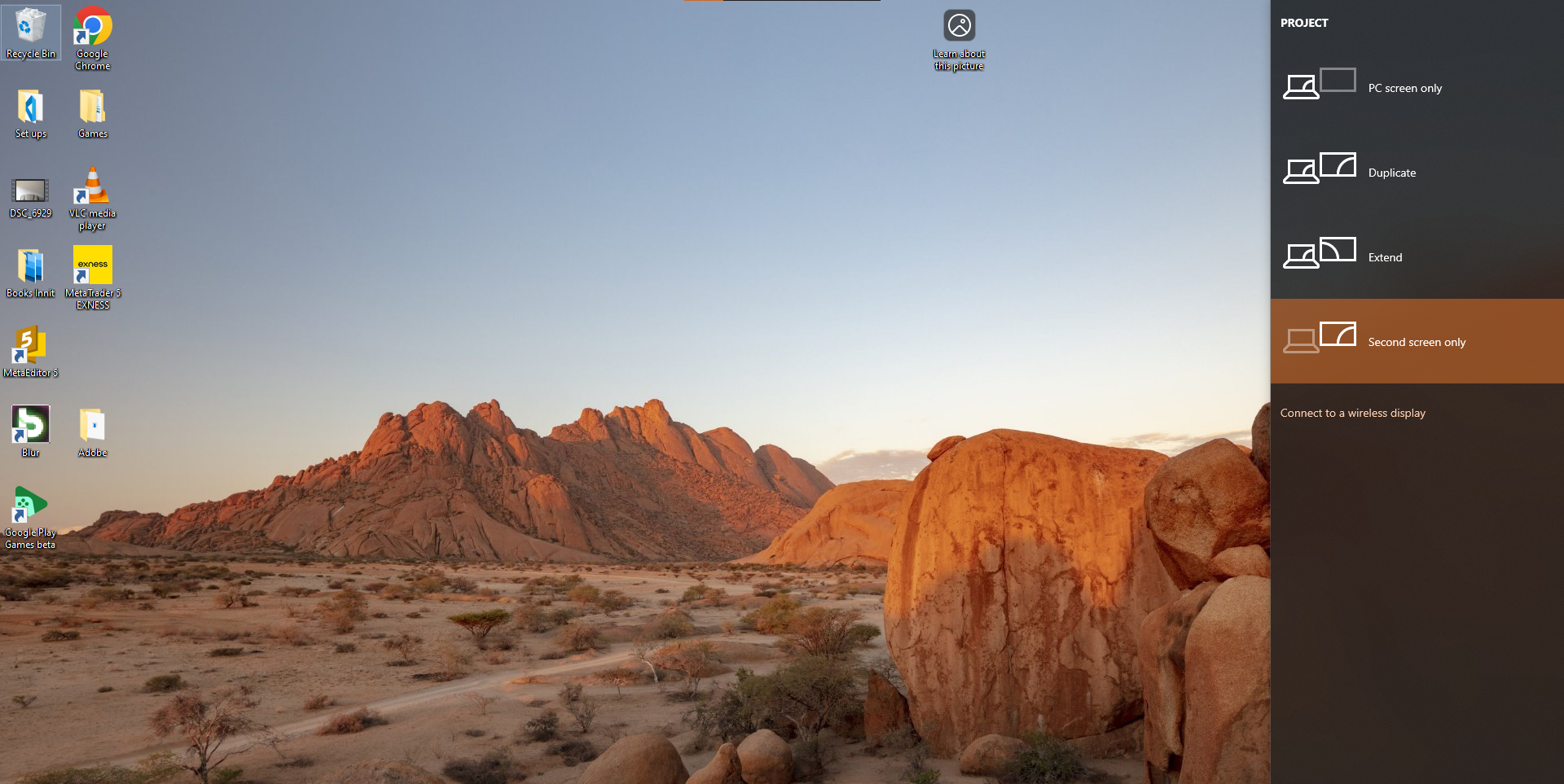
Step 7: When the projection menu appears, select Second screen only if you want the TV to act as the primary display. Your laptop screen will go black, and the TV will show the full desktop interface.
Conclusion
With just a few simple steps, you can enjoy your laptop’s content on a much larger screen. Whether you're streaming videos, working on a project, or sharing photos with family, using an HDMI connection makes the process fast and hassle-free. If the display doesn’t look quite right, you can always tweak the resolution or screen scaling from your laptop’s display settings for the best fit.
Image Credit: Louis Eriakha / Techloy.com
 Ogbonda Chivumnovu