



Seeing “Remote Management” during iPhone or iPad setup usually means the device is enrolled in a Mobile Device Management (MDM) system. This allows a company, school, or other organization to manage settings, apps, and restrictions remotely. In this guide, we’ll explain why your iPhone or iPad may be stuck on Remote Management and show you how to remove MDM using official methods, or professional MDM removal tools, such as those listed in the article like MagFone iPhone Unlocker and 3uTools.
Why Is iPhone or iPad Stuck on Remote Management?
If the device is supervised, its MDM profile may prevent you from removing it yourself. This is common with second-hand devices that are still linked to a company or school. Before trying MDM removal, check whether the device is still managed by an organization. If so, the safest option is to ask the administrator to remove it from their MDM system.
Method 1. Ask the Organization to Remove MDM
This is the safest and most reliable option for company- or school-owned devices. The administrator can unenroll the device from its MDM service and, where applicable, release it from Apple Business or Apple School Manager.
Method 2. Check for a Removable MDM Profile
If the device isn't supervised and the profile allows user removal, go to Settings > General > VPN & Device Management. Select the profile and choose Delete Profile, if that option is available. Apple notes that deleting a profile also removes the settings, apps, and data associated with it.
Method 3. Contact the Seller
For a used iPhone or iPad, contact the seller and ask them to have the organization remove the device from its MDM system. Simply factory-resetting the device may not be enough if it remains enrolled in automated device management.
Method 4. Try MDM Removal Tool Named MagFone
When you're the legitimate owner but can't reach the previous administrator, a dedicated unlocking tool may be worth considering. MagFone iPhone Unlocker provides an MDM removal feature designed to help users deal with MDM restrictions on compatible iPhone and iPad devices. Its guided workflow can be a more straightforward alternative for users who don't have technical experience.
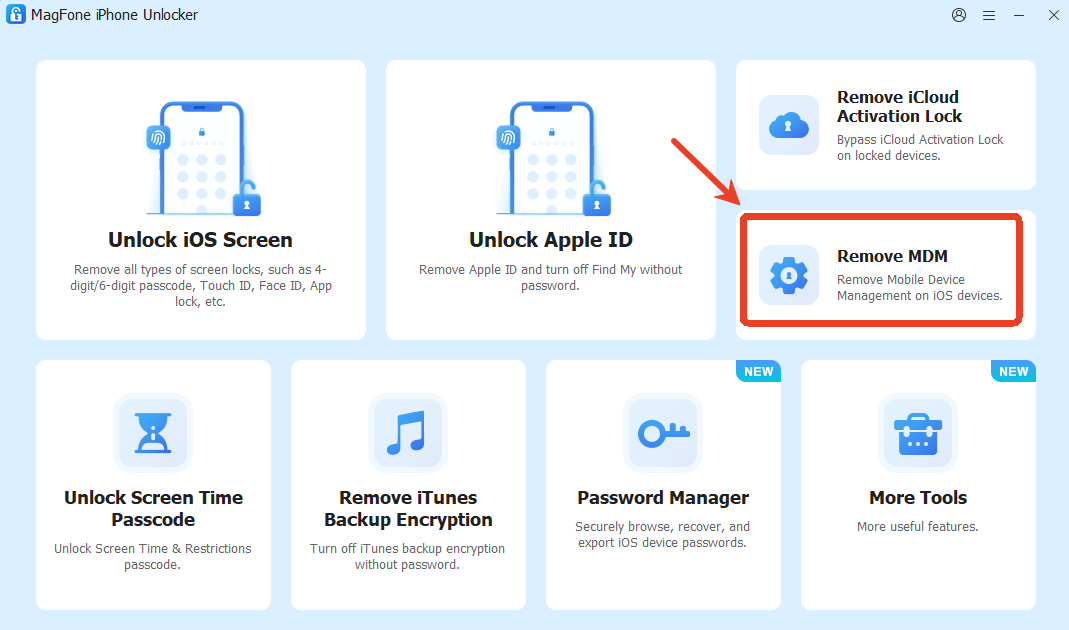
One of MagFone iPhone Unlocker’s key advantages is that it can remove MDM without erasing your existing data, making it a useful option for users who want to keep their files, photos, and other personal information. The tool supports almost all iPhone and iPad models and is compatible with the latest iOS 26, allowing users to deal with MDM restrictions even on newer Apple devices.
To remove MDM, install and launch MagFone iPhone Unlocker on your computer and select the Remove MDM feature. Connect your iPhone or iPad and follow the on-screen instructions. The software will guide you through the required steps and start the MDM removal process. After the process is completed, restart the device and you will find that the Remote Management restrictions have been removed.
Method 5: Try 3uTools
For users looking for a free option, 3uTools has offered a Skip MDM Lock feature on certain devices and iOS versions. However, its MDM functionality has compatibility limitations, particularly on newer iOS versions.
It's also important to understand that skipping the Remote Management screen isn't necessarily the same as permanently removing the device from an organization's MDM system.
Final Thoughts
An iPhone or iPad stuck on Remote Management doesn't necessarily mean the device is unusable. Start with the official route whenever possible, particularly for devices previously owned by a company or school. If you're the legitimate owner and administrative removal isn't an option, a compatible MDM removal tool such as MagFone iPhone Unlocker can provide another practical option for getting past the management restrictions.


