



My friend’s manager almost lost his temper while they were on a Microsoft Teams call a few days ago. Guess why? Google Chrome froze right in the middle of the meeting, freezing his video and locking up his screen.
Google Chrome is the most used browser on the planet, but sometimes I honestly feel like going to Google’s office and screaming at everyone working in the Chrome department. It is infuriating. Why does the most popular browser in the world make our systems hang so much?!
This is because Chrome is a “resource-hungry” browser—meaning it devours your computer's Memory (RAM) and CPU and treats every single tab as a heavy, separate process —which leaves absolutely no power left for your other apps, causing the whole system to choke.
Deep breadth!
Here is a step-by-step guide to stop Chrome from hanging, arranged from the easiest quick fixes to the most complicated solutions.
1. Close all unused tabs
Since we just established that Chrome devours your RAM, the first solution is the most obvious one: stop feeding it.
If you are the type of person who has 145 tabs open because you “might need to read that article from 2018 later, listen to me, you won't read that article. You’re mostly likely lying to yourself and you are actively hurting your computer. Close the tabs you are not using.
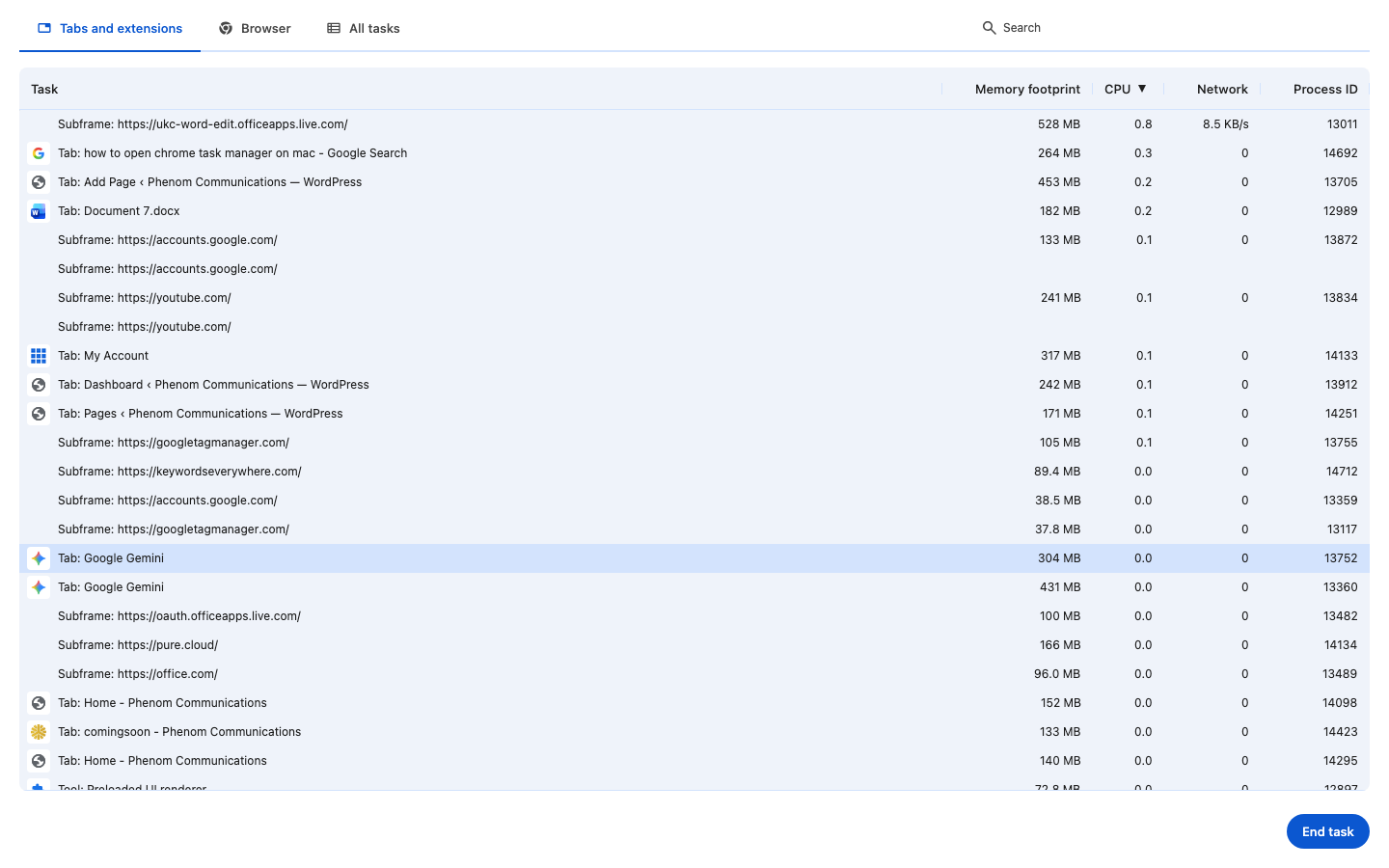
Sometimes it could be one specific tab that is causing the freeze. You don’t need to force-quit the whole browser and lose your work. You can use the Chrome Task Manager to close it.
To close all unused tabs:
- Press Shift + Esc on your keyboard (Works on Windows and Mac).
- This opens Chrome’s built-in Task Manager.
- Look for the tab using the most Memory Footprint or CPU.
- Click it and hit End Process.
2. Update Chrome
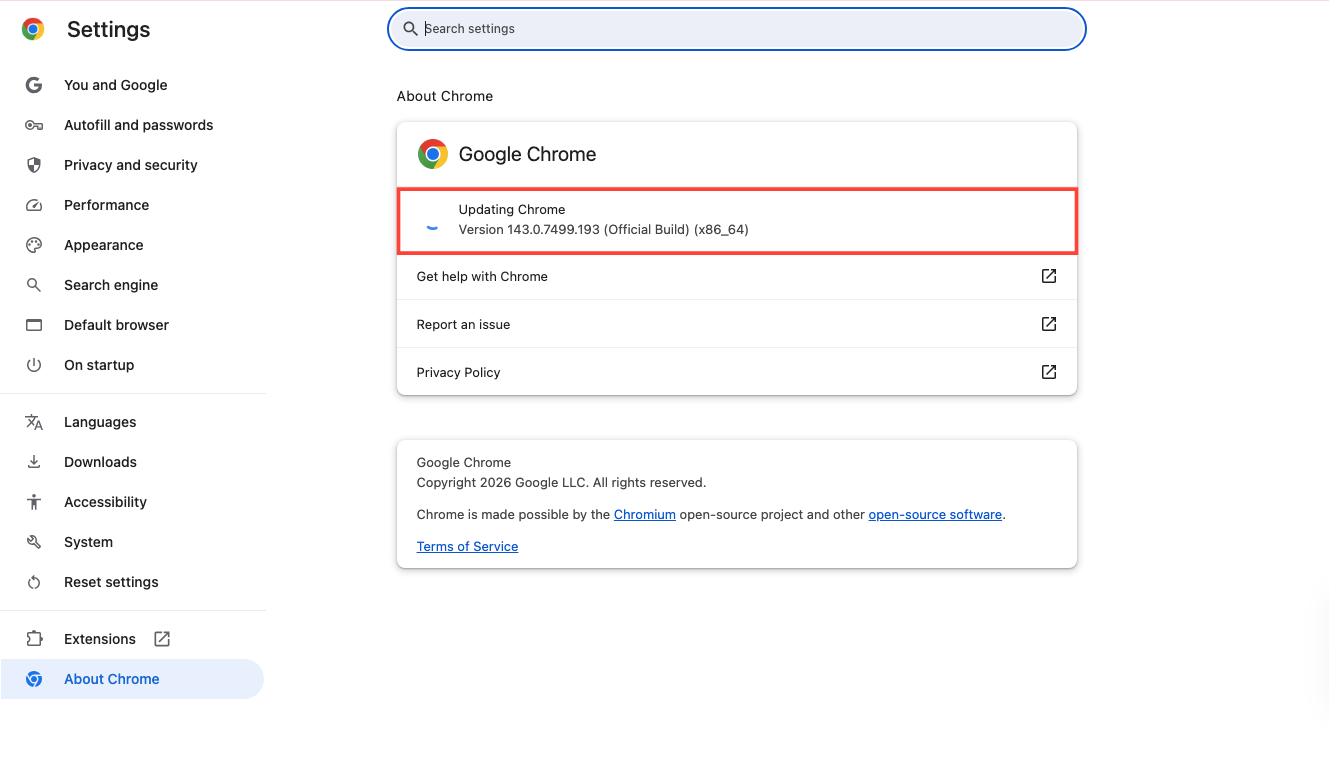
Updates can be annoying, but running an outdated version of Chrome will cause your PC to hang. Google pushes out updates specifically to fix the “memory leaks” that cause freezing.
To update Chrome:
- Click the three vertical dots in the top-right corner of the browser.
- Hover over on the Help button to click About Google Chrome.
- Chrome will automatically check for updates.
- If there is an update, let it download and click the big Relaunch button

 Louis Eriakha
3. Clear cache and cookies
Chrome has the habit of saving images and files from websites to help it load faster next time. This sounds helpful, but over time, it runs out of space to save them. Chrome doesn't know what to do with them, so it begins to freeze.
To clear up the cache:
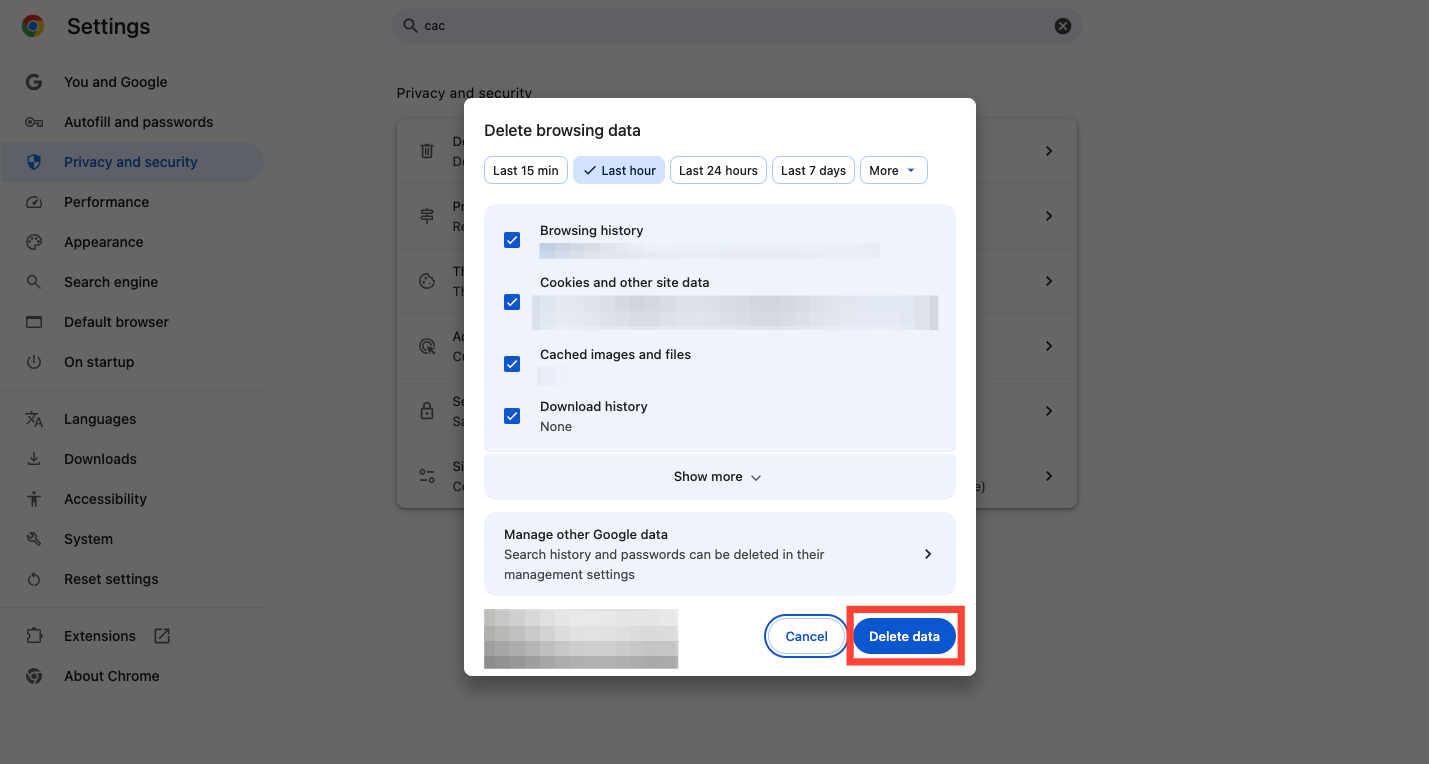
- Press Ctrl + Shift + Delete (Windows) or Cmd + Shift + Delete (Mac). This jumps you straight to the menu.
- Choose the Time range, e.g 7 days, 4 weeks, or All time.
- Check the boxes for "Cached images and files" and "Cookies and other site data."
- You can leave “Passwords” unchecked unless you want to retype every single password afresh on each website. This will sign you out of most websites (such as Gmail or Facebook), so be sure to know your passwords before clicking the button.
- Click “Delete Data.”
 Oluwaseun Bamisile
4. Remove unnecessary extensions
Extensions can make using Chrome easier. I have one that blocks ads, one that checks my grammar, and one that just makes my cursor look like a pizza slice. But here is another truth: poorly coded extensions are often the secret reason Chrome crashes.
To find the extension(s) causing your chrome to hang:
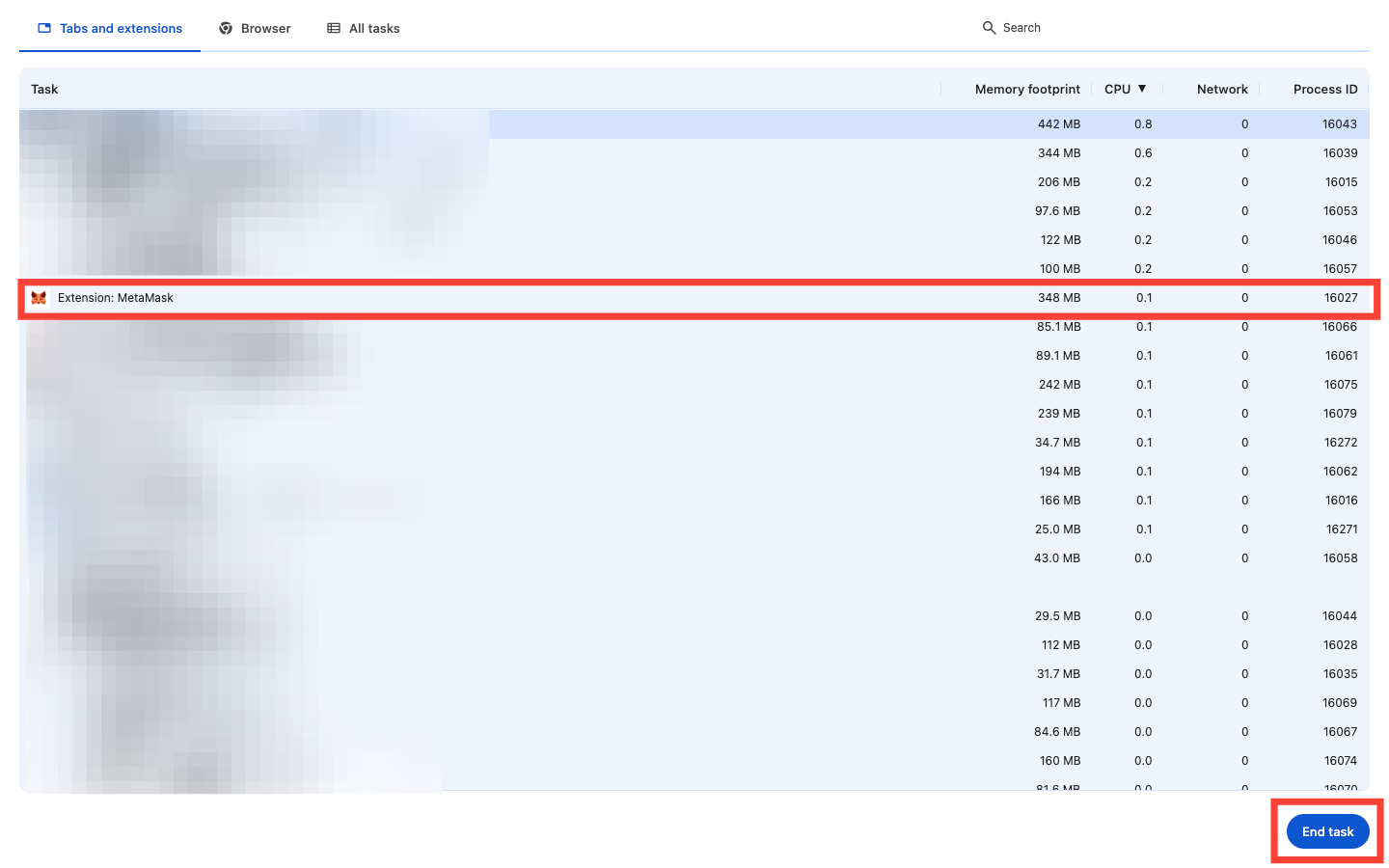
- Press Shift + Esc to open the Chrome Task Manager again.
- Scan the list for items that start with "Extension:".
- Look at the Memory Footprint and CPU columns.
- If you see a simple extension (like a "ToDo List") using 300MB of RAM or 20% CPU, it is broken. Click it and hit End Process, then remove it from your browser.
 Oluwaseun Bamisile
5. Turn off hardware acceleration
Chrome has a feature called Hardware Acceleration. It offloads tasks to your computer’s Graphics Card (GPU) to make videos and animations run smoother. But most times it causes conflicts with your drivers, leading to the dreaded “Chrome Not Responding” white screen or a total system hang.
To turn it off:
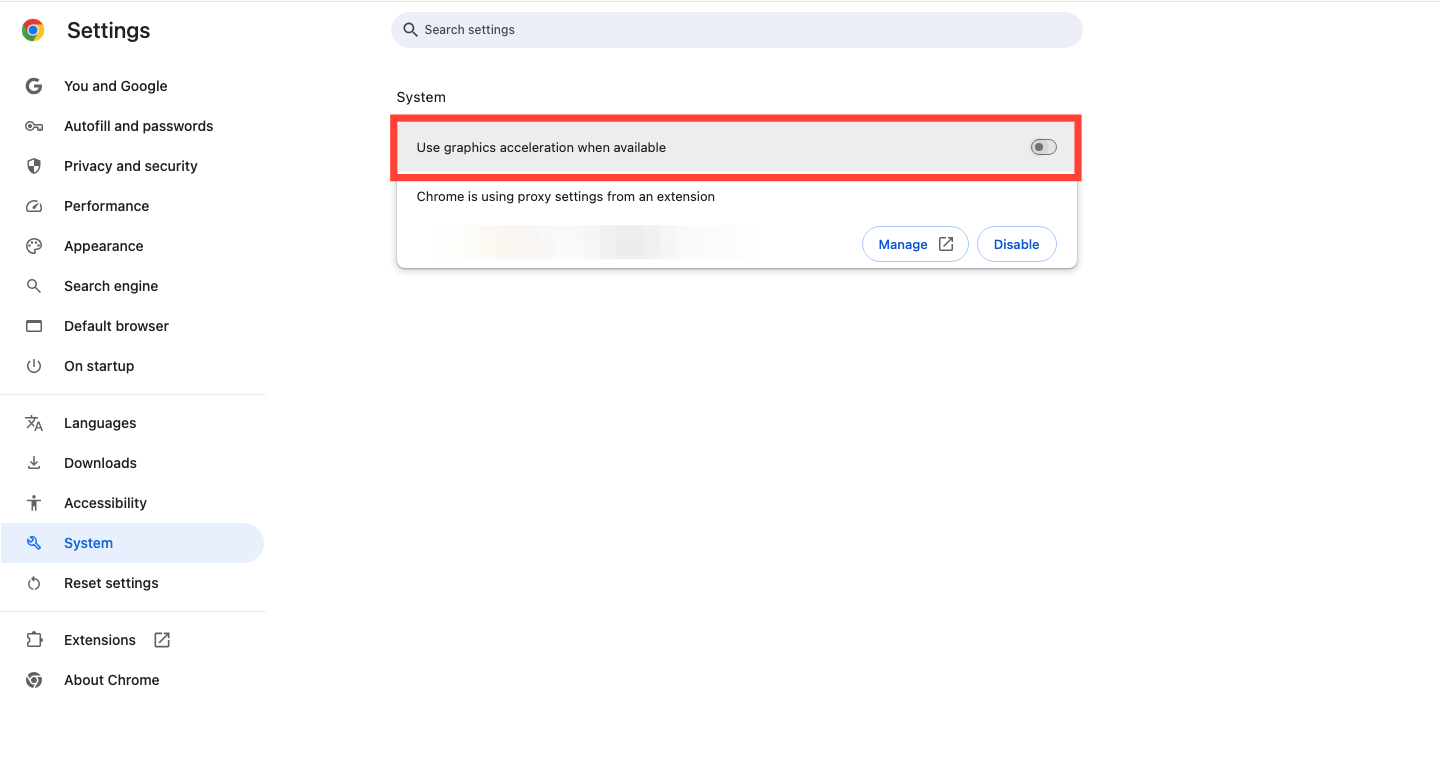
- Click the three dots (top right) and select Settings.
- On the left sidebar, click System.
- Find "Use graphics acceleration when available" and toggle the switch OFF.
- A Relaunch button will appear. Click it.
6. Uninstall and reinstall
If everything else fails, the usual uninstall and reinstall should work.
For Windows Users:
- Go to Settings > Apps > Installed Apps.
- Find Google Chrome and click Uninstall.
- CRITICAL STEP: A box will pop up asking if you want to delete your browsing data. Check this box. If you don't, you are just reinstalling the same broken settings again.
- Once it's gone, restart your computer.
For Mac Users:
- Open your Applications folder.
- Drag the Google Chrome icon to the Trash and empty it.
- The “Deep Clean” (Optional but recommended):
- In Finder, click Go (top menu) > Go to Folder.
- Type ~/Library/Application Support/Google/ and hit Enter.
- If you see a "Chrome" folder there, delete it. (Warning: This wipes your local bookmarks, so ensure they are synced to your Google Account first!).


