



Apple ID is the key to accessing Apple services such as iCloud, the App Store, Apple Music, FaceTime, and more. If you forgot your Apple ID password, you may find yourself locked out of essential Apple services and unable to verify account-related actions.
Fortunately, Apple provides several ways to reset Apple ID password. In this guide, we'll explore 7 proven ways to reset your Apple ID password and discuss how an iPhone unlocker tool can help when standard account recovery methods are no longer available.
What Happens If You Forgot Your Apple ID Password?
Forgetting your Apple ID password can cause several issues, including:
- Inability to access iCloud services
- Problems downloading or updating apps
- Failed device backups
- Inability to disable Find My iPhone
- Difficulty signing out of your Apple ID
The good news is that most users can reset Apple ID password using a trusted device, recovery email, or Apple's account recovery process.
What to Do If You Forgot Your Apple ID Password?
Method 1. How to Remove Apple ID from iPhone Without Password
Sometimes users forget their Apple ID information, including the password, email address, or linked phone number. If account recovery is no longer possible, removing the Apple ID from iPhone may be an alternative option. Some iPhone unlocker tools are available for this purpose, and TunesKit iPhone Unlocker is one example.
Steps:
Step 1: Download and install TunesKit iPhone Unlocker on your Windows PC or Mac. Connect your iPhone to the computer. Launch the program and select the Unlock Apple ID mode from the main interface.
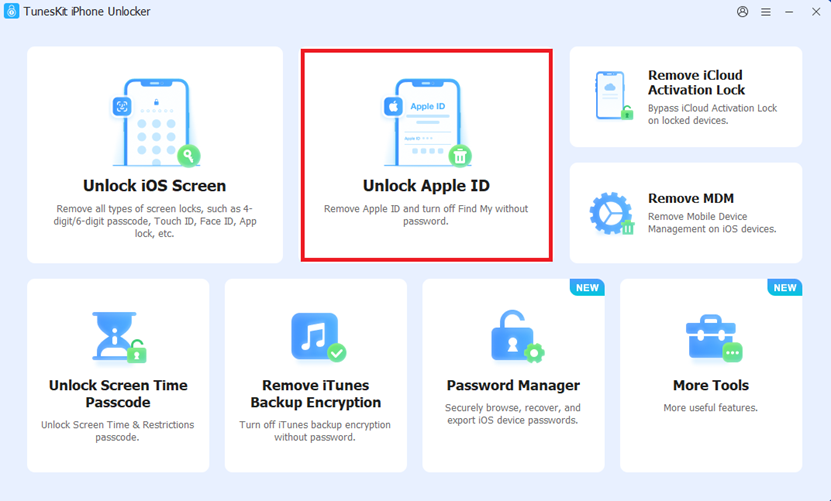
Step 2: Click Start. Follow the on-screen instructions to check and confirm your device status. Then download the firmware package.
Step 3: After the device is ready, TunesKit will begin removing the Apple ID from your iPhone. Wait for the process to complete, and then you can sign in with a different Apple ID or set up the device as needed.
Besides remove Apple ID, the software also supports unlocking screen passcodes, removing MDM restrictions, and bypassing Activation Lock.
Method 2. Reset Apple ID Password on iPhone or iPad
If you're already signed in to your Apple ID on your iPhone or iPad, resetting your password is usually quick and straightforward. Apple allows you to change your password directly from the device's Settings app, so you can regain access to your account without using another device or browser.
Steps:
1. Open Settings. Tap your name at the top.
2. Select Sign-In & Security.
3. Tap Change Password.
4. Enter your device passcode.
5. Create a new Apple ID password.
Method 3. Reset Apple ID Password on a Mac
Mac users can also reset their Apple ID password directly from System Settings. This process need the Mac login password to complete the process.
Steps:
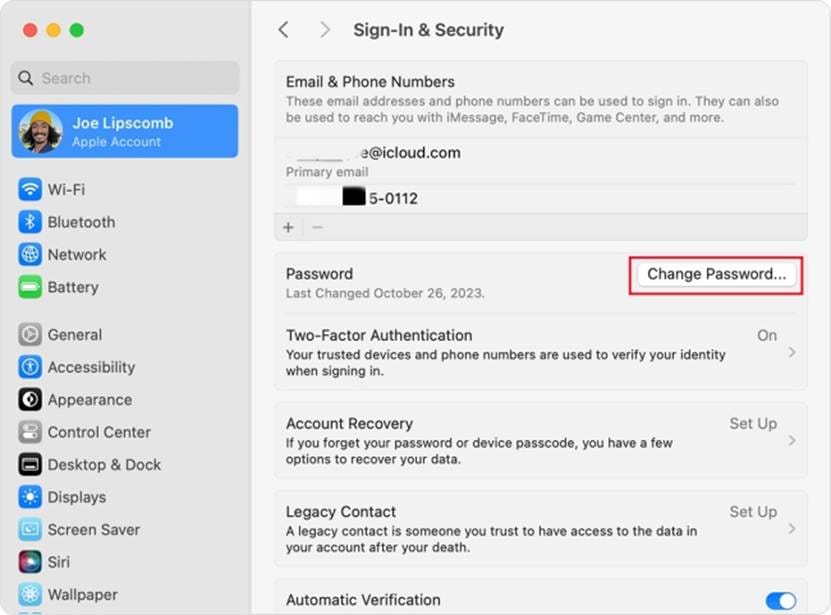
1. Click the Apple menu on the home page and open System Settings.
2. Select your Apple ID and choose Sign-In & Security.
3. Click Change Password.
4. Enter your Mac passcode. Set a new Apple ID password and click Change to confirm.
Method 4. Use Apple's iForgot Website
If you don't have access to your Apple devices, Apple's iForgot website can help.
Steps:
1. Go to Apple's official iForgot website on any phone or computer.
2. Enter your Apple ID email address associated with your Apple ID, then click Continue.
3. Verify your identity using a trusted phone number or answer security questions.
4. Follow the on-screen prompts to begin the account recovery or password reset process. Once your identity has been confirmed, create a new Apple ID password.
This method works from any web browser and is ideal when you're away from your trusted devices.
Method 5. Reset Apple ID Password Through the Apple Support App
If you don't own a trusted device, you can borrow one from a friend or family member and use the Apple Support app.
Steps:
1. Install the Apple Support app and open it.
2. Find the Support Tools and select Reset Password.
3. Choose Help Someone Else.
4. Enter your Apple ID email or associated phone number, and follow the verification process.
This is a useful and safe option when you don't currently have access to any of your Apple devices.
Method 6. Recover Apple Account with Account Recovery
If none of the above methods work, Apple offers Account Recovery.
Account Recovery helps users regain access when they don't have access to trusted devices, phone numbers, or recovery methods.
To start:
1. Go to iforgot.apple.com on any web browser or tap Forgot password or don't have an Apple ID? on your device's sign-in screen.
2. Input your Apple Account email address or the phone number associated with the account.
3. When prompted for verification options you cannot access, select can't use these options or equivalent button. You will be guided to start Account Recovery.
4. You may be asked to provide specific details or verify a phone number/card associated with your account.
Depending on your situation, the process may take several days or even longer. The waiting period helps protect your account from unauthorized access.
Method 7. Contact Apple Support for Assistance
If you're still unable to reset your Apple ID password, contacting Apple Support may help.
Apple representatives can:
- Explain available recovery options
- Verify account ownership
- Guide you through the recovery process
Keep in mind that Apple cannot simply provide your password. You must still complete identity verification requirements.
Conclusion
Forgetting your Apple ID password can be frustrating, but it doesn't mean you're locked out forever. Start with Apple's official methods to reset Apple ID password. If you cannot recover the password and need to remove an Apple ID from your device, tools such as TunesKit iPhone Unlocker may provide an alternative solution. By following the methods above, you can restore access to your Apple account and continue using your device without interruption.