



Your browser is probably one of the apps you use most, but how often do you think about the features you use beyond opening tabs and searching the web?
Google Chrome wants to change that by adding tools that let you organise your tabs differently, annotate PDFs without another app, and use Gemini to get answers about what you're viewing.
Some of these additions make sense on paper, but I wanted to see how useful they'd be in practice.
After trying a few of Chrome's latest features, I found some genuinely convenient additions, a couple of limitations, and at least one feature I'm still not sure I'd use regularly.
 David Adubiina
Vertical tabs are useful, but I still prefer the old layout
Chrome’s vertical tabs move your open tabs from the top of the browser window to a sidebar. Instead of squeezing tab names into a narrow strip, you can see more of their titles, organise them into groups and switch between pages without relying entirely on favicons.
I can see why this would appeal to people who regularly work with lots of tabs open, especially when researching a topic or juggling multiple projects. Being able to see the names of your tabs makes it easier to identify the page you need, and keeping related tabs together can make a crowded browser feel more organised.
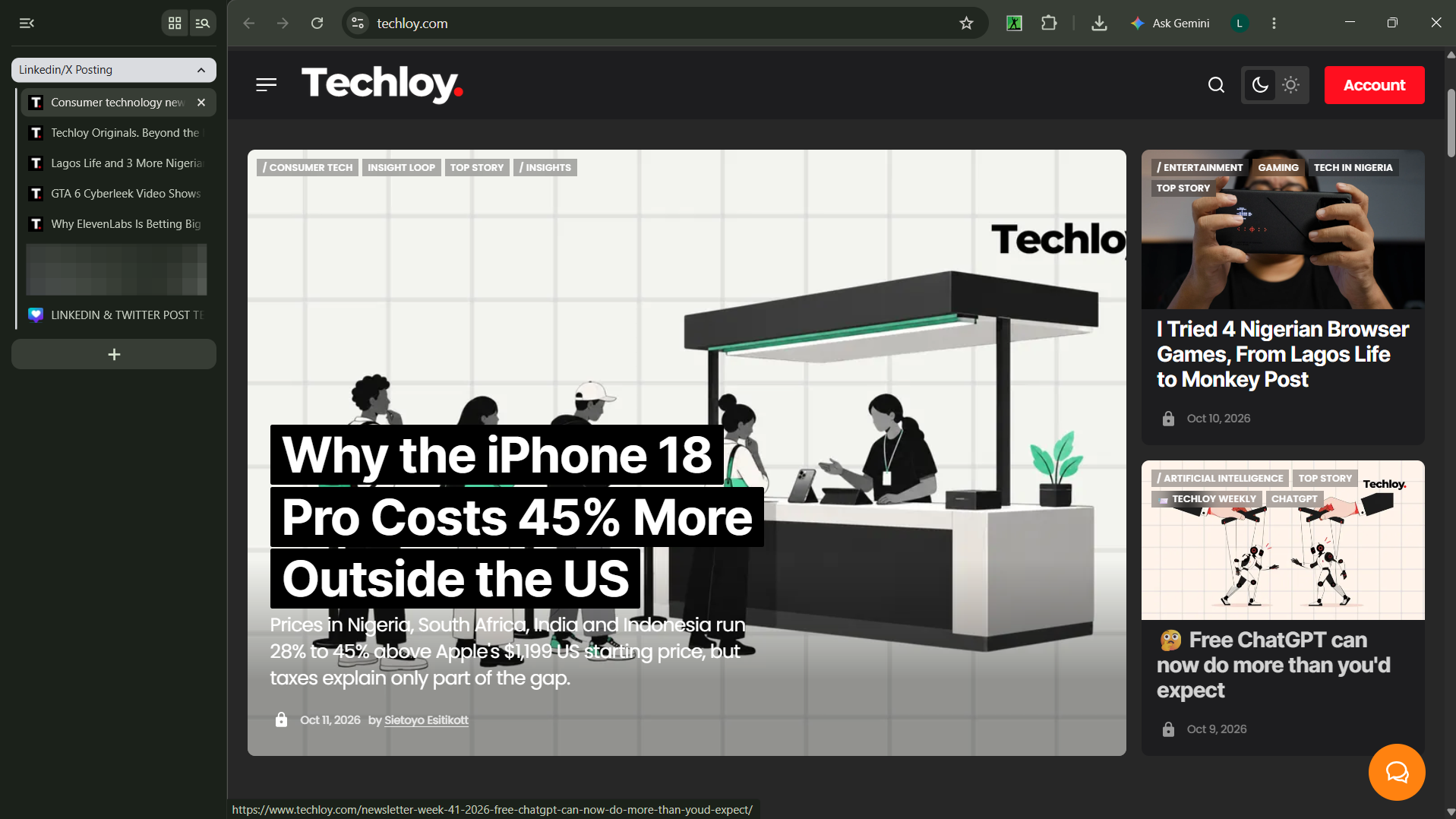
Chrome also lets you collapse the sidebar to free up screen space, expanding it when you need to find a particular tab. That makes the feature considerably more practical than leaving the entire sidebar open all the time.
Even so, I’m not entirely sold on it. I already feel like I don’t have enough screen space to work comfortably, and moving my tabs to the side initially felt like sacrificing even more of it. Collapsing the sidebar helps, but I still prefer the traditional layout, which feels more natural to me.
That doesn’t make vertical tabs a bad addition. They simply seem better suited to people who regularly have so many tabs open that managing them becomes a problem. If you tend to keep just a handful of tabs open, the benefits might not be enough to justify changing how you browse.
Chrome’s PDF annotations are convenient, until you need to make changes later
Meanwhile, Chrome’s new PDF annotation tools let you mark up documents directly in the browser. You can draw, highlight text, and add a handwritten signature without downloading the document and opening a separate PDF editor just to make a few changes.
I found the tools pretty intuitive. It was easy to select an annotation tool, choose a colour, and make changes to a document. Erasing mistakes while working was also straightforward, which made the overall experience feel familiar even without a dedicated PDF editing application.
The bigger problem came when I downloaded the annotated file and wanted to revisit it. Opening the PDF in Chrome again didn’t let me erase the existing annotations, even though I could use the eraser while working on the document initially.
Subscribe for free to continue reading this article
Subscribe SubscribeAlready have an account? Log in


