



Not long ago, my Windows 11 PC started acting more like a vintage car than a modern digital powerhouse. It became slow to boot, laggy, and full of random glitches after years of app installs, updates, and general “use.”
Deep down, I knew it was time for the nuclear option, which is a reset. And with just a few clicks, Windows 11 lets you choose between preserving your personal files or wiping everything for a clean start.
It even gives you the choice of reinstalling Windows from the cloud or using local files. Let’s explore how to reset your PC effectively.
 Gabriel Ojeh
Steps to Reset Windows 11
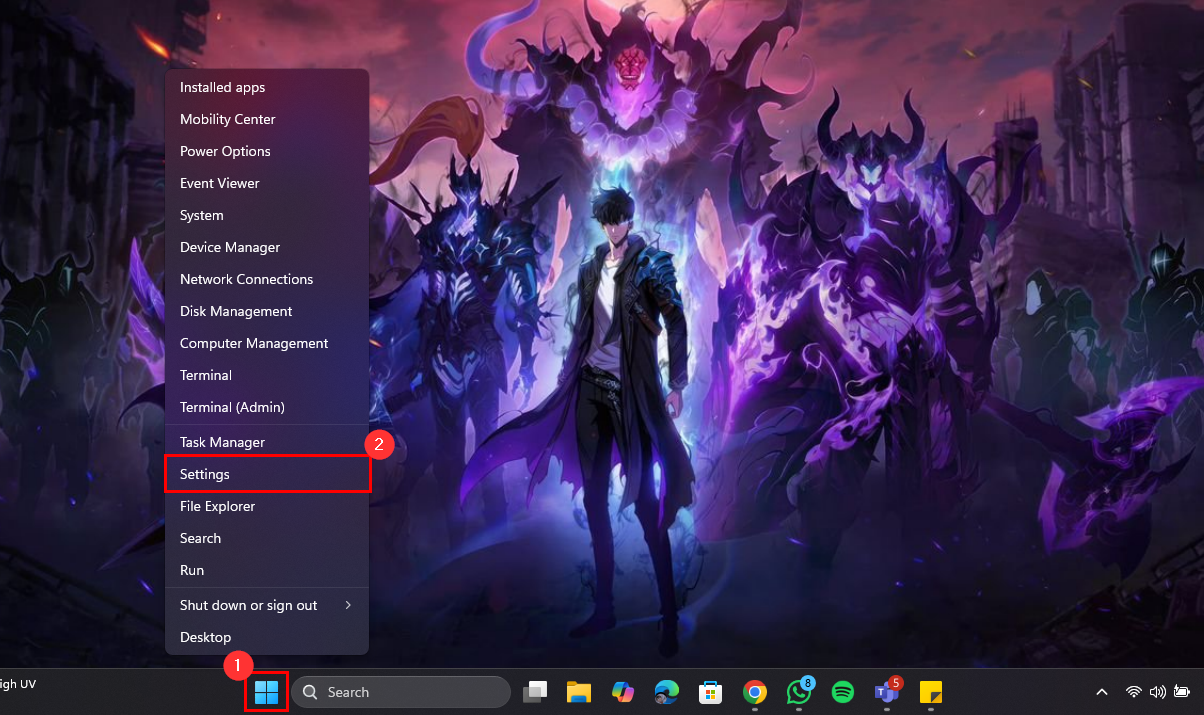
Step 1: Open Settings by pressing Win + I or right-clicking the Start button and selecting "Settings"
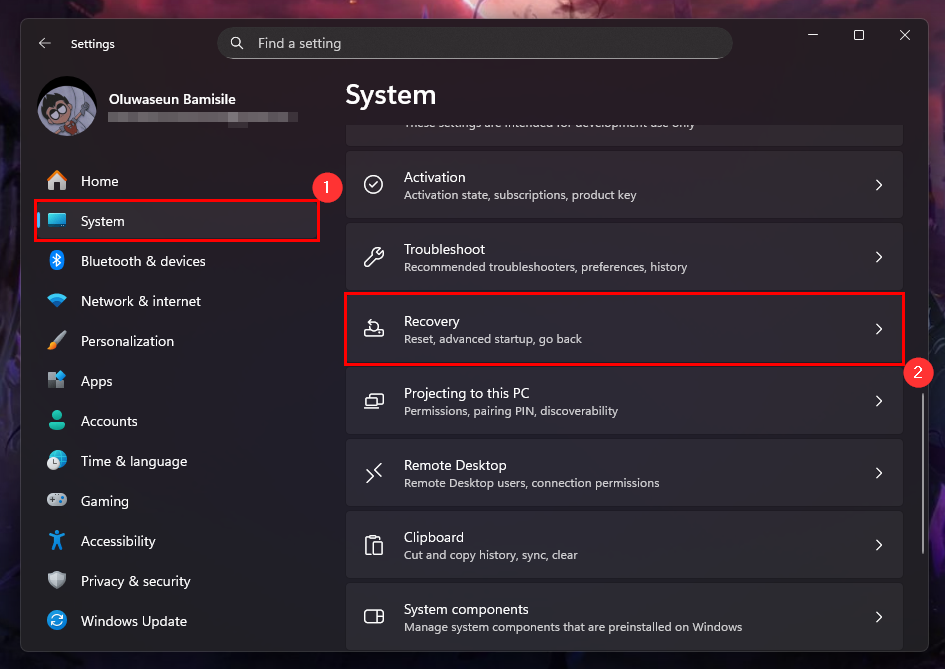
Step 2: Click on "System" among the options on the left pane, then select "Recovery" on the right pane
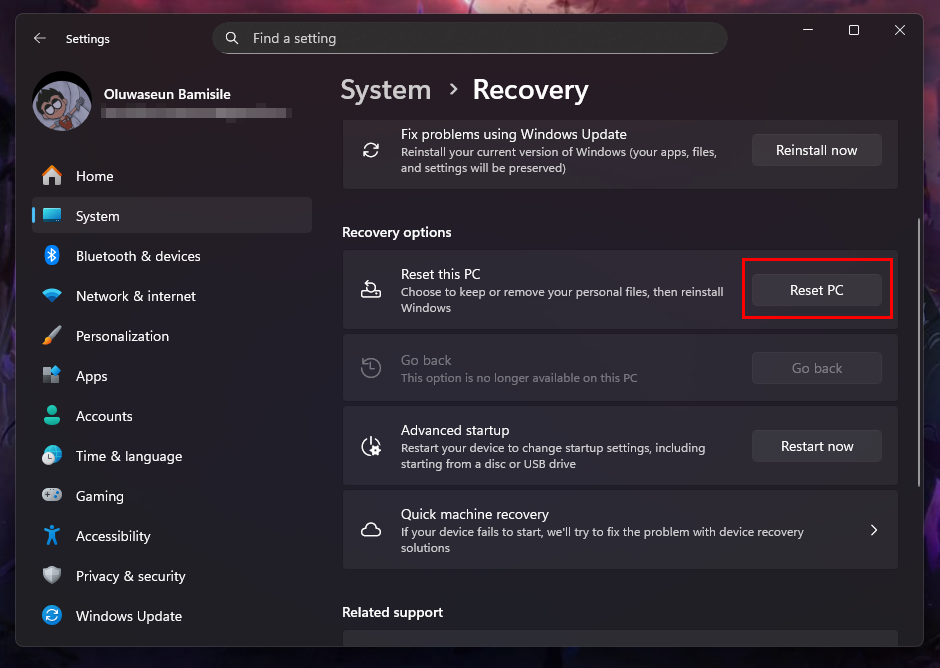
Step 3: Now, click "Reset PC" under the Recovery options section
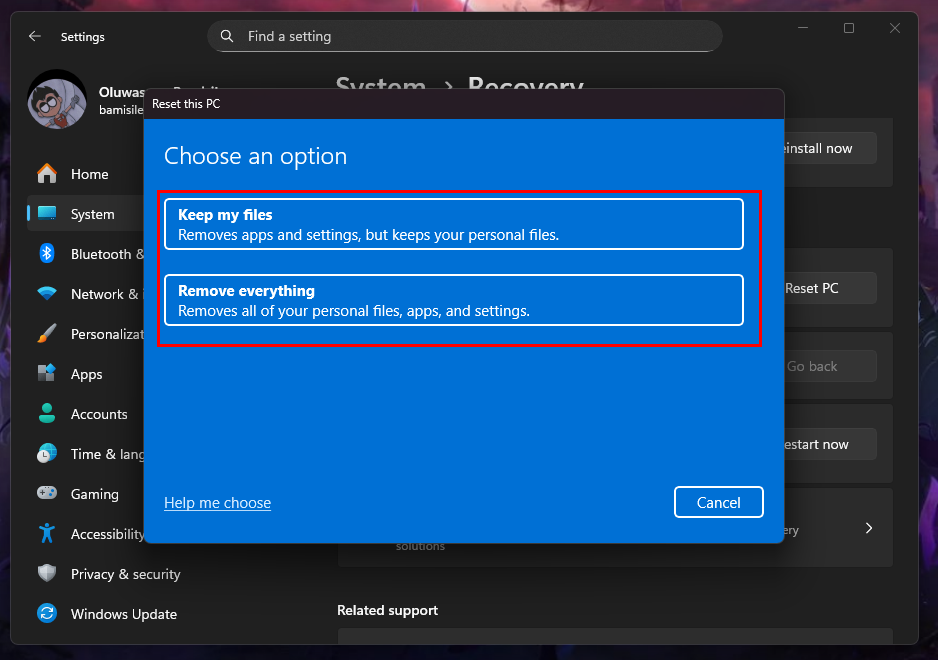
Step 4: Here, you can choose to keep all your files or remove everything
Step 5: Afterwards, select a reset method
- Cloud download: This option pulls a fresh version of Windows 11 directly from Microsoft’s servers. Hence, you will need an internet connection. It’s ideal if your current installation is corrupted or outdated. Just keep in mind that it won’t restore any of the pre-installed tools, custom drivers, or manufacturer-specific software your PC originally came with.
- Local reinstall: This uses system files already stored on your device to reset it. If you're using a branded computer like Dell, ASUS, or Lenovo, this option may also bring back factory-installed apps, drivers, and settings.
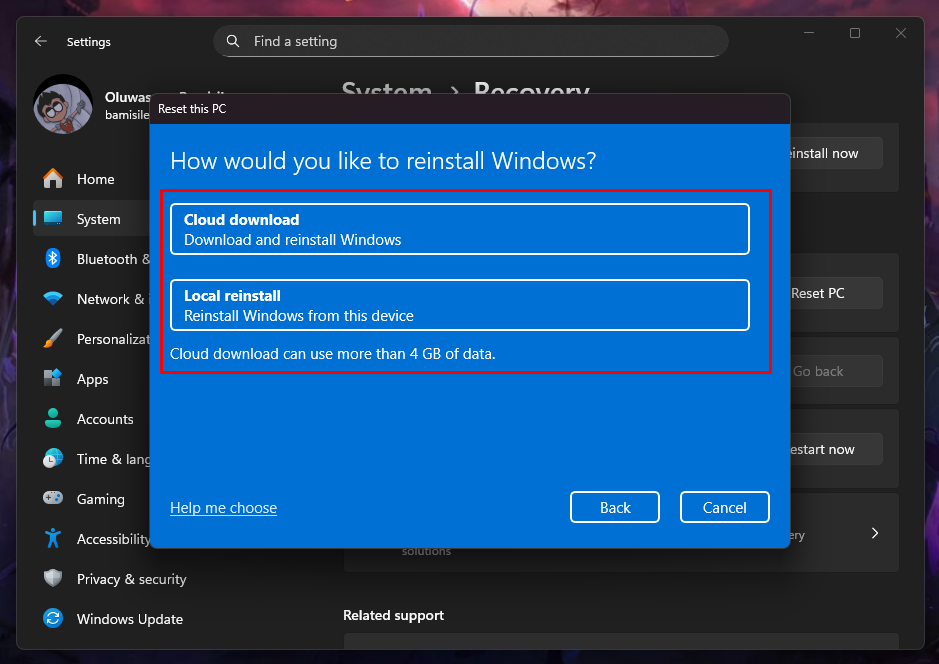
Step 6: Following that, click the Next button
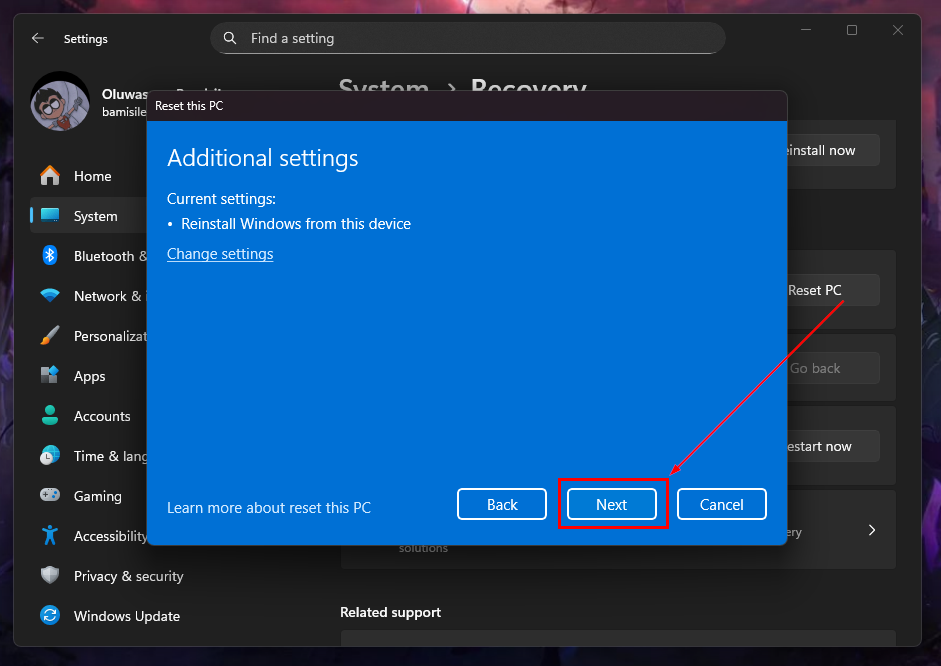
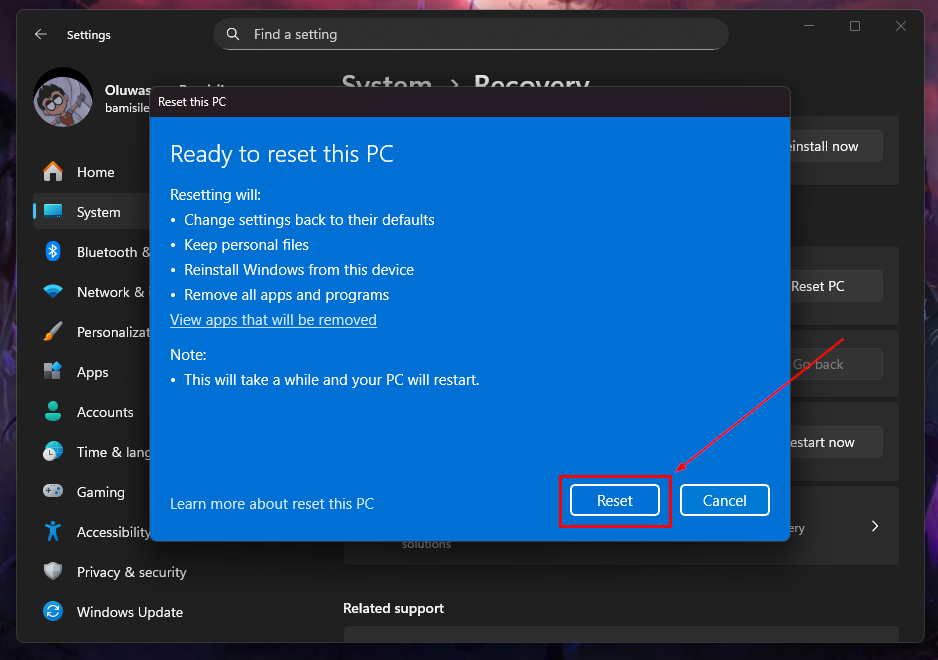
Step 7: Finally, review the reset conditions to ensure everything is good with you. Then, click the Reset button
 Techloy
Conclusion
Resetting Windows 11 can feel like a leap, but it’s often the most effective way to revive a sluggish or problematic system. Whether you're choosing to keep your files or purging everything, the reset process is user-friendly, built-in, and surprisingly efficient.
After any reset, it just takes a bit of follow-through, such as updates, drivers, and app setup, before your PC runs like new.
Image credit: Oluwaseun Bamisile/Techloy.com


