



If you’re signed into Chrome with your Google Account, you might love how your bookmarks, passwords, and browsing history show up across devices. That convenience is thanks to Chrome’s sync feature. But what if you’re sharing a computer, using a public device, or just want tighter control over what data gets shared? Instead of signing out altogether, you can simply turn off or customise syncing.
In this guide, we’ll show you how to manage your sync settings in Chrome, whether you want to toggle off syncing completely or just disable specific items like extensions, history, or open tabs. The aim is to keep your browser logged in so you still have access to your profile, but without automatically distributing every bit of browsing activity and data.
 Oyinebiladou Omemu
4 Steps to Manage Syncing for Chrome on Desktop
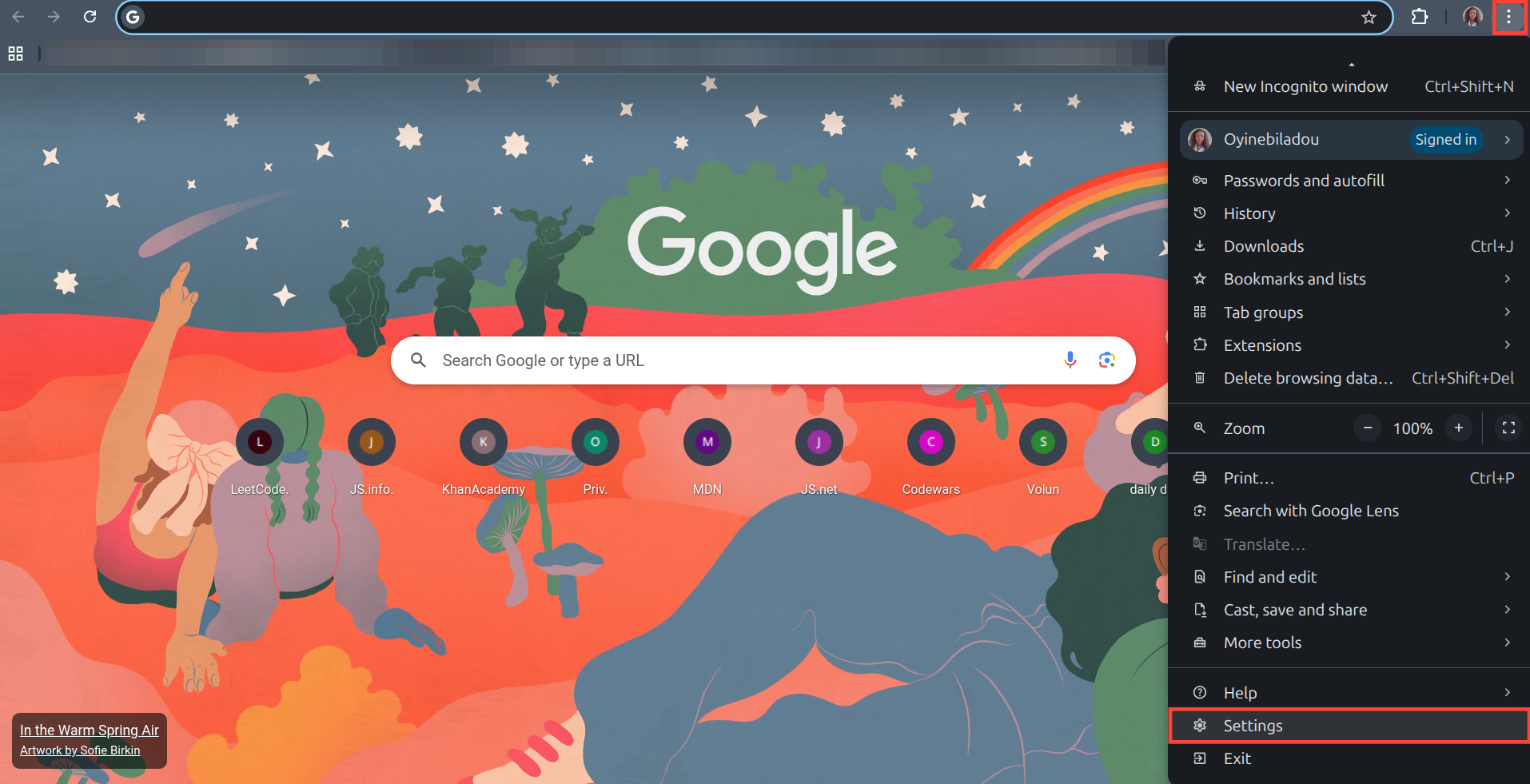
Step 1: Open Chrome on your desktop, select the three dots menu on the top right, and select Settings.
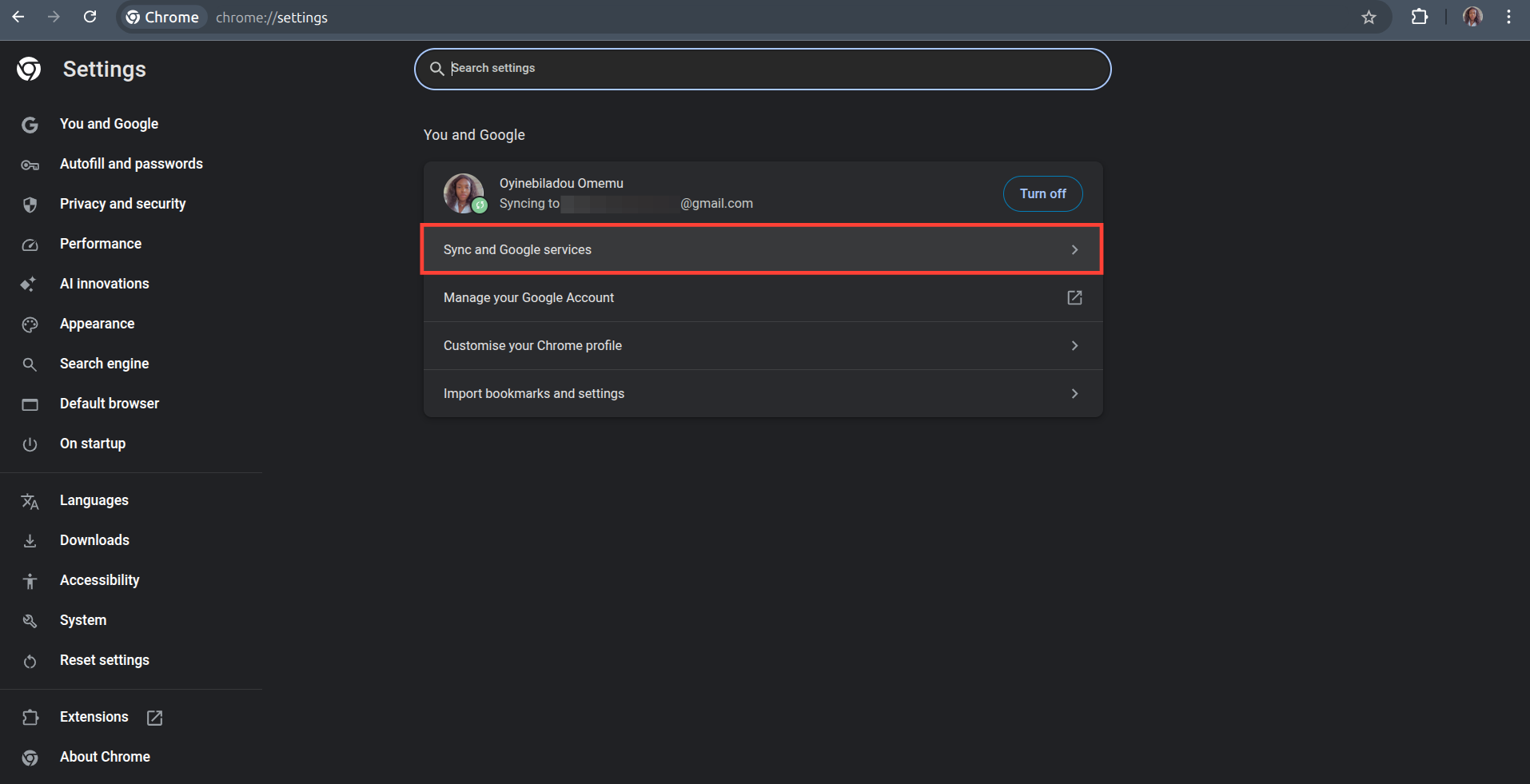
Step 2: Select Sync and Google services.
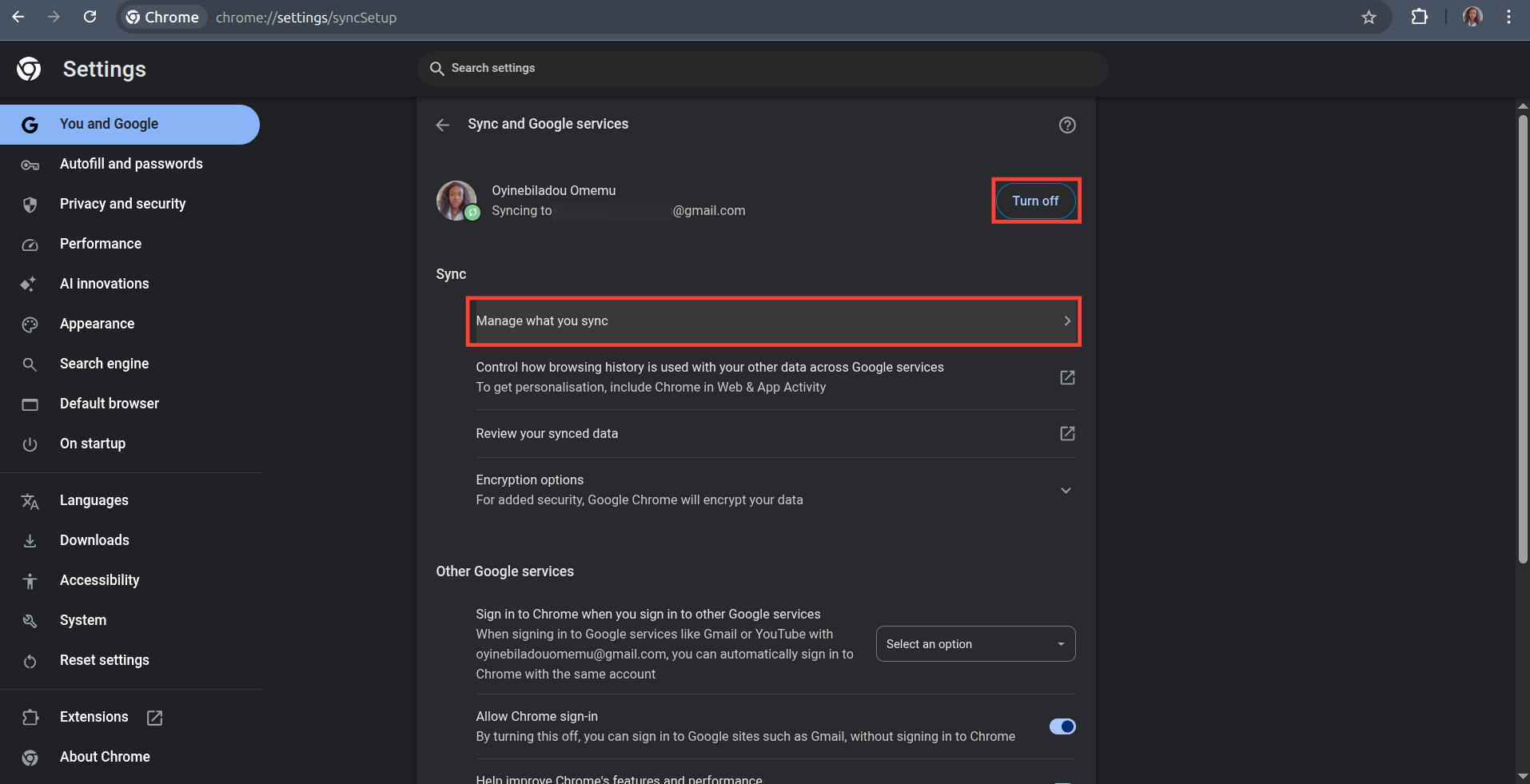
Step 3: Select "Turn off" to stop syncing everything, or select "Manage what you sync" if you want to stop syncing only specific items, such as history and bookmarks.
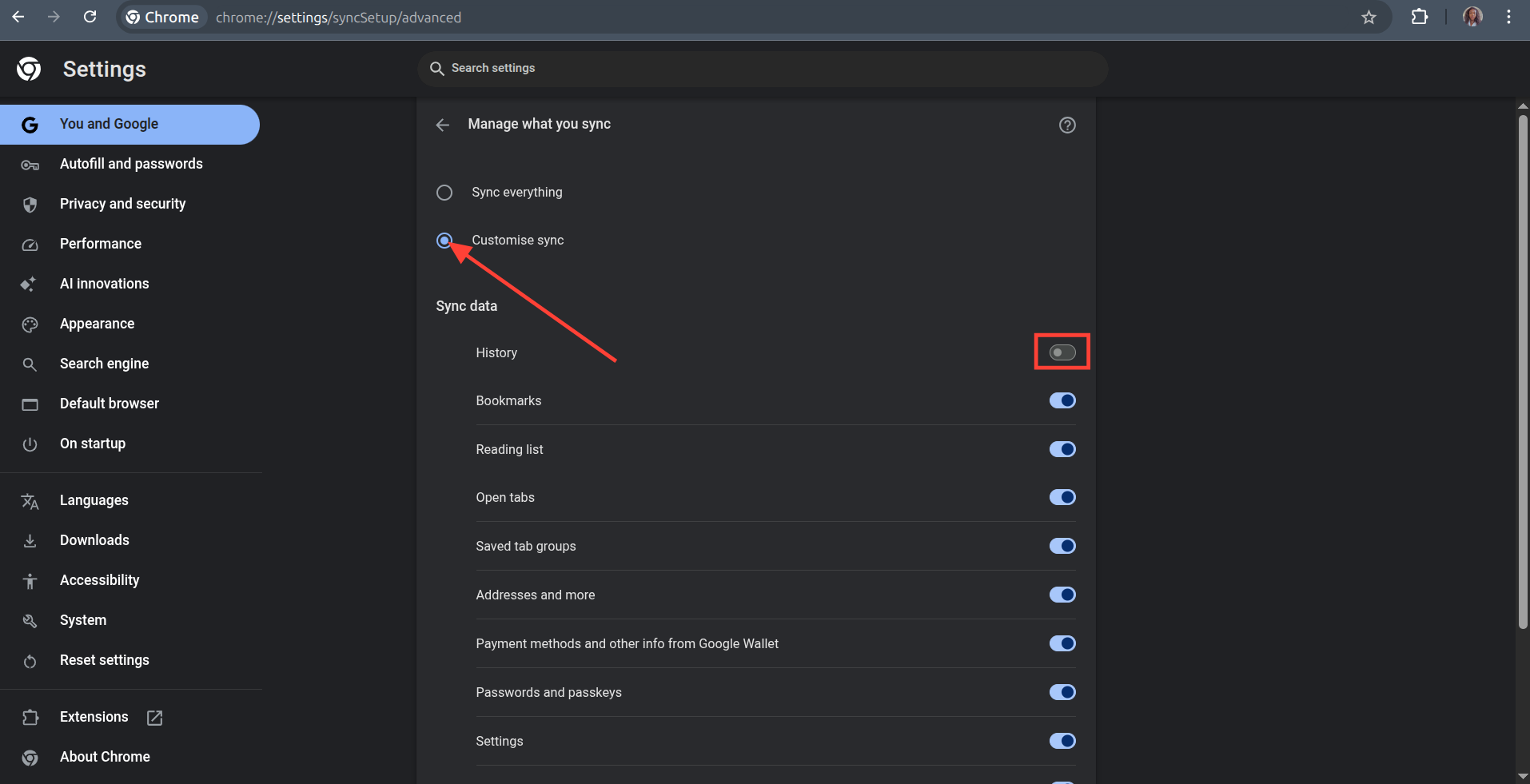
Step 4: If you choose to manage what you sync, select Customize sync and then toggle off the activities you do not want to sync.
How to Manage Syncing for Chrome on Mobile
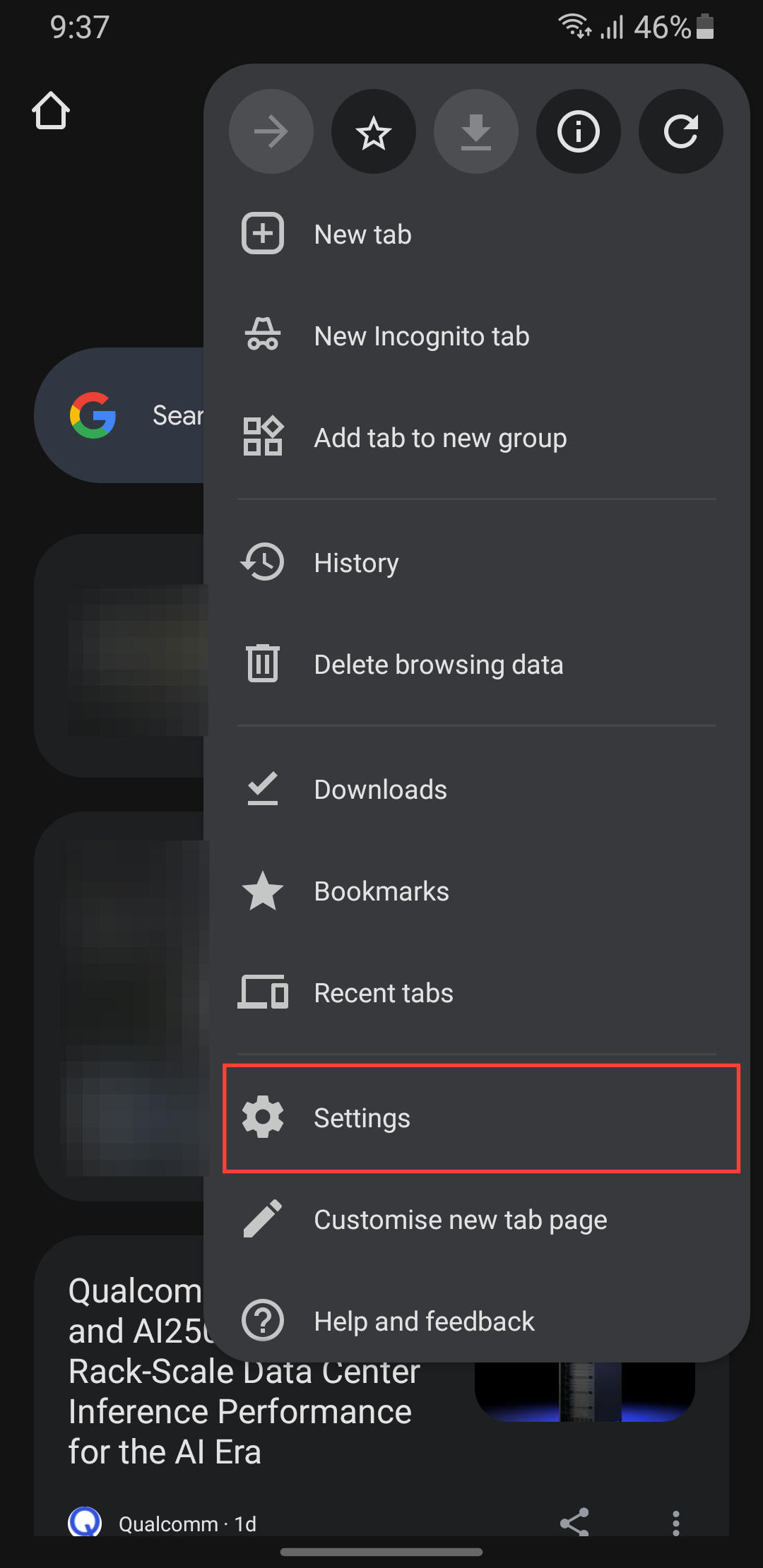
Step 1: Open Chrome and then tap the three dots on the top right and select Settings.
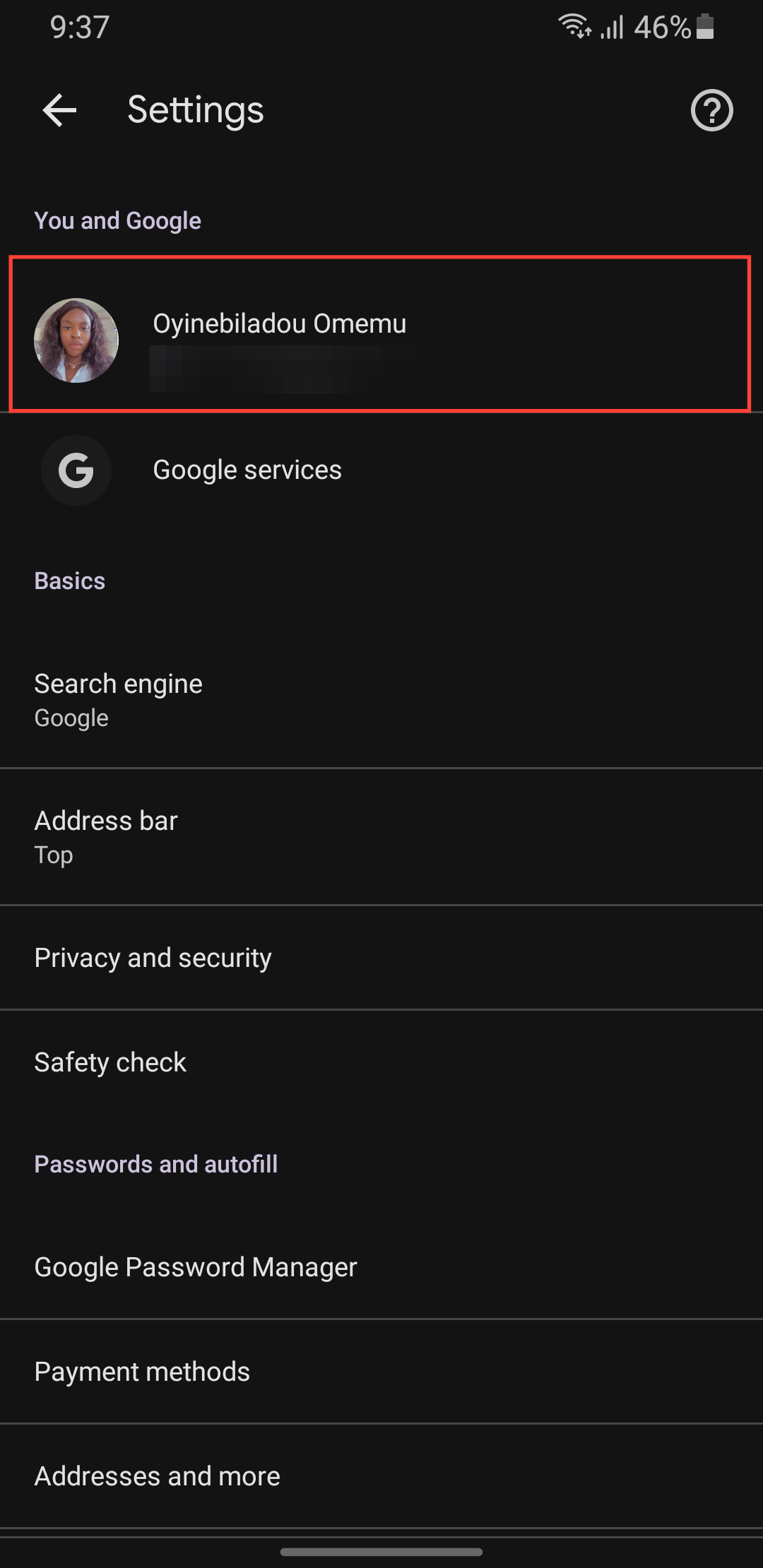
Step 2: Select your Google Account at the top.
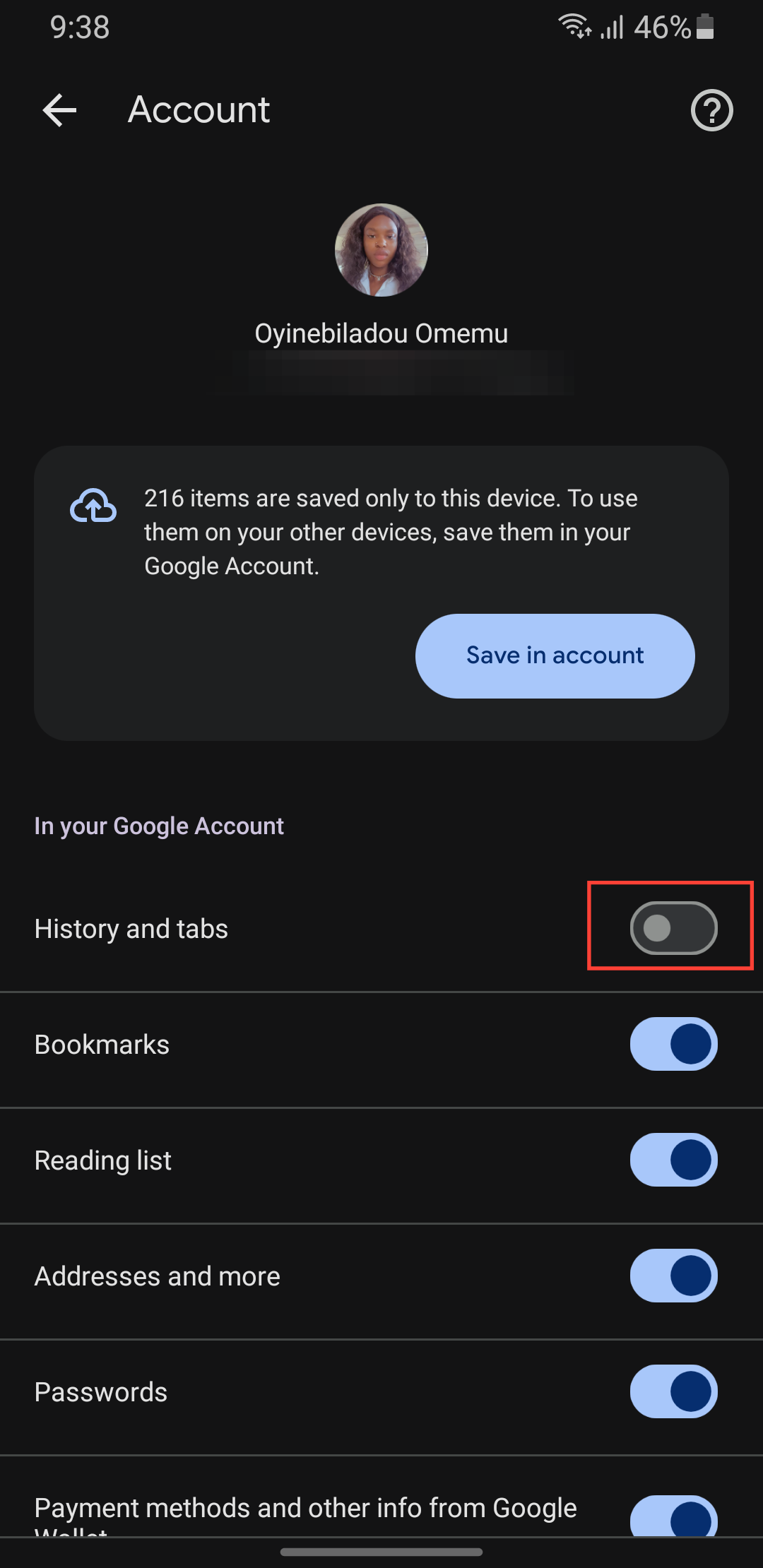
Step 3: Tap the toggle next to any option to stop syncing it with this device.
 Oyinebiladou Omemu
Conclusion
Turning off sync or trimming down what gets synced in Chrome doesn’t mean sacrificing your Google Account or losing access to your browser profile. It simply means choosing to keep that data local instead of letting it flow everywhere.
Once you dive into Settings and pick what stays in sync, or switch sync off completely, you’ll be in control of whether your bookmarks, passwords, history, tabs, and other info travel with you or stay put.
Image Credit: Oyinebiladou Omemu/Techloy.com


