



You’ve probably shopped for a new pair of shoes or searched for a vacation spot, and suddenly it feels like the internet is watching you. For weeks, every site shows ads for the same thing. Even after clearing your history or blocking third-party cookies, nothing changes.
That’s because the standard privacy settings don’t cover everything. Inside Chrome, there’s a separate feature called Site-Suggested Ads that works independently of cookies and browsing history. Turning it off stops those persistent, personalized ads from following you around. In this guide, we will show you how to turn off site-suggested ads.
 Oyinebiladou Omemu
5 steps to turn off site suggested ads on Chrome
Step 1: Open the Chrome browser on your computer.
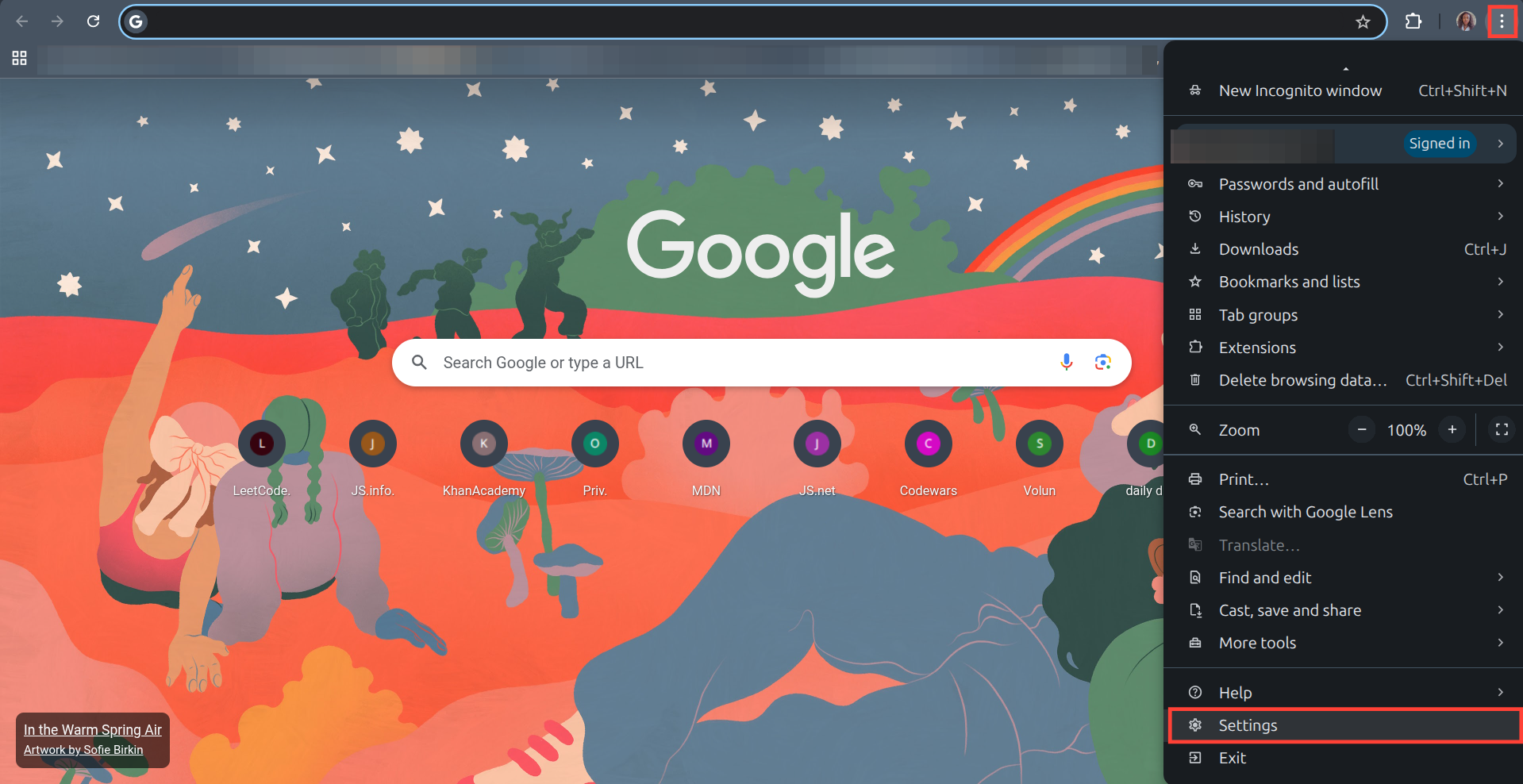
Step 2: Click on the three-hamburger menu on the left and select Settings.
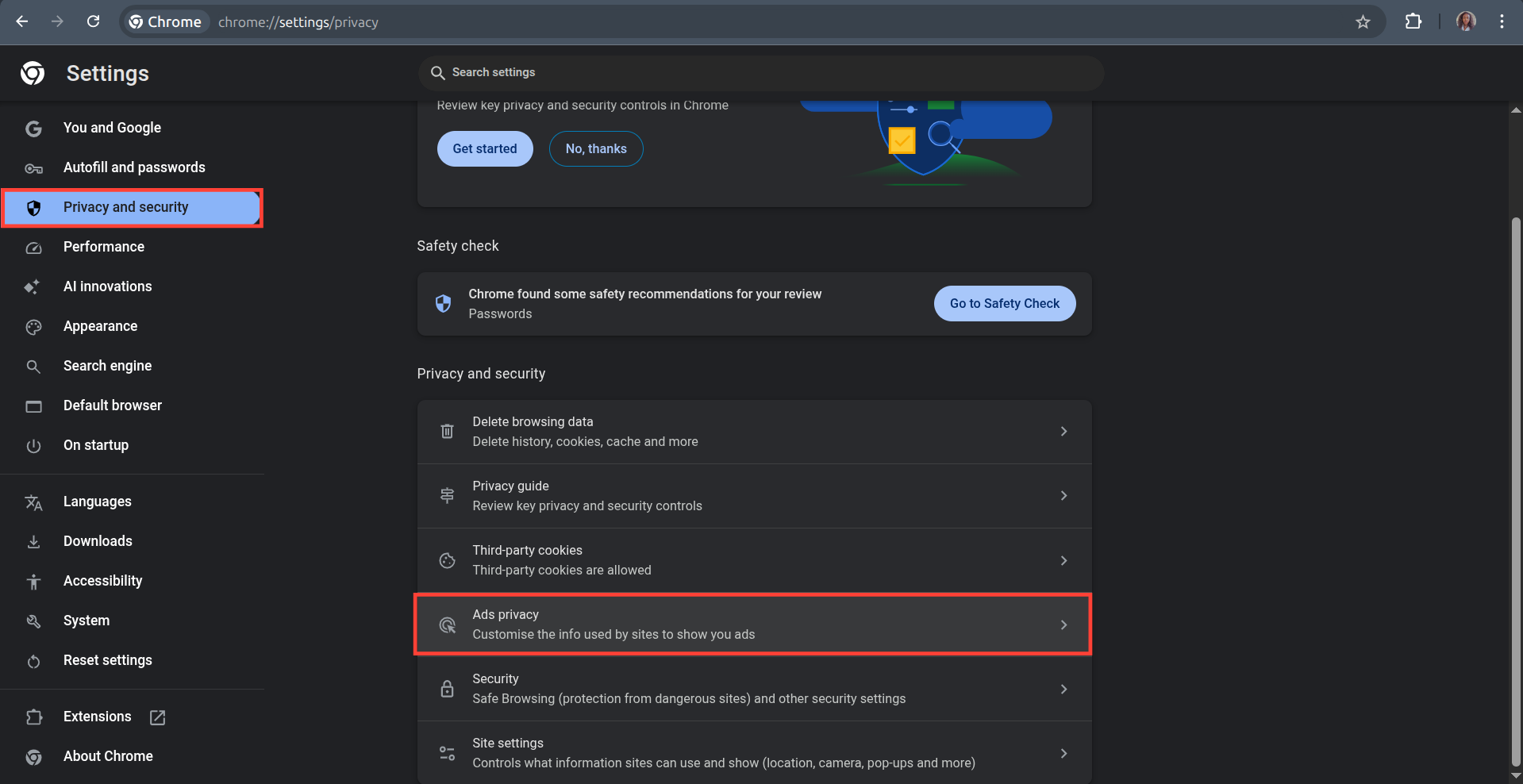
Step 3: Select Privacy and Security on the left panel and click on Ads Privacy.
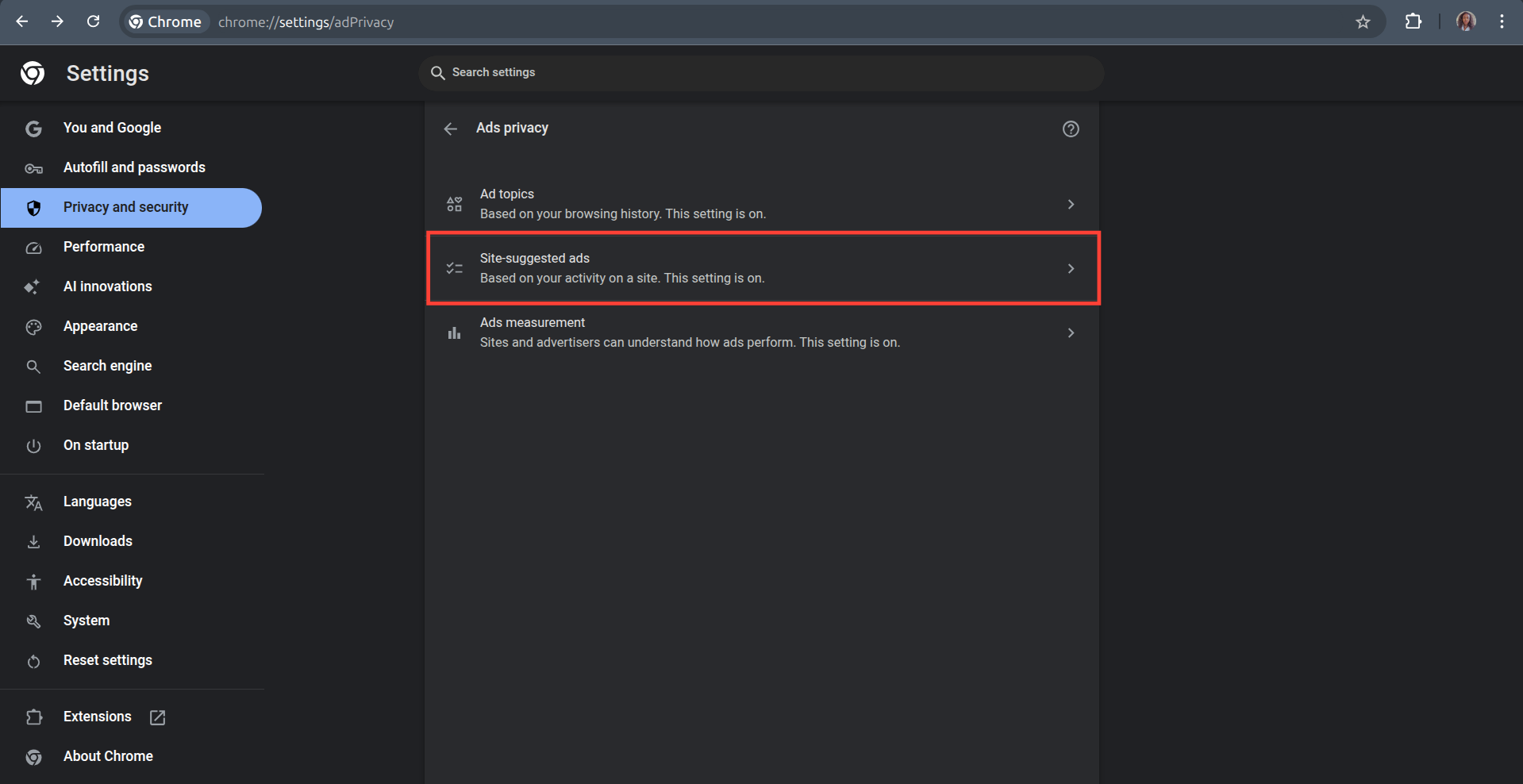
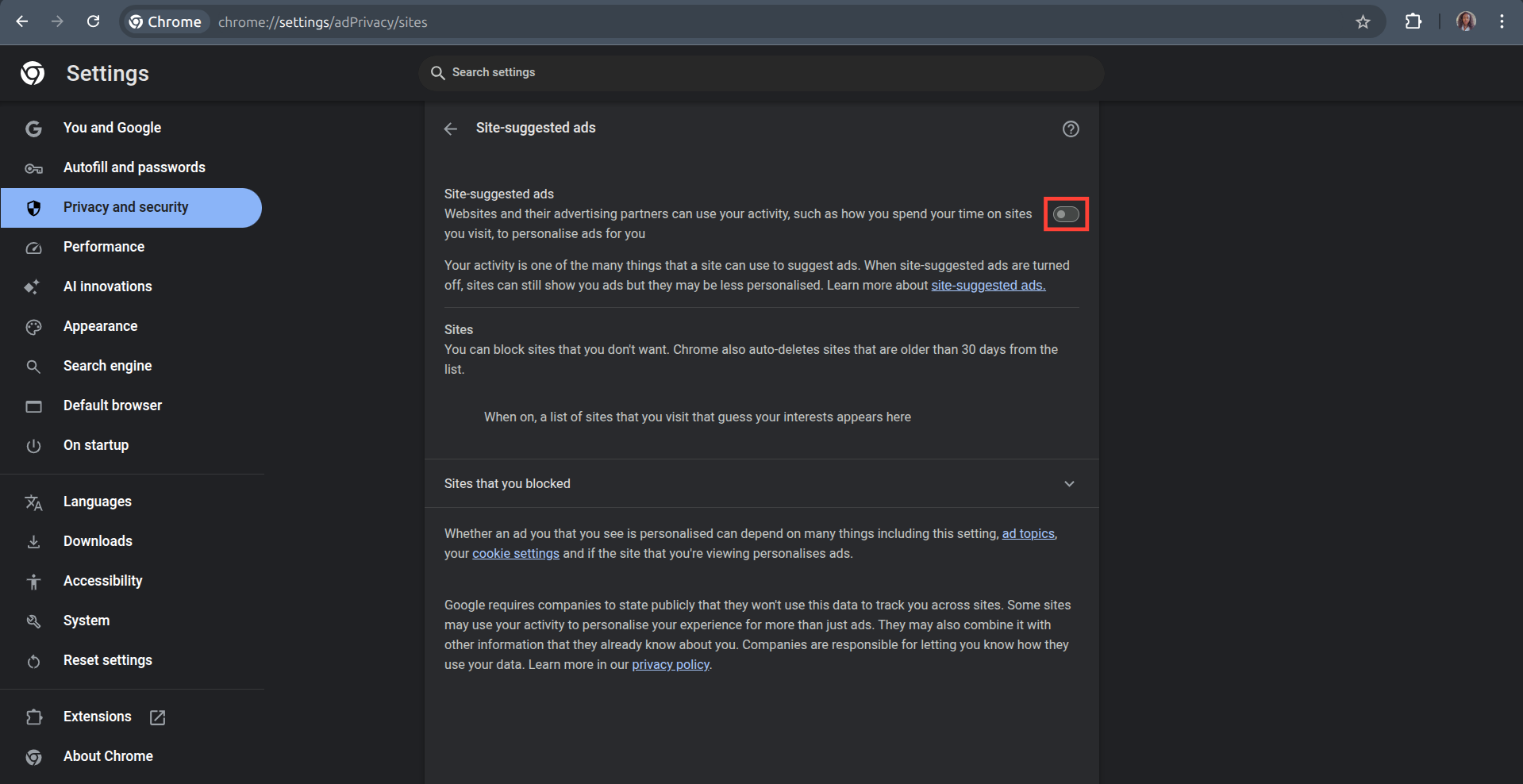
Step 4: Click on Site Suggested Ads.
Step 5: Toggle off the button next to Site Suggested Ads.
 Oluwaseun Bamisile
Conclusion
Once you flip that single toggle, the ads won't all vanish, but they will reduce. Instead of creepy targeted ads, you'll now get generic ads. Browsing the web will feel less like walking through a market where every vendor knows your name and recent purchases.
Taking a few minutes to explore the "Privacy and security" menu can make a lot of difference for you, especially if you're big on privacy. You don't have to be a tech expert to take these proactive measures.
Image Credit: Oyinebiladou Omemu/Techloy.com


