



Ever wondered how to sign out of Chrome on your computer or phone? Maybe you're sharing a device with family or friends, or you're using a public computer and want to make sure no one else can access your personal stuff. Whatever the reason, logging out of Chrome is actually pretty straightforward.
When you sign out, you're essentially disconnecting your Google Account from the browser, which means other people won't be able to access your saved passwords, browsing history, etc.
Whether you're on a desktop, laptop, or your smartphone, this guide will show you the simple steps for both your computer and mobile device, so you can keep your account secure no matter which device you're using.
 Oyinebiladou Omemu
Sign Out of Chrome on Your Desktop
Step 1: Open the Chrome browser on your desktop or laptop and open up a new tab.
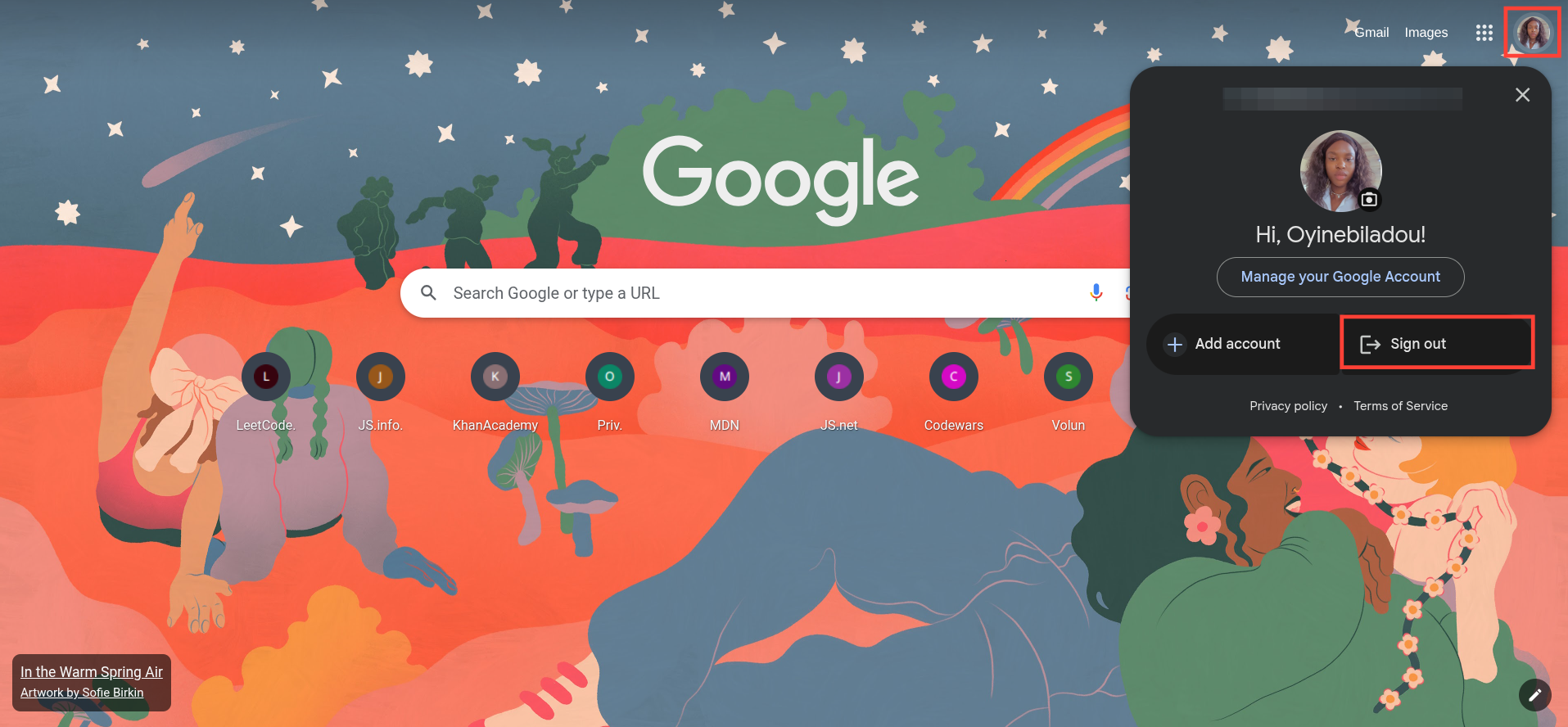
Step 2: Click on your profile picture on the top right, then select Sign out of Chrome.
Sign Out of Chrome on Your Android Phone
Step 1: Open a new tab in Chrome.
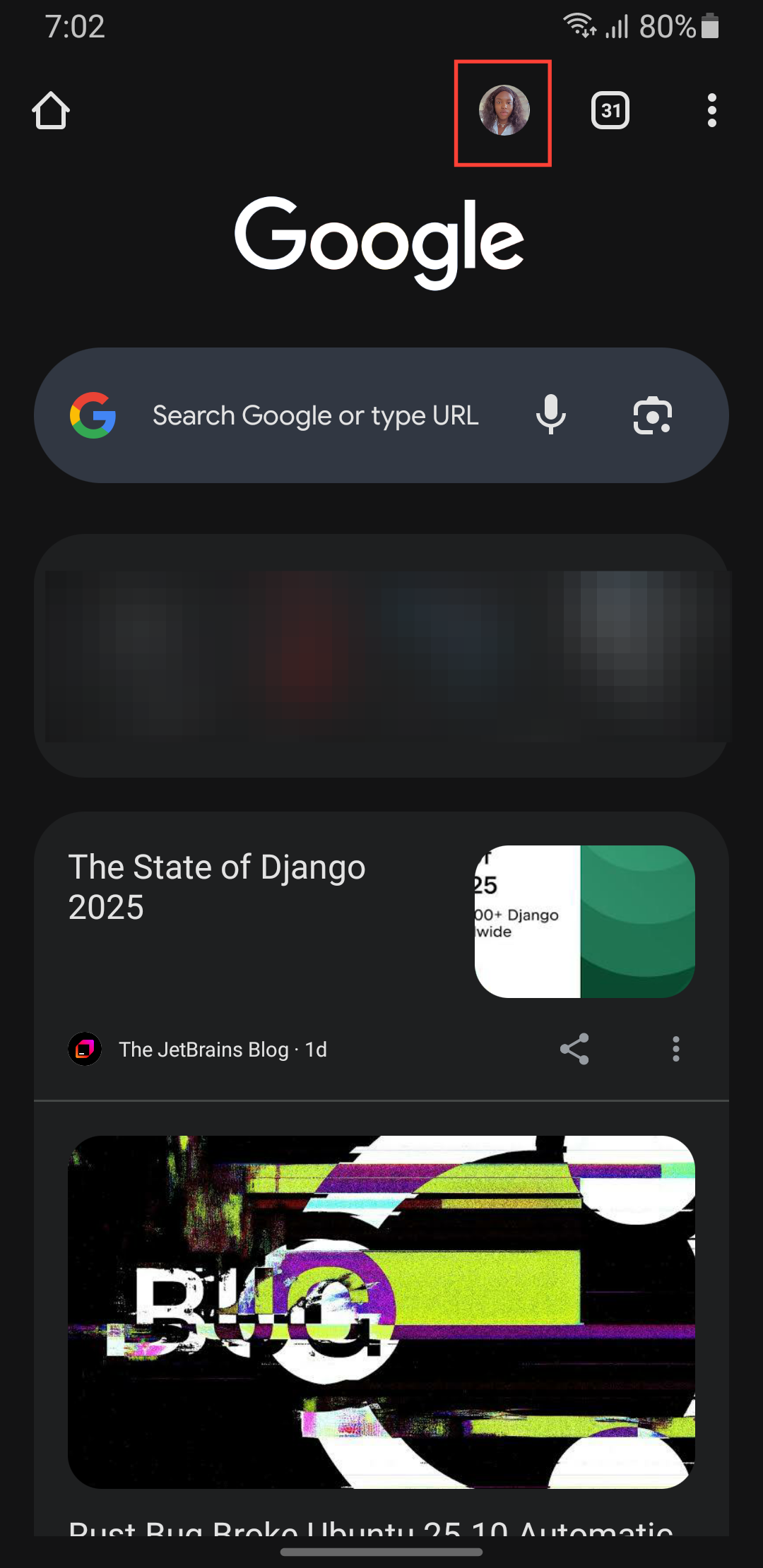
Step 2: Tap your profile picture at the top.
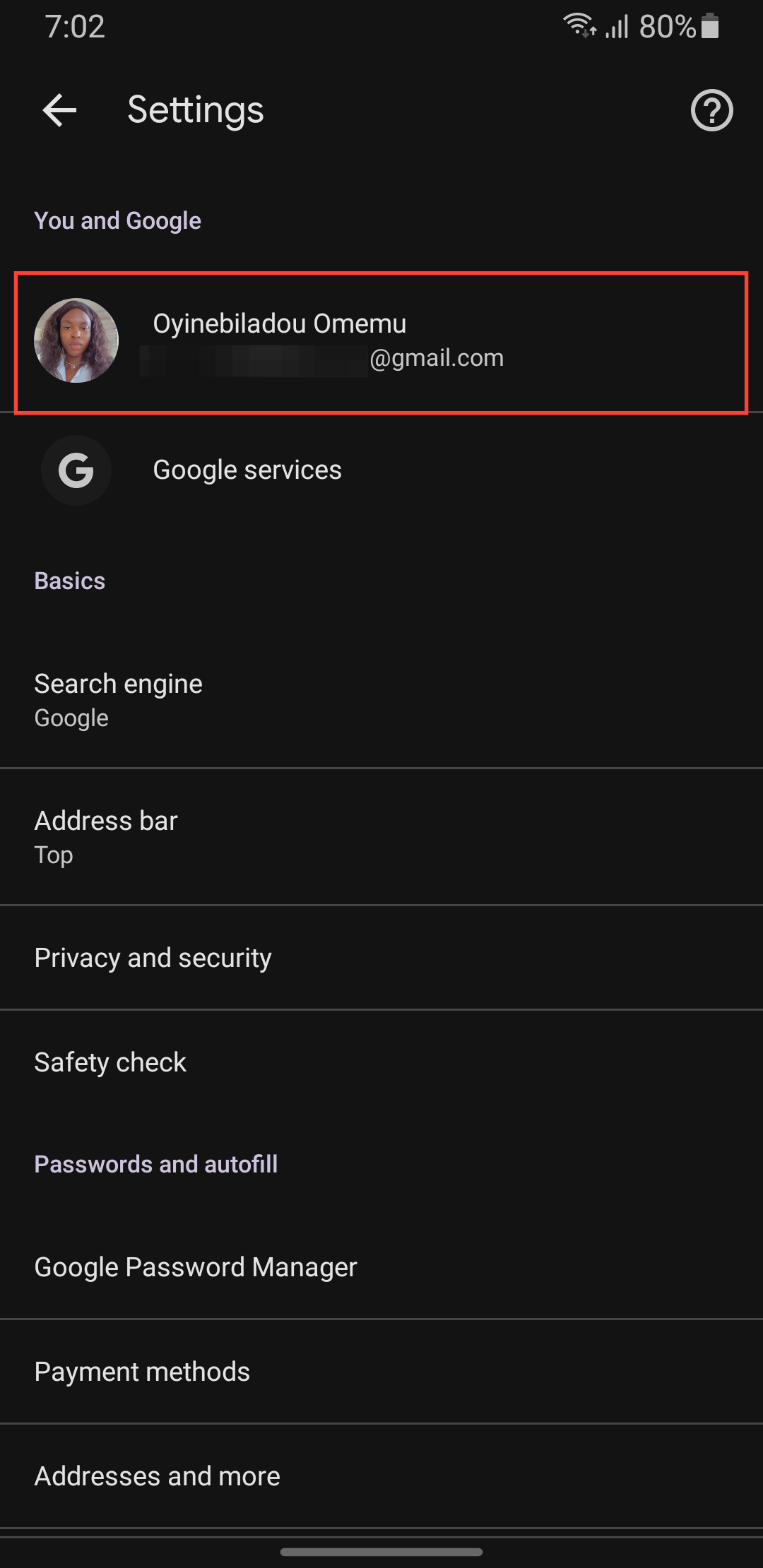
Step 3: Select your Google Account at the top.
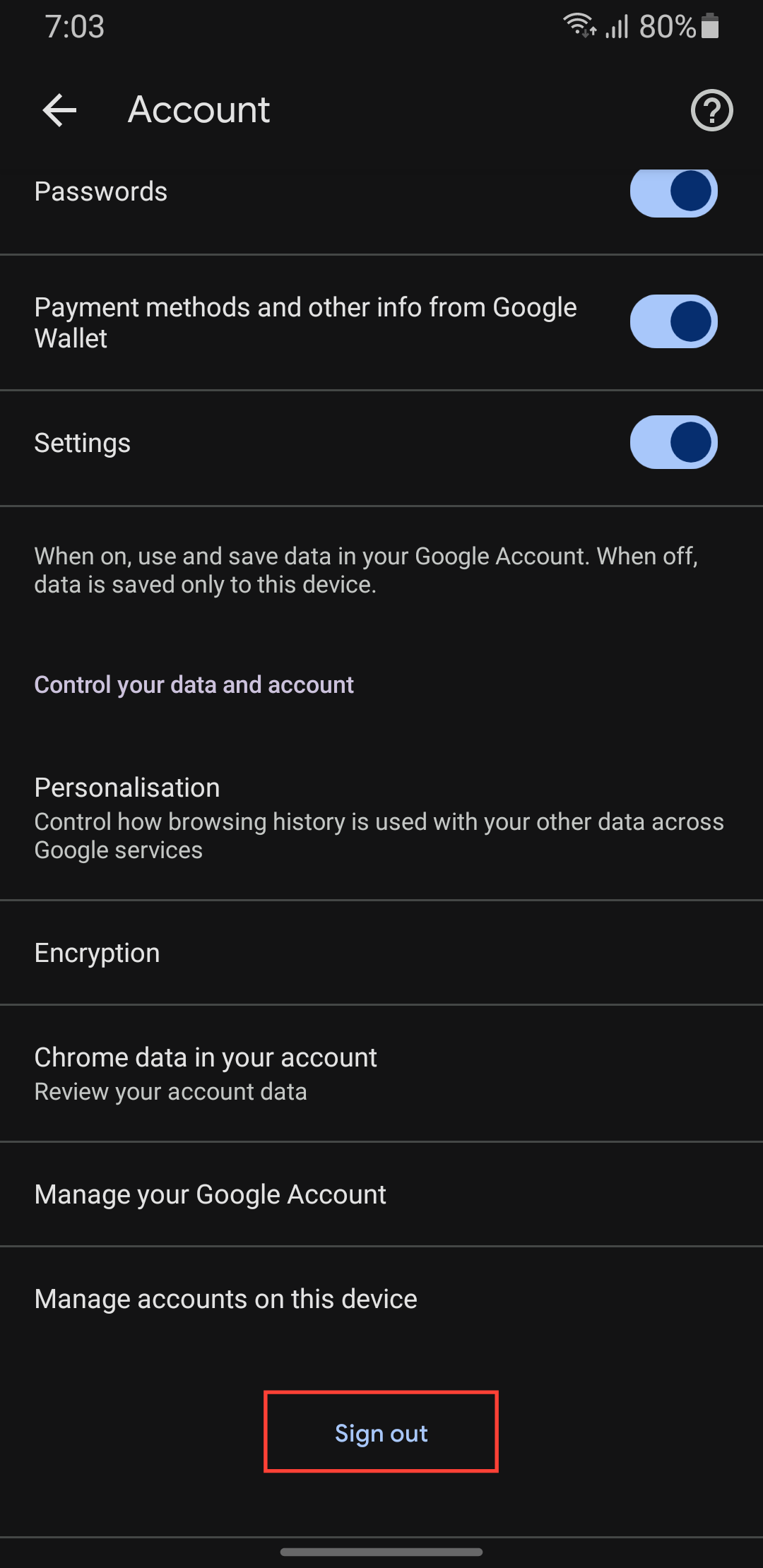
Step 4: Scroll to the bottom and tap Sign out.
 Oyinebiladou Omemu
Conclusion
Logging out of Chrome is really that simple. Whether you're on your desktop or scrolling through your phone, you now know exactly where to find that sign-out option. It might seem like a small thing, but taking a few seconds to log out can make a big difference in keeping your personal information secure, especially if you share devices or use public computers.
Additionally, you'll have peace of mind knowing that your passwords, emails, and browsing history remain private and secure, belonging only to you. Remember, signing out of Chrome also logs you out of all your connected Google services, such as Gmail and Google Drive. Therefore, you'll need to sign back in if you want to access those later.
Image Credit: Oyinebiladou Omemu/Techloy.com


