



A few years ago, making a short video meant a camera, editing software and a lot of patience. Today, a single photo on your phone can become a few seconds of motion: hair drifting in the wind, a smile slowly forming, a landscape coming alive. AI photo-to-video tools have moved from novelty to everyday utility, used for family keepsakes, social posts and small-business content.
But anyone who has tried one knows the results vary wildly. Some clips look charming. Others look warped, jittery, or faintly unsettling. This guide explains how the technology works and how to get natural results.
How AI photo-to-video actually works
Image-to-video models start from one frame and predict how the scene might plausibly move. The model doesn’t “know” what happened before or after your photo. It infers motion from patterns learned across huge amounts of video: how fabric moves, how water ripples, how faces shift when someone breathes or blinks.
That has two practical consequences:
- The model is guessing. The more ambiguous your photo, the more it has to invent, and invented details are where artifacts appear.
- Simple motion beats complex motion. A slow push-in or gentle sway is far easier to predict than a person turning around or waving.
Keep one idea in mind, and the rest of this guide becomes intuitive: every clip has a motion budget. The model can only keep a limited amount of movement believable. Spend it on one thing, such as a blink, a camera drift, or moving water, and the clip holds together. Spread it across a face, hands, background, and camera all at once, and something will break.
Step 1: Choose the right source photo
Source quality matters more than any setting you can change later. Before uploading, check these points:
- Resolution and sharpness. Blurry or heavily compressed images produce smeared motion. Use the original file, not a screenshot or a version sent through a messaging app.
- Clear subject separation. When the subject stands out from the background, the model can move them independently. Cluttered scenes tend to “melt” together.
- Visible faces and hands. Faces should be well lit, front-facing or slightly angled, and unobstructed. Hands are still a weak spot for many models, so photos where hands are hidden or simply resting tend to animate more cleanly.
- Neutral expressions. A relaxed face gives the model room to add a natural smile or blink. An already extreme expression leaves nowhere to go.
If you’re animating old family photos, a light restoration pass first (fixing scratches, adjusting contrast) usually improves the output noticeably.
Step 2: Match the motion to the image
Most mobile tools offer templates, effects, or short text prompts. Rather than choosing the most dramatic option, ask what motion would realistically occur in that moment, then pick one.
A useful rule: if the motion wouldn’t happen within two or three seconds of real time, it probably won’t look believable.
Step 3: Keep clips short and purposeful
Most AI-generated clips look best at three to six seconds. Longer durations give the model more time to drift away from the original image, so faces slowly change and backgrounds subtly morph. For social media, short clips are also an advantage: they loop well and suit platforms where the first second decides whether someone keeps watching.
If you need something longer, stitch several short clips together in a regular editor rather than generating one long one.
Step 4: Diagnose problems instead of re-rolling
When a result looks wrong, most people simply regenerate and hope. It is faster to identify the cause first.
Treat the first generation as a diagnostic. Adjust one variable at a time, and you’ll usually reach a usable result in two or three attempts.
Avoid the common mistakes
1. Over-processing. Stacking filters, effects, and upscaling in one pass compounds artifacts. Generate first, then refine.
2. Ignoring aspect ratio. Decide where the video will be posted before generating. Vertical 9:16 suits Reels, Shorts, and TikTok; square or 4:5 works for feeds. Cropping afterward can cut off the very motion you created.
3. Forgetting audio. Silent clips feel unfinished. Adding ambient sound or music in a basic editor often does more for perceived quality than any visual tweak.
4. Using other people’s photos without permission. Animating someone’s realistic face raises consent questions. Stick to your own images, or ones you have clear permission to use.
A look at the mobile tools
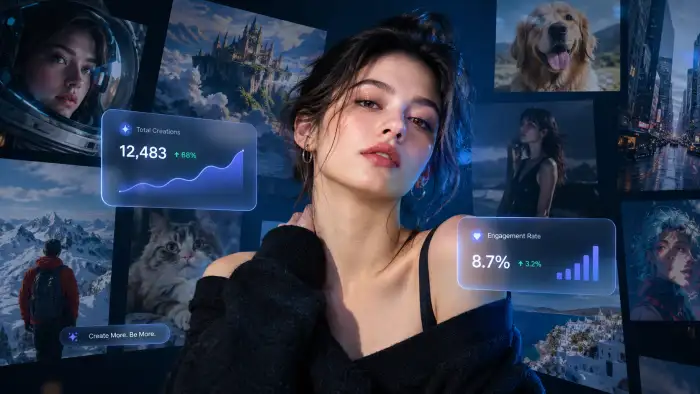
The category has grown quickly, and a lot of the innovation is happening in phone-first apps rather than desktop software. These tools typically combine a few functions: generating an image from a text description, reshaping an existing photo, and animating a still frame.
Usgen, for example, describes a mobile workflow in which words and reference images become original visual content, with the option to turn a single frame into motion. Vimi takes a template-driven approach, pairing image and video generation with preset effects and one-tap workflows aimed at portraits, short scenes and social-ready clips. Both reflect a wider trend: lowering the technical barrier so that the creative decision (what should this photo feel like?) matters more than software skill.
When comparing any of these tools, a few questions are worth asking:
- Does it let you control the motion, or only apply fixed effects?
- How well does it preserve a person’s likeness across frames?
- What resolution and aspect ratios can you export?
- Does it add watermarks, and are there limits on commercial use?
- What does its privacy policy say about how uploaded photos are stored and used?
That last point deserves more attention than it usually gets. Photos are personal data, and faces especially so. Reading a tool’s privacy policy before uploading family pictures is a small habit worth building.
Real-world uses beyond novelty
Photo-to-video is more practical than it first appears:
- Small businesses can turn product shots into short promotional loops without a video shoot.
- Educators can animate historical photographs or diagrams to hold attention.
- Families can bring archival pictures to life for anniversaries and memorial slideshows.
- Creators can build a consistent visual style quickly by reusing the same effect across posts.
In each case, the best results come from treating AI as a first-draft generator. A person still decides what is worth animating and edits the output.
Posting it: a quick word on labeling
If your clip looks realistic enough that a viewer could take it for genuine footage, the major platforms increasingly expect you to say so. YouTube asks creators to disclose realistic altered or synthetic content, TikTok requires labels on realistic AI-generated or significantly AI-edited video, and Instagram and Facebook can apply an “AI info” label automatically. Stylized or clearly unrealistic animation is generally treated more lightly, but rules differ by platform and change often, so check the current help pages before you publish.
A short caption such as “Animated with AI from an original photo” takes a few seconds and tends to build trust rather than reduce it.
Quick checklist before you generate
- Use the original, high-resolution image.
- Pick a subject with clear separation from the background.
- Choose one motion that fits a few seconds of real life.
- Set the aspect ratio for your destination first.
- Keep clips to 3–6 seconds.
- If something looks off, diagnose the cause before regenerating.
- Add sound afterward.
- Confirm you have permission to animate the people in the photo, and label realistic results when you post.
Do these eight things and your photo-to-video results will already be ahead of most of what’s posted online.


