



YouTube is built around streaming, but streaming isn't always practical. A long flight, unreliable internet connection, or limited mobile data can make even a simple video difficult to watch.
You might also want to keep a copy of a video you've created yourself, save material you're permitted to use for a project, or download several videos from a playlist instead of opening them individually.
There are two main ways to get YouTube content offline. YouTube Premium lets you download supported videos for offline playback inside YouTube. A downloader such as 4K Video Downloader Plus, meanwhile, can save supported content as a video file on your computer.
Which option makes sense depends on what you need the download for.
YouTube Premium for Offline Viewing
If you simply want to watch YouTube without an internet connection, YouTube's own download feature is the easiest place to start.
YouTube Premium costs $13.99 a month in the US and includes offline downloads, ad-free viewing, background playback and Smart Downloads. The latter can automatically download recommended videos based on your viewing history.
You can turn on Smart Downloads through Settings > Background & Downloads.
YouTube Premium Lite is a cheaper option in supported markets. It costs $7.99 a month in the US and includes downloads and background playback for most videos, but doesn't include music content.
The main limitation is that YouTube's offline downloads are designed for playback within YouTube. They aren't ordinary video files that you can move to another media player or device.
If you need an actual video file for legitimate use, a YouTube video downloader such as 4K Video Downloader Plus offers a different approach.
How to Download a YouTube Video Using 4K Video Downloader Plus
4K Video Downloader Plus is available for Windows, macOS and Linux. It supports individual videos, playlists and channels, with available resolutions and formats depending on the source.
I tested the desktop application using the workflow below. So, here's how to download a YouTube video using 4K Video Downloader Plus.
Step 1: Install 4K Video Downloader Plus
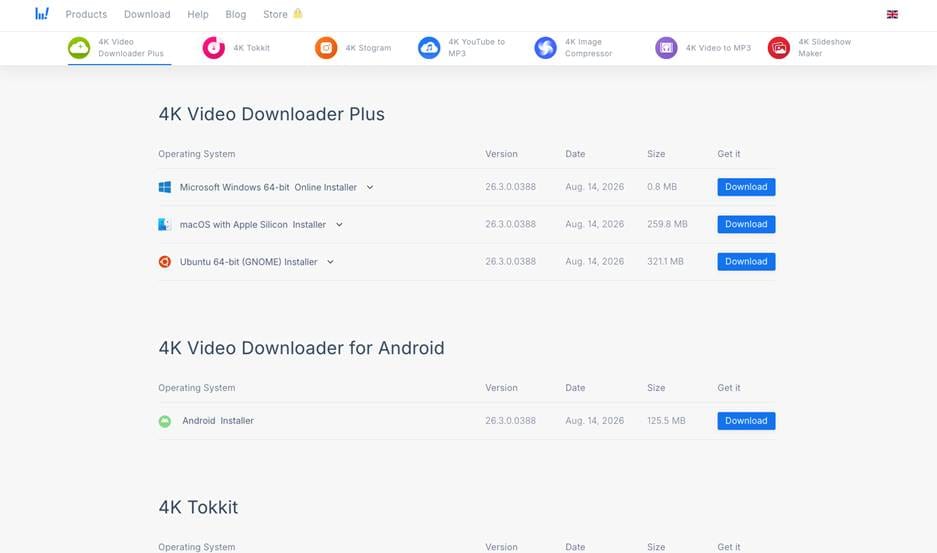
Download and install the application from the official 4K Download website. Once installed, open it to access the main interface.
Step 2: Copy the YouTube Link
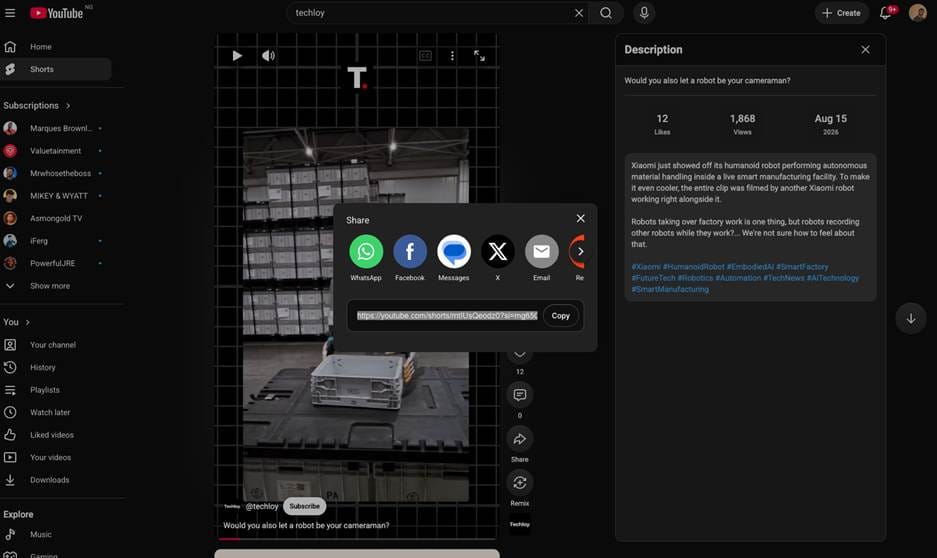
Open YouTube and find the video you want to download. Copy its URL from the browser's address bar or YouTube's sharing menu.
Step 3: Paste the Link into the App
Return to 4K Video Downloader Plus and select Paste Link. The application analyses the URL and presents the options available for that particular video.
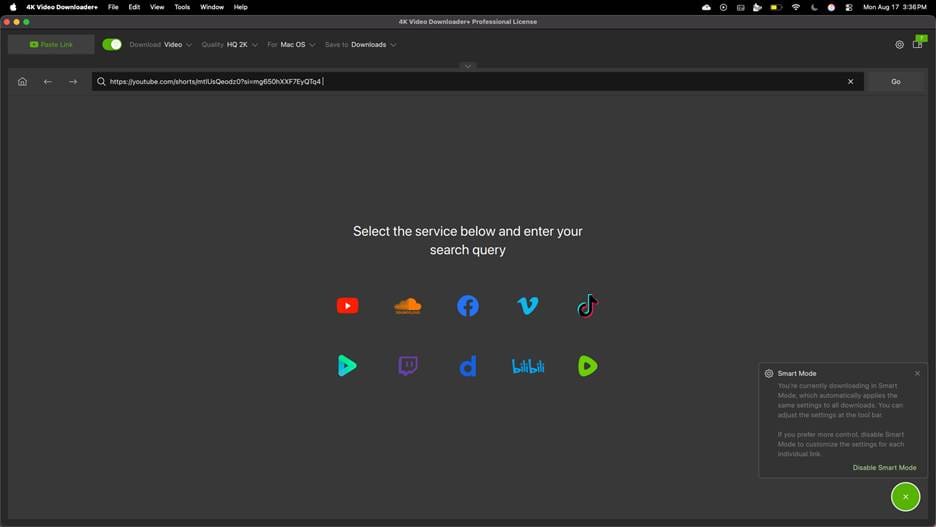
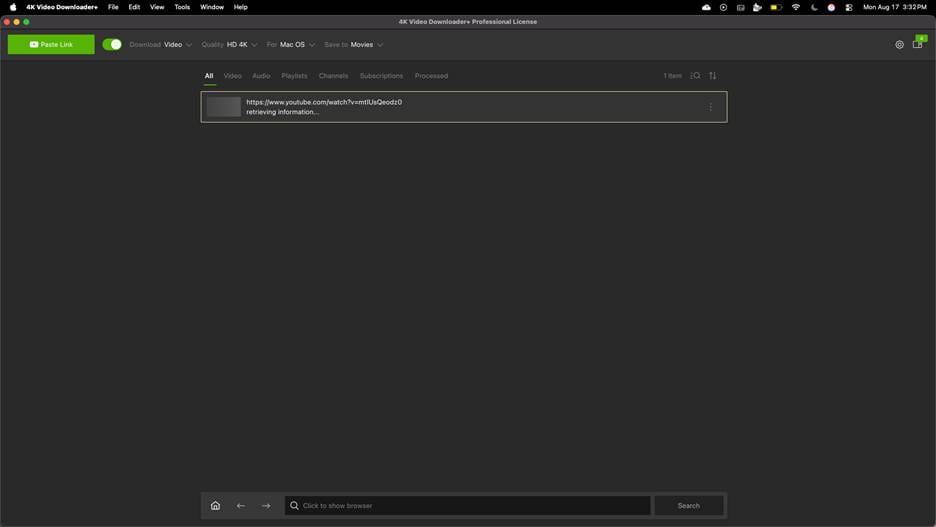
This lets you see the available formats and resolutions before starting the download.
Step 4: Select the Video Quality and Format
Choose the resolution, format and location where you want the file saved. Depending on the source, available resolutions can include 720p, 1080p, 4K, and 8K. If the original YouTube video is only available in 1080p, selecting an 8K option won't turn it into a genuine 8K video.
The application also supports formats including MP4 and MKV, as well as audio-only downloads such as MP3 and M4A where available.
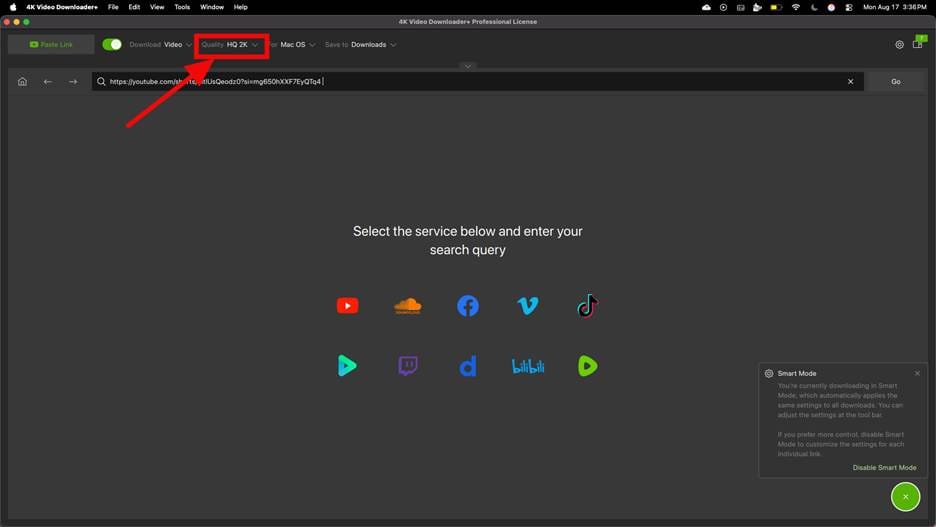
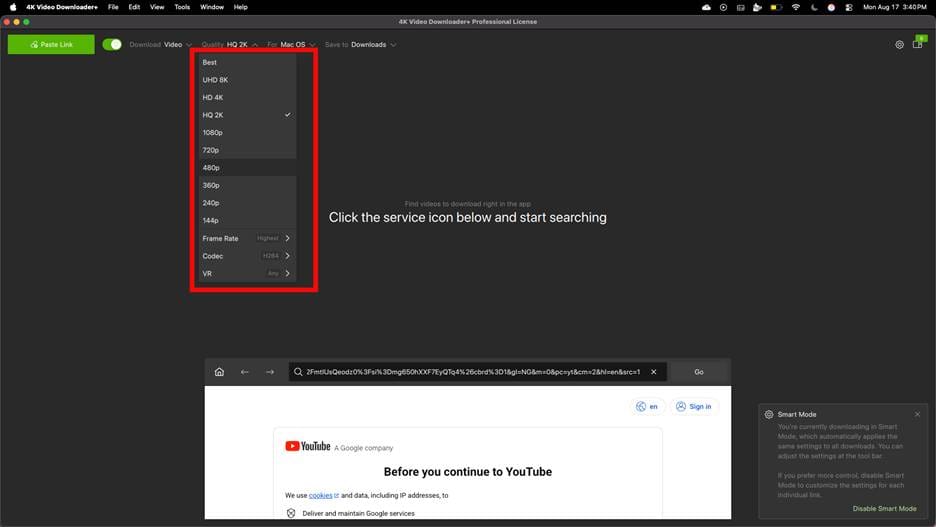
The choice can also help you manage storage. A lower resolution may be more practical for a long video or playlist when storage space is limited.
Step 5: Start the Download
Once you've selected your settings, start the download. 4K Video Downloader Plus saves the resulting file to the location you've chosen, after which you can access it like any other file on your computer.
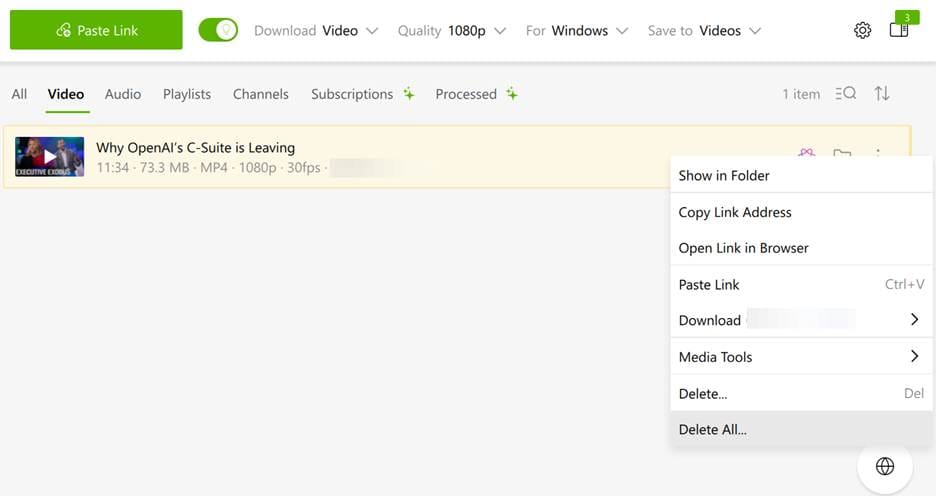
That's the basic workflow: copy the YouTube URL, paste it into the application, choose the available settings, and download the file.
How to Download YouTube Playlists
If you need several videos from the same playlist, you don't have to download them individually. 4K Video Downloader Plus can also work as a YouTube playlist downloader, allowing you to select the videos you want before starting the download.
Copy the URL of the YouTube playlist and paste it into 4K Video Downloader Plus. The application recognizes the playlist and allows you to select the videos you want and choose the available quality settings.
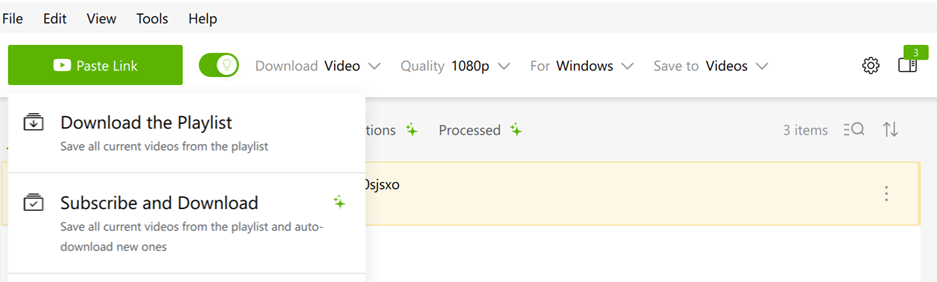
This can be useful when you need to download a YouTube playlist containing your own videos, educational material, or other content you're permitted to save. The application can also be useful if you regularly download from YouTube, particularly when you're working with multiple videos rather than downloading them one at a time.
What I Found in Testing 4K Video Downloader Plus
The basic download process is the application's strongest practical advantage. For a normal download, there's little configuration involved. After pasting a URL, the main choices are presented in one place.
The quality options are also useful. You can choose a lower resolution when file size matters or use the highest available resolution when image quality is the priority. At the same time, the application supports several platforms beyond YouTube, including Vimeo, TikTok, Facebook, and Twitch. The available options can vary between platforms, however.
Smart Mode
I also found that Smart Mode removes some of the repetition if you download YouTube videos regularly. You can establish preferred quality and format settings and have the application apply them to subsequent downloads instead of selecting them each time.
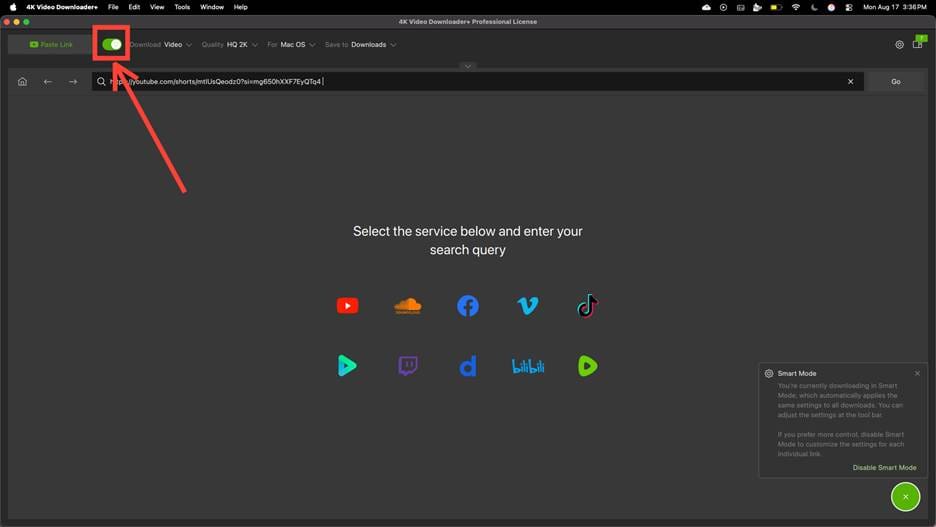
Built-in Browser
The application also includes a built-in browser for finding supported content without switching between the downloader and another browser. It's a convenience rather than a necessity, since you can still copy a URL from your usual browser.
Where 4K Video Downloader Plus Falls Short
The free version is limited to 10 downloads per day. Paid plans start at $15 per year for three devices, based on the current pricing supplied for the product. That makes the free version more suitable for occasional use than for people who download from YouTube regularly, especially large numbers of videos.
There's also no native iPhone or iPad application. If your primary device is an iPhone and your main goal is offline YouTube viewing, YouTube Premium is the more straightforward option.
Existing 4K Video Downloader users should also be aware that a license for the older application doesn't automatically carry over to 4K Video Downloader Plus. The two products are treated separately.
The application also isn't a way around every restriction on YouTube content. What can be downloaded may depend on the source and restrictions attached to the content.
Which Option Should You Use?
The distinction is fairly simple:
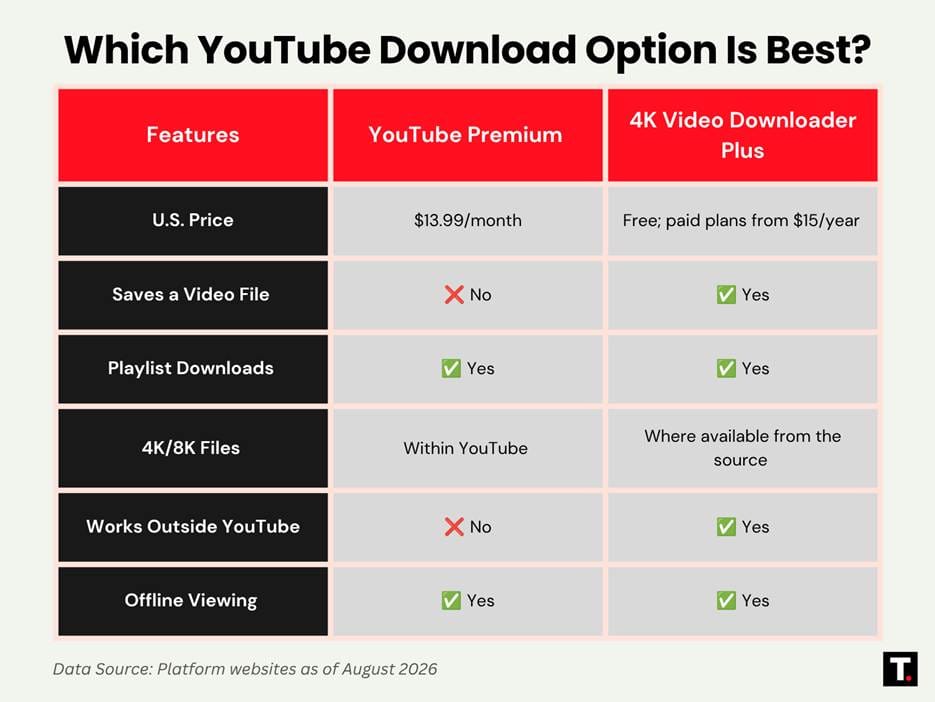
If you just want to watch YouTube without an internet connection, Premium is a straightforward choice.
But if you need to save a video as a file and have the necessary rights to do so, 4K Video Downloader Plus gives you more control over the file, including its resolution and format.
What You Can and Can't Download
Having access to a downloader doesn't automatically give you permission to copy YouTube content. Copyright owners control how their work can be reproduced and distributed, while YouTube has its own terms governing access to content.
The safest approach is to download videos you've created yourself, content that the rights holder has made available for download, or material you're otherwise permitted to save and use.
That distinction is particularly important if you're downloading videos for editing, redistribution, or commercial work.
The Bottom Line
YouTube Premium is the better option if your priority is simple offline playback. It keeps everything within YouTube, so there's no need to manage downloaded files yourself.
4K Video Downloader Plus makes more sense when you legitimately need the video file itself. Its desktop workflow supports different resolutions, formats, playlists, and channels, while Smart Mode can make repeated downloads less tedious.
Ultimately, the better option depends on what you plan to do with the video after it's offline.


