



How to Recover Deleted Files from the Recycle Bin in Windows 10/11
Accidentally deleting an important file is stressful—especially when it's no longer in the Recycle Bin. The good news: deleted files aren't always gone permanently. Depending on how they were deleted and whether the space has been overwritten, you may still get them back.
This guide covers practical Recycle Bin recovery methods for Windows 10 and 11, including how to recover deleted files from the Recycle Bin after emptying it.
How Does the Windows Recycle Bin Work?
When you delete a file normally, Windows moves it to the Recycle Bin instead of erasing it. Files disappear permanently when you:
- Manually empty the Recycle Bin.
- Press Shift + Delete to bypass it.
- Exceed the Recycle Bin's storage limit (older files are auto-removed).
- Delete from removable drives or network locations.
Your recovery method depends on whether the files are still in the Recycle Bin or already permanently deleted.
Method 1. Restore Directly from the Recycle Bin
If you haven't emptied it, restoration is simple:
1. Double-click the Recycle Bin icon on your desktop.
2. Browse or search for the file.
3. Right-click it and select Restore.
4. Windows returns the file to its original location.
To restore multiple files, hold Ctrl while selecting them, then right-click and choose Restore.
Method 2. Check OneDrive's Recycle Bin
Files stored in OneDrive-synced folders may still exist in OneDrive's separate Recycle Bin, even after being removed locally.
1. Sign in at OneDrive.
2. Select Recycle Bin from the left menu.
3. Select the files you need and click Restore.
This is especially useful for files in Desktop, Documents, or Pictures folders synced with OneDrive.
Method 3. Recover Files Using File History
If File History was enabled before deletion, you can restore previous versions.
1. Connect the backup drive used by File History.
2. Open Control Panel and select File History.
3. Click Restore personal files.
4. Browse backup versions, select your files, and click Restore.
You can also right-click the original folder and select Restore previous versions, if available. Choose a backup created before the deletion, and restore to a different location when possible.
Method 4. Use Windows File Recovery
Microsoft's free command-line tool can recover files permanently deleted from internal drives, external hard drives, and USB drives.
1.Install Windows File Recovery from the Microsoft Store.
2.Open it as administrator.
3.Connect another drive to save recovered files.
4.Enter a command like:
winfr C: D: /regular /n *.docx
Replace C: with the source drive and D: with the destination.
5.Follow the prompts to scan.
Regular mode suits recently deleted files on healthy NTFS drives. Extensive mode helps with older deletions, formatted drives, and FAT/exFAT storage.
Method 5. Recover Permanently Deleted Files with 4DDiG Data Recovery
If the methods above don't find your files, dedicated recovery software offers another option. Tenorshare 4DDiG Windows Data Recovery scans supported storage devices for files lost through accidental deletion, an emptied Recycle Bin, formatting, and partition problems. It supports photos, videos, documents, and audio files.
Step 1. Download and Install 4DDiG
Visit the official 4DDiG Data Recovery website. Install it on a different drive from the one containing your deleted files whenever possible.
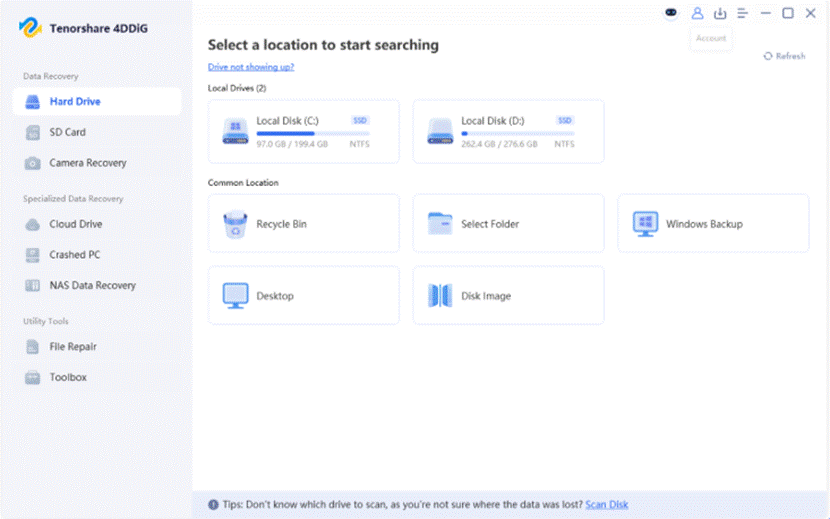
Step 2. Select the Original Storage Location
Launch 4DDiG and select the drive or partition where the files were originally stored. If they were deleted from your Desktop, select the system drive.
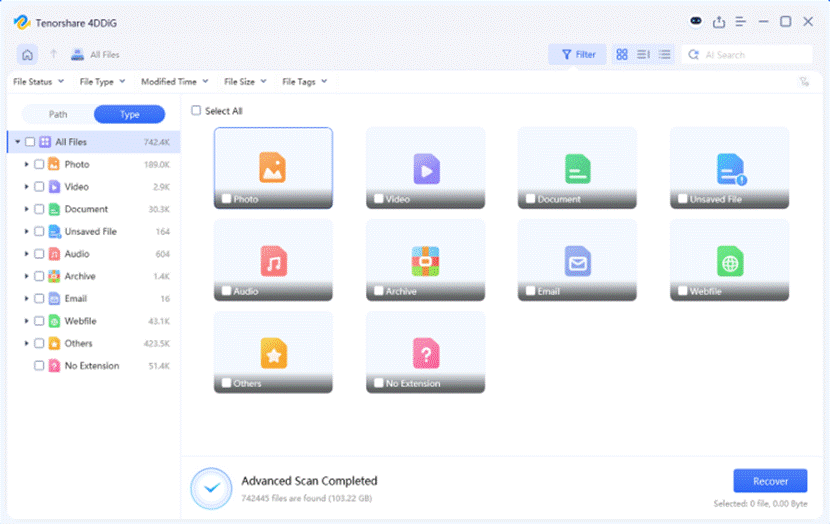
Step 3. Scan for Deleted Files
Start the scan and browse results by file category, or use search and filter options to locate specific items.
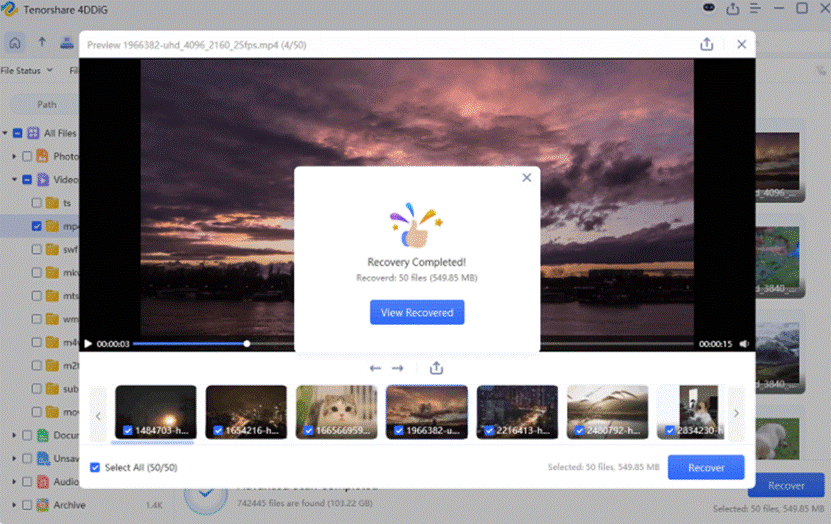
Step 4. Preview and Recover
Preview supported files to verify contents. Select what you need, click Recover, and save to another drive.
Avoid saving recovered files to their original location—doing so may overwrite other deleted data.
Method 6. Check Previous Backups and External Storage
If recovery software can't locate your files, check other backups before giving up:
- External hard drives: manually copied documents, photos, or backup folders.
- Cloud storage: Google Drive, Dropbox, or other services.
- Previous backups: older copies on another computer or device.
- Email attachments: search your inbox and sent messages.
A backup may provide a complete copy without any recovery work.
Tips to Improve Your Chances of Successful Recovery
When files are permanently deleted, Windows marks their space as available for new data. Until that space is reused, contents may remain recoverable. To improve your odds:
- Stop downloading, installing, or copying files to the affected drive.
- Install recovery software on another storage device.
- Save recovered files to a separate drive.
- Avoid formatting or creating new partitions on the affected disk.
- Act quickly—especially on SSDs, where TRIM may make deleted data unrecoverable.
No recovery method guarantees success. Results depend on the device, file system, deletion circumstances, and whether the data has been overwritten.
Final Thoughts
Knowing how to recover deleted files from the Recycle Bin can save you from losing important documents and memories. If files are still in the Recycle Bin, the built-in Restore option is easiest. If you've emptied it, try OneDrive, File History, Windows File Recovery, or dedicated recovery software.
For files not available in backups, Tenorshare 4DDiG Windows Data Recovery offers another practical way to scan supported storage devices and retrieve recoverable data. Minimize drive activity and save recovered files elsewhere to maximize your chances.