



You don’t need an Xbox console to play Xbox games anymore, and now you may not even need a controller.
On November 4, Microsoft announced two new features rolling out in preview for Xbox Cloud Gaming: the ability to use your smartphone as a controller on supported smart TVs and Cloud Connect, which lets the new Xbox Nano Controller link directly to Microsoft’s cloud servers over Wi-Fi to make games feel more responsive.
Here’s how to use both, plus everything you need to start playing Xbox Cloud Gaming if you’re new to it.
 Emmanuel Umahi
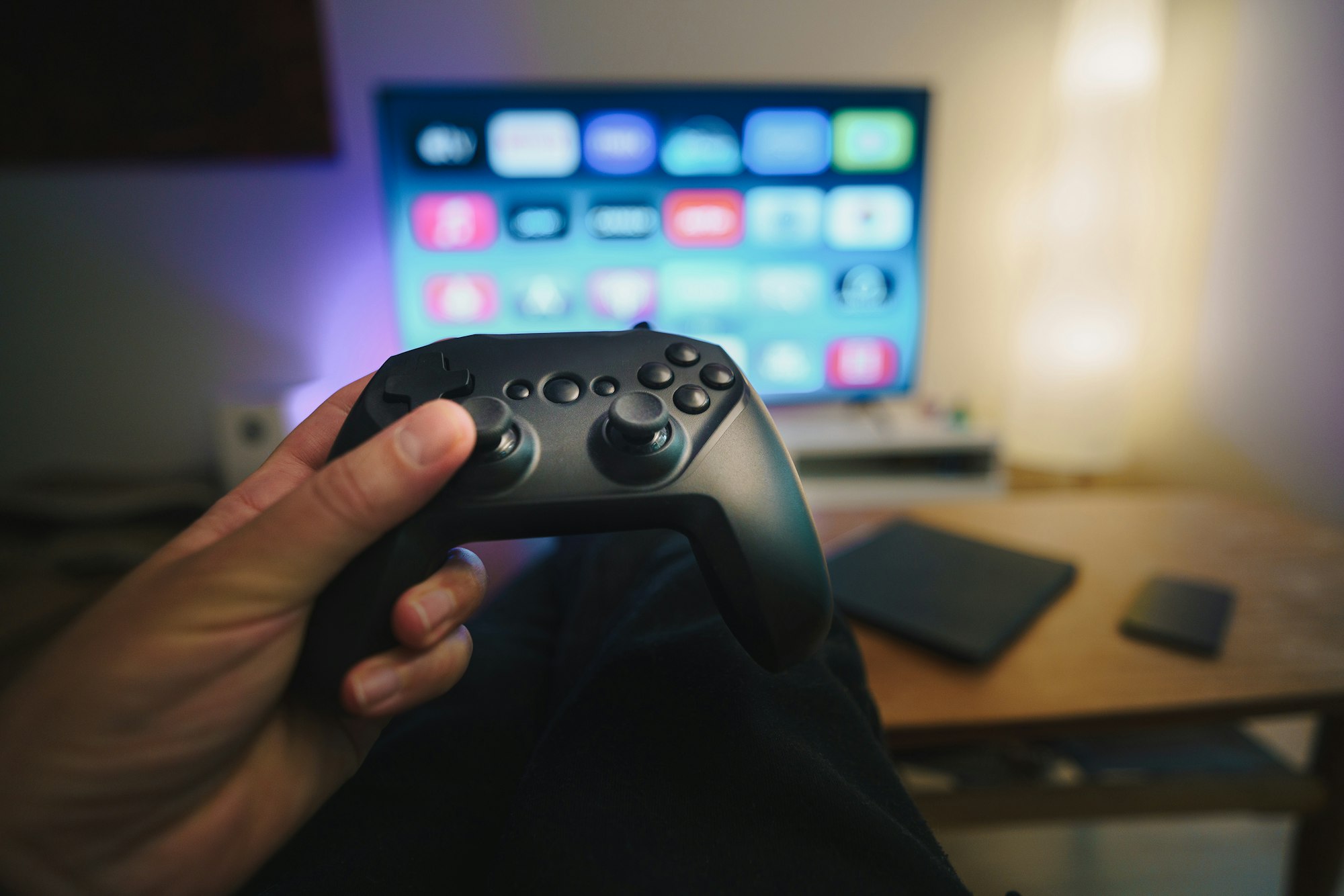
How to use your phone as an Xbox Cloud Gaming controller
The headline feature makes playing on a smart TV much more convenient because you no longer need a physical gamepad nearby. It works with supported Android and iPhone devices.
- Open the Xbox app on a supported Smart TV and go to Settings > Account.
- Turn on Preview Features.
- Launch a supported cloud game without a physical controller connected.
- Choose the option to use your phone as the controller for that session.
- Scan the QR code on your TV with your phone. The controls open in your phone’s browser.
Some games have controller layouts tailored to how they play. The feature is rolling out on supported TVs in every country where Xbox Cloud Gaming is available, but because it’s still in preview, game and device support may vary.
If something doesn’t work, you can tell Microsoft: tap the Xbox icon in the top-left corner of your phone and select Give Feedback.
How to use Cloud Connect with the Xbox Nano Controller
The second feature is aimed at people who want cloud games to feel more responsive.
Normally, a wireless controller connects to your TV over Bluetooth, and the TV then talks to the cloud server running your game. Cloud Connect cuts out that middle step. It lets Microsoft’s new $49.99 Xbox Nano Controller connect directly to the cloud server over Wi-Fi, which may reduce input lag.
To set it up:
- Use the Xbox beta app on Android or the Xbox Accessories app on PC. PC setup requires Xbox Insider enrollment.
- Follow the instructions to connect your Nano Controller to your Wi-Fi network.
- Open a supported Xbox Cloud Gaming experience on your Smart TV or in a web browser, and sign in with the same Microsoft account you used during setup.
There are some important limits. Cloud Connect is only available in the US for now; it only works with the Xbox Nano Controller, and Microsoft calls it “an early test," so it won’t work with every cloud gaming experience yet. Microsoft’s Cloud Connect guide has the full details.
New to Xbox Cloud Gaming? Here’s how it works
Xbox Cloud Gaming is Microsoft’s game-streaming service. Instead of installing games on your device, Microsoft’s servers run them and stream the gameplay to your screen.
Think of it as watching a movie on a streaming platform, except you’re controlling everything that happens on screen in real time.
That means no downloading tens of gigabytes or worrying about storage space. Your progress also follows you across supported devices, so you can pick up where you left off when you switch screens.
What you need to play:
Subscribe for free to continue reading this article
Subscribe SubscribeAlready have an account? Log in